Extended Search
The general starting point for finding various objects is the extended search. Using extended search Knowledge Base articles, configuration items (CIs), expenses, tasks, and tickets can be found.
Short instruction
Chapters:
The Extended search is located in the upper menu bar under the magnifying glass.
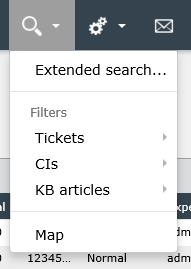
If the menu item Advanced Search ... is selected, an empty search dialog opens in which a new search can be configured.
Tip:
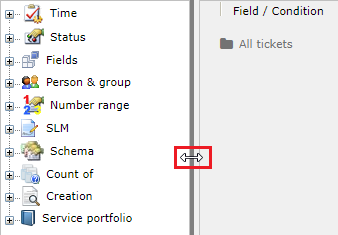
The search dialog has a splitter that divides the window into two areas of variable width or height. It can be moved with the mouse to change the size of the areas. 
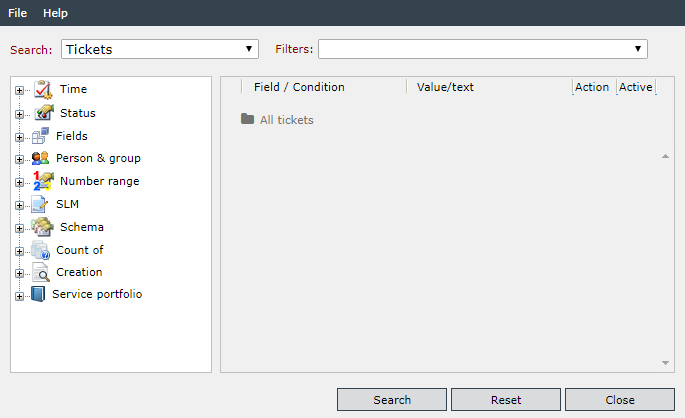
The elements to be searched can be configured via the drop-down list top left. If there are search templates available for these elements, they can be selected in the drop-down menu on the right next to it. If a search is needed repeatedly, it can also be saved vie the Save template button, which will be faded in as soon as a search has been compiled. Saved search templates can be customized afterwards as well. Select a search template and the individual parameters will then be displayed in the search dialogue and can be adjusted there.
If the search is set to tickets, the gray parameter All Tickets is always integrated into the search. A click on it opens the so-called search folders:
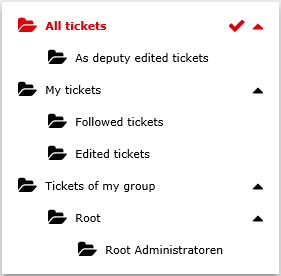
Here you can select different preset search folders, in order to restrict the search already in advance. If the root administrators folder is selected here in the example, all subsequent configured search parameters are only applied to the subset of the folder.
Note:
The subset of the search folder My Tickets is defined by the user's personal settings.
The search folders below the tickets of my groups are defined by the membership of the logged in user. Each group in which the user is located is listed here and can be selected individually.
The various search parameters can be selected in the tree view on the left. Search parameters that can be sub-divided, like Ticket ID Range, can be expanded and then will display several sub-parameters (in this example the various numerical ranges for tickets). If one of them is selected with a click, it will automatically be transferred into the array on the right and can be configured more closely there.
Already configured search parameters will also be displayed in form of a table there. Under Field/Requirement, the parameter name will be displayed. Simultaneously, you can select the relation of the parameter’s value to the search result there.
The parameter’s value can be entered under Value/Text. This can be accomplished via drop-down menus, normal text entries, or the like.
With the checkbox in the Active column, search parameters can either be excluded from the current search or included in the search. If different search parameters are selected, they are connected by default with an AND link. If an OR operation takes place, click on the logical operator. It then changes to the opposite. By means of the green plus symbol, it is possible to add additional fields to a search parameter. These are always linked by OR. Using the red cross, individual search options can be removed within a search parameter. The entire search parameter is removed by means of the basket icon.
It is also possible to change the sequence of already configured search parameters. To do this, click on the left margin of each parameter. By pressing the mouse button, each search parameter can be moved up or down in the order (drag and drop).
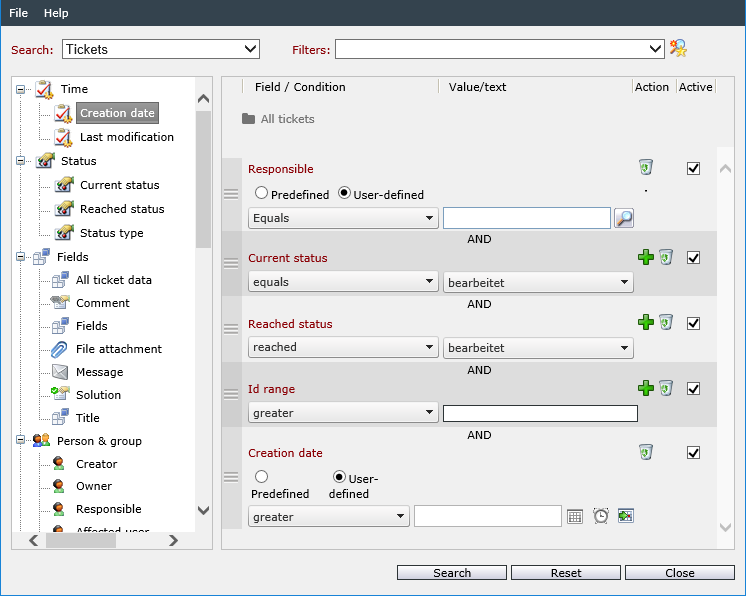
When all search parameters have been entered, the search can be started with a click on the Search button.
The correspondingly searched items (here: tickets) are displayed in a list.
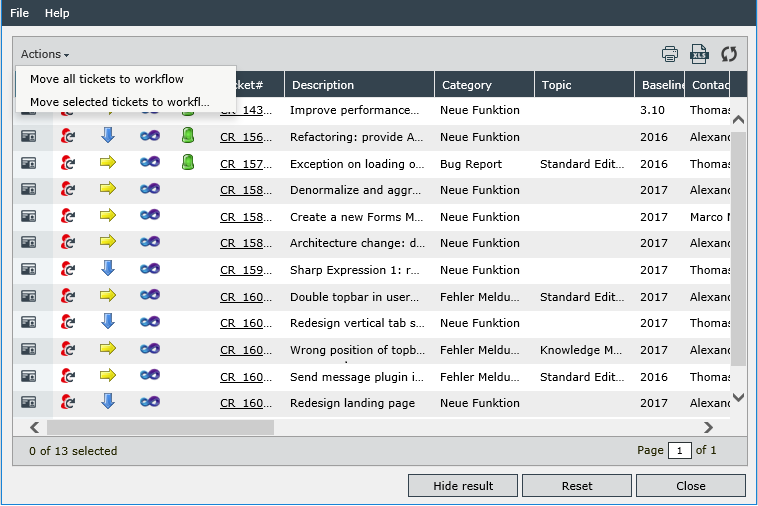
If the user has the authorization for Batch processing (see also Related Topics), it is possible to move several elements into a workflow at the same time using the action menu.
Choose Hide result to return to the search parameters.
If another search is to be conducted with new search parameters, the Reset button can be used. All of the already created search parameters, however, will be deleted by this.
The Close button closes the entire window without conducting a search.
The individual search parameters will be explained in the following.
Note:
Search keys that check for the number of linked entities, do not check the authorization level of the current user on these entities, but only whether internally or externally linked entities are visible for the user executing the search. For this reason, it is possible that ,when searching for tickets that are linked to at least 3 expenses, also tickets are displayed the current user is allowed to only see one or two expenses of.
Starts with: Searches the fields for the entered text. If a field’s content begins with this particular value, the condition is fulfilled and the object will be displayed.
Doesn’t start with: Searches the fields for the entered text. If a field’s content does not begin with this particular value, the condition is fulfilled and the object will be displayed.
Including: Searches the fields for the entered text. If a field’s content contains this particular value, the condition is fulfilled and the object will be displayed.
Note:
The use of wildcards only leads to the desired result at the end of a term, while the leading use does not show search results. Furthermore, you should only search with complete prefixes of words.
Example:
Search for "DE_0000" in a text (word is so contained in it).
- "DE_0000" = successful
-
"DE" = successful
- "DE_" = successful
- "DE_*" = successful
- "E_" = unsuccessful
- "*E_0000" = unsuccessful
The wildcard * is always added automatically at the end of the search string. This makes it possible to work with wildcards even with several words in the search string.
Example:
Text: "My dark brown Mercedes Cabrio with the license plate DE_0000"
Search string: "dar* licen* DE_0000"
Search string used: "dar* licen* DE_0000*"
Excluding: Searches the fields for the entered text. If a field’s content does not contain this particular value, the condition is fulfilled and the object will be displayed.
Contains data: Searches the fields for contained data. If a field contains data, the condition is fulfilled and the object will be displayed.
Contains no data: Searches the fields for contained data. If a field does not contain data, the condition is fulfilled and the object will be displayed.
Creation date: Searches the fields for the entered date value. If a field contains this date, the condition is fulfilled and the object will be displayed.
Equals: Searches the fields for the entered values. If a field contains exactly this value, the condition is fulfilled and the object will be displayed.
Not equals: Searches the fields for the entered value. If a field does not contain this value, the condition is fulfilled and the object will be displayed.
Greater: Searches the fields for the entered value. If a field contains a value greater than the entered one, the condition is fulfilled and the object will be displayed.
Greater or equal: Searches the fields for the entered value. If a field contains a value greater than or equal to the entered one, the condition is fulfilled and the object will be displayed.
Smaller: Searches the fields for the entered value. If a field contains a value smaller than the entered one, the condition is fulfilled and the object will be displayed.
Smaller or equal: Searches the fields for the entered value. If a field contains a value smaller than or equal to the entered one, the condition is fulfilled and the object will be displayed.


 Copyright (c) 2000-2026 Isonet AG