News
The News menu allows for the administration of internal news and announcements as articles. These articles will be displayed either in the activity list of the respective user or generally on the 446 Plattform® login screen after publication.
The news settings page can be accessed via Settings > Messaging & Collaboration > News.
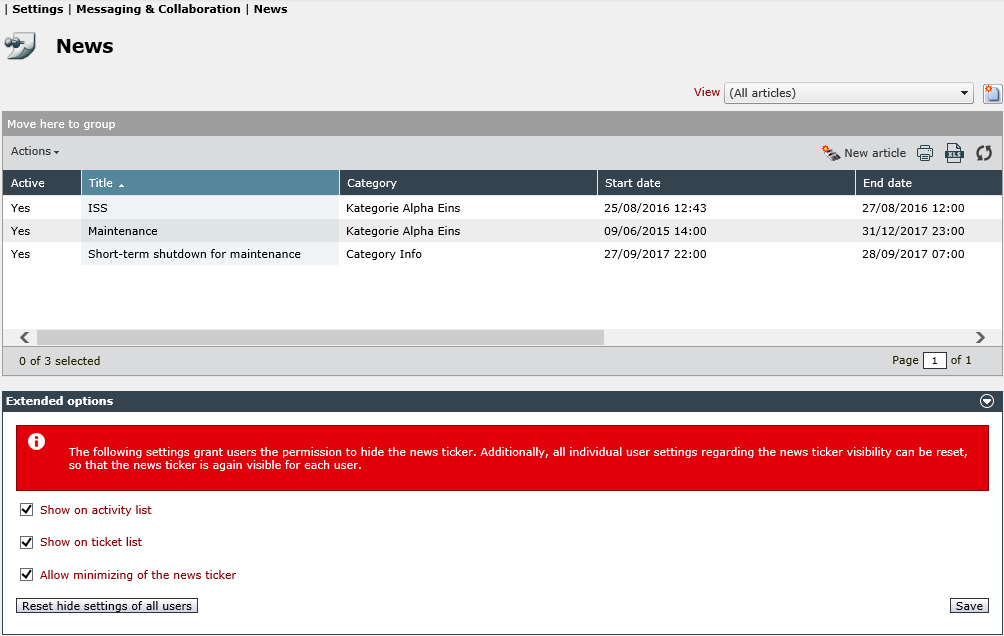
The extended options at the bottom provide a general configuration of the news ticker for all users in the activity list. Minimizing the news ticker can be either allowed or disabled and the individual settings for all users can be reset, for example, if important information for all users is to be always displayed.
News Categories
Above the news list, on the right side of the screen, various news categories can be created and managed. Apart from the already created categories, the option (All articles) can be selected from the drop-down list. After selecting this entry, all news articles irrespective of their individual category will be displayed in the list. The categories allow for a logical grouping of news items and the assignment of global rights on selected articles.
The following buttons are available for the view:
| Icon | Description |
|---|---|

|
Create new News categories. |

|
Delete News categories. |

|
Modify existing News categories. |
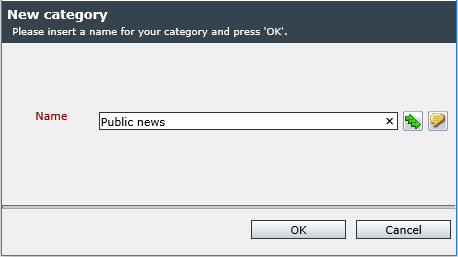
Via a click on the button New category, a dialog is opened, in which new categories can be created. As the categories are only used for grouping the news articles, only a name for the category is to be entered here. A click on OK creates the news category.
Note:
Before news articles can be created, at least one category for these articles has to be created first.
Creating and Editing Articles
By clicking on New article, a new article can be created. Alternatively, the dialog for editing an article can be opened via a double-click on an existing news item.
The following options are available in this dialog:
Active: If this checkbox is activated, the article will be displayed on the login screen or in the activity list.
Name: This text box contains the article’s title. The name will not be used in the article later on, but is necessary for the permissions and the display in the news list. If multiple languages have been activated on the system, the localization buttons will be displayed and the name can be entered in all active languages.
Note:
During the naming process, the system checks whether the name already exists. Please note that the name is case-sensitive.
Category: One of the categories created before has to be specified for the article here.
Start and End date: The start and end date define the period, during which the article is to be displayed. Outside of this period, the article will not be displayed. Both of these fields are mandatory and have to include a date and time.
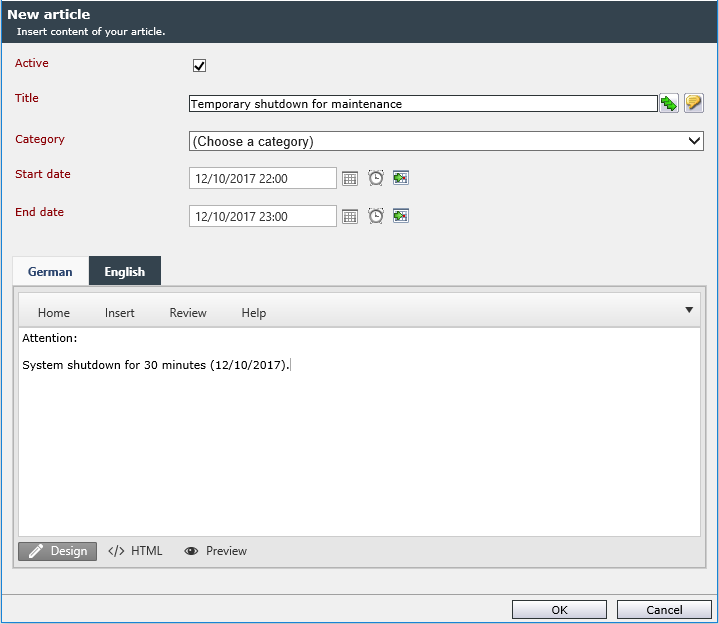
Language tabs: The language tabs allow for entering a text as it is to be displayed. In doing so, the text can be either formatted via the controls displayed after clicking on the pencil symbol in the bottom left corner of the dialog or entered as an HTML code (button <>) directly. A preview can be displayed by clicking on the magnifying glass icon.
Publishing News Articles
The visibility of an article is controlled by the following three parameters:
- Activated/Deactivated: If an article is not marked as active it will generally not be displayed.
- Start and end date: Before and after this period defined within the article, an article is not visible.
- Access rights: An article will only be displayed to a user group with the permission to view the article.
Warning:
The three parameters are always combined. Thus, only activated news articles will be displayed within the specified time period to users with the permission to view news articles.
The access rights are determined under Settings > User Management > User Management on the News tab. The dialog Permissions of a group defines the visibility for every category and every news article individually (see also Related Topics).
On the login screen, articles configured for display for the top group (root group) in the permissions management (hierarchy view) are displayed to everyone. Articles displayed on the login page will be displayed after the user’s login in the news ticker of the activity list as well.
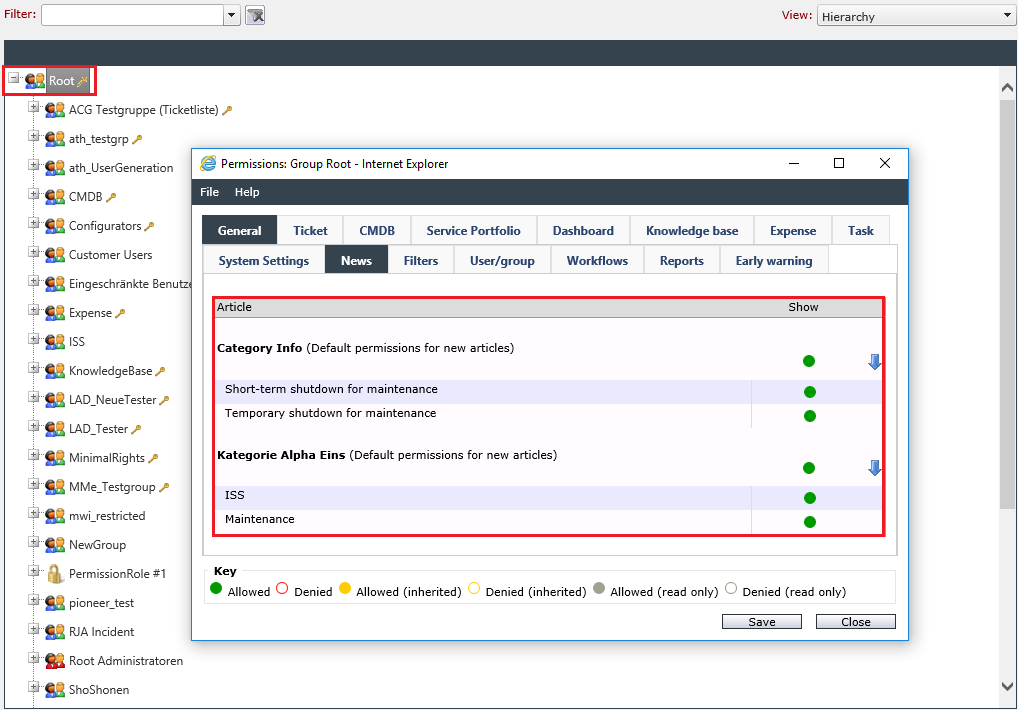
The recently created news article can be displayed publicly with these settings, as long as it is activated and the current date lies within the specified time period. The article is simultaneously displayed in the news ticker of the activity list.
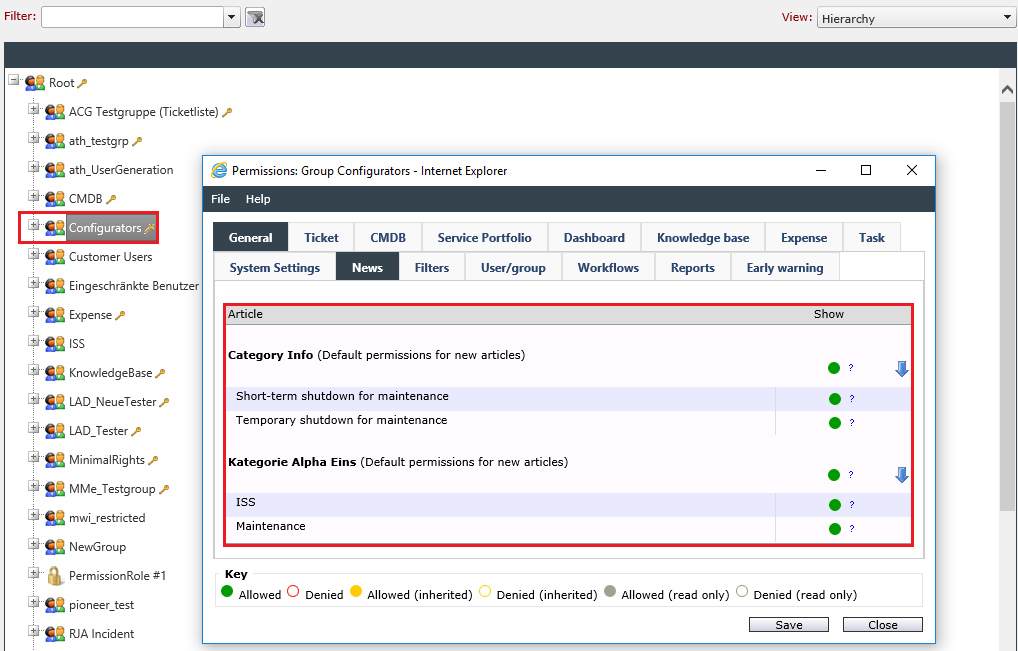
With these settings, the article is only displayed internally for the group Configurators in the activity list.


 Copyright (c) 2000-2026 Isonet AG