Searching for Expenses
The following search parameters can be used in the search for expenses:
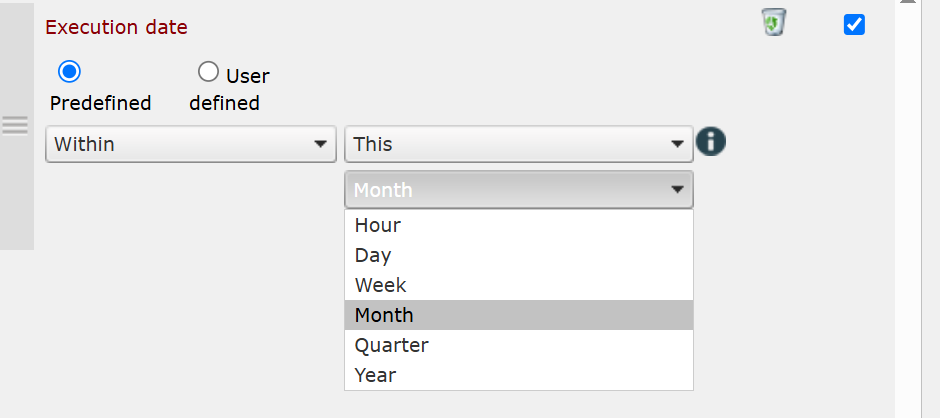
Execution date: Expenses will be searched for their execution date. You can select Greater, Greater or Equal, Smaller, Smaller or Equal, Equal, or Not Equal as a condition. As a value, a date and a time have to be entered here.
It is also possible to choose predefined time values for the above search parameter. For this purpose, it is necessary to switch from User-defined to Predefined. You can then select the conditions Today, Yesterday, Previous, or Coming. For example, you can select Coming Week.
Expense ID: Expenses will be searched for their ID (Expense#). The expense’s ID is comparable to the ID range of a ticket, only without a prefix character string. Including and Excluding can be set as a condition. Only numbers can be entered as a value.
Project: Expenses will be searched for their corresponding project. Select Equal or Not equal as a condition. As a value, the project searched for can be selected from a drop-down list.
Cost center: Expenses are searched for their corresponding cost center.
- Field name: If the cost center contains additional fields, expenses connected to the respective cost center can be searched. Enter the desired field name.
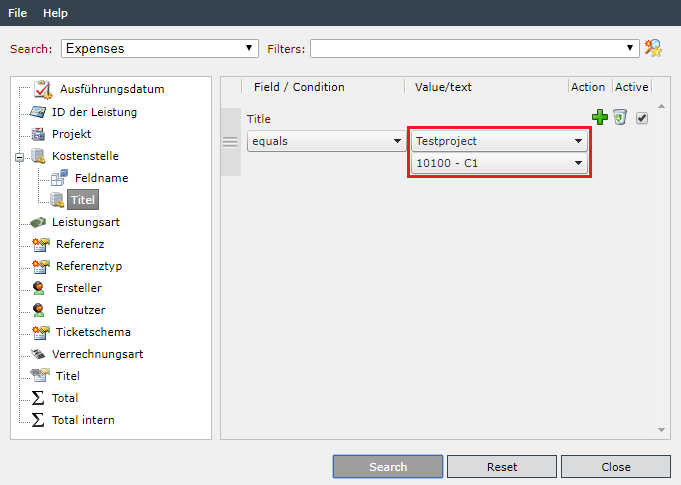
- Title: The system searches for activities that are linked to a cost center of a particular project and that correspond to the names entered. The project and the required cost center are selected from a drop-down list.
Select respectively Equals or Not equals as a condition.
Expense type: Expenses will be searched for their corresponding expense type. Select Equal or Not equal as a condition. As a value, the expense type searched for can be selected from a drop-down list.
Reference: If an expense created from a task or ticket and thus linked to it is to be searched, the ID of this ticket or task can be entered here. Equal and Not equal are available as a condition here.
User: Expenses will be searched for their corresponding user (creator). Equal and Not equal are available as a condition here. As a value, a user can be selected in a user browser.
You can also search for the currently logged in user by clicking Person & group in the tree or by selecting one of the user types. By clicking Predefined you can search for the currently active user. The search conditions available are Equals and Not equals.
Ticket schema: Expenses are often created via a certain ticket schema. Select Equal or Not equal as a condition. As a value, one of the available ticket and process schemas can be selected.
Allocation type: Expenses will be searched for their corresponding allocation type. Select Equal or Not equal as a condition. As a value, the allocation type searched for can be selected from a drop-down list.
Title: The expenses‘ title will be searched. Enter Including or Excluding as a condition and the character string contained in the title as a value.
Σ Total: With this, the total of the underlying formula of the respective expense type and the allocation type of the expense can be searched. You can select Greater, Greater or Equal, Smaller, Smaller or Equal, Equal, or Not Equal as a condition. Only numbers can be entered as a value.
Σ Total internal: With this, the total of the underlying formula of the respective expense type and the allocation type of the expense can be searched. Because the internal and external totals can differ, this search parameter is available as well. You can select Greater, Greater or Equal, Smaller, Smaller or Equal, Equal, or Not Equal as a condition. Only numbers can be entered as a value.


 Copyright (c) 2000-2026 Isonet AG