Permissions - General
On the General tab, the permissions can be configured for:
System Settings: Mostly security settings are made here.
News: Permissions to articles informing users about news and announcements can be specified here.
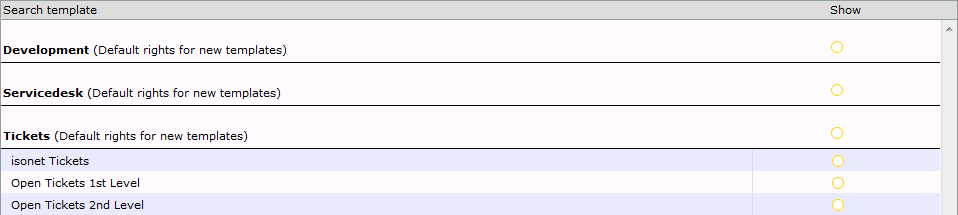
Search templates: Permissions to search templates that have been created via the Extended search can be configured here.
User/Group: Special permissions of groups to groups can be configured here.
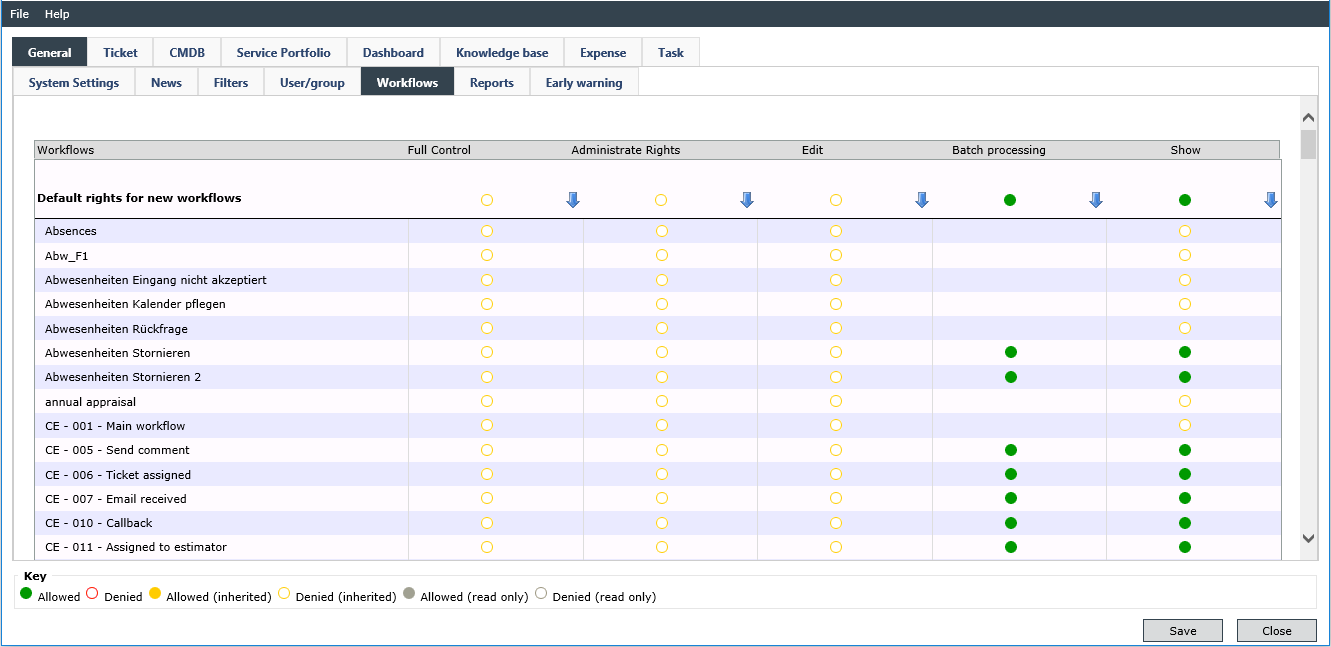
Workflows: Permissions to existing workflows or default values for new workflows can be assigned here.
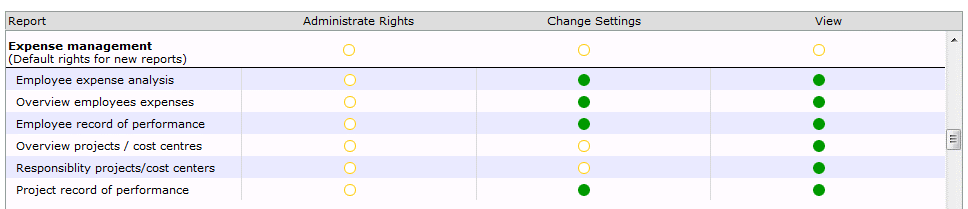
Reports: Permissions to reports and default settings for new reports for groups can be defined here.
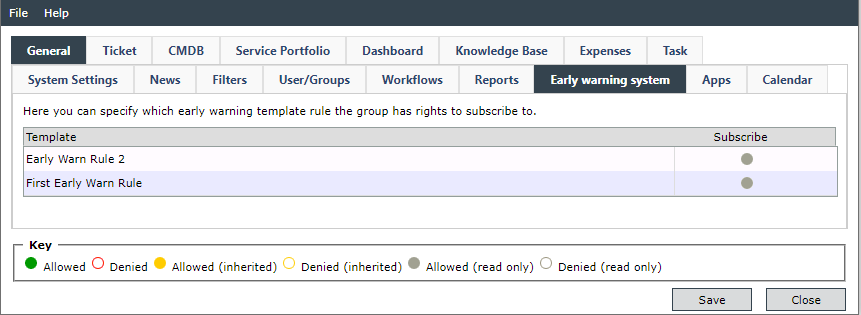
Early Warning: Permissions to early warning rules can be configured here.
System Settings
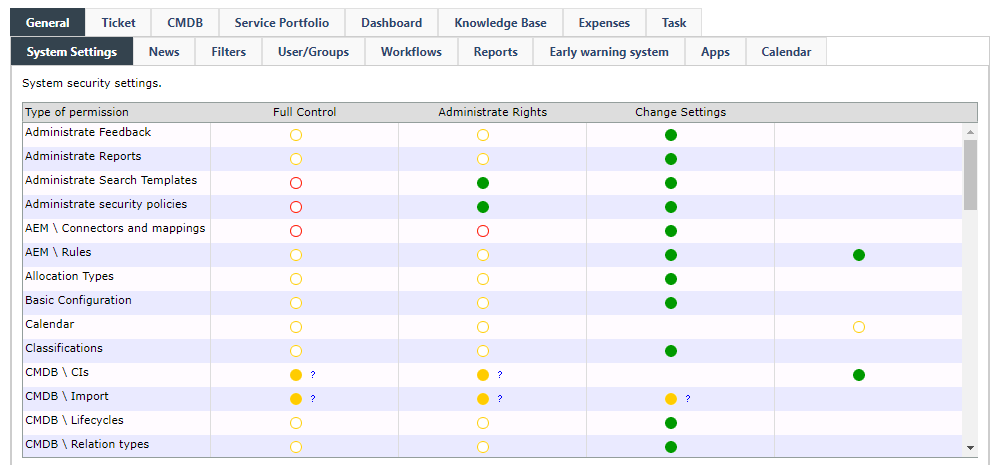
On the System Settings tab, mainly security settings are made, e.g. which user group can see and use which module configurations.
If not mentioned otherwise, the permissions Full Control and Administrate Rights have the same functions everywhere.
In general, the Show permission only allows for displaying functions. If an option is to be edited by a user group as well, the permission type Change Settings or similar is to be selected.
In addition, with configured Navigation Extensions you are free to change the permissions for the extension here:

Within 'Location of use' you see the registered location where the extension will be displayed:
-
Left Menu (446 Plattform only)
-
Top Menu (446 Plattform Mobil only)
-
Top User Menu (446 Plattform Mobil only)
More information regarding the setup of Navigation Extensions can be found in Extension of the left navigation menu with custom buttons and Integration into the 446 Plattform® user interface.
When the permissions of a group are accessed, the system settings are displayed first. Whenever an individual permission is to be changed, a simple click on it will suffice.
The feedback is displayed under Settings > Messaging & Collaboration > Feedback.
If this function is active, group members can perform additional tasks under Settings > Reporting.
The search templates can be managed under Settings > Administration > Search Templates.
The security policies can be managed under Settings > Administration > Security policies. 
This option enables the access to connector configurations and to the event ticket mapping management under Settings > Event Management.
This option allows for managing filter and value rules under Settings > Event Management.
Users gain access to Settings > Expense Management > Allocation Types and can create new allocation types there as well as edit or delete existing ones.
This permission allows access to Settings > Administration > Apps registration. This rule can only be applied if all tenants have been selected.
The user can perform changes under Settings > Administration > Basic Configuration, if this option is active.
To view the calendar module, the Calendar permission is required.
The ticket classifications can be accessed via Settings > Ticket Management > Classifications .
If this option is activated, the CMDB in the bottom bar next to the home page button will be available for every user of the group. The entries contained in it, however, cannot be viewed without configuring further permissions for the respective group first.
To grant access to CI import settings and for the creation of new CI imports this option has to be set. Within CMDB > CI import you can define more precise permissions for this setting and individual imports afterwards.
CIs can be searched in the extended search via Tools > Extended Search. However, only configuration items the user has the permission View on will be displayed.
If this option is activated, the user will have access to the settings under Settings > Configuration Management (CMDB) > CMDB Life cycles.
The configuration for relation types in the CMDB can be edited under Settings > Configuration Management > CMDB relation types.
With this option, the users gain access to Settings > Configuration Management (CMDB) > CMDB Schemas and can create new schemas as well as edit or delete existing ones there.
Via this permission, widgets can be accessed under Settings > Dashboard widgets. Furthermore, categories can be created and managed. This permission does not apply to already existing categories and widgets. For them to be editable, further permissions are necessary.
Via this permission, the DataViews under Settings > Administration > DataView Management can be edited.
If this option is active, users of the current group can execute actions under Settings > Workflow Management > Dispatching & Rule Management.
The dynamic placeholders are displayed under Settings > Messaging & Collaboration > Dynamic Templates.
Users can create new rules under Settings > Service Level Management > Early Warning System.
If this permission is activated, expenses can be searched via the extended search in the top menu under Tools.
Users in this group have the option to generate new expense types and to edit or delete existing ones under Settings > Expense Management > Expense Types.
New information articles can be created, deleted, edited, and the extended options changed under Settings > Messaging & Collaboration > News.
If this permission has been activated, Knowledge Base articles can be searched via the extended search in the top menu under Tools.
The landing page configuration is managed under Settings > Administration > Landing page configuration.
Users can create and edit accounts under Settings > Messaging & Collaboration > Mail2Ticket.
The users gain access to Settings > Administration > Maintenance and can change all of the settings there.
This permission allows for managing categories for master data under Settings > Administration > Master Data Management > Categories.
This permission allows for managing master data under Settings > Administration > Master Data Management > Master Data.
If this option is active, users have access to Settings > Messaging & Collaboration > Schemas for Messaging. In order to be able to work with them, however, further settings have to be made.
Users have access to the templates for messages under Settings > Messaging & Collaboration > Templates > Templates for Messages and Notifications. New templates can be created or existing ones edited there.
The Expenses button will appear on the left. The expenses can be accessed and new expenses can be generated there.
The button Tasks will be available in the side bar. Via this button, the task stage can be accessed. For users of a group to be able to create tasks, however, further permissions have to be configured.
The button Tickets can be found in the side bar. However, further permissions have to be activated for members of a group to be able to generate tickets.
If this option is active, users can create projects under Settings > Expense Management > Projects. However, in order to view the projects or edit them later on, further settings have to be made.
If this function has been activated for a group, every user in the group can change and add report types under Settings > Reporting. It is, however, not possible to view reports.
The user gains access to Settings > Service Level Management > Service Level Management (SLM) and can create, edit, and delete contracts there.
Via this option, the user gains access to the Service Portfolio. It can be accessed via the button Services in the side bar. If the permission Change settings has been activated, the management of the Service Portfolio will be additionally available under Settings.
Allows access to the settlement date in Expense Management for all members of a group.
If this permission has been configured for a group, users of this group can search for tasks via the extended search under Tools in the top menu.
Via this permission, the task life cycles can be edited under Settings > Task Management > Task Life Cycles.
Via this permission, task schemas can be managed under Settings > Task Management > Task Schemas.
Via this permission, the task statuses can be edited under Settings > Task Management > Task Statuses.
Via Tools, tickets can be searched for with the extended search.
The access to the entry Map is enabled in the search menu. Tickets showing the geographic location are displayed by Google Maps.
The users gain access to Settings > Ticket Management > Ticket Conversions and can manage the ticket conversions there.
The users gain access to the numerical ranges for tickets via Settings > Ticket Management and can edit them there.
The users gain access to Settings > Ticket Management > Ticket Schemas.
The users gain access to Settings > Ticket Management > Ticket Statuses and can change the settings there.
The users gain access to Settings > Ticket Management > Ticket Templates and can manage ticket templates there.
The users gain access to Settings > Ticket Management > Ticket List Management and can change the display of the ticket list there.
The users gain access to the User Management. Without further permissions, only groups and users can be assigned to groups.
This right makes it possible to control the access to the register Deputy in the user profile of all group members.
Short instruction
Access to the Groups tab in the user profile of all group members is controlled.
Control access to the Messages tab in the user profile of all group members.
This right makes it possible to control access to the Permissions tab in the user profile of all group members.
It allows to control the access to the register Subscriptions in the user profile of all group members.
Control access to the Text module tab in the user profile of all group members.
The users gain access to Settings > Workflow Management > Workflow Management and can create workflows there. Individual workflows, however, will only be displayed on the Workflows tab after further settings have been made.
News
Here, it is possible to define, which information and news will be displayed to which group. Pre-settings, which will influence any newly created news item in this category but not the already existing ones, can be made for categories. For already existing news items, a selection can be made for each one individually below the categories.

Filters
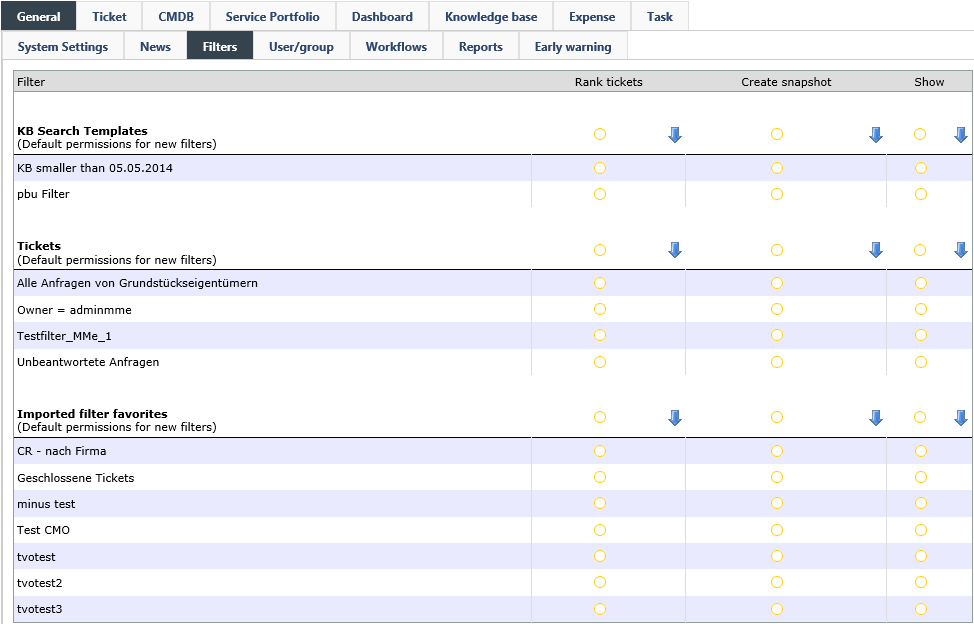
Search templates created via the extended search can be enabled for the currently selected group.
Under User/Group it is possible to define whether the currently selected group can exercise rights on certain other groups. If, however, a user is selected for display, permissions will only be displayed but cannot be changed.
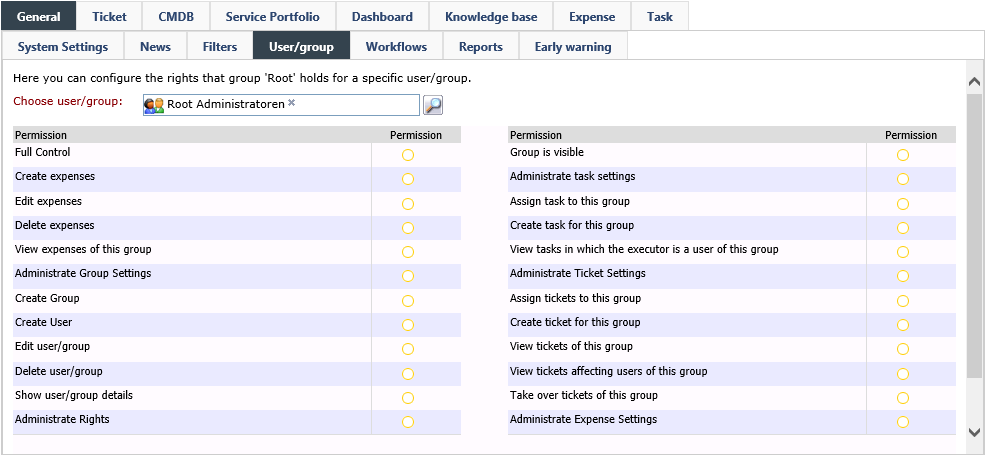
Via Choose user/group, the group to be edited can be selected. Via Configured the already configured groups can be displayed.
Full control: All permissions will be set to Allowed.
Create expenses: Expenses can be created for a certain group.
Edit expenses: Expenses can be edited for a certain group. (Simultaneously, the permission View expenses of this group will be activated, as the expenses cannot be accessed otherwise).
Delete expenses: Expenses can be deleted for a certain group.
Administrate Group Settings: This permission sets the following permissions to Allowed: Create Group, Create User, Edit User/Group, Delete User/Group, Show User/Group Details.
View expenses of this group: Expenses created for or by this group can be viewed.
Administrate group settings: Activates the following five permissions: Create group, Create user, Edit group, Delete group, Show group details.
Create group: Groups can be created within the selected group.
Create user: Users can be created within the selected group.
Edit user/group: The Edit function can be accessed via the User Management for the selected group.
Delete user/group: A group can be deleted.
Show user/group details: In the details of a ticket, several groups will be displayed, e.g. under current owner or affected user. If this permission is activated for a certain group, its overviews can be displayed via a double click on this group.
Administrate rights: All permissions except Full control are set to Allowed.
Group is visible: The group is visible (e.g. in the user browser). If this permission is deactivated, all the other permissions will be set to Denied simultaneously.
Administrate task settings: The following two permissions will be set to Allowed.
Assign task to this group: If the action Assign task has been configured for a task schema, the task can be assigned to the group via this permission.
Create task for this group: A task can be created for the respective group. Users in this group can thus be set as executors.
View tasks in which the executor is a user of this group: Via this permission, all members of the group can see the tasks whose executor is a member of the selected group. This permission affects the task list and the extended search as well.
Administrate ticket settings: The following permissions will be set to Allowed: Assign tickets to this group, Create ticket for this group, View tickets of this group, View tickets affecting users of this group, Take over tickets of this group.
Assign tickets to this group: The action Assign can be executed on the currently selected group in a ticket.
Create ticket for this group: Tickets for the selected group (with a user of the group as affected user) can be created.
View tickets of this group: Tickets belonging to the group can be viewed.
View tickets affecting users of this group: If users of this group are affected by a ticket, these tickets can be viewed via this permission.
Take over tickets of this group: All tickets belonging to a certain group can be taken over.
Administrate expense settings: If this permission is enabled, a user group can administrate the expense settings (expense types and projects) for another group. This is, however, only possible, if the permission User Management has been activated in the system settings for this group as well.
Edit Deputy: When this setting is enabled, a user group can define and manage deputies for members of another group. An additional tab for deputy information is displayed in the user details dialog to facilitate this process.
Distinctive Features of "Administrate Rights" and "Full Control"
If a group A has the permission Administrate rights for a certain option and a group B is selected on the User/Group tab, group A can pass on to or deny group B the permissions Change settings and, if applicable, View.
If a group A has the permission Full Control and a group B is configured on the User/Group tab, group A can pass on the permissions Administrate rights, Change settings and, if applicable, View to group B for the selected options. Thus, group B can pass on the permissions Change settings and, if applicable, View to a group C. Group C, however, cannot pass on any permissions.
Example:
In the following example, a test group has received full control over the group User CMO (Isonet) on the User/Group tab.
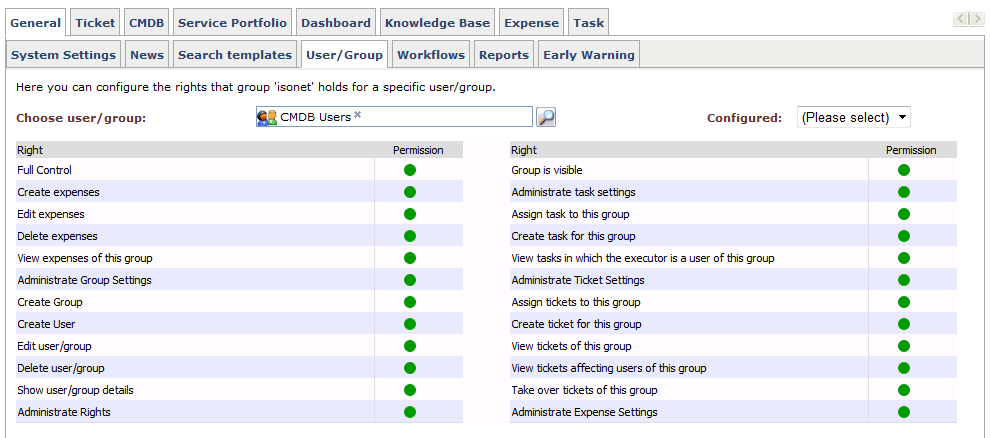
Simultaneously, full control is activated for all CMDB-relevant permissions under System settings and the access to the User Management enabled:
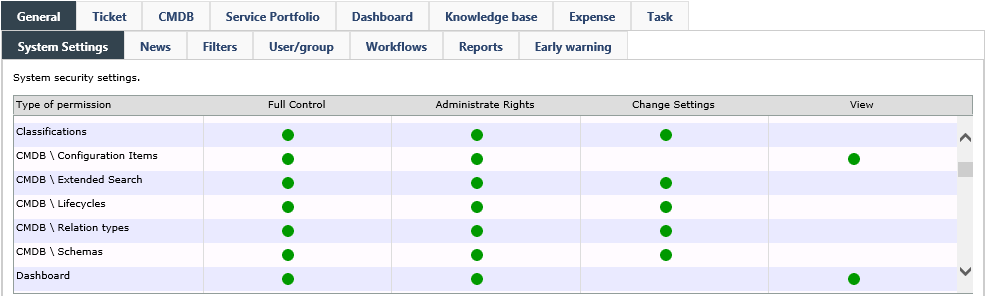
So, if a user in the test group is logged in, he does not only have access to the CMDB settings and the CMDB as such, but also to the access permissions of the group CMDB users.
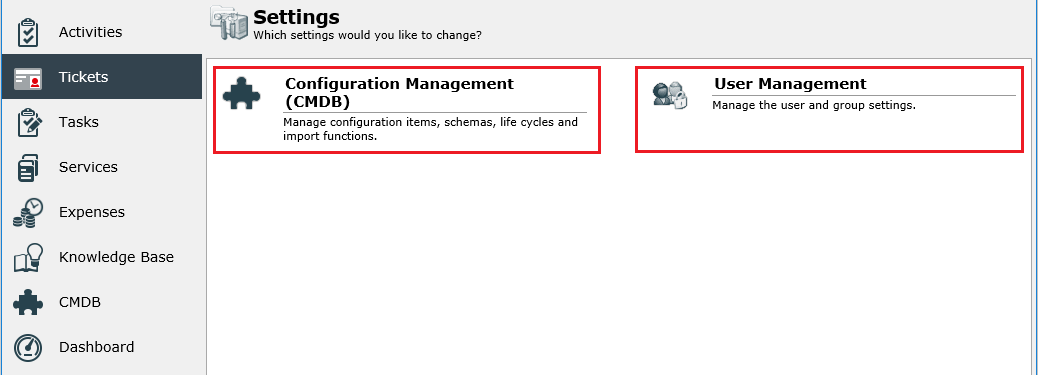
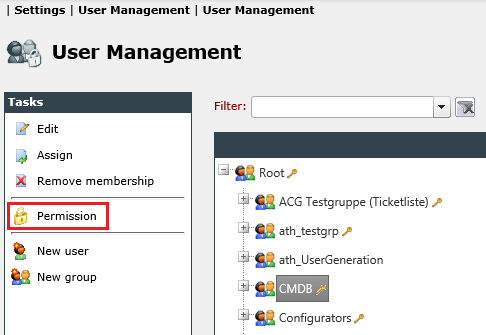
All permissions the test group has Full control to can now be passed on with the permissions Administrate rights or lower:

Note:
As the group Testgroup has been given full control over the group CMDB Users as well, it could assign it with more permissions under User/Groups than may be desirable.
This setting grants access to the workflows under Settings > Workflow Management > Workflow Management. The following permissions can be set for existing workflows or as a default for new workflows:
Full control/Administrate rights: See User/Group.
Edit: Workflows will not only be displayed, but can be edited by using the Workflow Designer tool or the web interface as well.
Batch processing: The user is permitted to move several tickets, configuration elements, knowledge articles or expenses into an event workflow at the same time. The maximum number of elements that can be processed simultaneously is set in the global configuration.
Show: The workflow will be displayed for group members in the Workflow Management.
Reports
The Reports tab allows for configuring which user groups can view reports. The reports can be accessed by selecting Reports from the module links at the bottom of the screen.
A permission that is only set to Allowed for the entire reporting group does not affect the permissions of individual, already created reports. For new reports in this group, however, all permissions set for the entire group will be set to Allowed automatically and enable users to access them. If the settings for all created reports in a category are to be changed, double click on the permissions of this category. Thus, all reports will receive the same permission settings.
Early Warning
On the Early warning tab, it is possible to specify for groups, to which early warning rules saved as a template previously their group members can subscribe. If a user will subscribe to one of these rules later on, he will receive an e-mail notification as soon as the early warning system will be triggered.
Apps
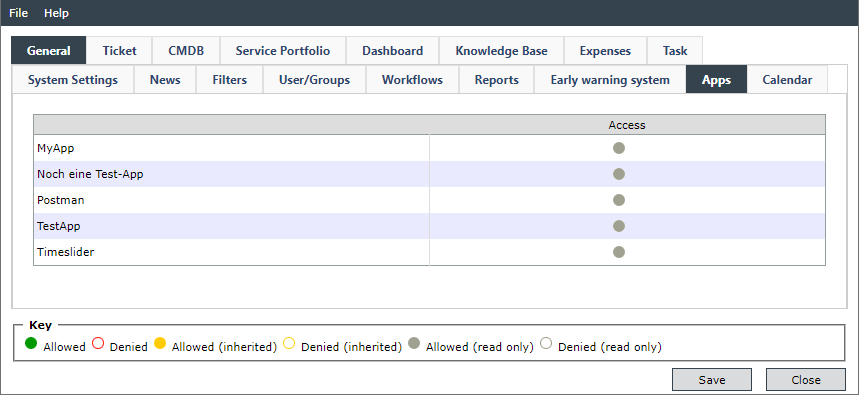
The Apps tab lists the installed applications and manages access to them.
Calendar
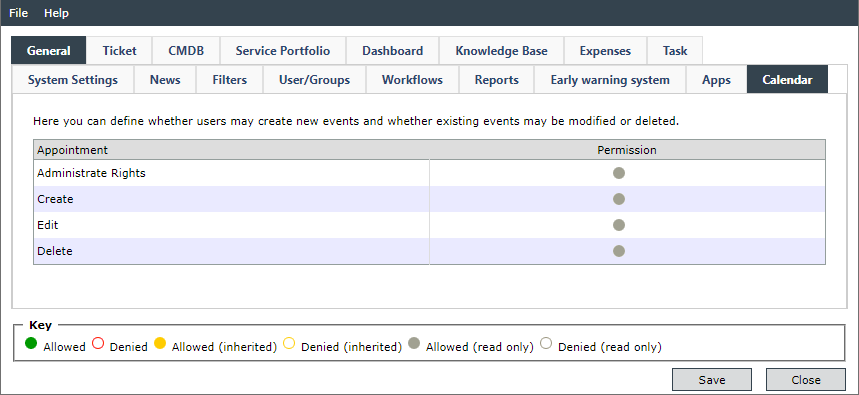
This tab lists the permissions for the corresponding actions to manage the calendar.


 Copyright (c) 2000-2026 Isonet AG