Searching for Tickets
The following search parameters are available for the type Ticket:
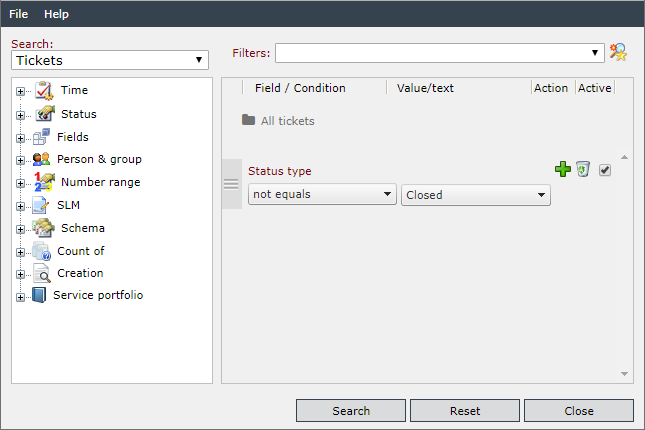
Time
Searching for tickets that meet time requirements:
- Creation date: Searching for tickets that have been created at a certain date. The condition to be selected can vary from Greater, Greater or Equal, Smaller, Smaller or Equal, Equal or Not Equal as a condition here. In the Value field, a date and a time have to be entered.
- Last modification: This is the time the ticket has been modified last, either by a user or by the system. The condition has the same options as Creation date. In the Value field, a date and a time have to be entered.
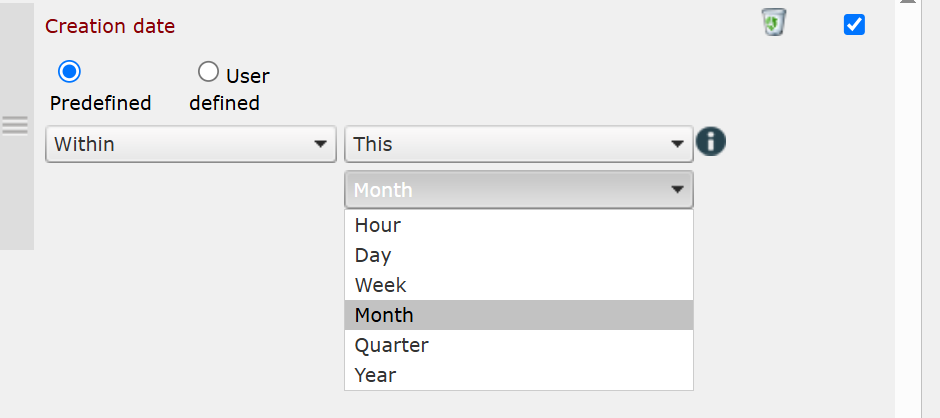
It is also possible to choose predefined time values. For this purpose, it is necessary to switch from User-defined to Predefined. You can then select the conditions Today, Yesterday, Previous, or Coming. For example, you can select Coming Week.
Status
Searching for tickets according to their status by considering the following criteria:
- Current status: The current status of the ticket is defined as a search criterion. The available conditions are Equals and Not equals.
- Reached status: The conditions available are Reached and Not reached. Depending on the existing statuses, various value selections can be made.
- Status type: Tickets will be searched for by means of a status belonging to a certain status type. The conditions available here are Equals and Not Equals. Select one of the preset status types as a value.
Fields
Searching for data according to the specific ticket fields mentioned below:
- All ticket data: All data available for tickets are searched. This includes the data in all tabs, such as in:
- Details
- Fields
- File attachments
- Messages
- History
- Comments
- Solutions
- Expenses
- ...
The condition that can be selected is Including.
- Comment: Ticket comments are searched according to a certain value. The available conditions are Including and Excluding.
- Fields: All ticket data on the Fields tab will be searched. The condition that can be selected is Including.
- File attachment: File attachments that are attached to tickets are searched. The condition that can be selected is Including.
- Message: Messages that are attached to tickets are searched according to the values mentioned in this field. The available conditions are Including and Excluding.
- Solution: The ticket solution is searched according to any value. The available conditions are Including and Excluding. Any value can be entered in the text field.
- Title: The ticket field that has been marked as the title field in every ticket schema is searched according to the values entered. Available conditions are Including, Excluding, Equals, Not equals, Starts with, Doesn’t start with.
Person & group
Searching for tickets that are in a certain constellation to a user or a group. If you click on Person & group instead of one of the sub-options, all of these user types will be searched. The conditions available are Equals and Not Equals in each case. The respective person can either be entered manually or be searched via a user browser (magnifying glass icon). Alternatively, the defined filtering option Equals or Not Equals and Logged in user can be used. The following five options can be found in the tree under Person & group:
- Creator: The creator of the ticket is searched.
- Owner: The current owner of the ticket is searched. Additionally, searching for owners can be constrained to Is user/group/team/process role resp. Is not user/group/team/process role.
- Responsible: Users or groups set as responsible for a ticket are searched
- Ticket follower: Searching for users that are set as ticket followers.
- Editor: Searching for tickets in which a certain user made modifications and, thus, affected a history entry in a ticket. The preset search allows for searching for tickets with the currently logged in user (Equal/Not equals) as editor; the user-defined search allows for searching for an arbitrary user as editor who is visible to the user (Equal/Not equals).
- Affected user: Searching for users that are set as affected users in a ticket.
It is also possible to search for the logged in user by selecting Person & group or any of the user types in the tree view. By clicking Predefined it is possible to search for the active user. The search condition can be either Equals or Not equals.
Number range
Tickets are searched according to their number range. The tree shows all ticket number ranges that are available on your system. The available search conditions are Greater, Greater or Equal, Smaller, Smaller or Equal, Equals, Not Equals. Please enter only numbers in the Value field.
SLM
Existing tickets are searched for the selected contracts, services and priorities.
- Contract: Tickets are searched for the selected contract
- Service: Tickets are searched for the selected service
- Priority: Tickets are searched for the selected priority
The available operators are Equals and Not Equals.
Schema
Select individual ticket fields from schemas, in order to search them specifically. The available conditions are Equals and Not Equals. It is furthermore possible to search the fields for Boolean values. For this purpose, there are two additional search parameters: Contains data and Contains no data. If text fields of a ticket schema are searched, the following search options are available: Including, Excluding, Starts with, Doesn’t start with.
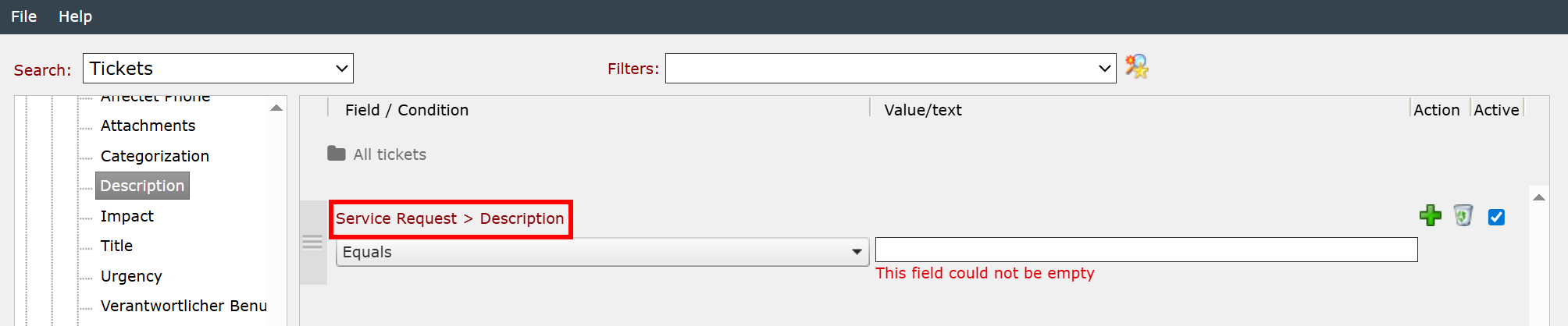
When a field is selected within a schema, the schema name and field name are displayed in the condition (see red marking in the figure above).
Alternatively, you can search for all the tickets in a schema by clicking the node's schema. After this, all existing ticket schemas can be selected in the search field.
Count of
This search option allows for searching for the number of the following objects:
- Assigned KB articles: Tickets are searched according to the number of linked KB articles. Please enter only numbers in the Value field.
- Comments: Tickets are filtered for the number of created comments. The available search conditions are Greater, Greater or Equal, Smaller, Smaller or Equal, Equals, Not Equals. Please enter only numbers in the Value field.
- Expenses: Tickets are filtered for the number of linked expenses. The available search conditions are Greater, Greater or Equal, Smaller, Smaller or Equal, Equals, Not Equals. Please enter only numbers in the Value field.
- Mails: Tickets are filtered according to the number of linked e-mails. The available search conditions are Greater, Greater or Equal, Smaller, Smaller or Equal, Equals, Not Equals. Please enter only numbers in the Value field.
- Successors: Tickets are filtered according to the number of successor tickets. The available search conditions are Greater, Greater or Equal, Smaller, Smaller or Equal, Equals, Not Equals. Please enter only numbers in the Value field.
Creation
This search option allows for searching tickets according to specific creation characteristics:
- Converted from ticket schema: Searching for a ticket that has been created with a certain ticket schema. The available search conditions are Equals or Not Equals. Every ticket schema is available to be set as the search value.
- Converted tickets: If you want to display all tickets converted from one ticket schema into another, select this option. The available search conditions are Converted or Not converted can be selected.
- Creation method: Tickets will be filtered for their creation method. Select Equal or Not equal as a condition. The following options can be selected as a value:
- Automated filtering rules: Select this creation method, if you want to search for a ticket created via automatic rules.
- Container: If you want to search for a ticket container, select this method.
- Mail2Ticket: If the ticket searched for has been created from an e-mail via the Mail2Ticket interface, select this method.
- Ticket Wizard: Select this method, if you want to search for a ticket created in the usual way, via a Ticket Wizard (this applies to tickets created from the Service Portfolio as well).
- Directly solved: Tickets are filtered for the property of being Directly Solved or Not directly solved. The respective property is set as the search condition.
- Has parent: Tickets are filtered for the property of being created from a ticket. The available search conditions are Has parent, Has no parent. The respective property is set as the search condition.
- From Mail2Ticket account: This option allows for searching for tickets that have been created through a specific Mail2Ticket account. Available conditions are Equals and Not equals.
Service Portfolio
This search option allows for searching tickets according to the following criteria of the Service Portfolio:
- Service: Tickets will be searched for the service they have been created with. Select Equal or Not equal as a condition. As a value, all of the available services can be used.
- Service catalog: Tickets will be searched for the service catalog they have been created with. Select Equal or Not equal as a condition. As a value, all of the available service catalogs can be used.
- Service transaction: Tickets will be searched for the service transaction they have been created with. Select Equal or Not equal as a condition. As a value, all of the available service transactions can be used.


 Copyright (c) 2000-2026 Isonet AG