Searching for Knowledge Base Articles
The following search parameters can be used in the search for Knowledge Base articles:
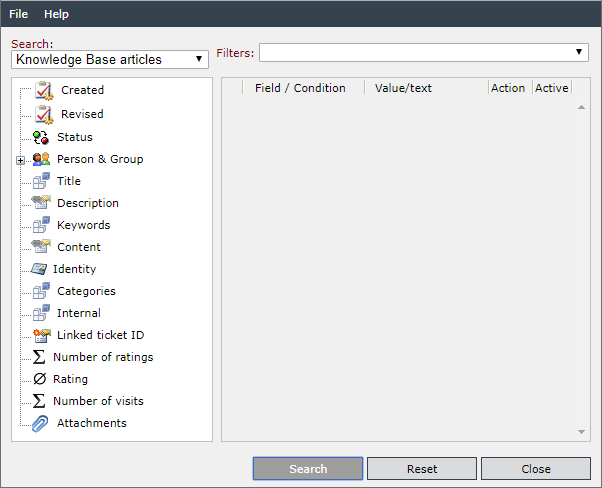
Created: Knowledge Base articles will be searched for their creation date. You can select Greater, Greater or Equal, Smaller, Smaller or Equal, Equal, or Not Equal as a condition. As a value, a date and a time have to be entered here.
Revised: Knowledge Base articles will be searched for the date of their revision. You can select Greater, Greater or Equal, Smaller, Smaller or Equal, Equal, or Not Equal as a condition. As a value, a date and a time have to be entered here.
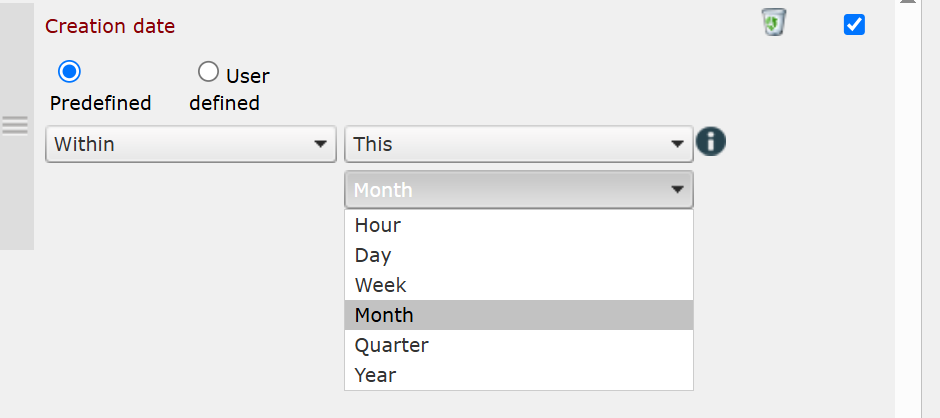
It is also possible to choose predefined time values for the above search parameters. For this purpose, it is necessary to switch from User-defined to Predefined. You can then select the conditions Today, Yesterday, Previous, or Coming. For example, you can select Coming Week.
Status: Knowledge Base articles will be searched for their current status. Select Equal or Not equal as a condition. As a value, every available status for KB articles can be used here.
Person & group: Users in a certain connection to a ticket will be searched. If you click on Person & group instead of one of the sub-options, all of these user types will be searched. The conditions available here are Equal and Not Equal in each case. The respective person can either be entered manually or searched via a user browser (magnifying glass icon). The following four options can be found in the tree under Person & group:
- Creator: The creator of the respective Knowledge Base article will be searched. The user can be entered here or searched via the user browser (magnifying glass icon). Additionally, the search option Is member of group is available.
- Modifier: A KB article modified by the respective user or group last will be searched. The user or group can be entered here or searched via the user browser (magnifying glass icon).
- Knowledge owner: KB articles with a certain user or group defined as the knowledge owner will be searched. The user or group can be entered here or searched via the user browser (magnifying glass icon).
- Revisor: A KB article revised by the respective user or group last will be searched. The user or group can be entered here or searched via the user browser (magnifying glass icon).
You can also search for the currently logged in user by clicking Person & group in the tree or by selecting one of the user types. By clicking Predefined you can search for the currently active user. The search conditions available are Equals and Not equals.
Title: The title or parts of the title of a KB article will be searched. Valid conditions are Including or Excluding. As a value, a part or the entire content of the title can be entered.
Description: Parts a KB article’s description will be searched. Valid conditions are Including or Excluding. As a value, a part or the entire content of the description can be entered.
Keywords: With this, the key words of a KB article will be searched. Valid conditions are Including or Excluding. As a value, a key word or parts of it can be entered.
Content: Parts a KB article’s content will be searched. Valid conditions are Including or Excluding. As a value, a part of the content can be entered.
Identity: The identity (ID#) of a KB article will be searched here. Valid conditions are Including or Excluding. As a value, a part of or the entire ID of a KB article can be entered (e.g. KB_0414).
Categories: With this option, you can search for articles sorted into certain categories. Select Equal or Not equal as a condition. As a value, every available Knowledge Base category can be selected.
Faq: An article can be marked as a part of the FAQ. You can search for these articles specifically via this option. As a condition, True or False can be selected. No further value can be added.
Internal: An article can be marked as internal. You can search for these articles specifically via this option. As a condition, True or False can be selected. No further value can be added.
Linked ticket ID: KB articles linked to a certain ticket will be searched here. As a condition, Including or Excluding can be used. A ticket ID can be entered as a value.
Σ Number of ratings: Articles will be searched here via their number of ratings. You can select Greater, Greater or Equal, Smaller, Smaller or Equal, Equal, or Not Equal as a condition. Only numbers can be entered as a value.
Ø Rating: Article can be searched via their rating here. You can select Greater, Greater or Equal, Smaller, Smaller or Equal, Equal, or Not Equal as a condition. Only numbers between 0 and 5 can be entered as a value.
Σ Number of visits: Articles with a certain number of visitors will be listed here. You can select Greater, Greater or Equal, Smaller, Smaller or Equal, Equal, or Not Equal as a condition. Only numbers can be entered as a value.
Attachments: File attachments attached to the articles will be searched here. You can search in all Microsoft Office documents as well as Zip, Text, and PDF files. Valid conditions are Including or Excluding.


 Copyright (c) 2000-2026 Isonet AG