Using the Dashboard
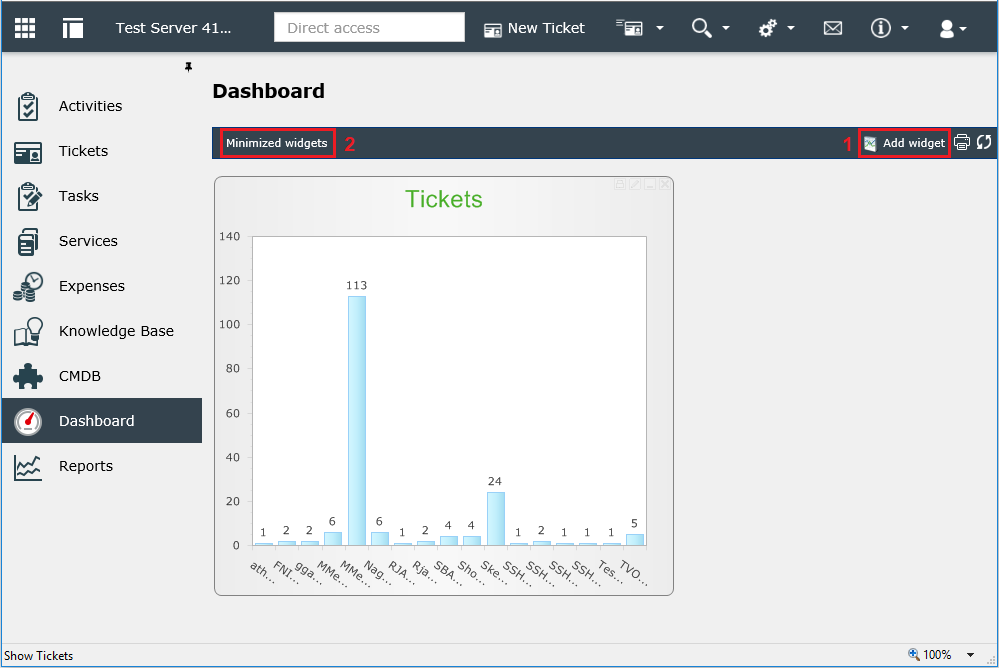
Released widgets can be displayed in the Dashboard by clicking on Add widget [1], which opens a dialog that displays all available widgets in a tree view sorted by category is opened. By double-clicking on a widget or by selecting the widget and clicking on OK the widget is added to the Dashboard.
Widgets that have been added to the Dashboard but are minimized can be displayed by clicking on Minimized widgets [2].
Configuring the Dashboard and the widgets
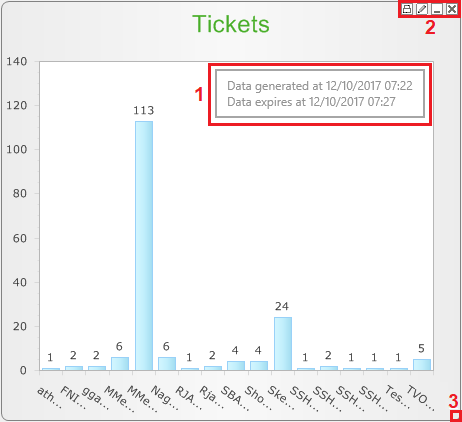
When the cursor is moved over a widget the date the widget has been generated is displayed in a tooltip [1]. The four configuration buttons [2] allow for printing, editing, minimizing and removing the widget. The size of the widget can be changed by dragging the widget borders [3].
Tip:
If a widget is minimized, its size and position are stored. The widget will be restored at the same position.
A widget can be customized by the user. By clicking on the name or, if the name is not displayed, on the Edit button the configuration dialog is opened. This button is always visible in the widget.
Note:
If the master widget is locked for modification, only the visual settings can be changed.
In the configuration dialog all the widget information can be configured. The status, data source and the data validity cannot be changed irrespectively of the permissions. All other configuration options correspond to those in the master widget. The tabs Comments and Users are not displayed in the user widgets.
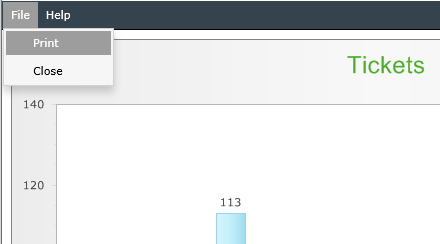
The Print button allows for printing the widget. The print preview is opened where the user is able to start the printing process via the file menu.
Widgets can automatically be arranged in the Dashboard. Select the widget and drag it to an individual position. The widget is aligned to the grid. By holding the [CTRL] key the widget is prevented from being aligned automatically and can be arranged anywhere in the Dashboard.


 Copyright (c) 2000-2026 Isonet AG