Searching for Configuration Items
You can search for configuration items (CIs) using the following search parameters:
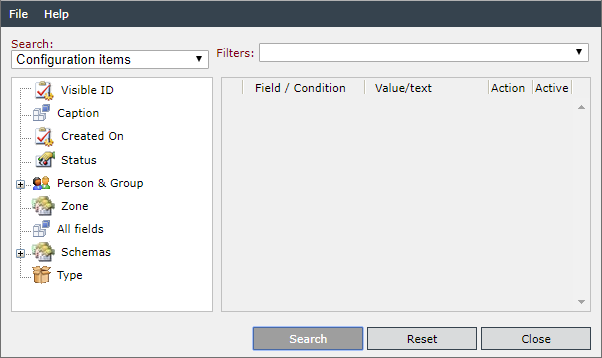
Visible ID: The visible IDs of the CIs will be scanned for the value here. Valid conditions are Including and Excluding. As a value, a part or the entire content of the visible ID can be entered. It is furthermore possible to use placeholders (see also Search in the CMDB). However, with an appropriate configuration of the key 'EnableAutomaticAsteriskForPatternSearch' in the Table: Configuration Settings - System, the system will add these automatically to each search term in the background.
Caption: The system searches for the name of the CIs. Valid conditions are Including and Excluding. You can enter part or all of the name as the value. Placeholders can also be used.
Created On: CIs will be searched via their creation date. You can select Greater, Greater or Equal, Smaller, Smaller or Equal, Equal, or Not Equal as a condition. As a value, a date and a time have to be entered here.
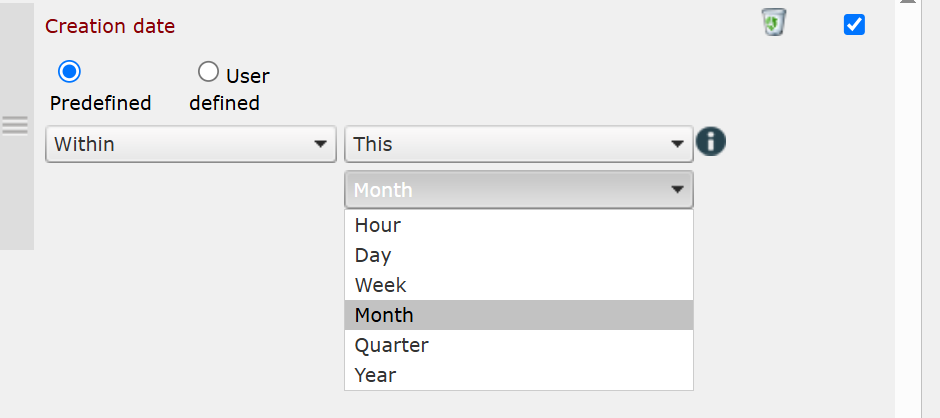
It is also possible to choose predefined time values for the above search parameter. For this purpose, it is necessary to switch from User-defined to Predefined. You can then select the conditions Today, Yesterday, Previous, or Coming. For example, you can select Coming Week.
State: Via this search field, CIs having reached the specified status will be detected. The conditions available here are Equal and Not Equal.
Person & group: Users in a certain connection to a ticket will be searched. If you click on Person & group instead of one of the sub-options, all of these user types will be searched. The conditions available here are Equal and Not Equal in each case. The respective person can either be entered manually or searched via a user browser (magnifying glass icon). The following four options can be found in the tree under Person & group:
- Creator: The CIs creator will be searched. The user can be entered here or searched via the user browser (magnifying glass icon).
- Owner: The current owner of the CI will be searched. The user or group can be entered here or searched via the user browser (magnifying glass icon).
- Affected User: Users set as the affected user of a CI will be searched for here.
You can also search for the currently logged in user by clicking Person & group in the tree or by selecting one of the user types. By clicking Predefined you can search for the currently active user. The search conditions available are Equals and Not equals.
Zone: CIs of a specified zone will be searched here. Available as conditions are: Equal, Not Equal, Equal or below, and Not equal or below.
All fields: All of the CIs‘ fields will be scanned here. Available conditions are Including and Excluding. As a value, an arbitrary search text can be entered.
Schemas: Individual fields of CIs of a specified schema will be scanned. Depending on which field has been selected, various different values and conditions can be defined. If a specific schema is used instead of the search parameter Schemas, it is possible to search for CIs that have been created by using a specific schema and that contain certain fields and field contents. It is furthermore possible to search the fields for Boolean values. For this purpose, there are two additional search parameters: Contains data and Contains no data.
Type: CIs will be searched for their type. Select one of the configured types as a value. As a condition, Equal and Not Equal can be selected.


 Copyright (c) 2000-2026 Isonet AG