446 Mobile - User Interface
Menu Bar
The menu bar is located at the top of the application. The individual functions are described in more detail below.

-
Company logo: The logo is displayed here, which can be changed under Settings > Administration > Basic Configuration.
-
Name of the service desk: Currently the name of the top-level client from the user management is used here. This name can be customized under Settings > Groups & Users.
-
Direct access/search: The input field can be used to open tickets and other objects directly. In addition, a search term can be entered to search within the field contents of tickets and other objects.
-
Application menu: This menu can be used to switch between the activities and ticket view and access the settings.
-
User menu: Among other things, this menu contains functions for logging out of the system and changing the language.
Activity List
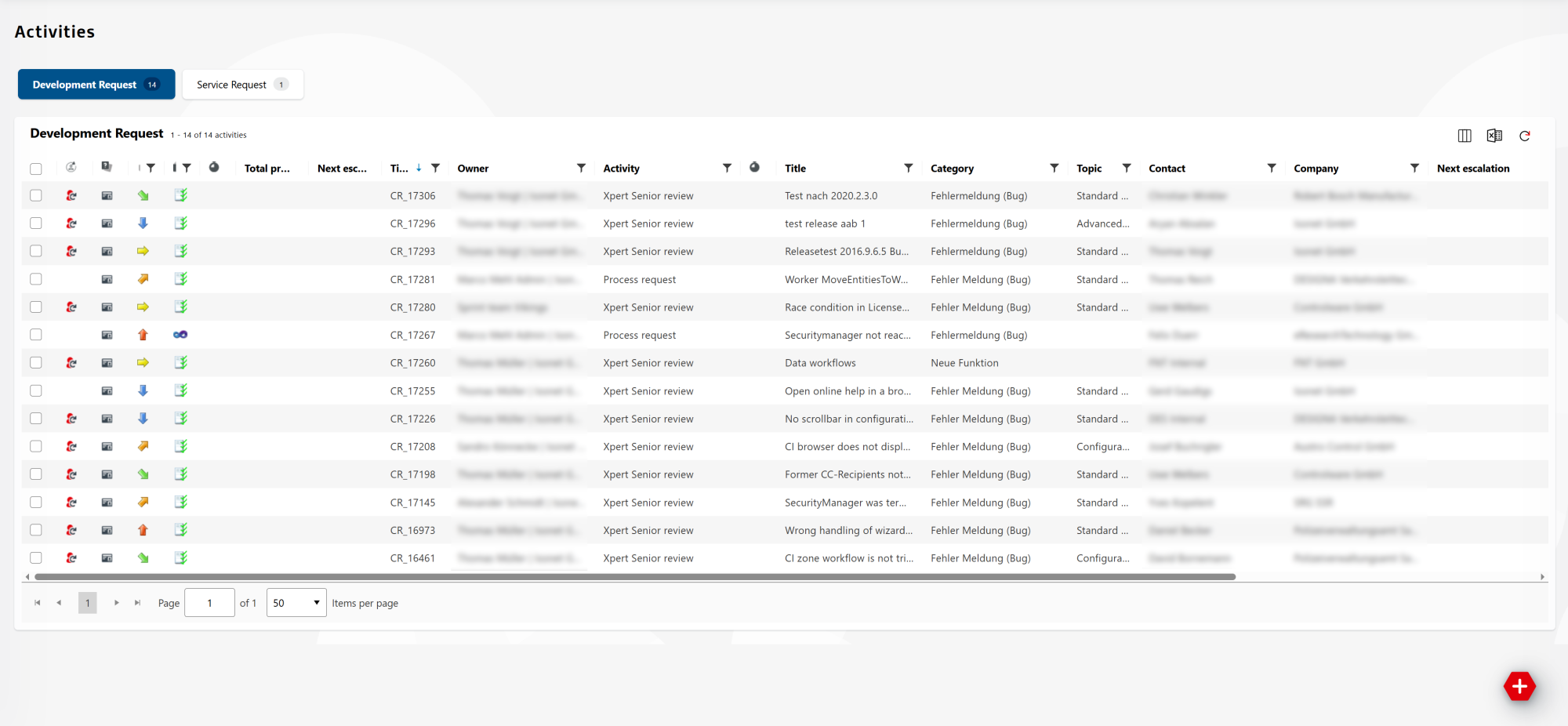
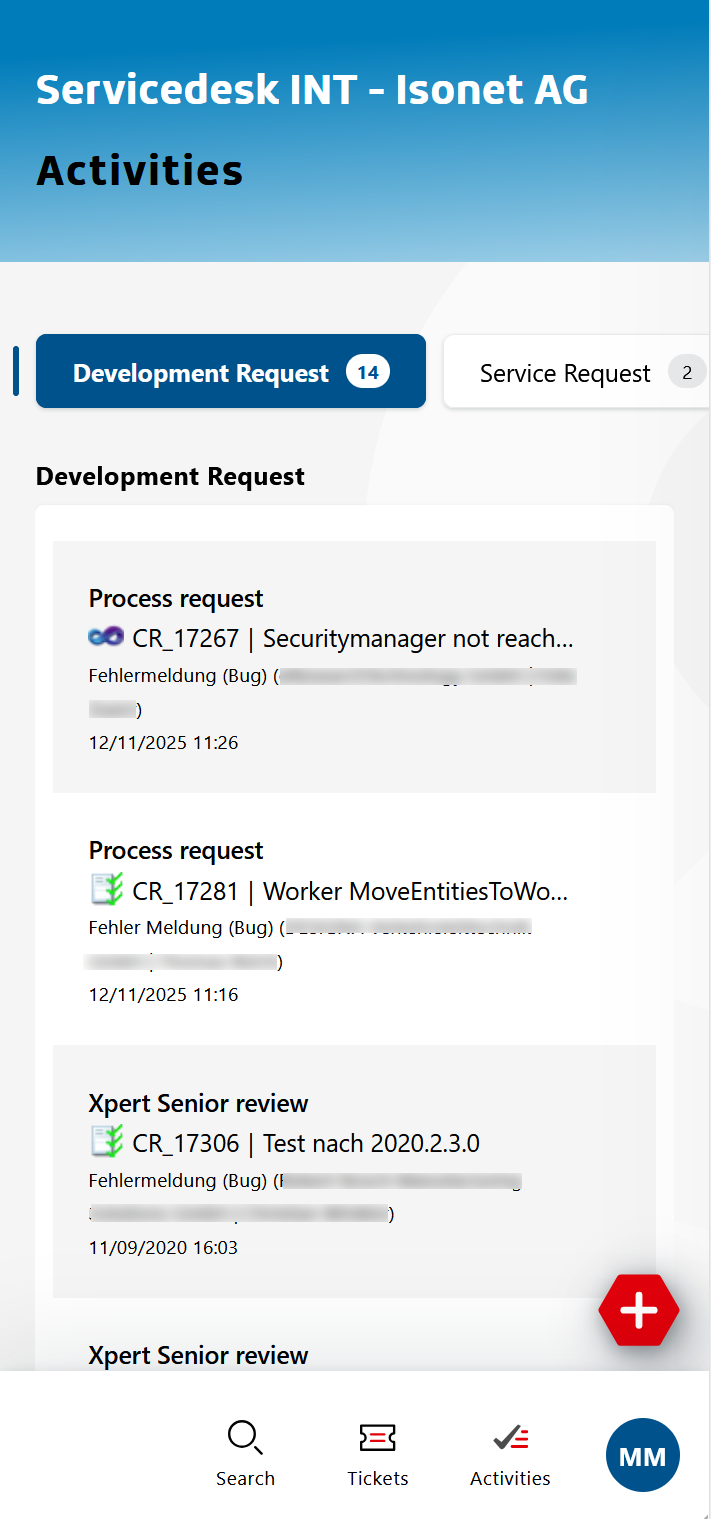
After successfully signing in to the system, your personal Activity list appears to you. The image on the left shows the mobile view on a desktop monitor. When the same view is opened on a mobile device (e.g., a cell phone), it automatically adjusts to fit the available space (as shown on the right).
|
|
Here you will find an overview of all Activities. Simultaneously you are about to create new Activities and Tickets (using the ‘+’ button at the bottom right), to search for Tickets, to change the language and back to the classic view of the 446 Plattform.
Note:
Due to space constraints, the display on mobile devices (see the image in the upper right) differs from that on desktop systems. The activities are displayed as follows:
1st row: <activity title> <Escalation icon>
2nd row: <Ticket state icon> <Ticket full id> | <Ticket title>
3rd row: <Summary text>
The summary text on the third line can be configured in the ticket schema. You can use expressions to concatenate various parts of the ticket and display them here. For more information see Tab Ticket schema.
Schema filter
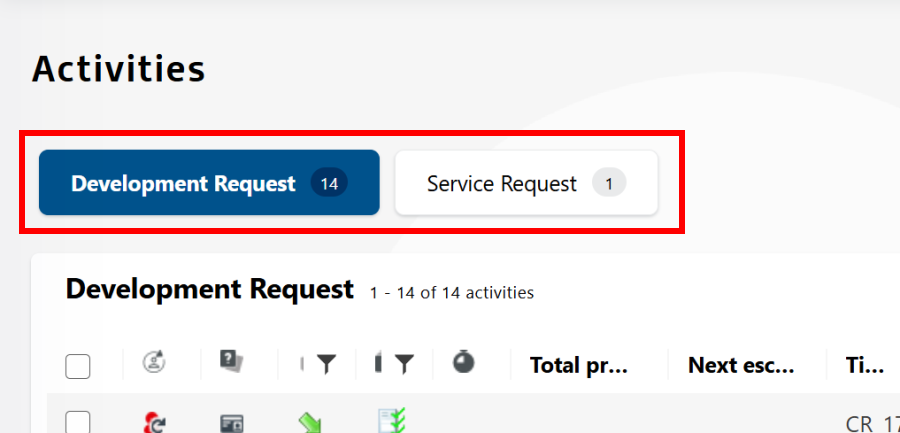
The ticket schemes are displayed as buttons above the list of activities. Only those ticket schemes for which the logged-in user has activities are displayed. The blue button indicates the currently selected scheme. Only tickets belonging to the selected scheme are displayed in the list below. The number on the button shows the total number of activities in the respective scheme. To change the scheme, click on one of the available buttons.
Column filter
You can use the column filters to reduce the number of activities or tickets displayed in the list of results.
For more information, see page 446 Mobile - Filter.
Ticket List
To access the ticket list, click the application menu ( ) in the menu bar, and then select Tickets.
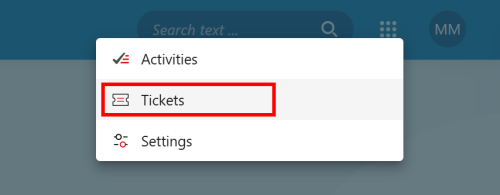
The ticket list is structured similarly to the activity list. The ticket list also has a filter selection. Here, you can select filters that have been previously created to limit the number of tickets in the list. Currently, it is not possible to create new filters here.
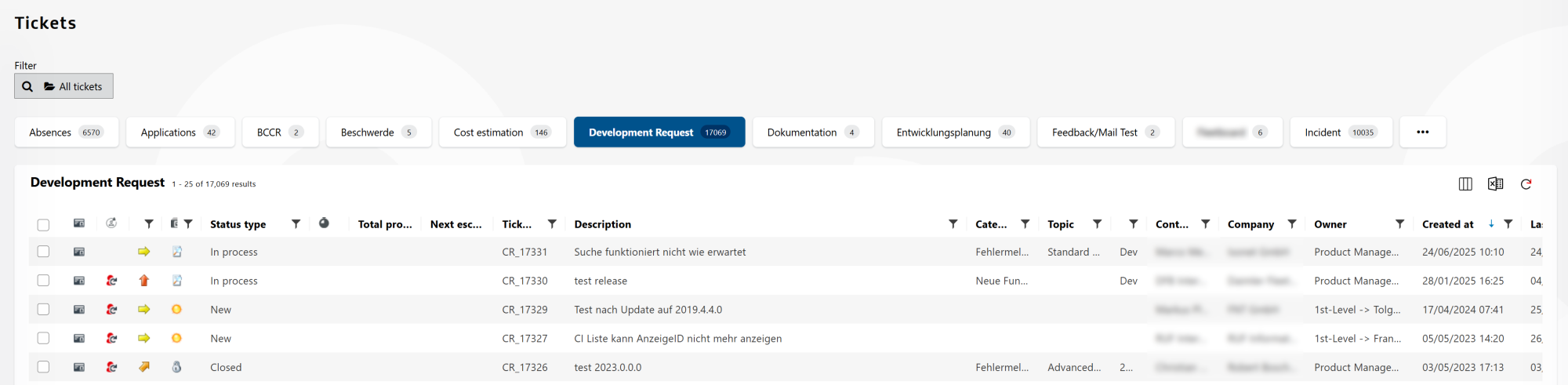
See also 446 Mobile - Filter.
Ticket Creation
A menu button is available on the interface to create new tickets.
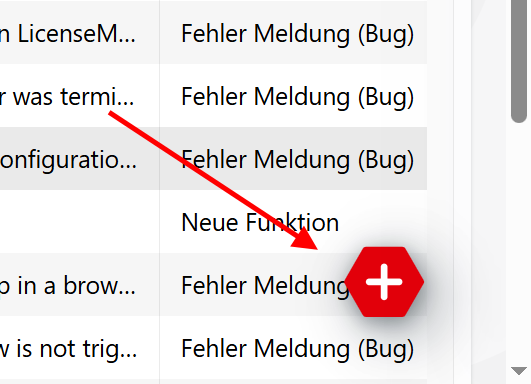
Clicking the button opens a menu showing all the available creation options. What matters here is not a ticket scheme, but a workflow of type creation (also see workflow type under Workflow-Designer App User Interface). The name and description of the workflow are displayed.
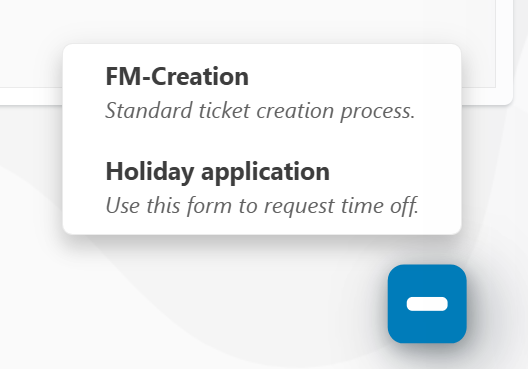
When an entry is selected from the menu, a base entity is created and routed to the corresponding creation workflow in the background. The workflow typically begins with a form where the necessary creation data is entered.
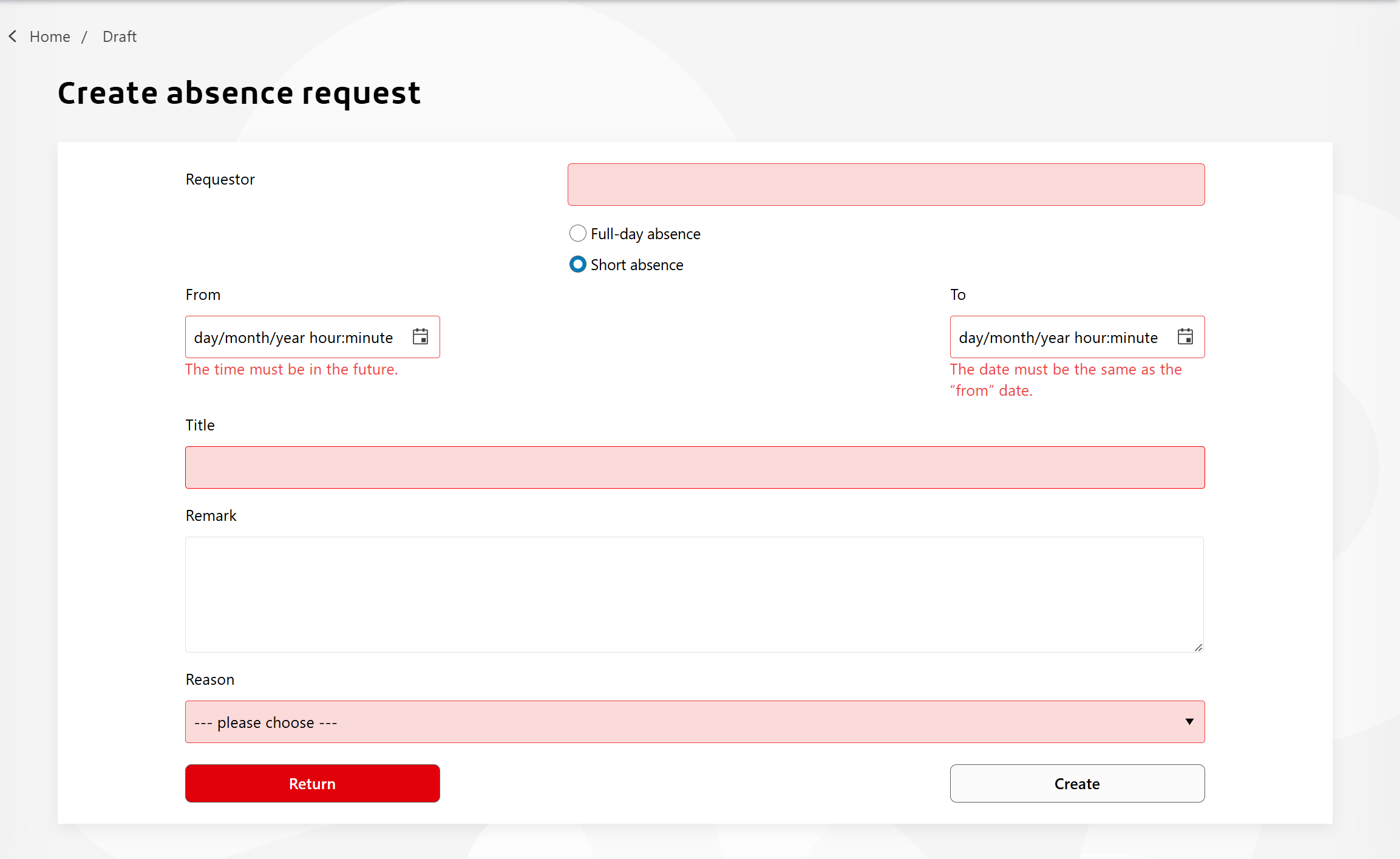
In this example, Holiday application was selected from the menu. Then, the form for entering the required data was displayed, and the buttons on the form were used to navigate through the workflow. An unlimited number of forms can be linked together in a workflow. The last form in the chain initiates the creation of an object. Currently, only tickets can be created.
User Menu
You can log out of the system and change the language through the user menu. If deputies have been configured, they will be displayed here as well, and you can switch between them.
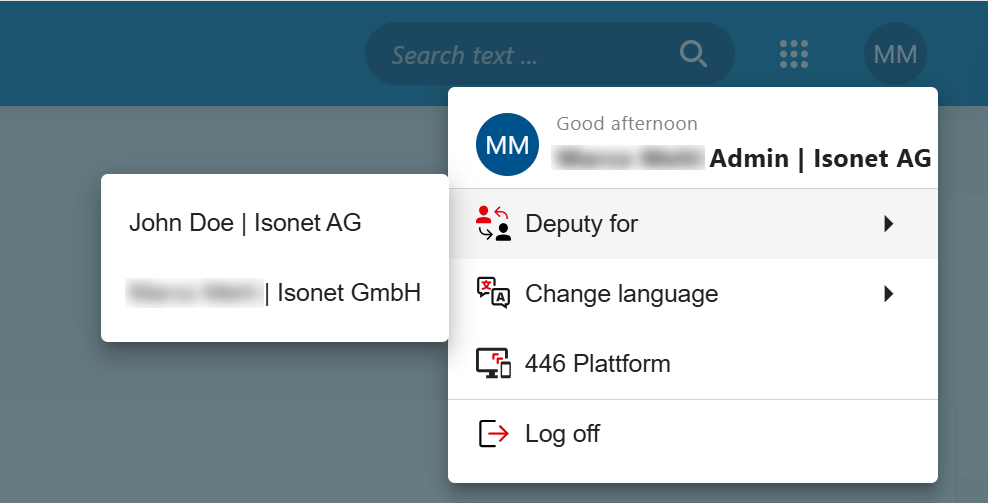
Additionally, it is possible - if configured - to switch to the 446 Plattform. For more information, see the requirements under Link to the 446 Plattform Mobil.
A brief description of how to use it can be found under How do I handle the deputy function?.
Note, warning, error
There are three different types of information boxes within the application: information, warning and error.
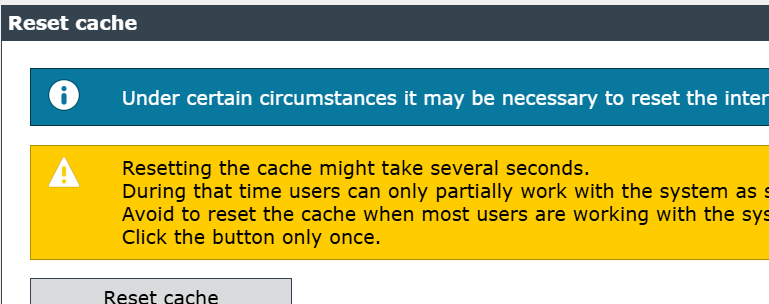
A box with a blue background displays additional useful information and is marked with a small “i.”
A box with a yellow background and marked with an exclamation mark displays a warning.

The box highlighted in red, which is also marked with a cross, indicates an error.
Chapters:
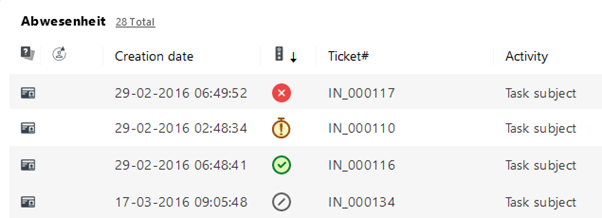
Each single column of the Activity and Ticket List contains useful details regarding the processing status of the ticket. Here you will see modifications by the user, whether files are attached or not, which category and priority has been set and also what the escalation level of the Ticket or Activity is. The section Columns in the Activity and Ticket List provides information to the columns in the classic view in greater detail.
Column description:
| Escalation level |
The symbol in the column 'Escalation' shows you the state of the escalation of the Activity or the Ticket. The miscellaneous levels and symbols are built into the system.
In the standard version of the 446 PlattformMobil each single level looks like this:
With the license key 'EnableSetEscalationLevel' enabled the following items are in use:

A more advanced explanation for you regarding each escalation level and symbol is contained within Escalation level.
The activity list and ticket list enable bulk processing of tickets. Multiple tickets can be selected, and if they have the same workflow or user actions configured, executing an action will cause it to be performed on all selected tickets.
Note:
1. Bulk processing of tickets requires the EnableBulkActions license key.
2. Bulk processing of tickets can be disabled in the workflow activities. See Disable Bulk Processing for activities for more information.

When you select a ticket, its contents are displayed on the right side of the screen. Selecting a second ticket by checking the corresponding box on the far left of the ticket list changes the displayed ticket contents. A list of the selected tickets is displayed at the top.
The workflow action is displayed on the first tab, while the user actions are displayed on the second. Actions are only displayed if they have been configured identically. All other actions are hidden and cannot be executed.
To perform an action on all selected tickets, first select the desired action. Then, perform the action as if it were only one ticket. User input is then automatically distributed to all selected tickets.
Warning:
File uploads in workflow activity forms and ticket action forms are not supported by bulk editing. The uploaded file will only be added to the first selected entity.


 Copyright (c) 2000-2026 Isonet AG