Activities
| Icon | Description |
|---|---|
|
Acceptance
Old icon: |
Via this plug-in, the users of a group can be asked whether they want to accept the ticket. As soon as a user answers with Yes, the ticket is forwarded to the output Accepted. If all users in the selected group answer with No, the ticket is forwarded to the Not Accepted output. Configuration The configuration dialog allows for defining the action texts in all available languages. An expression can be used for the validation as well. Conditions Both outputs have a default condition that can be changed. The output Accepted is used as soon as a user confirms the acceptance. The output Not Accepted is only used after all users of the group with the activity have answered with No. The condition of this output is thus set to 100% by default. This condition can be modified at any time (see also Properties). |
|
Form (Button 1
Old icon: |
This plug-in combines the common task with three selection options (see User activity (0..3) and the Group activity (1..3)) with the Form (Confirmation) plug-in. The plug-in provides the user with an HTML form that contains three options (three buttons within the form). Configuration The plug-in is configured via a configuration dialog:
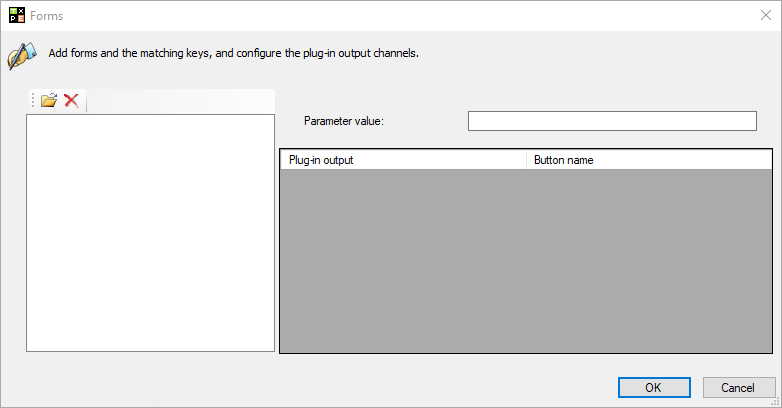
Via the button for opening a new form top left, the necessary form can be selected from the list displayed in the now opening dialog. Subsequently, the available outputs of the plug-in will appear in the list on the right and can be linked to the buttons in the form via the column Button name. For every output, the corresponding button has to be selected here. Under Parameter value (above the button list), the language used is specified. Here, en stands for English, de for German, etc. If the form is to be valid for all languages, the parameter value * has to be used. This plug-in contains the configuration option Edit texts. This option is merely used for specifying the text that is displayed in the activities list in the Activity column. All further options in the Edit texts dialog are not necessary. |
|
Form (Confirmation)
Old icon: |
This plug-in allows for displaying forms that have been created via the form designer as a workflow action. This action behaves similarly to the user and group activity plug-ins. In contrast to these activities, however, the display on the Actions tab can be designed individually via an HTML form. Configuration The plug-in is configured similarly to the plug-in Form (Button 1/Button 2/Button 3). |
|
Form (Yes/No)
Old icon: |
This plug-in combines a common task with two options (see also Common Task User (Yes/No) and Common Task Group (Yes/No) and the Form (Confirmation) plug-in). Configuration The plug-in is configured similarly to the plug-in Form (Button 1/Button 2/Button 3). |
|
Group activity (0)
Old icon: |
This plug-in is similar to the plug-in User activity (0). However, the activity is displayed to a group of users instead of a single user here. Whenever a task to be only accepted is to be assigned to a group of users, this plug-in should be used. |
|
Group activity (1) 
Old icon: |
This plug-in is similar to the plug-in User activity (1). However, the activity is displayed to a group of users instead of a single user here. Whenever a task to be only accepted is to be assigned to a group of users, this plug-in should be used. In general: The plug-in enables administrators, process managers and configurators to create an activity for a group of users that can be confirmed with a predefined response. This is useful if a group of users is to be given a task with a response option. Example: The users should confirm the reading of a knowledge article. The outputs can be provided with conditions. Normally, these are already configured (for example, the output for Yes or the output for No). The conditions can be modified at any time. |
|
Group activity (2) 
Old icon: |
This plug-in is similar to the plug-in User activity (2). However, the activity is displayed to a group of users instead of a single user here. Whenever a task to be only accepted is to be assigned to a group of users, this plug-in should be used. |
|
Group activity (3) 
Old icon: |
This plug-in is similar to the plug-in User activity (3). However, the activity is displayed to a group of users instead of a single user here. Whenever a task to be only accepted is to be assigned to a group of users, this plug-in should be used. |
|
Group activity with event (1) 
Old icon: |
This plug-in is similar to the plug-in Group activity (1). However, every click of the user leads to an additional output here. This plug-in is used whenever an additional activity is to be executed as soon as a user has made a choice. The additional event output may, for example, trigger an e-mail notification that sends a message to a user after every click. |
|
Group activity with event (2) 
Old icon: |
This plug-in is similar to the plug-in Group activity (2). However, every click of the user leads to an additional output here. This plug-in is used whenever an additional activity is to be executed as soon as a user has made a choice. The additional event output may, for example, trigger an e-mail notification that sends a message to a user after every click. |
|
Show Form
Old icon: - |
This plug-in can be enabled and disabled (red cross). Configuration
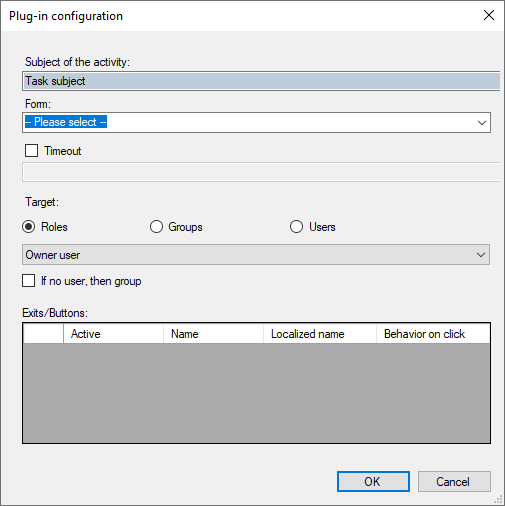
Form: Only forms of the form type Workflow Activity can be selected. Timeout: The Timeout option causes the service time associated with the ticket to be taken into account in the time measurement. When the specified time is reached, the CI is forwarded via a timeout output. Target: Three options can be selected: It is possible to select the target of the form activity by Role or Groups or by specific Users. Exits/Buttons: The buttons created in the form can be configured. |
|
Solution 
Old icon: |
This plug-in asks a user to solve the ticket, e.g. a supporter that accepted the ticket. This plug-in can generally be used whenever there is a supporter that accepted the ticket, as long as the ticket is still unsolved. It does not make sense to use this plug-in if the ticket has not been assigned to a user yet. [Analogue behavior like User activity (2)] |
|
User activity (0) 
Old icon: |
This plug-in generates an activity, which can not be confirmed by a user. This plug-in can be used at almost every point in a workflow. |
|
User activity (1) 
Old icon: |
This plug-in generates an activity, which can be confirmed by a user with one provided answer. This plug-in can be used at almost every point in a workflow, whenever tickets or tasks are to be guided into a certain direction, which depends on the user’s answer. |
|
User activity (2) 
Old icon: |
This plug-in generates an activity, which can be confirmed by a user with two provided answers. This plug-in can be used at almost every point in a workflow, whenever tickets or tasks are to be guided into a certain direction, which depends on the user’s answer. |
|
User activity (3) 
Old icon: |
This plug-in generates an activity, which can be confirmed by a user with three provided answers. This plug-in can be used at almost every point in a workflow, whenever tickets or tasks are to be guided into a certain direction, which depends on the user’s answer. |














Disable Bulk Processing for activities
The 446 Plattform Mobil allows you to process multiple tickets at the same time (see Bulk processing of tickets). This feature can be disabled in the activity plug-ins. As a result, each activity can only be performed on a single ticket.
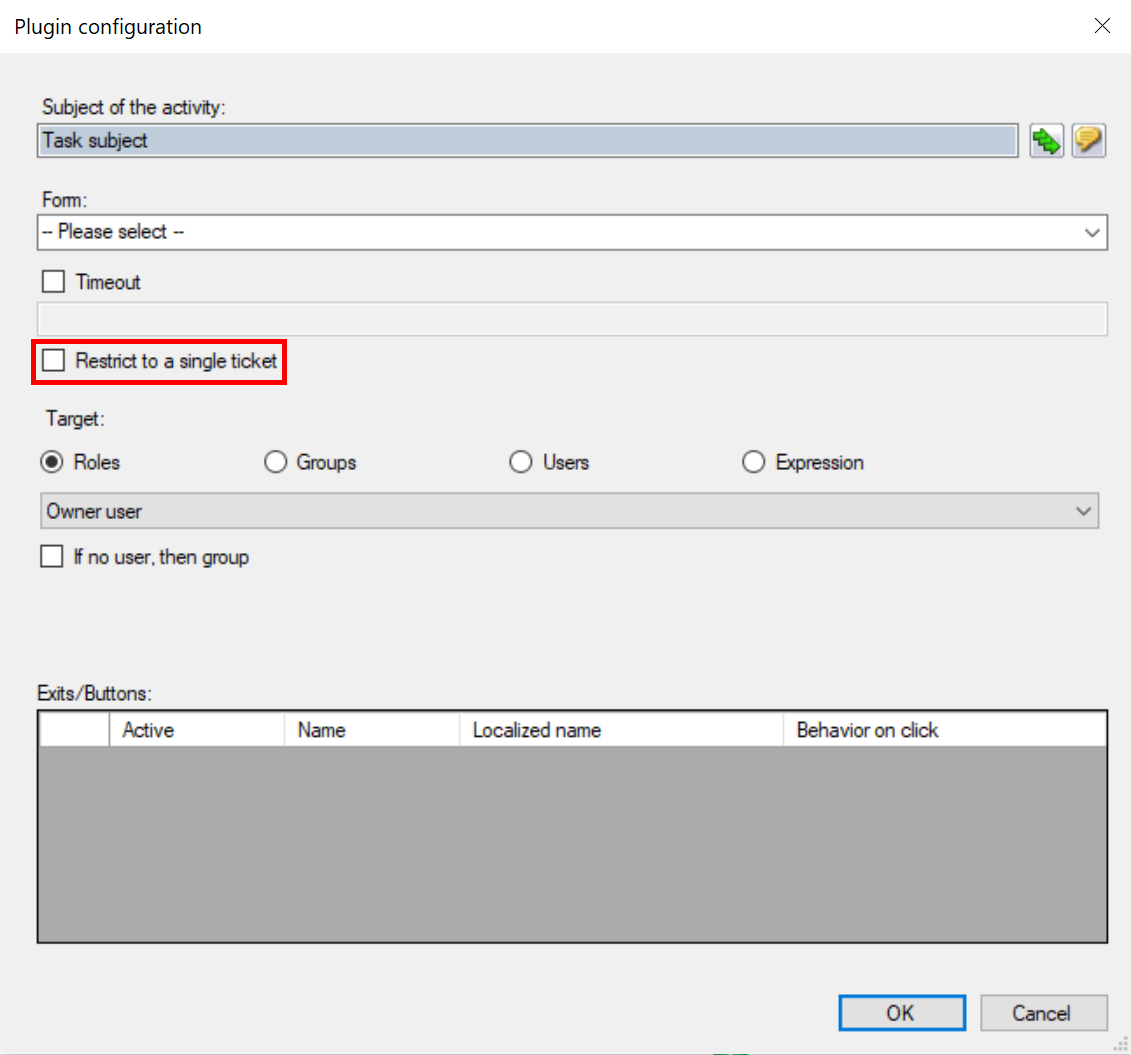
For example, it should not be possible to accept multiple tickets for processing at the same time, in order to prevent users from accidentally accepting tickets they did not intend to accept. To achieve this, the workflow activity must be limited to a single ticket.
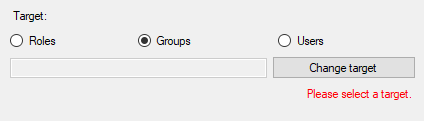
For user and group activities, this can be done in the configuration menu:
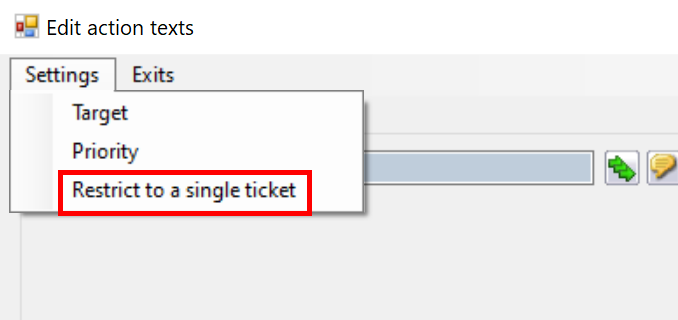
For the “Show Form” plug-in, the option can be found in the configuration as shown in the following image:


 Copyright (c) 2000-2026 Isonet AG