Basic Configuration
Via the basic configuration, the basic settings of the system can be managed. The basic configuration is accessible via Settings > Administration > Basic Configuration.

Area 446 Plattform
In this array, some basic decisions regarding the general appearance of the system can be made. In doing so, the following configuration options are available:
446 Plattform: Here, the title displayed on the login page can be changed (top left).

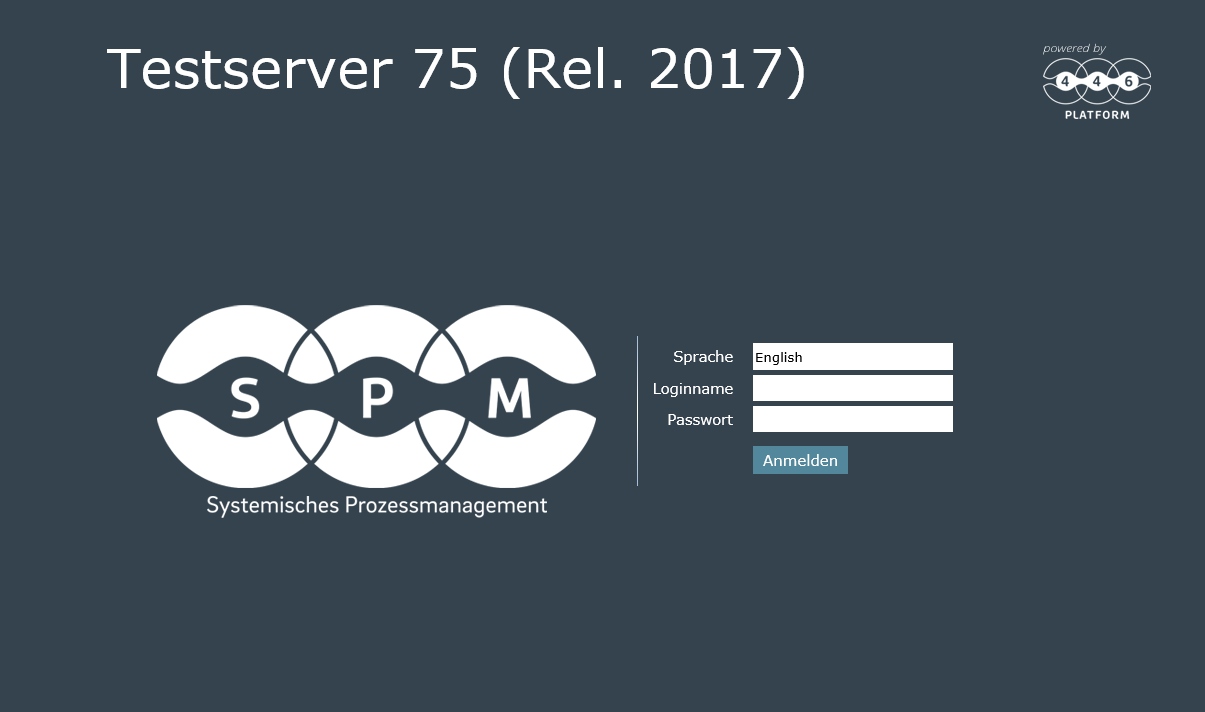
On the login page, the About window can be opened by clicking the 446 Plattform icon (top right). If this should not be possible without user login, the following code must be commented out in the Web.config file (see also SYSTEM > Software installation > Installations):
<!-- Disabled, so only logged in users can read the version etc.
    <location path="Tools/AboutDialog/AboutDialog.aspx">
        <system.web>
            <authorization>
                <allow users="?,*" />
            </authorization>
        </system.web>
    </location>
-->
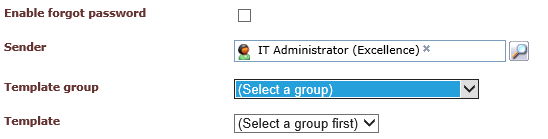
Enable forgot password: In this array, the option Forgot password for the login page can be enabled and configured.
Note:
- The option Forgot password appears even if the notifications have been deactivated in User Management.
- This function only affects non-imported users.
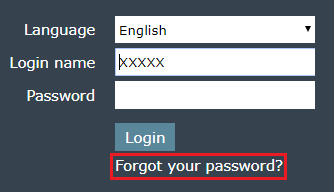
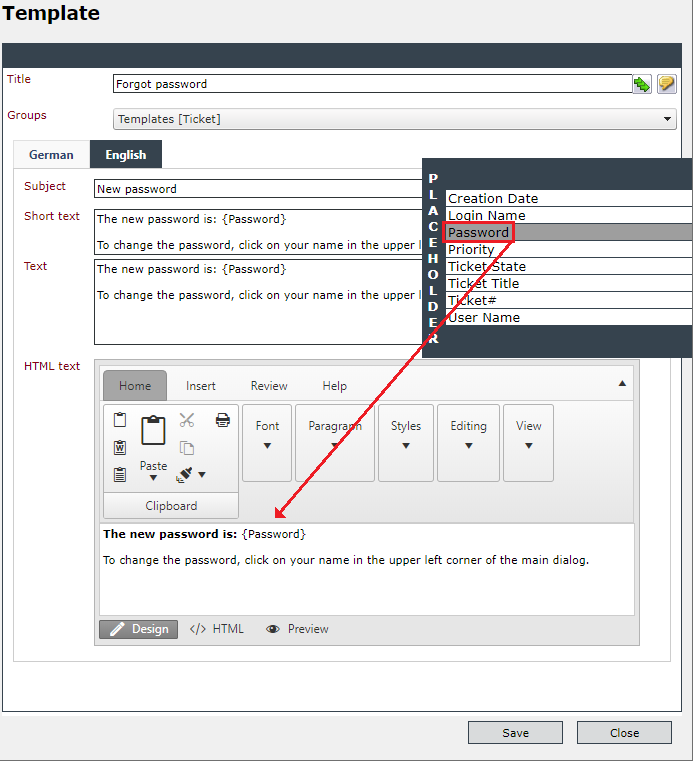
If users are to be able to request their password on the login page, a corresponding e-mail template must first be selected. The new password must be inserted in the template used (possible by dragging the Password placeholder).
As soon as the checkbox for this option has been enabled, the following information for this option has to be defined:
- Sender: The user defined here will be displayed as sender of e-mails which are sent in case of using the option on the login page. Via the magnifying icon, it is possible to search by means of the user browser for the designated system user. Here, it is recommendable to select a user who is unable to login on the system by means of login and password.
- Template group: The selection of the template group performed here limits the selection of templates for the e-mail notification.
- Template: The template for the e-mail a user who forgot his password will receive can be selected here (depending on the template group selected above).
-
User can enter e-mail address: It is possible to enter an e-mail address to reset the password. This function is activated by default (can be changed by the administrator).

- Output in case of failure: The user defined message appears when a new password has been requested by e-mail and one of the following errors has occurred:
The user enters his or her login name, but there is no associated e-mail address.
There is more than one user with the specified e-mail address.
E-mail notification has been disabled for the user.
- Output in case of success: The message defined here is displayed after a successful e-mail request for a new password.
If the password policy is activated (set by the administrator)
Isonet.SecurityManager.SecurityPolicy.
MustChangeResetPasswordPolicy,
the user is prompted to change his password after a password reset and the first successful login.
Short instruction
Direct access info tool tip: The tool tip, which will be displayed later on the home page in the direct access box, is defined here.
Company logo: In this array, the logo to be used on the login page can be defined. Via the Change button in the following dialog, the designated image can be selected from the local hard disk. By means of a click on the Upload button, the image will be applied.

Landing page logo: Here can be defined which logo is to be used for the Landing page. Via a click on the Change button in the now appearing dialog, the designated logo can be selected from the local hard disk. By clicking on Upload, the image will be uploaded and applied.

Report logo: Here can be defined which logo is to be used for reports of the Business Intelligence. Via a click on the Change button in the now appearing dialog, the designated logo can be selected from the local hard disk. By clicking on Upload, the image will be uploaded and applied.

Area User Preferences
Here, some configuration options for the search Folder "My Tickets" are available in the ticket list. With those can be decided globally, in which cases tickets will be displayed to a user when the My tickets filter is used. The following options for ticket constellations can be used here:
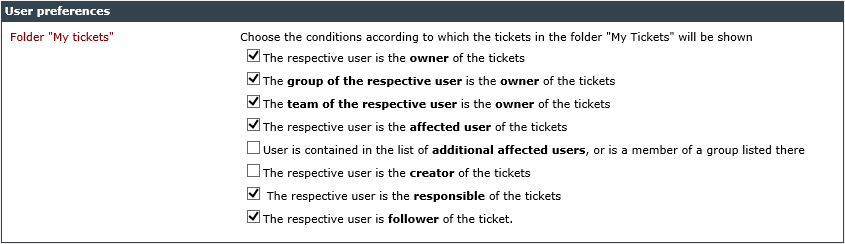
The respective user is the owner of the tickets: Only tickets, for which the currently logged in user is the owner, will be displayed.
The group of the respective user is the owner of the tickets: Only tickets owned by one of the groups the user is a member of will be displayed.
The team of the respective user is the owner of the tickets: Tickets owned by one of the teams the user is a member of will be displayed.
The respective user is the affected user of the tickets: Tickets, in which the current user has been set as the affected user, will be displayed.
User is contained in the list of additional affected users, or is a member of a group listed there: The user can see a ticket, if he is listed on its list of additional affected users, or if he is a member of one of the groups on this list.
The respective user is the creator of the tickets: Tickets with the currently logged in user as their creator or for which he is set as creator via ticket or workflow actions will be displayed.
The respective user is the responsible of the tickets: Tickets, in which the currently logged in user is the responsible, will be displayed.
The respective user is follower of the ticket: Only tickets that are watched by a follower are displayed.
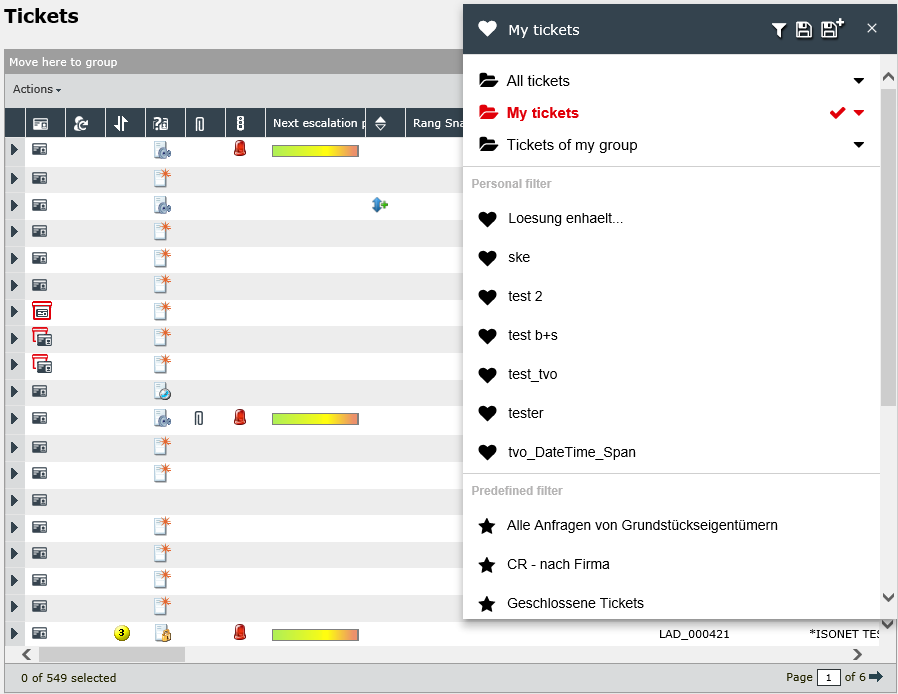
Depending on the settings made, different tickets will be displayed under My Tickets.
Note:
Do not forget to save after the configuration settings on this page. The Save button is displayed at the bottom right corner.
Note:
The global settings in the administration can be customized by the users for their own profile.


 Copyright (c) 2000-2026 Isonet AG