Ticket and Activity List
In the following chapter, the ticket and activity list will be illustrated. The columns displayed here are, however, only to be considered as examples. On your system, different columns may be shown or they may be displayed in a different order.
Short instruction
Chapters:
The ticket list shows all the tickets the logged in user has at least the right View on, irrespective of status, ticket type, creator, etc. In this list, only tickets will be displayed in a list. More information regarding the administration of the Activity and Ticket List is to be found in Activity and Ticket List Management
Tip:
Please note that the ticket list will not display tickets (using the various filters as well) whose only connection to the currently logged in user is an activity. However, such tickets can be still accessed via the direct access and the activity list.
Moreover, tickets can be created, opened, deleted, ranked, printed, etc. here. Via the arrow icon at the beginning of a line, a preview of a ticket’s dataset will be displayed and a double click on the dataset will open the ticket.
Furthermore, tickets can be filtered, so that only a subgroup of tickets will be displayed. A user can filter all closed tickets, for example, and thus limit the number of tickets relevant to him. These user-defined filters can be saved as favorites as well.
In the Actions menu, there is the further option to create containers or to add a ticket to an existing container, depending on the current user’s rights.
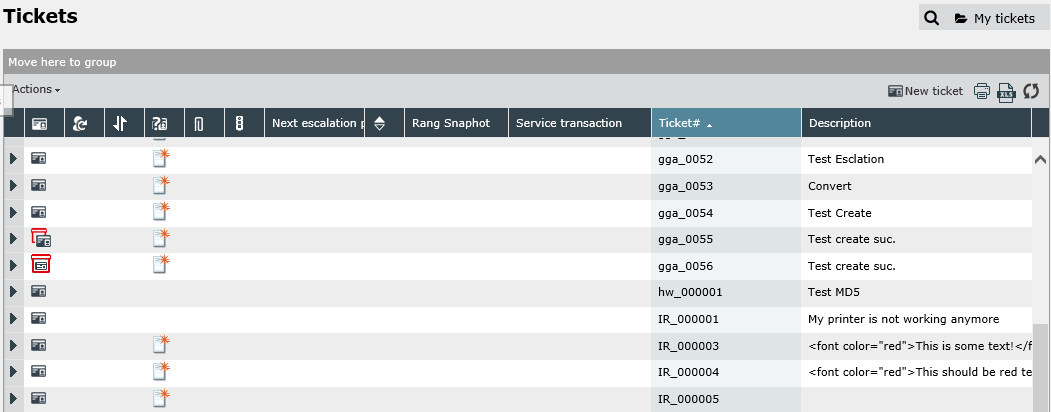
Example: The display of a ticket list
Top left you can find the short filter, right next to it the filter favorites. Below, the ticket list with the Actions menu as well as the buttons for new tickets, printing, and refreshing the list can be found.
The display of the list can be adjusted individually for every system. Via the arrow icon in the first column, you have the option to see a short preview of the respective ticket.
The activity list allows for managing handling assignments to tickets, tasks, and KB articles of the currently logged in user. Activities can be seen as assignments that have to be performed in connection with these objects. More information regarding the administration of the Activity and Ticket List is to be found in Activity and Ticket List Management
Activities are especially suitable for users with many tickets, wanting to gain a quick overview using the activity list. The following figure displays an activity list. It lists all activities to be performed by the logged in user.
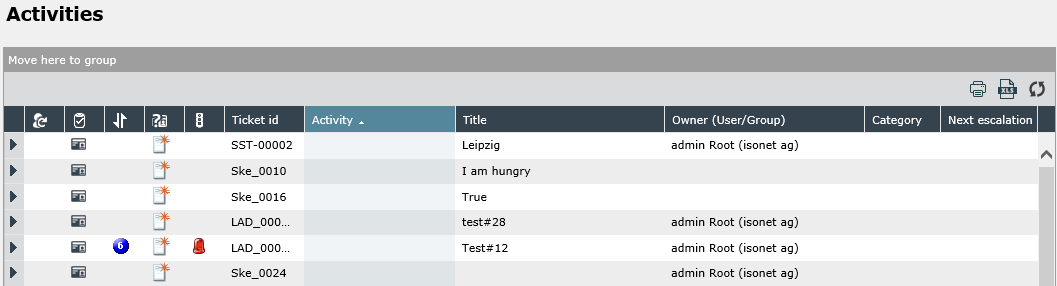
In the following, the columns displayed in the example above will be explained from left to right. More information regarding the administration of the Activity and Ticket List is to be found in Activity and Ticket List Management
Depending on how the activity list has been configured by the administrator, a short preview of the item is available here and its type (ticket, task, container, etc.) is illustrated by an icon. Moreover, the priority and status of the object, as well as its escalation level are displayed. The column for the ticket number follows, which, however, can display the distinct ID of a task or a Knowledge Base article as well. In the Activity column, the task to be performed is displayed. The column Title contains the name of the ticket, task, etc. The category denotes, to which subcategory an item, e.g. a ticket, belongs.
Column description:
| Escalation level |
By default the Activity and Ticket List contains the column 'Escalation'.
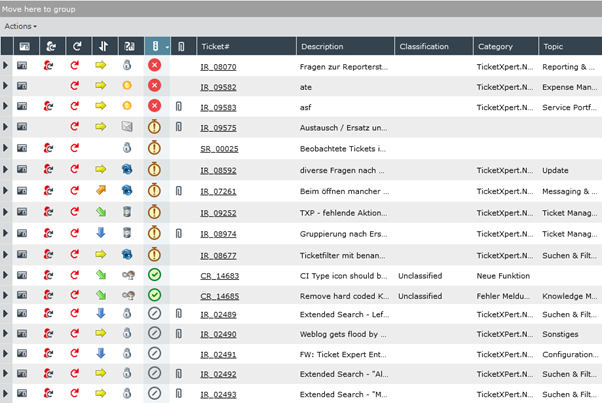
The escalation level is built into the system. The following symbols, loaded from the settings, are in use:
| Symbol | Beschreibung |

|
Not escalated yet |

|
Partially escalated |

|
Completely escalated |

|
Deactivated |
With the license key 'EnableSetEscalationLevel' enabled the column in the Activity and Ticket List does look like this:
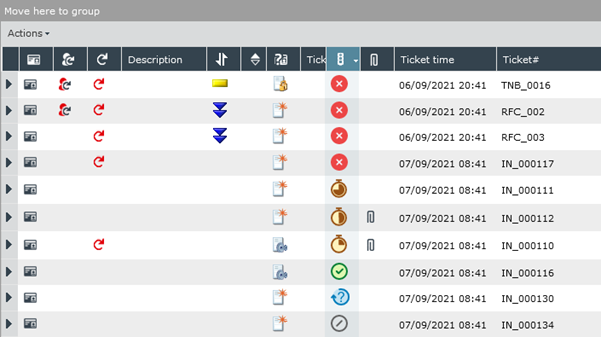
Thus the following symbols are (additionally) available to you now:
| Symbol | Beschreibung |
|
|
Not escalated yet |

|
Partially escalated 0 |
|
|
Partially escalated 1 |
|
|
Partially escalated 2 |
|
|
Completely escalated |
|
|
Deactivated |
|
|
Reactivated - no escalation |


Tip:
As the last column, the column Activity date will be displayed instead of the usual column Created at. It displays the creation date of the activity instead of the ticket. If container tickets are listed, the creation date of the first ticket belonging to the container will be displayed as the activity date.
The activity as well as the ticket list allow for grouping according to individual columns. Thus, items in the activity list can be grouped according to the currently pending activity and/or the escalation time, for example. Generally, multiple columns can be used for grouping. Sorting according to icon columns is possible as well.
In order to group entries, simply click on a column title displayed in the table header (next to the column’s text) and drag it to the grouping array above the ticket or activity list. In order to expand the grouping, additional column titles can be dragged into the grouping array.
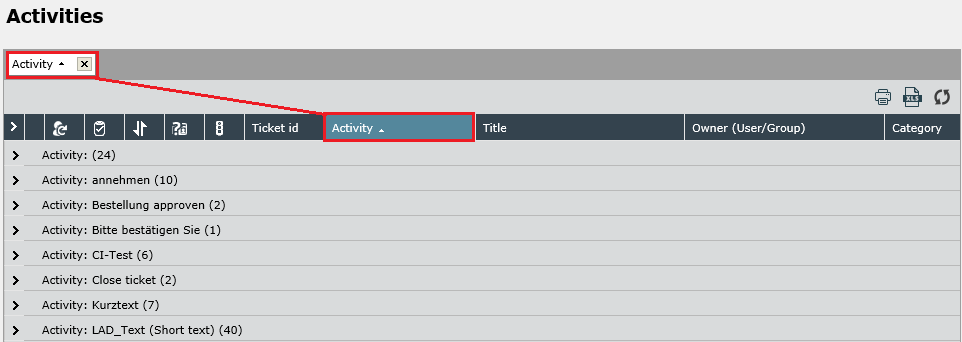
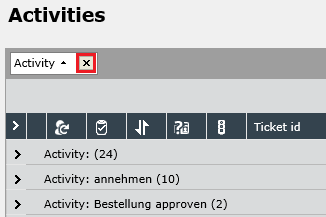
In order to remove a grouping, the column title(s) can be clicked in the grouping array and then dragged out of the array. As an alternative, the X icon can be used.
Note:
While a grouping is active, not all of the entries in both lists will be displayed. The amount of entries displayed can be specified under GroupingMaxRowCount in the table ConfigSettingsSystem.
The features displayed in the Activity and Ticket List depend on the settings in the DataView of the ticket list. The configuration of the ticket and activity list view determines the displayed information from data fields of the different ticket schemas. Both the activity list and the ticket list management can be accessed via the DataView stage (Settings > Administration > DataView Management). Via this page, a system administrator can arrange the general view of both lists.
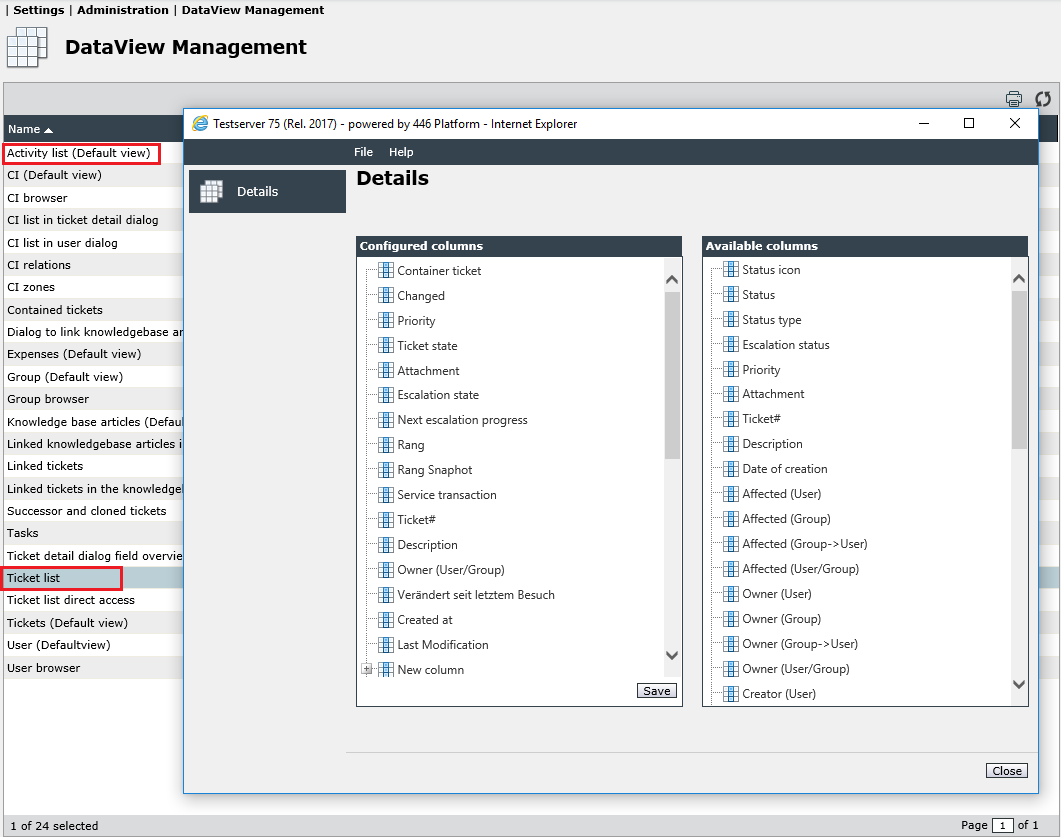
More detailed information on the DataView Management can be found in the Administration chapter.
Additionally to this documentation, the following restrictions for lists are available:
- Header data such as the ticket number or status cannot contain different data. Header data is all ticket data displayed in the right-hand overview and containing no further sub items.
- Any other data selectable from a tree view under ticket and process schemas can be displayed arbitrarily in their own columns.
For configuring such a column, right click on an already configured column and select the entry Add from the context menu. After configuring the new column, any desired information from the various ticket and process schemas can be configured for this column via drag and drop.
Note:
Please do not modify the distinct name of any already configured column. The ticket list may be displayed incorrectly until the origin name of the column has been restored.


 Copyright (c) 2000-2026 Isonet AG