Demonstration system
For test and exercise purposes, a 446 Plattform® was configured in such a way that it can be used without an installed production system. This provides users with an instrument for exploring the potential of the 446 Plattform® and trying out its functions.
Chapters
- URL
The demonstration system can be accessed via the following link:
Note:
The login name and password will be sent to you by your Isonet contact upon request.
- Start page
After the successful login, the landing page or the activity list appears. Since you are logged in as an administrator, all modules are available to you.
This online help can be used for an initial overview of the operation. Navigate to the OPERATION > User Interface section, which describes the most important symbols and areas.
- User
Different users are configured on the demonstration system and have different roles in the processes.
| User | Affiliation |
|---|---|
| John Doe | Employee Service desk |
| Hans Meier | Employee Service desk |
| Kari Nordmann | Employee Service desk |
| Lieschen Müller | Customer: Müller GmbH |
| Maria Musterfrau | Customer: Musterfirma AG |
| Max Mustermann | Employee Service desk |
The deputy function allows you to quickly switch between users (always from the administrator). To do this, click on their user name and select the role you want to take.
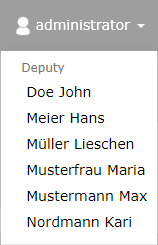
This means that you have the same permissions as the selected user. This means that you can no longer see all the functions, but only those for which you have authorization. The customers also do not see some functions, but these are visible to the service desk employees.
- Application case
A large group of companies involved in the production and sale of printers has equipped its service department with new software - the 446 Plattform®. The service desk is the first place for the wishes and problems of the customers. In the course of time, several tickets have accumulated which have to be solved.
- Ticket
Before the processes are described, get an overview of the structure of a ticket - OPERATION > Ticket. Here the sections Ticket roles, Top Menu and General Information are important for a first overview.
The processes covered in this section have the following number ranges:
- Incident: IN_000001
- Service Request: SR_000001
- Change Request/Request for Change: RFC_000001
- Problem: PROB_000001
- Task: TASK_000001
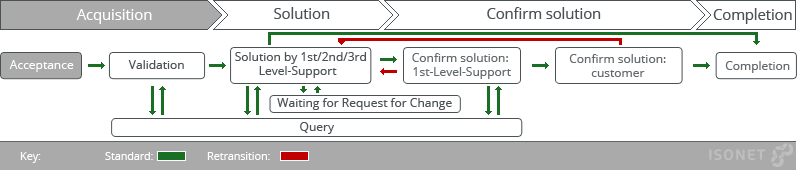
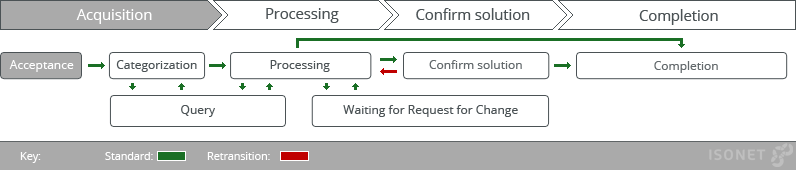
The process described below is a simplified incident reporting process based on ITIL. After ticket creation, the data is validated by 1st level support. The ticket is then solved in 1st, 2nd or 3rd level support. The 1st-level support and then the customer must confirm the solution before the ticket is closed. Meanwhile, it is possible to send a query to the person concerned and the creator of the ticket. In addition, a change request can be made during processing. The incident ticket waits for the change request to be completed.
Process roles
The users have different roles in this process:
| User | Affiliation | Role |
|---|---|---|
| John Doe | Employee Service desk | 3rd level support |
| Hans Meier | Employee Service desk | 2nd level support |
| Lieschen Müller | Customer: Müller GmbH |
Only ticket creator/affected person |
| Maria Musterfrau | Customer: Musterfirma AG | Only ticket creator/affected person |
| Max Mustermann | Employee Service desk | 1st level support |
Application case
This example, as well as the following ones, can be simulated on the 446 Plattform®:
Maria Musterfrau is the first contact person at Musterfirma AG when it comes to the software products used in the company. A colleague reports to her because he can no longer print since the printer driver was updated. Mrs. Musterfrau therefore contacts the service desk.
| No. | User/Role | Action |
|---|---|---|
| 1 | Maria Musterfrau |
|
| 2 | Max Mustermann (1st) |
|
| 3 | Hans Meier (2nd) |
|
| 4 | Maria Musterfrau | Action: Answer query. Enter any version number for the test scenario in the text field and confirm with OK. |
| 5 | Hans Meier (2nd) |
|
| 6 | Max Mustermann (1st) |
|
| 7 | Maria Musterfrau |
|
| 8 | Max Mustermann (1st) |
|
| 9 | John Doe (3rd) |
|
| 10 | Max Mustermann (1st) |
You have thus successfully simulated the incident reporting process. Please make a note of the ticket number for the problem process. |
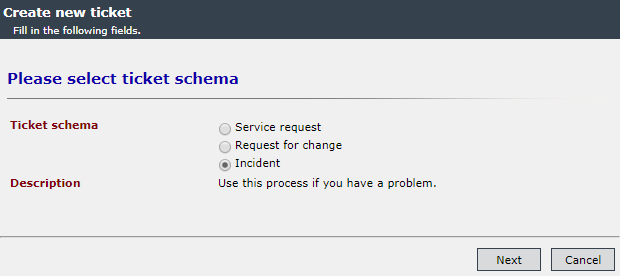
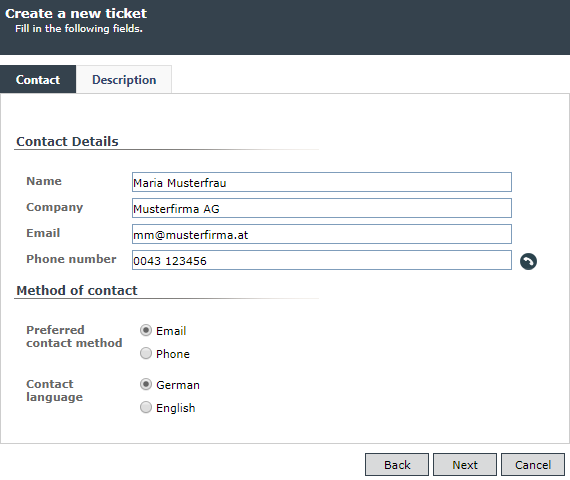
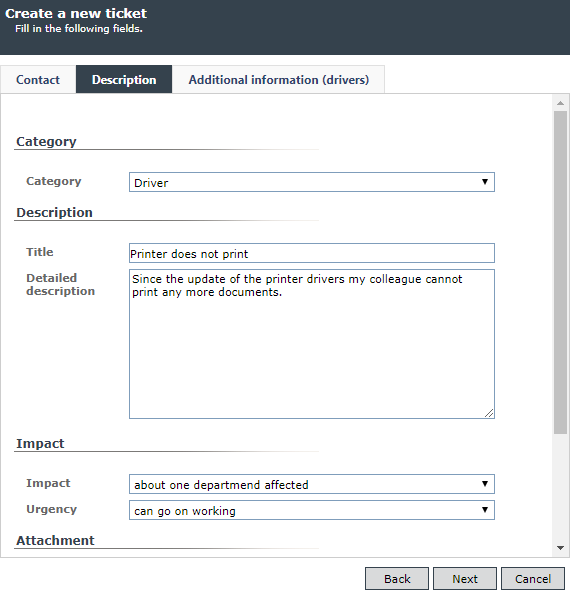
 ). The new ticket is displayed. The ticket can be opened by double-clicking on the ticket or by a simple click on the ticket number.
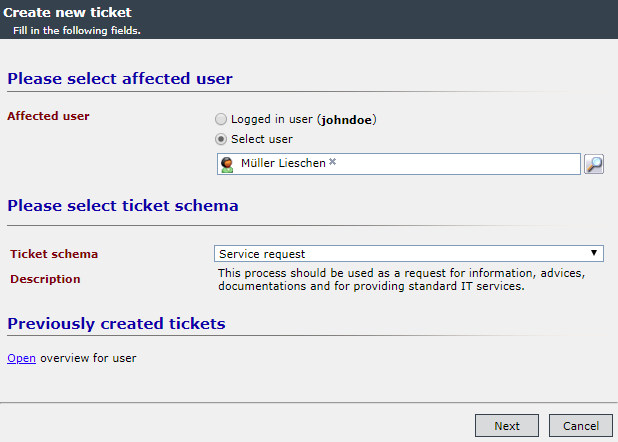
The following is a description of a request process (Service Request) based on ITIL. After ticket creation, the categorization is checked by a member of the Service Operation Team and the request is resolved. Before the ticket is closed, the customer must confirm the solution. In the meantime, it is possible to send a query to the person concerned and the creator of the ticket. A change request can also be made during processing. Furthermore, the ticket can be assigned to another member of the Service Operation Team for processing.
Process roles
The users also have different roles in this process:
| User | Affiliation | Role |
|---|---|---|
| John Doe | Employee Service desk | Service Operation Team |
| Hans Meier | Employee Service desk | Service Operation Team |
| Lieschen Müller | Customer: Müller GmbH |
Only ticket creator/ |
| Maria Musterfrau | Customer: Musterfirma AG | Only ticket creator/ |
| Max Mustermann | Employee Service desk | Service Operation Team |
Application case
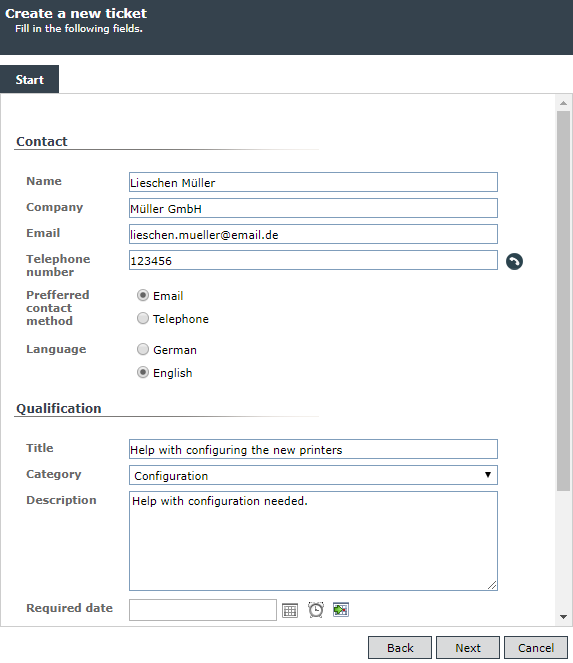
Lieschen Müller recently purchased several new printers for Müller GmbH. The configuration is much more complicated than originally thought. She had already talked to John Doe about setting problems. She calls him and asks for help.
| No. | User/Role | Action |
|---|---|---|
| 1 | John Doe (Service Operation Team) |
|
| 2 | Hans Meier (Service Operation Team) | Since you are still missing some configuration details, please start a customer query: Please explain exactly for which cases the printer should mainly be used. |
| 3 | John Doe (Service Operation Team) | As the creator of the ticket, you can also answer questions on behalf of the customer. You will see the question asked by our colleague Hans Meier and you suspect that Ms Müller cannot answer this question completely. You call her and help her answer the question. You will then have enough information to write the answer to the question: These printers are mainly intended for colour prints on matte photo paper in A3 format. Please note the ticket number for later. |
| 4 | Hans Meier (Service Operation Team) |
|
| 5 | Lieschen Müller | A test printout does not give a satisfactory result. You reject the solution. One reason is e.g: Print quality not sufficient |
| 6 | John Doe (Service Operation Team) |
You have called Mrs. Müller again: Your colleagues set up the printer as desired.
|
| 7 | Hans Meier (Service Operation Team) |
You have successfully simulated the Service Request process. |
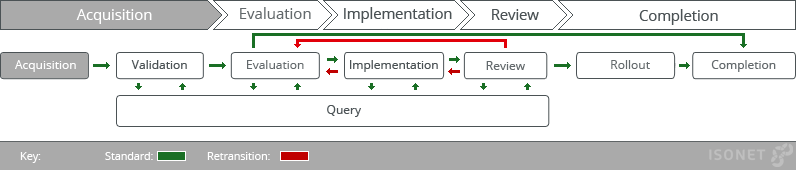
The simplified change request process is also based on ITIL. A ticket can be created directly by a user or from the incident reporting process, the request process and the problem process. A change manager accepts the ticket and validates it. Then the evaluation (planning) takes place with the involvement of the CAB. Once planning is complete, the ticket is assigned to an agent for implementation. Once the change has been completed, it is presented to a change manager for review. If the change does not pass the review, it can be reassigned or rescheduled to the last agent. If the change passes the review, it is assigned to the last editor for final implementation. There is no direct solution confirmation from the customer. However, a customer query can be made at several points.
Process roles
The users have different roles in this process:
| User | Affiliation | Role |
|---|---|---|
| John Doe | Employee Service desk | Operator (programmer) |
| Hans Meier | Employee Service desk | Operator (programmer) |
| Lieschen Müller | Customer: Müller GmbH |
Only ticket creator/ |
| Maria Musterfrau | Customer: Musterfirma AG | Only ticket creator/ |
| Max Mustermann | Employee Service desk | Change Manager, Operator |
Application case
Maria Musterfrau would like her new printers to automatically calculate how many pages are printed on average per week. To do this, she contacts the service desk again.
| No. | User/Role | Action |
|---|---|---|
| 1 | Maria Musterfrau |
|
| 2 | Max Mustermann (Change-Manager) |
|
| 3 | John Doe (Programmer) |
|
| 4 | Max Mustermann (Change Manager) |
|
| 5 | John Doe (Programmer) |
|
| 6 | Max Mustermann (Change Manager) |
|
| 7 | Hans Meier (Programmer) | In the upper tab Implementation add to Solution: In addition, a graphical user interface has been implemented. The Actual expense is now 18 hours. Save and Review |
| 8 | Max Mustermann (Change Manager) |
|
| 9 | Hans Meier (Programmer) |
Hans Meier's solution passed the review. It can now be delivered. Action: Solution rolled out You have successfully simulated the Change Request process. |
Ticket template
There is a configured ticket template for the Change Request process. This can be called up on the start page with the button to the right of New Ticket.
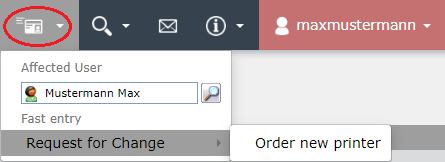
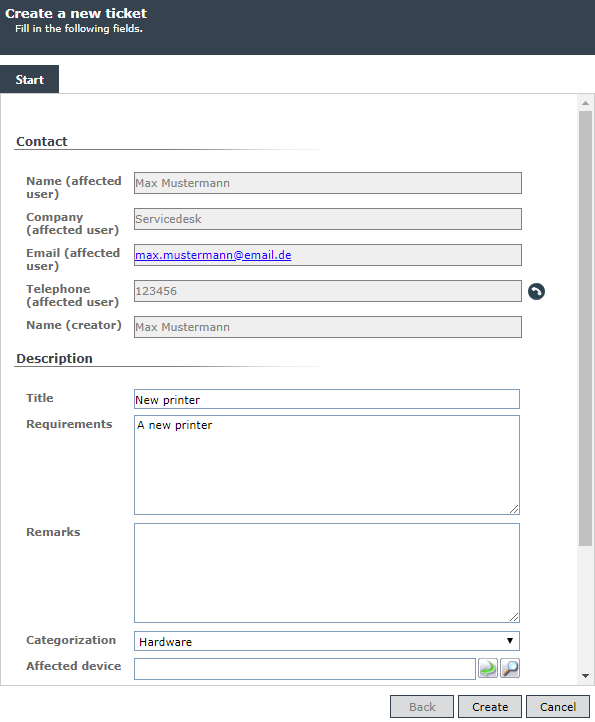
As with ticket creation, an affected user can be selected. One click opens the dialog to enter the contact data and the description. Some fields are already filled in. This allows a quick creation of tickets with recurring field values. In this case it is ordering a new printer as a Change Request ticket.
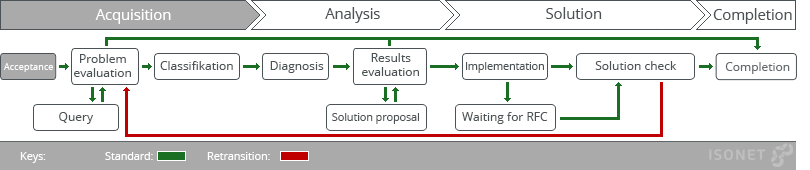
If similar incidents accumulate and several customers may be affected, the Problem process can be triggered. This part is executed by Support (for example, as a follow-up ticket to a incident message) or directly by the Problem Manager. Within the process, after evaluation and classification by the Problem Manager, the problem is assigned to a diagnostic coordinator. After the diagnosis, the Problem Manager decides whether the problem is solved by a coordinator, searched for an alternative solution, or accepted. Accepted problems are documented in the known error data base (KEDB). Basically, the manager decides which steps are necessary in the process. He assigns the ticket to a coordinator who is responsible for the execution of the various stages (diagnosis, solution search, implementation). The coordinator can create change request tickets and tasks and assign them to an processor. Finally, the solution is reviewed by the Problem Manager.
Process roles
In this process, the customers have no tasks (therefore not listed).
| User | Affiliation | Role |
|---|---|---|
| John Doe | Employee Service desk | Problem coordinator |
| Hans Meier | Employee Service desk | Problem processor |
| Kari Nordmann | Employee Service desk |
Problem coordinator |
| Max Mustermann | Employee Service desk | Problem Manager |
Application case
In the example scenario for the incident message, it was determined that the faulty driver was installed on several printers. However, the code change that led to the solution at Ms. Mustermann only solved the problem for her special configuration. The update of the driver, however, did not contribute to the troubleshooting for many customers. John Doe (3rd level support in the incident message process) then creates a problem ticket.
| No. | User/Role | Action |
|---|---|---|
| 1 | John Doe (Problem coordinator) |
|
| 2 | Max Mustermann (Problem Manager) |
|
| 3 | Kari Nordmann (Problem coordinator) |
|
| 4 | Max Mustermann (Problem Manager) |
|
| 5 | John Doe (Problem coordinator) |
|
| 6 | Hans Meier (Problem processor) |
|
| 7 | John Doe (Problem coordinator) |
Open the problem ticket and copy the task's solution to attach it to the problem ticket as a comment. You have now finished the documentation. |
| 8 | Max Mustermann (Problem Manager) |
|
| 9 | John Doe (Problem coordinator) |
Option I (long version):
At this point, you must wait for the RFC and task to be solved. The process for the change request (RFC) is described in section 2c. For this RFC ticket, please start with step 2 and Max Mustermann as Change Manager. Option II (short version)
|
| 10 | Hans Meier (Problem processor) | Open the task and enter New driver delivered and installed as the solution under Document implementation and the current date as the Actual implementation date. |
| 11 | Max Mustermann (Problem Manager) |
You have successfully simulated the Problem process. |
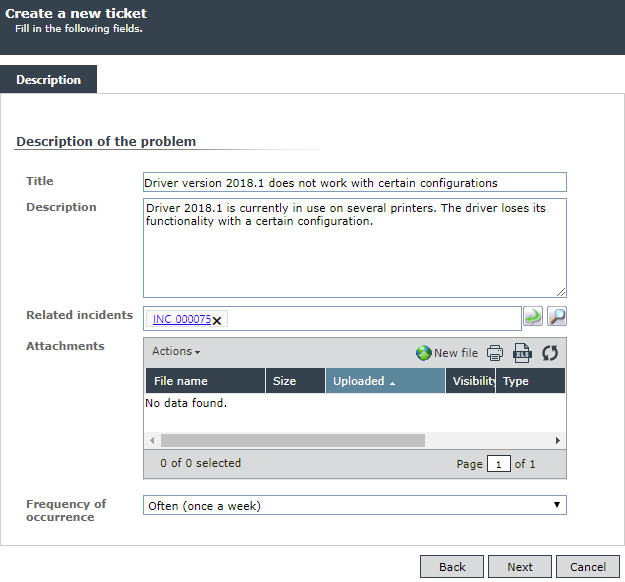
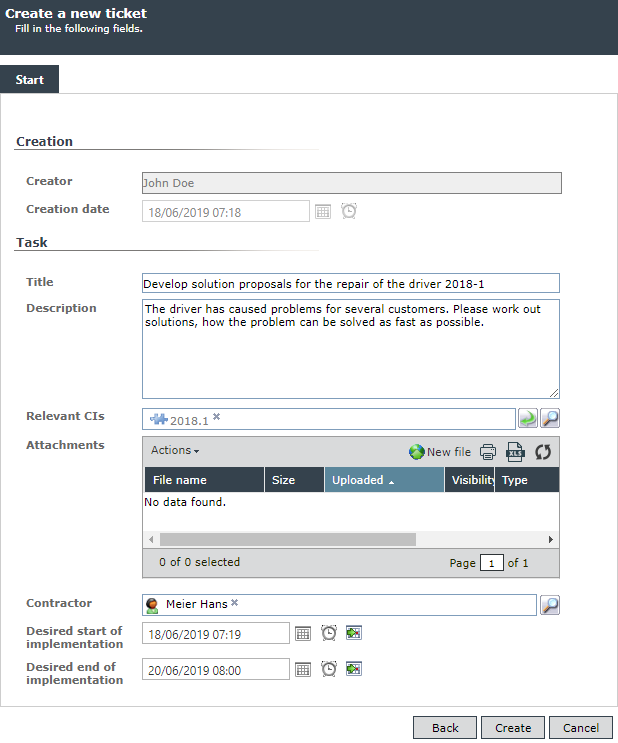
The Configuration Management process is an ITIL process to provide up-to-date IT infrastructure data. The infrastructure includes both hardware and software components (Configuration Item - CI). These are stored and managed in the CMDB (Configuration Management Data Base).
In the CMDB of this demonstration system, the customer's printers and the developed printer drivers are stored. They can be accessed in the main menu (left side) via the CMDB tab. There are zones for customers and drivers. In order for the CIs to be displayed safely, the view ... with contained CIs.
The drivers are grouped by the year of their development and have one of the following statuses:
- In planning
- In development
- Public
- Legacy
The printers are assigned to the customers and can have one of the following statuses:
- In order
- In storehouse
- Delivered
- Active
- Faulty
- Disposed
Process roles
In this process, the customers have no tasks (therefore not listed).
| User | Affiliation | Role |
|---|---|---|
| John Doe | Employee Service desk | Configuration Manager |
| Hans Meier | Employee Service desk | Configuration Manager |
| Max Mustermann | Employee Service desk | Configuration Manager |
Actions
The Configuration Managers can perform multiple actions in the CMDB. This includes Create CIs and Move CIs. The following activities can be performed in an existing CI:
- Change status
- Edit properties (fields)
- Write comments
- Creating relationships to other CIs
A new CI is created by right-clicking on the corresponding zone and then clicking on New CI. In this example, another printer is created for the customer Müller GmbH.
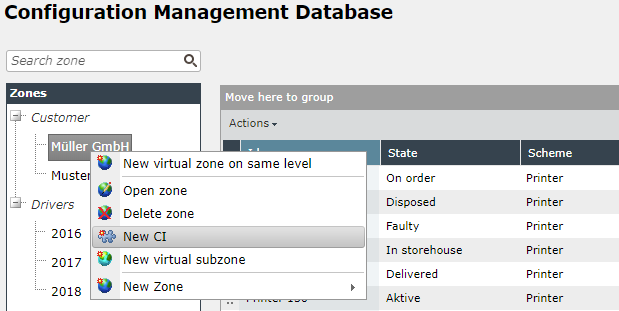
In the following dialog the zone Müller GmbH is preselected. Select Printer as scheme and type. For the ID display, a display name of the printer must be entered (e.g. Printer 150).
Now the dialog of the CI opens. This dialog is also shown when an existing CI is opened by double-clicking:
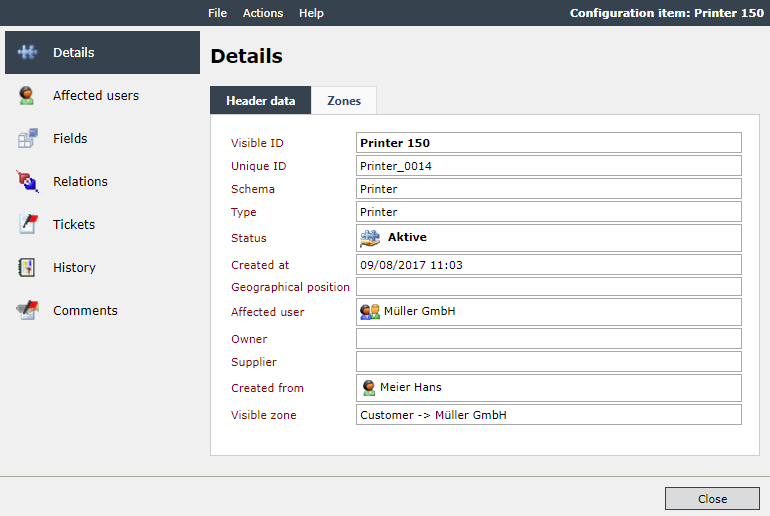
The header data (Details tab) contains the most important basic data of the CI. The status is always On order for a new printer and In planning for a new driver. Under Zones you will find the zones in which the CI is located. Since we have created the CI in the zone of the customer Müller GmbH, this customer is also the affected user.
The Fields tab contains additional data that can be changed by clicking Edit. Do not forget to save the changes.
Relations display linked CIs. With CIs from the schema Driver, it is possible to link them to a CI of the schema Printer via the connection type Controls. If two CIs are linked together, the other one is displayed in each CI in the Relations tab.
To associate a driver with a printer, open a driver with the status In planning, In development or Published. In the upper area, under Actions, there is the option Link CI.
The Tickets tab contains all tickets associated with this CI. These can be, for example, incident report tickets where this CI was selected as the affected CI.
In the History all changes concerning this CI are listed.
Finally Comments can be added to this CI.
Clicking on Actions displays all available actions for this CI. These actions allow you to change the status or the affected user.
Note:
When you change the status, note that not all other statuses can follow from a current status. The change is dependent on the defined life cycle.
At this point, some functions are mentioned that are still important for working with the 446 Plattform® (selection). Links refer to the corresponding sections of the online help.
- Ticketfilter


 Copyright (c) 2000-2026 Isonet AG
A process can be described as a progression, a development or generally as a system of movements.
In the natural and social sciences, process is a term for the directed course of an event. In an operational-organisational context, processes are also referred to as business processes or value-added processes. Processes are also called programs running in computer systems, which are usually parts of the system software.
[Source: wikipedia.org]