First steps
With the 446 Plattform®, business processes can be directly adapted and extended during operation. The integrated IT service management ensures the smooth flow of daily work and the available application modules offer the appropriate solutions for many problems. To get started and get to know the 446 Plattform®, a few selected points are listed below to provide a first insight. The corresponding links provide detailed information on the individual topics.

|
|
| There are several ways for a user to login to the system. One possibility is the manual registration by user name and password. For this purpose, the URL to the system is called up in a browser (for example, https://servicedesk.
|
|

|
|
|
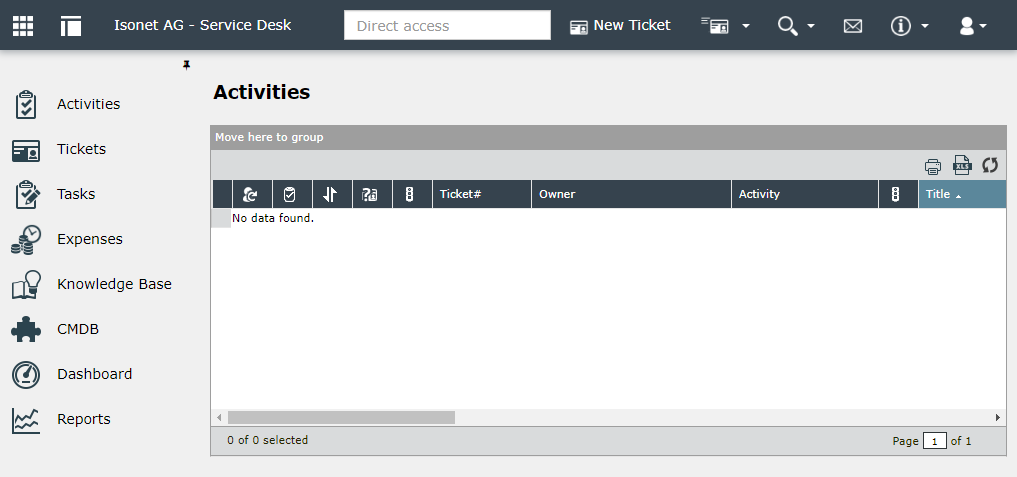
After successful registration, the 446 Plattform® interface appears with the personal activity list. In the upper area there is the menu bar with various functions (e.g. New Ticket, Search, Help, User options). With the main menu on the left side you can select the different areas of the program (e.g. Activities, Tickets, Expenses, Reports).
|
|

|
|
Clicking on activities leads you to the activity list. This allows you to manage and edit your own tickets, tasks, or KB articles. This is where tasks that the logged in user must complete are listed.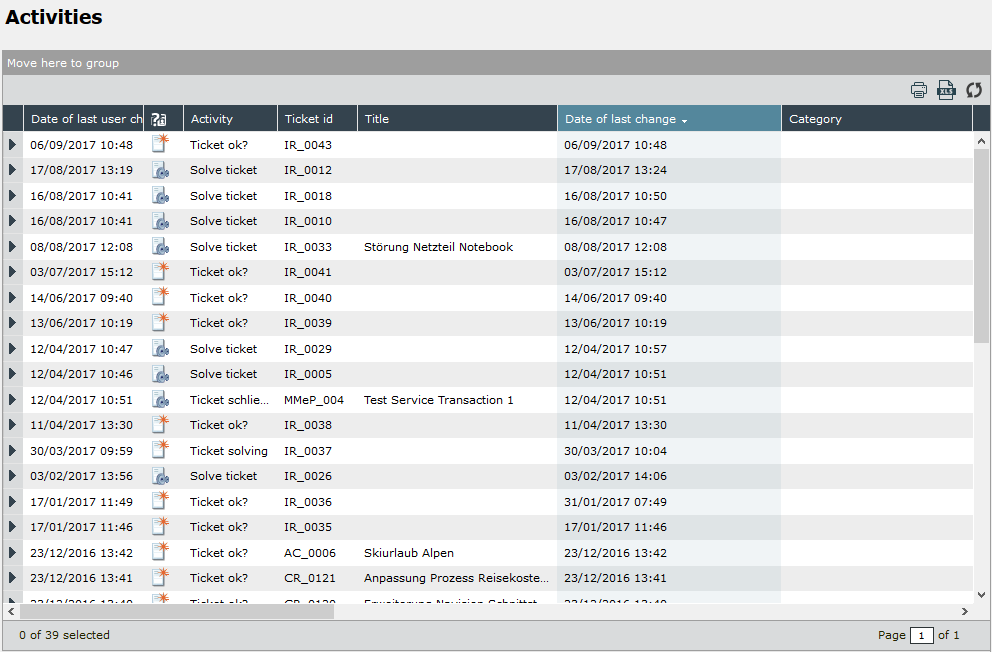 |
|

|
|
Clicking on tickets will take you to the ticket list. This displays all tickets that are visible to a user (regardless of ticket status, ticket type, ticket schema, creator, etc.). |
|

|
|
A workflow is a workflow that reflects the individual processing steps of a ticket or a task. In Workflow Management, e.g. when a ticket changes its status, or a log entry is made. There are different workflow types that are used for better differentiation. Workflows can be selected in different places. A specially created workflow can be used for each ticket or process schema. In order to display only the truly usable workflows, workflow types have a marking function at the same time. This prevents the display of workflows that are not usable. In addition, different plug-ins can only be used in certain workflow types and can only be displayed in the corresponding categories. |
|

|
|
A plug-in represents a single activity within a workflow. It is physically represented by a DLL and a corresponding configuration XML document. In the Workflow Designer, it is displayed as an icon, for example the icon Status change: The combination of plug-ins leads to a workflow step by step. The plug-ins (the individual activities) are subdivided into individual categories for better organization and faster finding in the Workflow Designer. |



 Copyright (c) 2000-2026 Isonet AG