Legacy-Expressions
The 446 Plattform® has her own expression language, which can be used for individual customization or substantial extensions at different locations. Expressions are particularly helpful, when it is not possible to solve a complex configuration problem by only using the user interface – the expression system thus offers extension options specially tailored to power users.
Expressions mainly can be used in three modules: in the Messaging & Collaboration module for the creation of custom message templates, in the Service Level Management for the computation of non-standard escalation dates, and in the Workflow Management. Because not all elements of the expression language can be used in every module, the following sections describe the application of the expression language in the respective module.
Note:
The Legacy-Expressions described in this section still work, but will not be developed further. Please use the Sharp-Expressions for your configurations.
Chapters:
Access to Ticket Fields
You can access the content of ticket fields via miscellaneous expressions. At this, please make sure that the ticket fields you want to access via expression do not use any mathematical operators (e.g. "-" or "+") or similar special characters. These special characters can prevent the proper access to the ticket fields.
Messaging & Collaboration
For every message type, there are several placeholders available, which will be replaced by the respective text on sending. Additionally to the default placeholders that are located on the right side (placeholder bar) and faded in dynamically on mouse over, there is an option of adding individually defined placeholders.
Prefix and Suffix
Every placeholder defined individually begins with the prefix {$ and ends with the suffix $} (start and end token). Between the prefix and the suffix, an arbitrary expression can be entered, which can be interpreted in context to the message to be sent.
If an expression cannot be interpreted, no text is inserted into the message in this spot.
Expressions
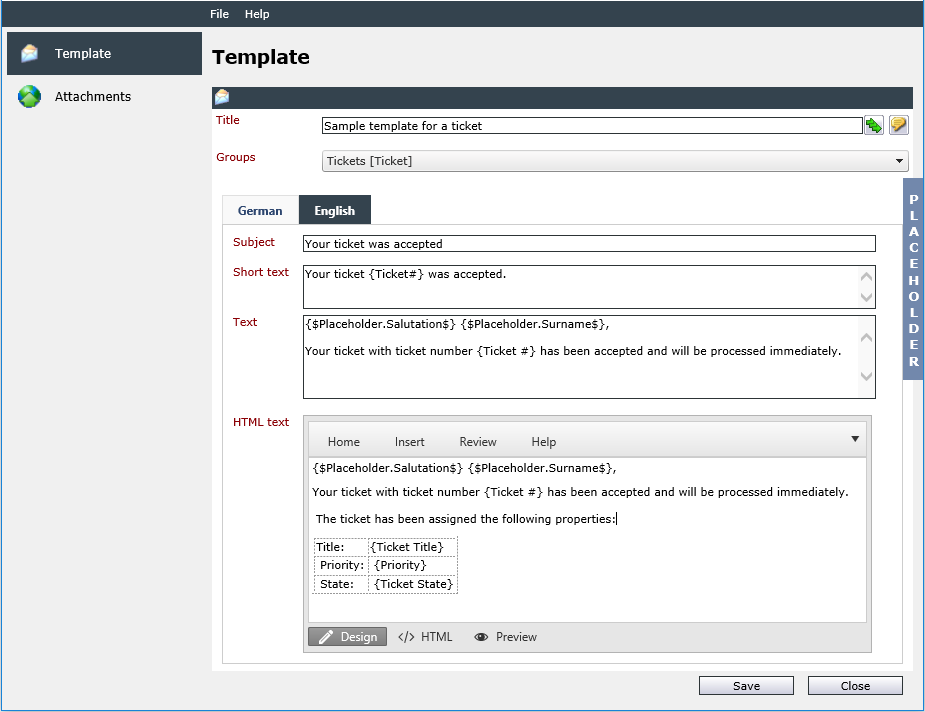
The following screen shot shows the use of expressions in a message template:
Workflow Management
Using Expressions in Workflow Plug-Ins
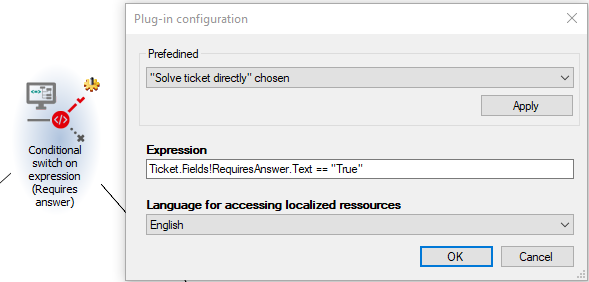
The following example shows the use of an expression in the plug-in Conditional Switch on Expression. It has two exits and decides whether the ticket should be directed to the exit Condition fulfilled or not, depending on the underlying expression. When phrasing the expression, it is necessary to express a relation, which enables the plug-in to make a yes/no decision. In this very example, the condition is fulfilled if the ticket owns a field called RequiresAnswer and if it has the content True.
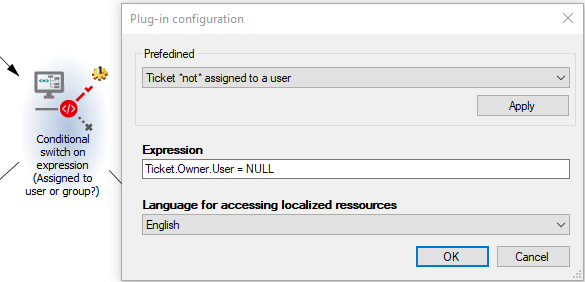
The next example illustrates another use of the Conditional Switch on Expression plug-in. In this case, it should decide whether a ticket is to be assigned to a user. The special key word NULL is used here. This condition is fulfilled if the ticket is assigned to no user.
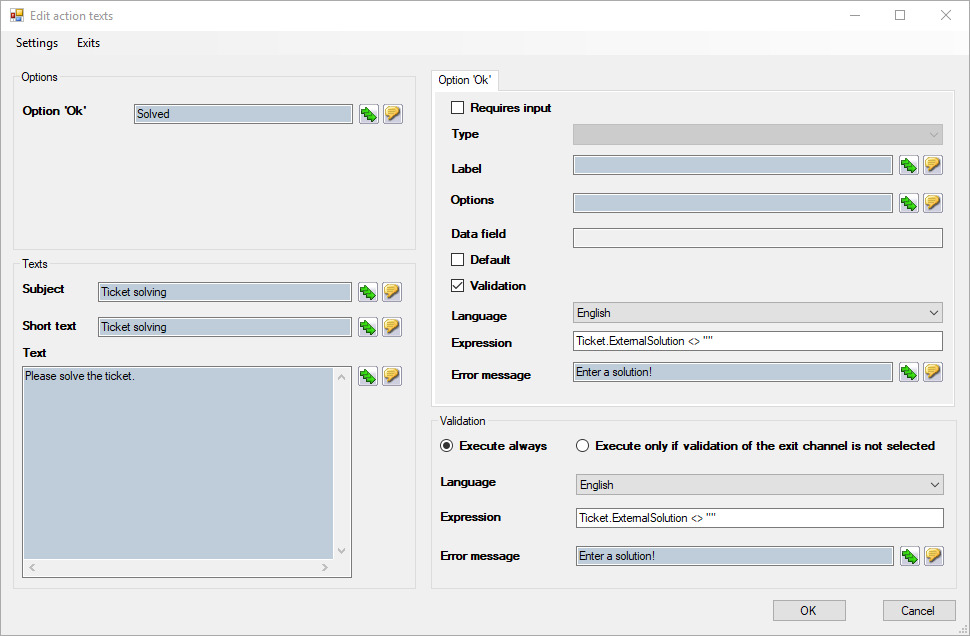
When defining workflow activities, expressions can be used for validation. If the validation fails (i.e. the condition phrased in the expression is not fulfilled), the workflow activity will not be processed. In the following example, pressing the OK button is only accepted, if the ticket contains a solution.
Using the Special Data Fields
Special data fields can be used in the workflow, in order to implement the solution of the last user/group action into the following action, for example. These data fields have to be distinct and there should not be multiple data fields of the same name, as the content of a field could be overwritten by another field otherwise.
The data fields are specified in the configuration without any additional characters, as seen in the first figure. If the content of the field is to be displayed, the name of the data field has to be set in double curly braces:
{{DataFieldName}}
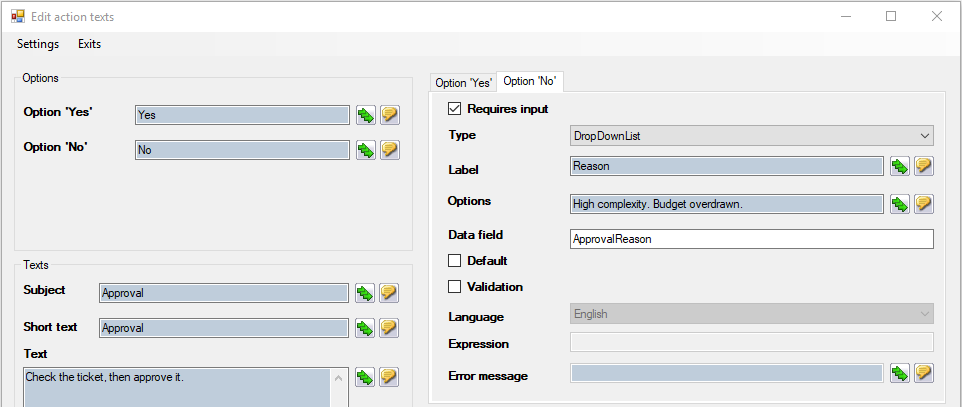
An action of approval is used as an example. For this purpose, two user actions are configured consecutively in the workflow. The first action is to be processed by an approving authority, which is to approve a request.
If the approval is not given, the user has to enter a reason. This reason is displayed as a selection box with three alternatives.
In the following figure, the configuration of this action is displayed:
After performing this action, the ticket would return from the approving authority to the requester awaiting the result of the approval in order to be able to make a decision concerning the further process. In order not to have to browse several different tabs needlessly to find the solution, the second action is configured in a way to make the solution visible directly in the user task.
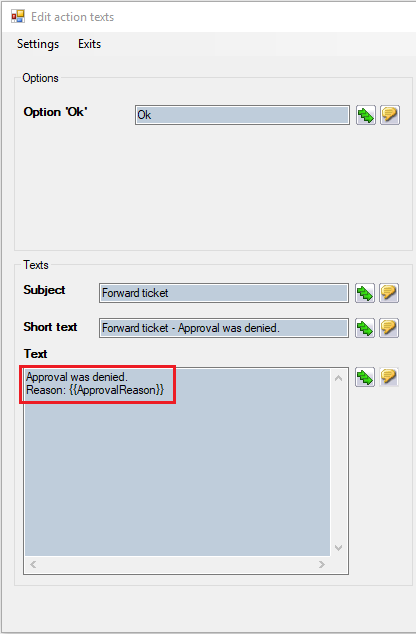
The fields framed in red demonstrate the configuration of the data field. The data field ApprovalReason is configured to save the user’s selection and to display it later on (or use it in another way).
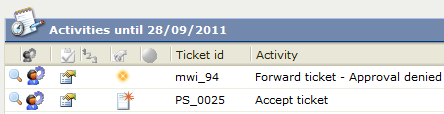
In the following figure, the data field has been configured for display in the activities list. Thus, the user can see the result of the last action immediately – without having to open the ticket first.
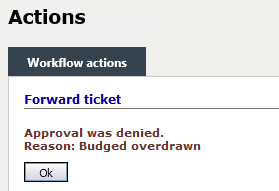
It is furthermore possible to configure the entry of the reason for approval as a free text field, in which the user can enter the reasons.
Displaying these entries is then possible using the same measures as described in the example of the selection box before.
JSON
The 446 Plattform® also supports JSON for its own expression language.
Example:
{
"Owner":
    {
        "Name": "Doe"
        "FirstName": "Bob"
        "Hobbies": [ "Riding", "Golfing", "Surfing" ]
        "Employee": [ { "Name": "Smith" }, { "Name": "Miller" } ]
    }
}
This makes it possible to process JSON queries in the following forms (Expressions always have to start with Json):
| Json.Owner. |
> | Doe |
| Json.Owner. |
> | Golfing |
| Json.Owner. |
> | Smith |
JSON objects can be used wherever normal expressions are used to retrieve stored information.
Normal expressions can also be used together with JSON. If the above JSON object is e.g. in a ticket field, the following expression can be accessed by the name:
Ticket.Fields!<TicketFieldName>.Json.Owner.Name
Administrators can use the 446 Plattform® Expression Parser (Expressions Debugger) to test expressions. First, an object ID is entered as the context object and the expression to be tested in the field below it. By Parse or Parse/Analyze the expression is executed and the result is displayed.
Note:
With Compile, syntactic checking can only be done by Sharp-Expressions.
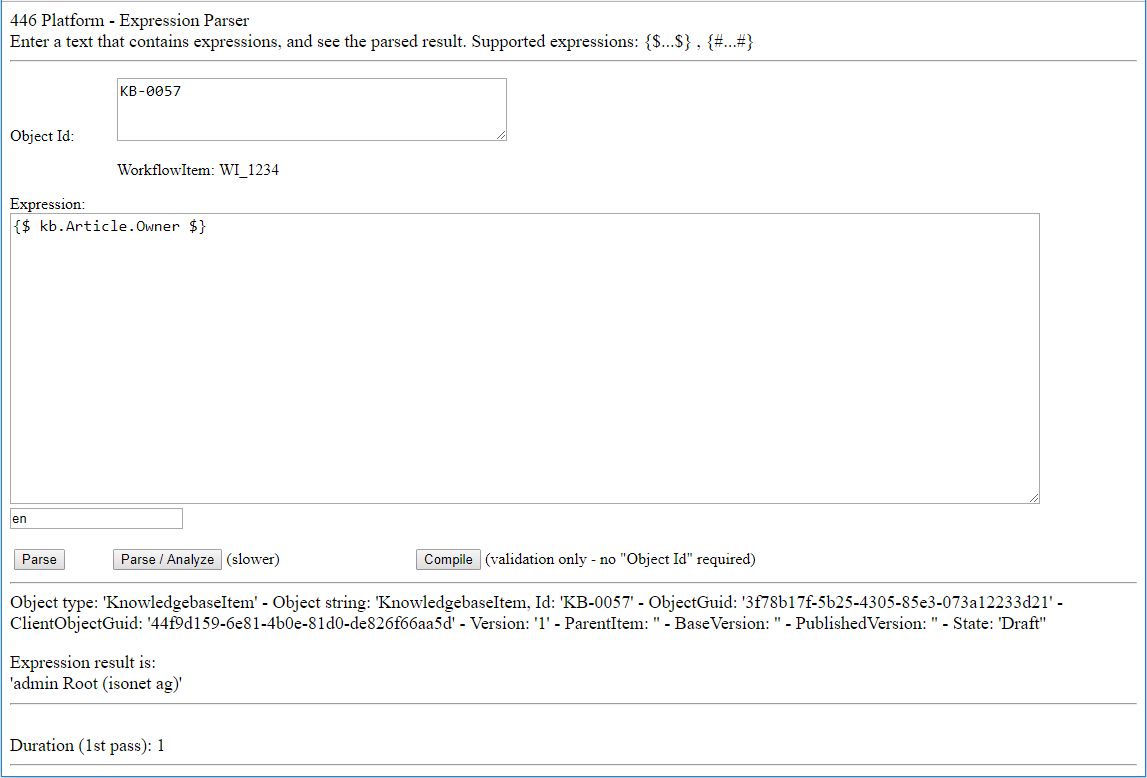
The following table shows the object ID for the corresponding object types and an example for the expression:
| Object type | Context object ID | Example | Example expression |
|---|---|---|---|
| Ticket | Full ID of the ticket | CR_16754 | {$ Ticket.Ticket# $} |
| CI | Visible ID of the CI | MyCI | {$ Ci.VisibleId $} |
| KB | ID of the KB article | KB-0025 | {$ kb.Article. |
| Expense | Expense ID of the expense | 605662 | {$ expense. |
| Task | Full ID of the tasks | TSK_451 | {$ task. |
| Workflow item | wi_ or wi- + data ID of the workflow item | wi_1638983 |
{$ workflow |
| Object |
A4BF43CC-EE3F-495D-9998-2EB6C29 |
{$ Message. |
|
| JSON | Complete JSON string | { text: "Test", id: 200 } | {$ JSON.id $} |


 Copyright (c) 2000-2026 Isonet AG