Dynamic placeholders
Dynamic placeholders allow for defining individual placeholders that can be used in messages or correspondence templates, for example. In the process, various mapping conditions can be defined in order to cover a large spectrum of different requirements for the placeholders.
Functionality of dynamic placeholders
Dynamic placeholders consist of the actual placeholder, its default text, and potentially file attachments. Below, there are alternative texts and file attachments, which can be used whenever the mapping conditions configured for them are fulfilled. When these conditions are not met, the default text with the default file attachments configured in the placeholder will be used. In doing so, it is possible to use expressions in the placeholder and alternative texts in order to integrate information from the various modules into these texts automatically.
Configuration
The configuration of dynamic placeholders can be found under Settings > Messaging & Collaboration > Dynamic placeholders. A tree view displays all already created dynamic placeholders as well as their mapping.
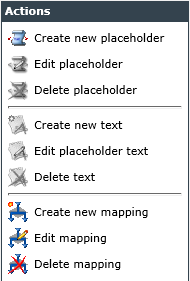
Depending on which part of a placeholder has been selected, different actions are available in the Actions menu displayed on the left.
Placeholder Actions
Create new placeholder: This action is always available. However, placeholders cannot be nested into each other. Every placeholder stands on its own.
Edit placeholder: This action equals a double-click on the respective placeholder. It is used for editing the placeholder’s name as well as its default text.
Delete placeholder: With this option, an existing placeholder can be deleted, including all of its texts and mappings.
Text Actions
Create new text: Alternative texts to the default texts of the placeholders can only be created below a placeholder. They cannot be nested into each other as well. Every alternative text stands on its own.
Edit text: This action equals a double click on the respective placeholder. It is used for editing the text.
Delete text: With this action, the selected text will be deleted.
Mapping Actions
Create new mapping: Mappings can only be created for texts. They can be nested arbitrarily or stand equally next to each other.
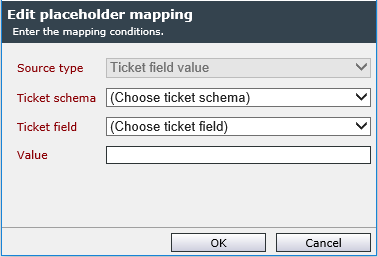
When a new mapping is created, the following values have to be specified:
Source type: There are various sources for mappings. Depending on the selected source type, different mapping parameters will be available.
Ticket field value:
- Ticket schema: For which ticket schema is the mapping to be valid?
- Ticket field: The value of which ticket field is to be checked?
- Value: Which value in the ticket field leads to the alternative text to be used for the placeholder?
Recipient:
- Recipient: The ticket role as a recipient (e.g. creator, follower, or responsible group) the mapping condition is to be valid for.
- Requires exact match: If this checkbox is activated, the condition is only valid for exactly the selected recipient. This option has consequences if, for example, a user is not only a member of the affected group but also a follower or the creator of the ticket.
If a user or a group has more than one ticket role (e.g. a user is affected user and owner simultaneously) and mappings have been set for multiple ticket roles, multiple recipient-mappings would apply. In order to avoid this behavior, all ticket roles are weighted differently. The following hierarchy is used here:
- Affected user/group
- Responsible user/group
- Owner (user/group)
- Creator
- Additional affected users and groups
- Follower
In the example above, the user will be identified as the affected user and not the owner and the matching text will be selected.
Expression:
- Expression: Entering an expression that returns a Boolean value is mandatory here. If the expression returns a True, the mapping condition is seen as fulfilled.
Edit mapping: This action equals a double click on a mapping and allows for editing the mapping.
Delete mapping: This deletes the currently selected mapping.
Composition of a dynamic placeholder
Dynamic placeholders are composed of the following components: placeholder, texts, and mappings for these texts.
The placeholder consists of its name and a default text. The placeholder’s name can be used in message templates in order to insert the placeholder in a certain spot via Placeholder.Name, for example.
The texts can be seen as alternative texts to the default text of a placeholder.
The mappings are used for determining whether the alternative text or the default text is to be used. In doing so, they can be nested or stay on the same hierarchical level.
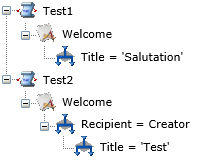
If two mappings are on the same level in the tree, only one of the conditions has to be fulfilled for the alternative text to be used. If they are nested, all mappings have to be fulfilled for the alternative text to be used instead of the default text.
Warning:
Although it is generally possible to use umlauts in a placeholder’s name, we strongly advise against it. Especially on systems with multiple licensed languages, umlauts can lead to major problems.
If the conditions of several texts apply simultaneously, the condition created first is generally used. There is no special sorting when loading the conditions. However, if this first condition is of the Recipient type, i.e. if it concerns the recipient, then these simultaneously applicable Recipient conditions will be weighted and sorted differently according to the role on the ticket. The following order is used:
-
Affected user/group
-
Responsible user/group
-
Owner user/group
-
Creator
-
Additional affected
-
Follower
A condition that compares the Affected user is more likely to be used than a condition that uses the ticket Creator for the comparison.
Summary:
-
The first created condition is used.
-
If the first condition is of the Recipient type, all conditions of the Recipient type created directly after it are weighted and sorted, and the first entry is used accordingly.
Note:
created directly after it: Only those Recipient conditions that do not have a condition of another type in the list are included in the weighting (only the first directly adjacent conditions of the Recipient type).
Examples:
| Condition | Type | Weighting | Usage | Explanation |
|---|---|---|---|---|
|
A |
Expression | No | Yes | Expression condition is used because it was created first and is not of type Recipient. |
| B | Recipient | No | No | |
| C | Recipient | No | No | |
| D | TicketField | No | No |
| Condition | Type | Weighting | Usage | Explanation |
|---|---|---|---|---|
|
A |
Recipient [Owner] | Yes | No | |
| B | Recipient [Responsible] | Yes | No | |
| C | Recipient [Affected] | Yes | Yes | Condition is used because it is weighted higher than the previous conditions of the Recipient type. |
| D | Expression | No | No | |
| E | TicketField | No | No |
| Condition | Type | Weighting | Usage | Explanation |
|---|---|---|---|---|
|
A |
Recipient [Owner] | Yes | No | |
| B | Recipient [Responsible] | Yes | Yes | Condition is used because it is weighted higher than the previous conditions of the Recipient type. |
| C | Expression | No | No | |
| D | TicketField | No | No | |
| E | Recipient [Affected] | No | No | Not used because conditions of a different type have been created before. Only the first directly adjacent conditions of the Recipient type are considered in the weighting. |
Example for the Use of a dynamic placeholder
The following figure shows a very simply structured dynamic placeholder:
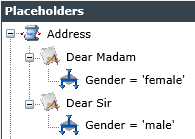
A placeholder with the name Address has been created. The default text is Dear Sir/Dear Madam here. Additionally, two alternative texts have been configured: Dear Madam and Dear Sir. Simultaneously, a ticket schema with a ticket list field named Gender has been created. In this list, there are two selection options: male and female.

Moreover, the placeholder expression Placeholder.Address has been placed at the beginning of a message template.

Now, if male has been selected in the list during ticket creation, the alternative text Dear Sir is used automatically, as soon as the message template is used in the ticket, e.g. in an e-mail to a client, or when an automatic message is sent via a message schema. The same applies for the option female in this ticket field. If the ticket has been left empty or another value has been entered into the field, none of the mapping conditions is met and the default text is used for the placeholder Address.
Note:
The text editor for dynamic placeholders and texts contains the Html content and Plain content options. Depending on the selection, the entered text is saved as HTML text or plain text.


 Copyright (c) 2000-2026 Isonet AG