Ticket Conversions
Via the ticket conversions, a ticket based on a schema can be converted into a ticket of another schema. The ticket conversion has to be configured before its use:
- The assignment of the data fields from the origin to the target schema has to be defined.
- The respective permissions have to be given.
- The ticket to be converted has to have the necessary status before the function (Action) Convert ticket in the menu bar of the ticket will be available.
Additionally, the conversion has to be activated and the action Convert ticket configured in the schema.
The configuration of the ticket conversion can be found under Settings > Ticket Management > Ticket Conversions.
In order to create a new ticket conversion, click on New ticket conversion. A new dialog will open, in which the origin and target schema can be selected. A click on OK opens the properties dialog of the conversion.

If an existing conversion is to be deleted, it can be selected from the view. By clicking on Delete in the Actions menu, the conversion will be removed from the system.
The Properties Dialog
In the properties dialog, all settings for the ticket conversions can be specified.
The following three tabs are available for the configuration:
- Tab Availability
Title: A meaningful name for the ticket conversion is to be entered here. The localization buttons will only be displayed if multiple languages have been licensed. The respective name of a conversion will be localized and specified as a FriendlyName. The FriendlyName facilitates a clearly arranged reporting of the ticket conversion.
Origin schema: Displays the initially selected origin schema. This setting cannot be changed after creation.
Target schema: Displays the initially selected target schema. This setting cannot be changed after creation.
Note:
If the wrong origin or target schema has been selected, the whole conversion has to be deleted and a new one has to be created.
Warning:
If a ticket is converted, the SLA of the origin ticket adopted automatically and if it runs through a workflow with the plug-in Set the SLA of a ticket, the Service Level Agreement will be removed from the ticket instead. Those two ways of SLA assignment must not be mixed.
Active: If this option is checked, the action Convert ticket will be available in the menu bar of the ticket view under Actions, provided that the action has been configured for this schema.
Origin status: Defines the status/statuses in the origin ticket, for which the function Convert ticket is to be available.
Keep ticket statuses: If this option is checked, the ticket will keep the status of the origin ticket after conversion.
Include deactivated files: A set option causes the deactivated files to be included in the conversion. If this option is not set, only the active file attachments are retained and the deactivated ones removed.
Change status to: This is the status the new ticket is supposed to obtain after conversion.
Additionally, the following requirements have to be met:
The relevant access permissions for the ticket conversions have to be made.
The ticket to be converted must have reached the necessary status (origin status) in the ticket conversion.
The action Convert ticket has to be configured for this user/user group under Setting > Ticket Management > Ticket Schemas.
- Tab Configuration
The following two tabs are available in the configuration:
- Tab General
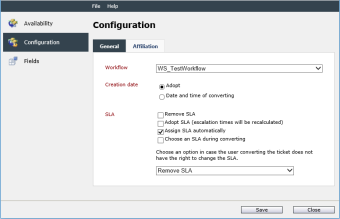
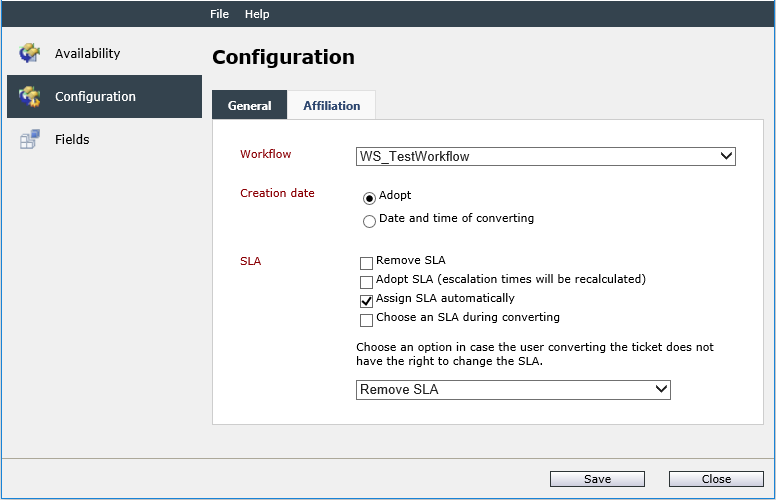
Workflow: Specifies the workflow, into which the converted ticket is supposed to be moved. Only workflows of the category Primary can be selected. In this workflow, a new item of the converted ticket starts while simultaneously removing all previously existing items of the source ticket from all workflows.
Creation date: This option determines, whether the creation date of the origin ticket or of the date of the conversion is supposed to be used.
SLA: The selection for the SLA options appears during the conversion, if multiple SLAs or the option Choose a SLA during converting have been activated. Additionally, the user has to have the right to change the SLA priority of the origin ticket.
Remove SLA: The new ticket will not be assigned with an SLA, i.e. no contract, no expenses, no priority and no escalation times. The ticket cannot escalate.
Adopt SLA: The new ticket will adopt the same settings for the Service Level Management as the origin ticket (contract, expense, and priority). The escalation times will be recalculated, i.e. if the escalation times have been calculated according to the creation date, which has not been adopted from the origin ticket, the escalation times will be adjusted by the difference between the respective creation dates.
Assign SLA automatically: The new ticket will be assigned with an SLA automatically. All SLA settings, like smart assignment, strong binding, etc., will be taken into account in order to select a matching SLA priority on this basis.
Tip:
Assign SLA automatically is the default setting and is already preselected during the creation of the ticket conversion.
Choose an SLA during converting: The converting user can select a contract, an expense, and a priority for the new ticket during the conversion process. These will be assigned to the ticket.
- Tab Affiliation
Affected user: If Choose during converting has been selected, the editing user can select a user during the conversion or adopt the affected user from the origin ticket. Thus, both options will be available.
Creator: Defines the creator of the ticket after the conversion. Via Adopt, the initial creator will be filled in and not the user converting the ticket.
Owner: Specifies, which options are to be available to the user regarding the owner during the conversion in the action Convert ticket in the menu bar of the ticket view under Actions.
Note:
Depending on the workflow, it may happen that the owner will be reset by the workflow after the conversion, i.e. even if the user converting the ticket defines an owner, he may be changed by the workflow immediately.

- Tab Fields
The (mappings) of the various fields must be stored here. All fields of the origin schema are displayed under Origin field and all fields of the target schema are displayed under Target field. The text and value of the source field are written to the target field. To distinguish between text and value, especially for expressions, see also the following topics:
Tip:
In the drop-down box under Target field, only the fields of the target schema, which have not been mapped yet, will be listed. All of the origin fields will be listed, because of the assumption that an origin field can be assigned to more than one target field.
The access permissions are configured in the User Management. Every ticket conversion is listed on the respective tab.
If the configuration of the conversion has been completed, a click on Close will close the dialog. Do not forget to Save first; otherwise all information will be lost.
Note:
The conversion can be used with the corresponding ticket action or plug-in.


 Copyright (c) 2000-2026 Isonet AG