Use of forms
A form is displayed and used via a plug-in in the workflow, which represents an activity for a user.
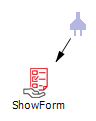
If the Show Form plug-in is placed in a workflow, it does not display any outputs. These are added dynamically as soon as a form is selected in the plug-in configuration. The buttons configured in the form are used for this.
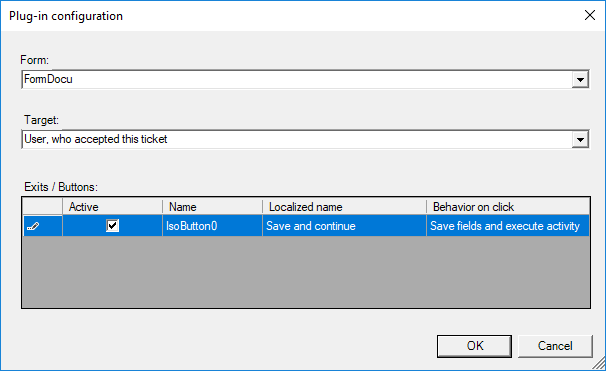
If a form has been selected, the configured buttons are displayed and can be activated.
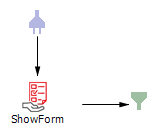
In a workflow activity, the form is then displayed as follows:
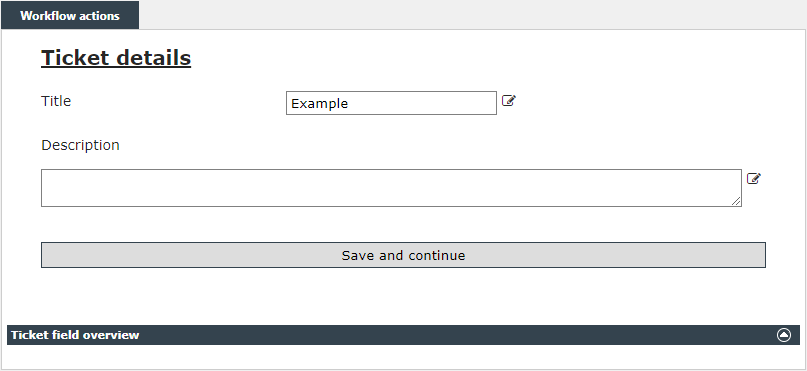
This example shows that the ticket title has been filled in, but the description has not. For example, the workflow activity could be as follows: Please check ticket title and description. The texts can now be adapted there.
The specified section title is shown at the top and a small arrow on the right-hand side with which the section can be expanded and collapsed.
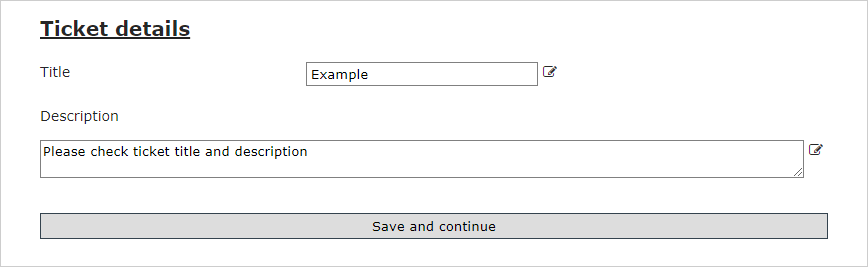
The data is now adjusted in the form. A small icon appears next to the changed fields, indicating that the field has been edited or changed.
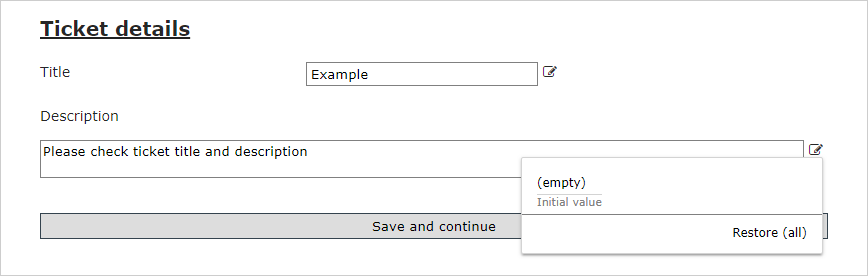
If you click on the symbol, a small box appears containing the last value entered. By clicking on the initial value, it is applied to the field again and the change is undone. Alternatively, if you want to reset all changed fields, you can click Restore (all). Then the fields that have been reset light up briefly. The last known or saved values appear again in all fields.
With a click on the configured button Save and continue the new values are written into the fields and the ticket is continued in the workflow.
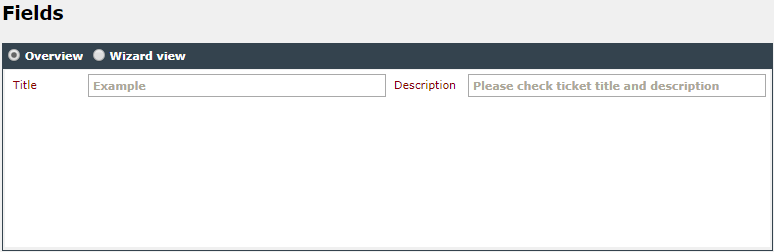
On the Fields register in the ticket you can now see that both elements have been overwritten with the new values.
Using data workflows to fill lists
The values provided by a data workflow can be used to fill drop-down lists and list fields.
When using a list box, for example, you can click on the items property under List items in the property window of the Form Designer. A dialog opens in which you can choose between predefined static list elements and dynamic elements.
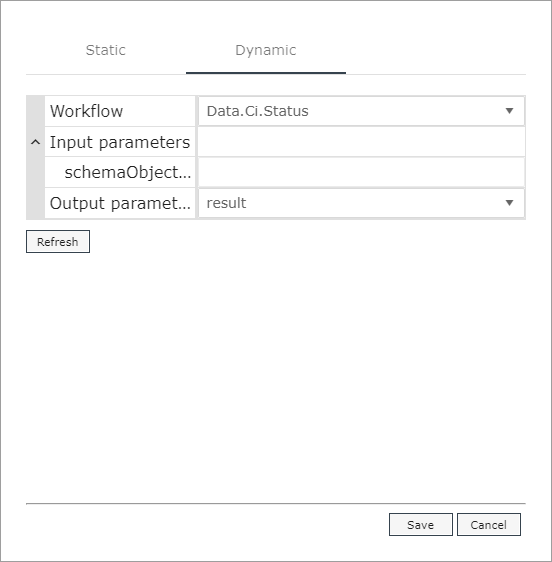
To bind the list control to dynamic elements, select a workflow (display data workflows only). After selecting a workflow, all the required workflow parameters are listed. Each parameter field assumes a static value and also resolves expressions. The expression context contains the form status and the form variables.
In order for list control to process the workflow result correctly, the result must be available in a very specific Json format:
{
items:
[
{text: "TEXT", value: "WERT"},
{text: "abc", value: "xyz"}
]
}
The output parameter name used must be specified in the properties of the list control.
Form variables allow you to prefill controls.
An editable control stores its value in a form variable as soon as the property of the designer Write to variable is specified. A variable can be used by more than one control.
The variables are set by the user when the form is loaded for the first time and when a control is changed. The variable considers the part text and the part value separately from each other.
To access a variable, an expression must be used:
{# Form.Variables["myVar"].Text #} or
{# Form.Variables["myVar"].Value #}
The variables are mainly used as parameters for dynamic list elements.
The processing sequence of controls can be displayed like a tree structure. The order is executed in the pre-order traversal:
N-l-r (node-left-right), for example:
- From container to container - container children before sibling containers
- From top to down - from left to right
Variables are filled in the same order. This means that variables set by successor controls cannot be accessed.
It is possible to bind controls to a form variable using an expression (by selecting the Expression type). Since bindings are only evaluated during initialization, it only makes sense if the control is read only. The Expression binding type is evaluated for each change. With this special case (Expression type) it is also possible to fill text fields and any other control.
A dynamic list control where the current value points to an element that no longer exists resets its text and value to an empty string.
Additional content
Additional data is written to the variable as text under the following conditions:
- The list control is bound to a data workflow.
- The control writes to a variable.
- The Json result contains extra data.
The required Json object looks like this:
{
items:
[
{text: "TEXT", value: "WERT", extra: "1234" },
{text: "abc", value: "xyz", extra: { name: "max mustermann", street: "...", city:"..."} }
]
}
If first item is selected:
- Variable content = "1234"
If second item is selected:
- Variable content = "{ name: "max mustermann", street: "...", city:"..."}"
In case of extra content, the part text is equal to the part value.


 Copyright (c) 2000-2026 Isonet AG