Ticket Management
Plug-ins:

| Icon | Description |
|---|---|
|
Add additional affected principals by SQL
Old icon: |
This plug-in adds additional affected users or groups to a ticket because of an SQL statement. Only the respective ObjectGUID of a principal is necessary here.
Configuration: Database provider: You have the choice between the "Odbc", "OleDb", "OracleClient" and "SqlClient Data Provider". The configuration is performed analogously to the Data source configuration. ConnectionString: Contains the connection string to a database system. Information on connection strings can be found under: http://www.connection Warning:
Query: A SQL statement that returns a list of principal ObjectGUIDs. Language: The language to be used when parsing the expression. Example: The statement could look as follows:
Here, all users and groups with a name beginning with Developer will be added to the ticket.
Execution: While executing the plug-in, the following checks will be done:
Workflow items, which do not pass the test, remain in the plug-in and will receive a proper error message in the attribute field 'lastException'. Incorrect principal GUIDs will be listed in the 'sys_AddAdditionalAffected_NonProcessedGuids' field within 'Data fields' of the workflow item.
|
|
Attach/
Old icon: |
This plug-in can be enabled and disabled (red cross). See Data source configuration for further details. Configuration
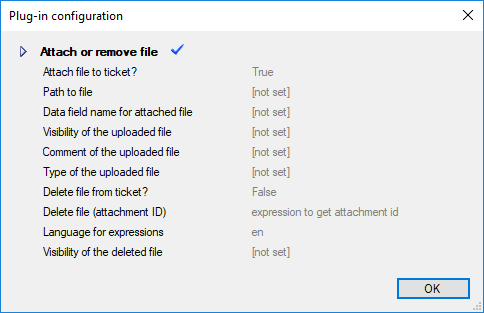
Attach file to ticket?: The file can be appended to the ticket (True or False). Path to file: The file path can be entered here and must be reachable for the application server. Data field name for attached files (Attachment-ID): The data field name for saving the attachment ID of the attached file can be entered. Visibility of the uploaded file: You can choose between Default, External or Internal. Comment of the uploaded file: Adding a file with a comment creates a log entry in the ticket (for example: File xyz.dat was added with a comment to the ticket.). Type of the uploaded file: One of the following ticket file types can be selected:
Delete file from ticket?: The file can be removed from the ticket (True or False). Delete file (attachment id): The attachment ID for deleting a file is entered. Language for Expressions: The language to be used for parsing the expression. Visibility of the deleted file: You can choose between Default, External or Internal. |
|
Book expense for ticket
Old icon: |
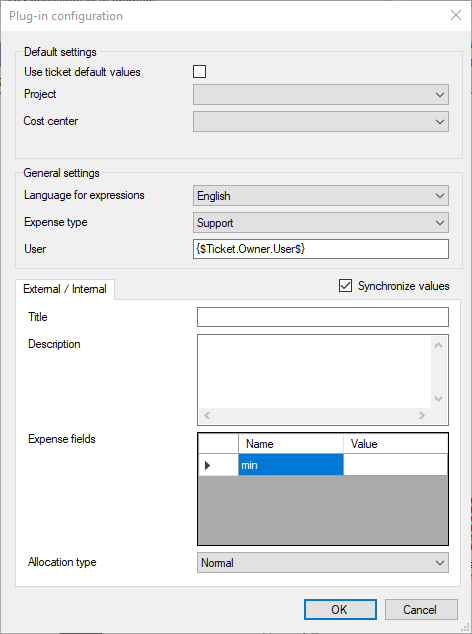
This plug-in books an expense and links it to the ticket, whose workflow item is currently passing through this plug-in. Example: This plug-in can be used for automatizing the creation of expenses, by using the stopwatch plug-in to measure the time of ticket processing. An expression reads out the data field that contains the processing time, which is automatically copied into an expense field. Configuration
Default settings: The project and cost center for the expense are set here. Projects and cost centers that have not been started yet can be hidden or shown via the respective menu item at the end of the list. If the option Default values of the ticket is activated, these values will be used and only the values stored here will be accessed whenever information is missing in the ticket. General settings: The expense type of the expense can be set here. Simultaneously, the language used when parsing expressions is specified here as well. Below, either a user login name, an ObjectGUID, or an expression for determining the user can be entered. External/Internal: The entry of the external/internal information of the expense can be defined here and is analogous to the creation of expenses as described in the Expense Management. Instead of static content, expressions for filling in the fields can be entered here as well. This plug-in has two outputs: A general output for the workflow item to leave the plug-in whenever the expense creation was successful and an error output that is used whenever the expense could not be created. If this output is removed, the workflow item will remain in the plug-in as soon as an error occurs. |
|
Change completion date time
Old icon: |
This plug-in changes the completion date of a ticket. This date can be found on the Expenses tab of the ticket. The date will be read out from a ticket field by an expression. Configuration Expression: Contains the ticket field expression reading out the completion date. Note: The plug-in can also be used to delete a completion date. This requires an expression that changes the value to MAXVALUE:
Language: Specifies the language to be used when parsing expressions. |
|
Classify ticket
Old icon: |
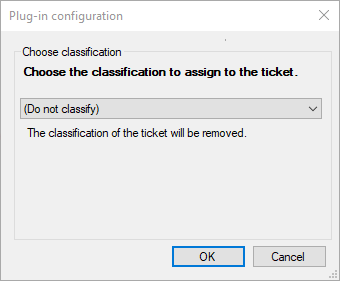
This plug-in changes or removes the classification of a ticket. Configuration
The desired classification can be selected from the drop-down list. If the entry Do not classify is selected, an existing ticket classification is removed. Otherwise, the selected classification is applied to the ticket. After a classification has been selected in the list, a short explanation is displayed below the drop-down list as stored under Settings > Ticket Management > Ticket Classifications. |
|
Close ticket
Old icon: |
This plug-in closes the ticket and sets the status to Closed. This plug-in sets all escalation times to Reached . At the end of the ticket workflow, this plug-in is used to close a ticket and to mark is as completed. For this purpose, a status is selected that marks a ticket as closed. If the ticket has been marked for ranking or if it has an active rank, this rank is removed when passing through this plug-in. Warning: This plug-in also deletes:
Configuration Status for closed: Defines the status to be valid for a ticket closed by this plug-in. |
|
Close ticket (with signature)
Old icon: |
This plug-in combines the functionalities of the plug-ins Sign and Close Ticket. While a ticket is closed by this plug-in, a hash value is calculated by freely definable expressions and written into a ticket field. Warning: This plug-in also deletes:
Configuration Status for closed: Defines the status to be valid for a ticket closed by the plug-in. Language: Defines the language to be used when parsing expressions. Hash expression: Contains the expression, from which values the hash is to be calculated. Multiple expressions can be combined here as well (see also Expression Reference). TicketSchemaField |
| Convert ticket
Old icon: - |
The plug-in converts a ticket into a ticket of another schema. It is possible to select more than one conversion in the plug-in. If the ticket matches a conversion and could be successfully converted, the workflow item ends in this plug-in. A new item starts in the workflow, as configured in the ticket conversion (the plug-in has no success output). If more than just the conversion matches the ticket, the first conversion is used. First means in ascending order of FriendlyNames. IIn the following cases, the conversion fails and the element goes to the error output:
|
|
Create an appointment in Exchange
Old icon: |
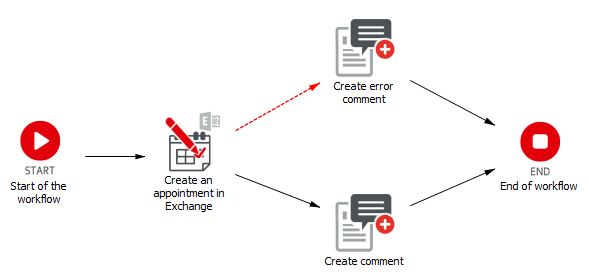
Via this plug-in, appointments can be created for users in Exchange automatically. A requirement for this is a correct configuration of the database. This plug-in works with WebDAV and Exchange web services. This setting is configured in the ConfigSettingsSystem table in the master database. For using WebDAV, the value has to be set to Exchange. If the Exchange web services are to be used, the value has to be changed to ExchangeWebServices. Furthermore, the settings of the Exchange keys need to be configured correctly in the ClientConfiguration table (master database). Example: The following figure illustrates a short example workflow that is used for creating an appointment entry. In general, the plug-in can be used in all workflows.
A comment is generated in the ticket after creating the appointment. It is also possible to create history entries etc. As the plug-in has an error output that is used whenever the entry cannot be created, it is also possible to create a comment or history entry in case of an error. Thus, both successes and errors can be retraced. Configuration
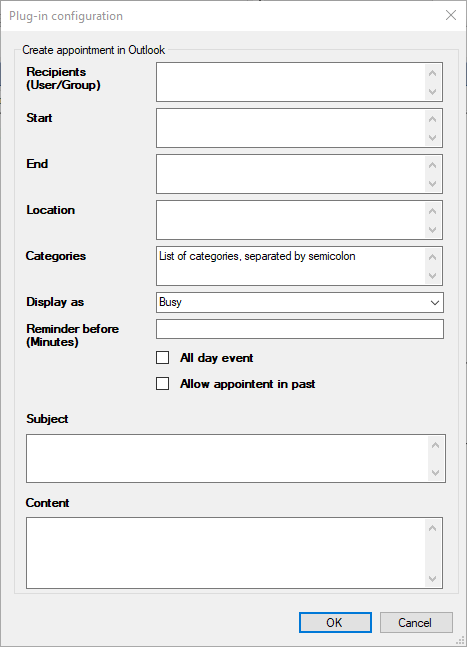
Generally, expressions can be used in all fields of the dialog. Recipients: The GUID of a user or group the appointment is to be created for has to be specified here. Start: The start date of the appointment is specified here. The time has to be entered in UTC. It will be converted into the correct time on the basis of the time zone defined in the user settings. End: The end date of the appointment is specified here. The time has to be entered in UTC. It will be converted into the correct time on the basis of the time zone defined in the user settings. Location: The Localization can be done by specifying a location. Categories: Several categories, separated by semicolons, can be entered. Display as: The state of the appointment can be selected:
Reminder before (Minutes): A reminder before the start of the appointment can be set. All day event: The appointment can be set as an all day event. Allow appointment in past: This option allows you to create an appointment in the past. Subject: Contains the subject of the appointment. Content: The content of the appointment can be specified here. |
|
Create comment
Old icon: |
This plug-in creates a comment in the ticket. Comments can be found on the Comments tab of the ticket detail dialog. Example: This plug-in can be used for a customer call-back, for example. The affected user receives an e-mail with the request to answer a question. This question can be answered in the ticket actions. The text entered there will be assigned to an attachment. This attachment will then be referenced in the plug-in Create Comment and thus a comment containing the answer of the customer will be created in the ticket. Expressions can be used in the comment text and in the prefix. Configuration
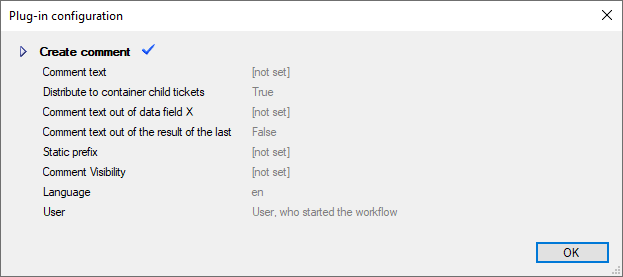
Comment text: A static comment text can be specified here. It will be added as a comment to the ticket whenever a ticket runs through the plug-in. Expressions can be used. Note: This static text is always overwritten by Comment texts out of data field X. Distribute to container child tickets: If this option is set to True, the comment is added to all tickets of a ticket container. Comment text out of data field X: If a virtual data field has been generated by a previous action in the workflow, it can be specified here. Comment text out of the result of the last action: This option is similar to the Comment text out of data field X, however, the previous action is always referenced here. Static prefix: A static prefix that will always be displayed on the Comments tab of the ticket detail dialog in front of the comment can be specified here. Comment Visibility: Defines whether the comment is to be marked as internal or external. Possible values are:
Language: Defines the language to be used when parsing expressions. User: According to the setting of the configuration key ShowAllUsersInWorkflowPlugin a fixed role of the user (False) or any user (True) is selectable. The following roles are adjustable:
Note: If the configuration key ShowAllUsersInWorkflowPlugin is set to True, performance problems can occur on a system with many users. |
|
Create new ticket
Old icon: |
This plug-in can be enabled and disabled (red cross). Configuration
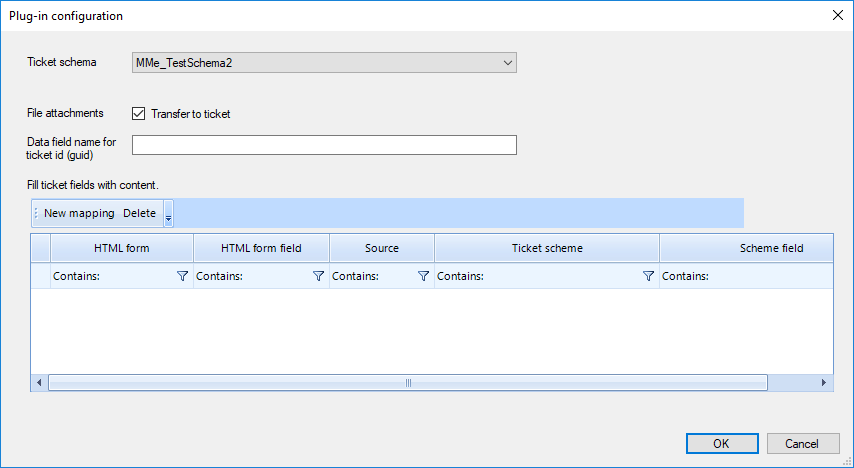
Ticket schema: The ticket schema is selected. Service transaction: A service transaction can be selected if the previously selected ticket schema is a process schema. File attachments: The transfer of files into the ticket can be selected. Data field name for ticket id (GUID): You can specify a data field that stores the ObjectGUID of the newly created ticket. Ticket fields: The ticket fields can be edited and completed. Data fields, form fields and expressions can be mapped to the ticket fields.
|
|
Create ticket and end workflow
Old icon: - |
The plug-in creates a ticket from the base entity. This plug-in is an end plug-in because the created ticket has its own start workflow. 
Configuration
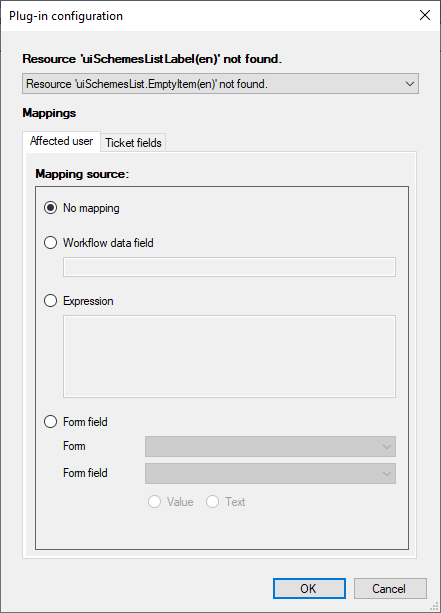
The configuration of the plug-in provides settings for selecting the destination ticket schema, the affected user and an assignment of the ticket fields. The affected user and ticket fields can be mapped by static text, workflow data fields, expressions or by selecting a source form field. |
|
Create workflow items for linked elements
Old icon: |
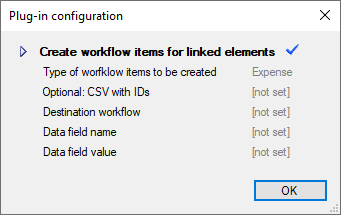
This plug-in can be used whenever a linked element is to run through a separate workflow. A workflow item is created for this element, which will then be moved to the workflow specified in the plug-in. Example: If an expense has been created for a ticket and if this expense is to run through a specific workflow, in order to send a message for this expense, this plug-in can be used. Configuration
Type of workflow item to be created: The type of workflow item to be created is set. You can choose between Expense, CI and Ticket. Optional: CSV with IDs: A list of element IDs must be specified that is used to create workflow items (instead of hard-linked elements of the type). GUIDs and Data-IDs are supported (comma separated). Destination workflow: The workflow into which the new workflow item is moved. Data field name: In a newly created item this data field name is set (expressions can be used). Data field value: In a newly created item this data field value is set (expressions can be used). |
|
Creator change by Ticket field
Old icon: |
This plug-in changes the creator of a ticket. This can apply to a ticket generally or only temporarily in a workflow. Configuration Ticket schema field name which contains a e-mail address: The name of the ticket field that contains an e-mail address is to be entered here. Only set in workflow item: If this option is set to True, the creator will only be changed temporarily in the workflow. |
|
Delete all appointments in Exchange
Old icon: |
Deletes all previously created exchange appointments in exchange. The plug-in requires no further settings. |
|
Edit expense type and clearing type
Old icon: |
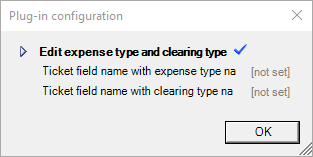
Changes the default expense type and the default clearing type of the ticket based on two ticket fields. Configuration
Ticket field name with expense type name: Must contain the FriendlyName of the ticket field where the name of the expense type is stored. Ticket field name with clearing type name: Must contain the FriendlyName of the ticket field where the name of the clearing type is stored. |
|
Edit project and cost centre
Old icon: |
This plug-in allows for changing the default values of a ticket for expenses. These default values can be found on the Expenses tab in the ticket. Configuration Ticket field name with cost centre number: The name of a ticket field containing the cost center number is to be specified here. Ticket field name with project name: The name of a ticket field containing the project name as a FriendlyName is to be specified here. |
|
Event source suspension
Old icon: |
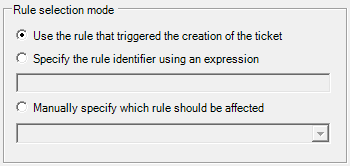
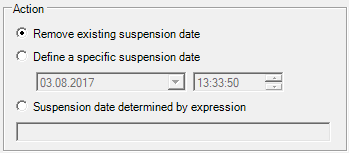
This plug-in sets the suspension date of an event source. Configuration Expressions to obtain the event source ID: Rule selection mode:
Action
|
|
Execute a report
Old icon: |
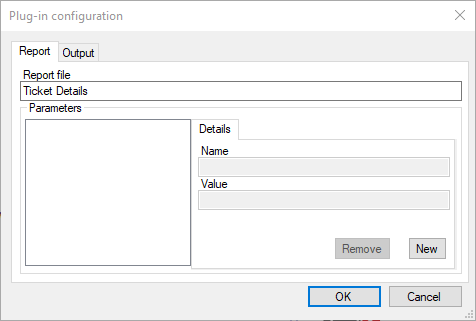
This plug-in allows for generating a report, which is then attached to then ticket whose workflow item is currently in the plug-in. This plug-in has an error output, so the ticket will not be left in the plug-in if a report cannot be generated for any reason (an error on the reporting server etc.). Configuration
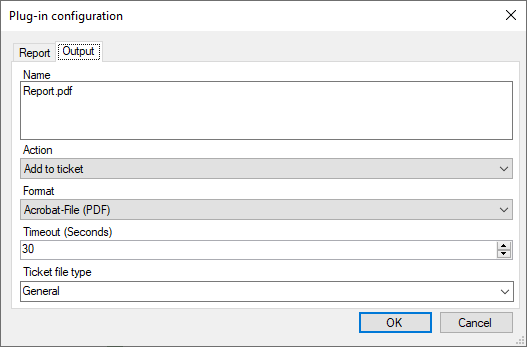
The desired name for the report is entered into the Report file field on the Report tab. The name has to correspond to the name saved on the reporting server. Below, the parameters necessary for the report have to be entered. After a click on the New button, the Name and Value for the parameter can be entered into the text boxes on the right. Further parameters can be added at will. On the Output tab, the format the report is to be generated in can be defined.
Name: The desired name of the output file is specified.. Action: Here you can select what is to be done with the output file. At the moment there is only one option available: Add to ticket. Format: This option provides the possible output formats. Currently these are the following:
Timeout: A timeout can be specified. This is used to cancel report generation if a timeout occurs. Ticket file type: Here you can define the type of the generated file. The following types can be selected:
In addition, it is possible to enter an expression that only accepts the values General, Solution or Creation as the result. If the expression does not correspond to one of these three values, the default value General is set. |
|
Export data to a text file
Old icon: |
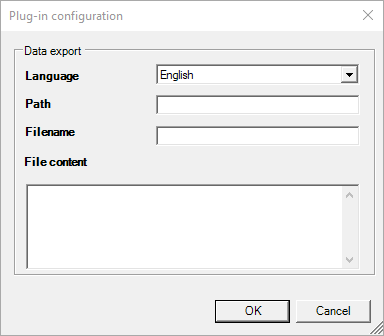
Configuration
Language: An installed language can be selected. Path: The path for the export is specified here. The files are exported to the specified folder. Filename: Enter the file name. File content: The content of the text file can be entered. |
|
Export file attachments
Old icon: |
This plug-in exports all file attachments of the ticket to a preconfigured location. This overwrites existing files. Configuration Path: The path the export is specified here. The files are exported to the specified folder. This path refers to the server running the Workflow Manager service, which means that if you enter C:\Temp here, all files will be saved to the drive C:\of the server - not locally. Expressions for determining the path can be used here as well. If the path does not exist, it is created (authorization must exist). UNC paths can be used. Language: Defines the language to be used when parsing expressions. |
|
Fill ticket field with form values
Old icon: |
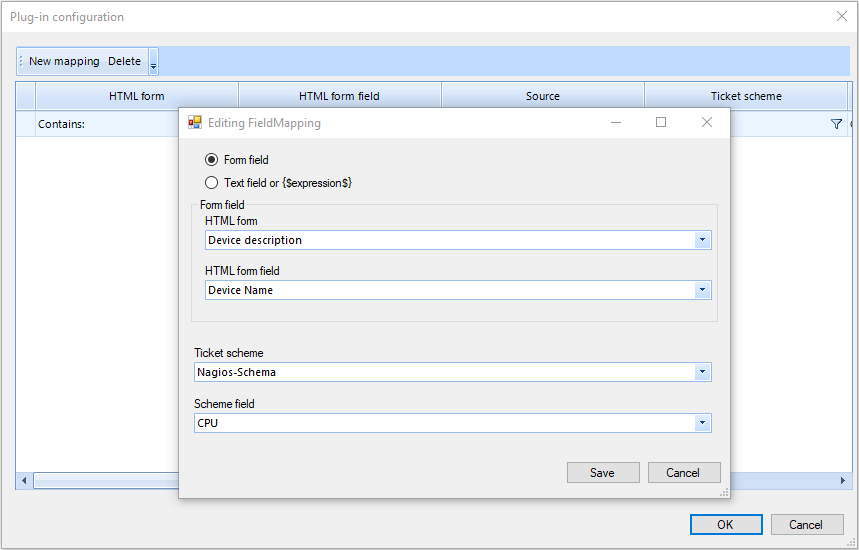
This plug-in assigns values that have been entered into an HTML form to ticket fields. This is generally necessary after form actions that allow user input. Configuration
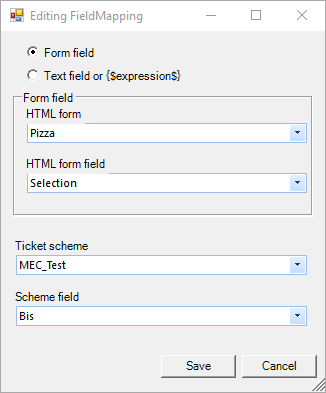
Via the New mapping button, a dialog for adding a new field mapping can be opened. First, the form the fields are to be read out from has to be selected. Subsequently, the desired field to be used as the data source can be selected from the form. Finally, the ticket schema to be set as the target has to be specified and then a ticket field the data is to be written into. Via the Save button, the field mapping is saved and the dialog closed. In order to create multiple field mappings, e.g. for multiple ticket schemas or to fill multiple ticket fields, these steps can be repeated as many times as necessary. |
|
Get Owner
Old icon: |
This plug-in reads out the owner of a ticket and stores the name in a virtual data field for further use. Example: If the owner of a ticket is only to be changed temporarily, the owner can be read out via this plug-in and then reset to this original user at a later stage. Configuration Field name for user: A field name for saving the name of the owner has to be specified here. Field name for group: A field name for saving the group of the owner has to be specified here. Language: Defines the language to be used for parsing expressions, if necessary. |
|
Get Status
Old icon: |
This plug-in reads out the current status of the ticket and stores it in a virtual data field. This data field can then be referenced in the further course of the workflow. Example: This plug-in is necessary in so called On-hold scenarios, for example. The current ticket status is read out and stored in a data field. Subsequently, the ticket status is set to On hold. As soon as the processing of the ticket continues, the original status has to be restored. The data field, which is used in the Status Change (see there) plug-in, is used for this purpose. Configuration Field name: The name of the field the status is to be saved in is specified here. Language: Defines the language to be used when parsing expressions. |
|
Get Ticketfield
Old icon: |
The plug-in Get Ticketfield reads out the value of a ticket field and stores it in a virtual data field. This data field can then be used in the further processing of the workflow. Configuration Data field for storage: Enter a distinctive name for the data field the read out value is to be saved in. Ticket field: Enter the name of the ticket field. Language: Defines the language to be used for parsing expressions. |
|
Group assignment
Old icon: |
This plug-in assigns a ticket to a group. Example: A ticket can be assigned to a group when starting the workflow, in which the users are asked to accept the ticket. Configuration Group/Process role: Specifies the group the ticket is to be assigned to. Only set in workflow item: If this option is set to True, the owner group of the ticket is changed only temporarily in the workflow. The actual ticket owner group will not be affected. Use process role?: If process schemas are used to create tickets instead of ticket schemas, process roles can be used instead of groups. For this purpose, this option must be set to True. The plug-in has an error output. If the ticket could not be assigned to the specified group or process role, it leaves the plug-in through this output. This output, however, is optional. If the output is removed, every workflow item in this plug-in behaves like any in any other plug-in without an error output. Effect: Possible values are:
The default value is All items that have or contain the same affiliation. If a ticket is assigned with one of these plug ins, it will only change the item owner/selected role of the chosen items. |


















































| Icon | Description |
|---|---|
|
History entry
Old icon: |
This plug-in creates a history entry in the ticket. Thus, actions can be tracked by members of support, users, and the system as well. Example: If the customer has answered a query a history entry recording this fact could be created, including the date and time. This allows for retracing who has done what and when. Configuration Create a new entry: The desired entry can be selected here. The entries are predefined by default. Choose a user: The user the history entry is to be assigned to can be entered here. These entries are predefined as well. |
|
Link ticket with KB article
Old icon: |
Associates a ticket that this plug-in goes through with a Knowledge Base article. Configuration ObjectGuid or identity: This field can be used to enter a static ObjectGUID, a KB article ID, or an expression (which returns an ObjectGUID or an article identity). |
|
Link tickets with workflow ticket
Old icon: |
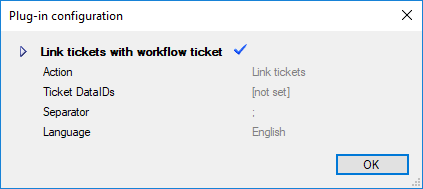
Links a list of tickets (IDs, ObjectGUIDs or ticket number) with the workflow ticket. The list of the ticket IDs can be a static value or calculated by an expression. Configuration
Action: It can be selected between Link tickets or Remove ticket links. The following additional parameters can be set:
|
|
Owner assignment
Old icon: |
This plug-in assigns the ticket to a new user. It is used in the workflow whenever the owner of a ticket is to be changed automatically. Example: The plug-in can be used to assign a ticket that has escalated, because it has not been handled, to another user. Configuration Owner dynamically out of data field X: Specifies a data field that contains either a user or a group. On assignment, the system differentiates between user or group automatically. Owner (static: user) out of data field X: Specifies the data field that contains the user. Only attachments containing a user can be specified here – not groups. Owner (static: group) out of data field X: Specifies the data field that contains the group. Only attachments containing a group can be specified here – not users. Only set in workflow item: Changes the owner in the workflow item – not in the ticket. Overwrite datafield with previous principal If a data field is used for assignment, this option can be used for overwriting the data field with the user who owned the ticket previously. Language: Defines the language to be used when parsing expressions. The plug-in has an output each for Assigned to a group and Assigned to a user. If the ticket has been assigned to a group, an additional acceptance by a user can be added to the workflow as well. The output Invalid owner is used whenever the selected user or group does not exist (e.g. has been already deleted). |
|
Set default readonly flag
Old icon: |
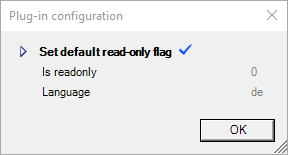
Sets override permissions on default expense settings like project, cost centre, expense type and clearing type. Configuration
The following parameters can be set: Is readonly: The values 1 or True or 0 or False (also by expressions) can be specified. Language: Defines the language to be used when parsing expressions. |
|
Set owner by dispatching
Old icon: |
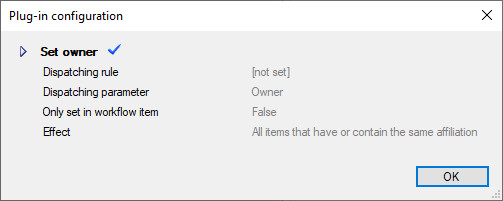
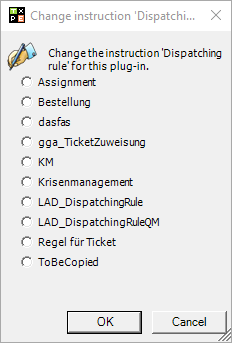
This plug-in sets the ownerbased on a dispatching rule. It can be enabled and disabled (red cross). Configuration
The following parameters can be set: Dispatching rule: Dispatching parameter Only set in workflow item:
Effect: Possible values are:
The default value is All items that have or contain the same affiliation. If a ticket is assigned with one of these plug ins, it will only change the item owner/selected role of the chosen items. |
|
Set previous user/group
Old icon: |
In a ticket, this plug-in allows for setting users or groups that have already encountered the ticket before. Configuration User: Defines the ticket role to be set: Creator, Affected user, Owner, or Responsible. Steps back: Defines the amount of steps to retrace in the current process (1 – 99). Assign to: Defines whether the ticket is to be assigned to a user or group. Additionally, both options can be set – the system then decides whom the ticket is to be assigned to due to the assignment order. |
|
Set solution
Old icon: |
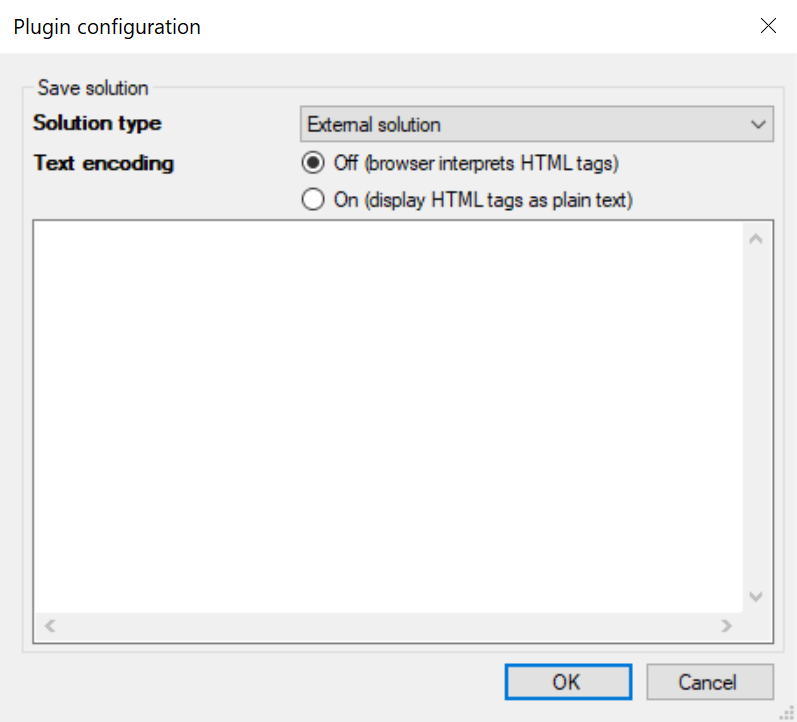
This plug-in saves a solution in the ticket. Configuration
Solution type: The respective solution type is selected here: External solution, Internal solution, External summary, or Internal summary. These fields can be found in the ticket under Solution. Text encoding: Select here how the text entered by the user should be handled. Text: Contains the solution text to be saved for the selected type. |
|
Set Ticket field
Old icon: |
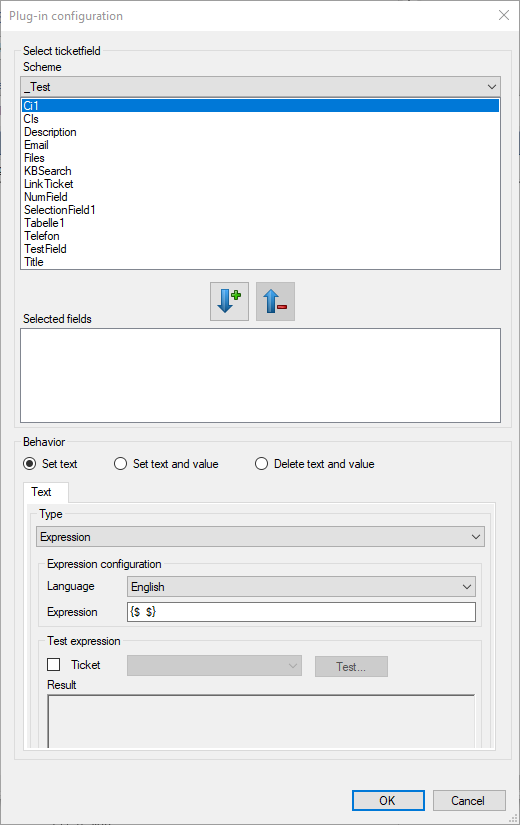
This plug-in allows for writing, changing, or deleting texts and values of ticket fields. The existing content of the ticket fields will be generally overwritten. Configuration
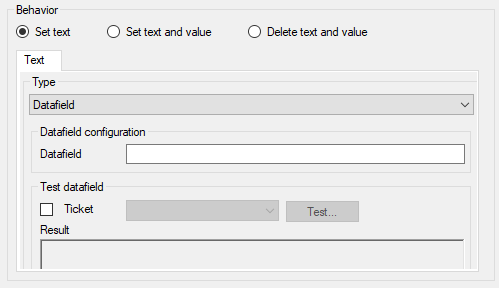
Under Select Ticketfield, the schema and the field to be filled with a text can be selected. Under Behavior, the source of the text and – if the option Text and value has been selected – the value to be written into the ticket field can be specified. The following types are available here:
If the field is only to be deleted, no further settings have to be made here. Note: If the value and text of a ticket field are to be modified, please note that the settings for both data sources have to return corresponding data. |
|
Set ticket field from dispatching
Old icon: |
This plug-in writes a value determined by a dispatching rule into a ticket field. This plug-in can be used whenever a ticket field is to be assigned with a certain value, which is determined by a dispatching rule. Configuration Dispatching rule: The necessary dispatching rule is specified here. Dispatching parameter: Contains the name of the defined dispatching parameter from the dispatching rule. TicketSchemaField |
|
Set Ticket field key
Old icon: |
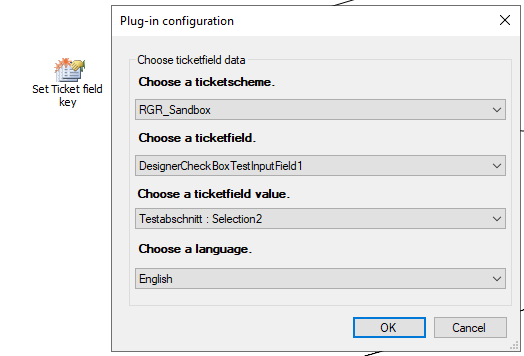
This plug-in allows for defining ticket field values, if the ticket field type is no text box. For example changing the value of a checkbox, list field or an option list is possible with this plug-in. Configuration
Choose a ticket schema: The ticket schema that contains the desired ticket field is specified here. Choose a ticket field: The ticket field whose value is to be changed is specified here. Choose a ticket field value: The desired value the ticket field is to be set to is specified here. Choose a language: The desired language of the outcome if the default localization of the user can't be loaded. |
|
Set Ticket
Old icon: |
This plug-in updates the Ticket Wizard to the current version. Ticket Wizards are version-controlled and occasionally subject to adjustments. However, already created tickets will keep the Wizard they have been created with until it is updated. This plug-in allows for providing existing tickets that have an older version of the Ticket Wizard with the current one. |
|
Set Time Zone
Old icon: |
This plug-in changes the time zone of a ticket according to a dispatching rule. This attribute can be found in the ticket detail dialog under Details. Configuration Dispatching rule: The required dispatching rule is specified here. Dispatching parameter: Contains the name of the corresponding dispatching parameter. |
|
Set writing permissions of expenses
Old icon: |
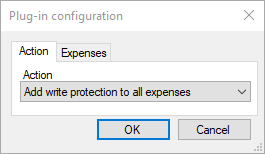
This plug-in allows for protecting booked expenses from being changed. It is possible to remove the set write protection as well. Configuration
Tab Action: The write protection of expenses can be activated or deactivated here. Tab Expenses: The expenses the write protection is to be modified for can be selected here. |
|
Sign
Old icon: |
This plug-in allows for saving certain ticket field statuses, in order to find out later on whether they have changed between two (or more) ticket actions. For this purpose, a hash value is calculated based on the specified expressions and stored in a ticket field. Configuration Language: Defines the language to be used when parsing expressions. Hash expression: Contains an expression to be used for calculating the hash value. Multiple expressions can be linked here as well. TicketSchemaField |
|
Status change
Old icon: |
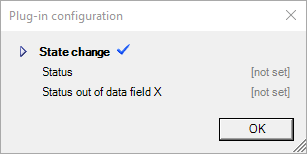
This plug-in changes the status of the assigned ticket. It can be enabled and disabled (red cross). Configuration
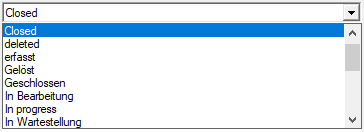
The following parameters can be set: Status: It can be chosen from all active statuses:
Status out of data field X: A status previously stored by the plug-in status in the data field X can be reused. It is recommended that only one parameter be set at a time. If both parameters are configured, the status is set from the data field. Note: The data field in the ticket from which the status to be set is read is then deleted. |
|
User assignment
Old icon: |
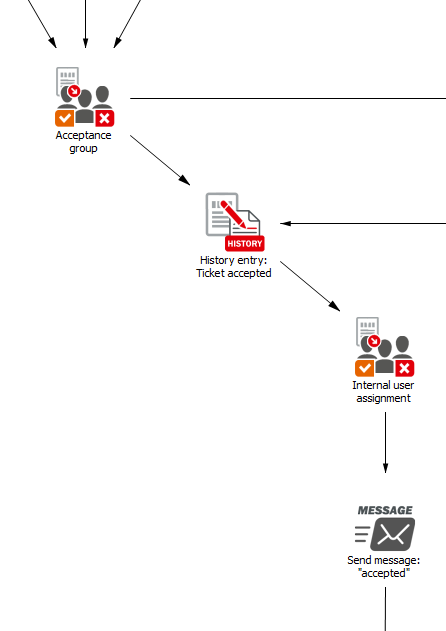
This plug-in assigns the ticket to a selected user. The plug-in is necessary whenever a supporter accepts a ticket, for example. It will be assigned to this user via this plug-in. Example:
In this example, the ticket is assigned after being accepted by a member of the group to the member that accepted it within the group. The owner could be reset in the course of a workflow via this plug-in as well, if required. Configuration: User: Defines the user the ticket is to be assigned to. Only set in workflow item: If this option is set to True, the owner of the ticket is changed only temporarily in the workflow. The actual ticket owner will not be affected. If, for any reason, the ticket cannot be assigned to a user, the ticket can leave the plug-in through an error output. Effect: Possible values are:
The default value is All items that have or contain the same affiliation. If a ticket is assigned with one of these plug ins, it will only change the item owner/selected role of the chosen items. |
|
User assignment by expression
Old icon: |
This plug-in allows for changing a user or group in a ticket. Additionally, the plug-in can be used in a KB workflow as well, but only, if the option Only set in workflow item is used. For this purpose, a user or group expression that returns an ID, email address, or login name has to be used. Configuration User who should be changed: The user object of a ticket to be changed (affected user, affected group, creator, owner, owner group, responsible, responsible group, or team) is to be selected here. Expression for user search with e-mail address, UserObjectGuid or login name: Contains the user or group expression. The expression has to return either an e-mail address, an ObjectGUID, or a login name here. Only set in workflow item: If this option is set to True, the owner of the ticket is only changed temporarily in the current workflow. The actual ticket owner remains unchanged. Login name: User or group: Defines whether the object to be changed is a user or group. If, for any reason, the user or group cannot be assigned, the ticket can leave the plug-in through an error output. Effect: Possible values are:
The default value is All items that have or contain the same affiliation. If a ticket is assigned with one of these plug ins, it will only change the item owner/selected role of the chosen items. |
|
User assignment by Ticket field
Old icon: |
This plug-in allows for defining the owner of a ticket due to a ticket field that contains an e-mail address. Example: If a ticket is fed into the system via Mail2Ticket, often only an e-mail address can be used for the assignment. Based on the sender’s e-mail address, the ticket can now be assigned to a certain user. Configuration TicketSchemaField Only set in workflow item: If this option is set to True, the owner of the ticket is only changed temporarily in the current workflow. The actual ticket owner remains unchanged. User who should be changed: The user object of a ticket to be changed (creator, owner, affected user, or responsible) can be selected here. Login name: User or group: Defines whether the ticket is to be assigned to a group or user. If, for any reason, the user or group cannot be assigned, the ticket can leave the plug-in through an error output. Effect: Possible values are:
The default value is All items that have or contain the same affiliation. If a ticket is assigned with one of these plug ins, it will only change the item owner/selected role of the chosen items. |
|
User assignment secondary ticket
Old icon: |
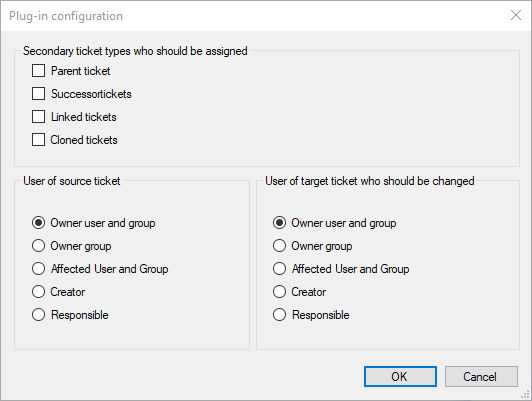
This plug-in allows for assigning secondary tickets to a user. Secondary tickets may be parent tickets, successor tickets, linked tickets, or tickets that have been created from another ticket. You can reset the owner during a workflow using this plug-in. Configuration
Secondary ticket types who should be assigned: The ticket type of the secondary ticket can be selected here. User of source ticket: Select the user of the origin ticket (the ticket, whose workflow item is currently in the plug-in) who is to be defined as the selected user in the next option. User of target ticket who should be changed: Select the user of the target ticket who should be changed. |









































 Copyright (c) 2000-2026 Isonet AG