Configuration settings
With the variables of the Configuration settings, the system can be adapted according to individual requirements (e.g.: colors, sizes, time intervals, display options, standard values).
The keys are displayed as a list. The list contains the Category, Name, Configured value, and Default value.

The Default value column contains the value that, for example after a new installation of the system. The Configured value column displays a possible change to the default value. This change is made in the Customize value window, which is opened by double-clicking on the corresponding line.

If the default values are changed, the Reset to default value button appears after calling the Customize value window. This restores the original configuration.
Example:
In the Isonet.446Platform category, the Name UseCaseInsteadOfTicket can be used to replace the designation Ticket by Case. To do this, the default value (False) must be set to True and saved with the button Save.
Warning:
The default values should be changed with caution. Improper use can result in significant system problems.
Illustration of the Configuration Settings (ConfigSettings)
In the master database, you can find two tables containing configuration settings for the 446 Plattform®. The table ConfigSettingsSystem contains settings concerning the system and the table ConfigSettingsClient contains settings that can be configured for every client separately. Both tables include, amongst others, the columns NameSpace, Key, Value, and Default Value. In addition to that, the table ConfigSettingsClient contains the column ClientObjectGuid.
You should never change the column Default Value; it contains the values that are set as a default after a new installation of the system. In the column Value, you can enter the configuration you want to set on your system. If you change the settings for a client in the table ConfigSettingsClient, you have to make sure that the column ClientObjectGuid contains the correct value for the designated client. You can find this distinct ID in the same database in the table Client.
The keys under Settings > Administration > Configuration Settings are displayed as a list.
The meaning of the individual keys as well as their customization options can be found in the two following tables. They are listed for the client and the system separately here.
| Name Space | Key |
Default Value |
|---|---|---|
| InformationArticles | InformationHidingEnabled | True |
| Minimizing the news ticker is allowed (True) or not allowed (False). | ||
| InformationArticles | ShowInformationArticles |
True |
| The news ticker is displayed on the Activity page (True) or not displayed (False). | ||
| InformationArticles | ShowInformationArticles |
True |
| The news ticker is displayed on the Ticket page (True) or not displayed (False). | ||
| Isonet.446Plattform | FileUploadFilter | * |
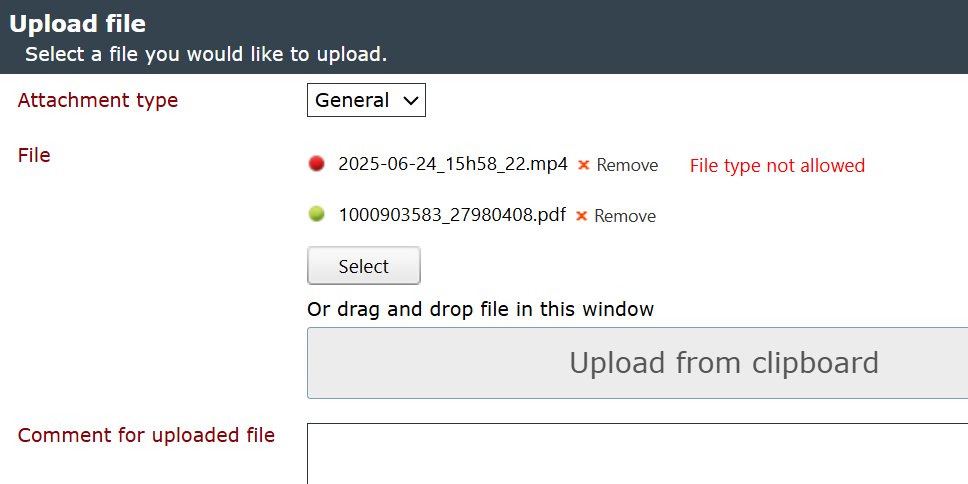
Here you can specify the file types that are allowed for upload. The default value is all (*). To narrow down the filter, specify the MIME types and file extensions (separated by semicolons). Each allowed file type must be entered on a separate line. For Example:The MIME type and file extension must be specified. However, the file extension can be expanded to include all files (*.*).
If a file is not permitted this is shown in the file upload dialog as soon as you try to upload a file which does not meet the criteria. If you click “OK” to confirm the dialog, only permitted files will be uploaded. All other files will be ignored. If a new ticket is created via Mail2Ticket with e-mail attachments that do not meet the filter criteria, these files will not be attached to the ticket. The ticket will have a comment listing all files that were not attached. If a workflow is triggered via Mail2Workflow and some files were not imported, all skipped files will be listed in a data field with the name sys_skippedAttachmentFiles. |
||
| Isonet.446Plattform.Controls.RadGrid | EnableGridGrouping | True |
| The grouping bar of the lists can be activated or deactivated. | ||
| Isonet.446Plattform.Ticket | EnableWipeTicketContent | False |
| If the value is set to True (default is False), system administrators receive an additional dialogue for file attachments and comments to wipe their content. In addition, you get an extra Ticket Action to remove history entries or e-mail messages permanently (see also General Information). | ||
| Isonet.446Plattform.Ticket | OverviewProtocolEmailPreviewMaxCharacters | 500 |
| The maximum number of characters in the email preview displayed in the overview log. The default value is 500 characters. | ||
| Isonet.446Plattform.Ticket | OverviewProtocolEmailPreviewMaxLines | |
| The maximum number of line breaks in the email preview displayed in the overview log. If no value is specified, the number of line breaks is unlimited. | ||
| Isonet.Dashboard.Widgets | IsBorderVisible | True |
| This key specifies whether the border of a Dashboard widget is displayed or not. If set to False, the border is not displayed. | ||
| Isonet.Dashboard.Widgets | X-AxisMaxLength | 6 |
| Specifies the length of the X-axis label [number of characters]. If the content is longer, it is shortened to the configured maximum length and three dots are appended. | ||
| Isonet.Dashboard.Widgets | X-AxisRotateAngle | 35 |
| Specifies the rotation angle of the X-axis label [degrees]. | ||
| Isonet.Dashboard.Widgets | X-AxisRotateLabelLength | 3 |
| Specifies the length of the rotated X-axis label [number of characters]. | ||
| Isonet.Dashboard.Widgets | Y-AxisMaxLength | 6 |
| Specifies the length of the Y-axis label [number of characters]. If the content is longer, it is shortened to the configured maximum length and three dots are appended. | ||
| Isonet.Dashboard.Widgets | Y-AxisRotateAngle | 35 |
| Specifies the rotation angle of the Y-axis label [degrees]. | ||
| Isonet.Dashboard.Widgets | Y-AxisRotateLabelLength | 3 |
| Specifies the length of the rotated Y-axis label [number of characters]. | ||
| Isonet.Lver.BusinessManagers | ExpenseNameAuto |
40 |
| This option defines the number of days the expense name auto-complete feature scans backwards for existing expense titles. | ||
| Isonet.LverManagement.FrontEnd.Web.Tools. |
DefaultStartingTime | 08:00:00 |
| Set the default starting time of the expenses. | ||
| Isonet.LverManagement.FrontEnd.Web.Tools. |
EditNonLeadingValues | False |
| Sets the default selection if the user should be able to edit the non leading values. This selection could changed by user. | ||
| Isonet.LverManagement.FrontEnd.Web.Tools. |
LeadingScope | External |
| Set the leading scope (external or internal) of the expenses. | ||
| Isonet.LverManagement.FrontEnd.Web.Tools. |
ValueCopyDirection | LeadingToNon Leading |
| This key allows you to specify whether internal values are to be synchronized with external values or external ones with internal values when creating multiple Expenses. Possible values are LeadingToNonLeading and NonLeadingToLeading. | ||
| Isonet.MessagingManager | DefaultDeliverer | MessagingManager UnifiedEmailDelivery |
| The default deliverer for new users and groups, if the new user or group has no deliverer information. | ||
| Isonet.MessagingManager | DefaultDeliveryDisabled | False |
| The default delivery disabled information for new users and groups, if the new users and groups has no delivery disabled information. | ||
| Isonet.Synchronisation | IsEnabled | False |
| This option activates the synchronization module. | ||
| Isonet.Synchronisation | UseOldHistoryForSynchronisation | True |
| The old history is used for synchronization. | ||
| Isonet.TxpEnterprise | EditorMaxUploadSize | 1048576 |
| The value given here (in bytes) indicates the maximum media files allowed to be uploaded and used by the HTML editor. | ||
| Isonet.TxpEnterprise | EditorStripFormattingOptions | NoneSupress CleanMessage |
| In addition, the following values can be used: None: does not remove any formatting, but displays an information that found MS Word formatting. NoneSupressCleanMessage: Does not remove formatting, does not include formatting information. MSWord: Removes all MS Word attributes and tags from the text when you paste. MSWordNoFonts: Removes all MS Word attributes and tags, as well as font tags from the text when you paste. MSWordRemoveAll: Removes all MS Word relevant attributes and tags. Css: Removes all style attributes. Font: Removes all font tags from the inserted text. Span: Removes all chip tags. AllExceptNewLines: Removes all tags and attributes except Breaks (br) and New Lines (\ n). ConvertWordLists: Converts Word lists (ordered/unordered) to HTML tags. All: Removes all HTML formatting. MSWordNoMargins: Removes all attributes and tags associated with Word, as well as margins, etc. | ||
| Isonet.TxpEnterprise | EnablePatternSearch |
False |
| This option specifies whether the pattern search in the CI browser is generally available during the search for CIs by means of their attributes. | ||
| Isonet.TxpEnterprise | EnablePatternSearch |
False |
| This option specifies whether the pattern search in the CI browser is generally available during the search for CIs by means of their visible ID. | ||
| Isonet.TxpEnterprise | StoreTicketFilesInFileSystem | False |
| This key allows (True) to store attachments to an external/internal memory instead of in the database. To do this, you must fill in the key TicketFilePath with the exact, full path. | ||
| Isonet.TxpEnterprise | TicketFilePath | |
| If you want to store ticket attachments in the file system, the path to the folder/drive must be specified. See also Key StoreTicketFilesInFileSystem. | ||
| Isonet.TxpEnterprise | UseSingleLineActionTabs | True |
| This setting allows for displaying actions within the Actions tab in tickets, KB articles and tasks either in one line or one below the other in order to increase the speed of operation, if, for example, many actions are always displayed simultaneously. | ||
| Isonet.TxpEnterprise.BusinessEntities. |
AttributeList | exchange |
| This option is used for the free/busy integration and retrieves the login information for the ExchangeServer. The provider has to use one of the users’ values in order to receive the information. In most cases, the right value is the exchangealias, but on some systems different attributes have to be used. Therefore, a comma separated list is used, whose values are processed one after another. Note that this is only required for the old pre-2010 WebService Exchange versions. More information regarding the configuration of the Free/Busy service can be found in Configuration of Free/Busy times. | ||
| Isonet.TxpEnterprise.BusinessManagers. |
CostCentresThreshold | 15 |
| This is the number of cost centers displayed in the expenses dialog, if you are not using Search as you type. | ||
| Isonet.446Plattform.Cmdb | PerfomCiAttributeCheck | False |
| If this key is enabled, the CI import checks whether the CI attribute schema id and the CI schema attribute id match. If they do not, a warning is written to the log file. Because this operation is resource-intensive, it is disabled by default. | ||
| Isonet.TxpEnterprise.CMDB | UniqueVisibleId | False |
| This key specifies, whether multiple CIs with the same visible ID can be created. If set to False (default), multiple CIs with the same visible ID can be created/imported. | ||
| Isonet.TxpEnterprise.CMDB.CiDialog | TitleOverride | |
| The text displayed here is displayed in the window frame above an open CI, instead of the CI name. | ||
| Isonet.TxpEnterprise.CMDB.CiImport | ExternalCommandTimeout | 180 |
| This specifies the timeout (in seconds) for SQL commands to external databases. | ||
| Isonet.TxpEnterprise.CMDB.Stage | RememberSelectedZone_Default | False |
| Specifies whether the last selected CMDB zone should be saved and preselected when called up again. This setting only applies until the user has made their own setting in their profile. | ||
| Isonet.TxpEnterprise.CMDB.Stage | ViewType | Grid |
| This defines the default view of the CMDB. The possible values are Grid, GridRecursive, GridRecursiveContained, GridContained, and Tree. | ||
| Isonet.TxpEnterprise.CMDB.Stage.CiTreeView | NodeIcon | Schema |
| The icon displayed in the CI tree view (Schema or Type) can be specified. The default value is Schema. | ||
| Isonet.TxpEnterprise.CMDB.Stage.CiTreeView | ShowStatusIcon | False |
| This key let's you specify if the status symbol of the status of configuration items should be displayed (True) in the CMDB or not (default). | ||
| Isonet.TxpEnterprise.CMDB.Tools.CiBrowser | DisplayZoneTreeInSearchDialog | False |
| If this option has been enabled (True) in a CI browser the zone tree instead of the zone filter will be displayed. | ||
| Isonet.TxpEnterprise.CMDB.Tools.CiZoneDetailDialog | DefaultTab | Preferences |
| When opening the ZoneDetailDialog, it is determined which register is selected. | ||
| Isonet.TxpEnterprise.CMDB.Tools.CmCiDetailDialog | DefaultTab | Details |
| This is the default tab that will be displayed as soon as the CI detail dialogue opens. The available values are: Details, AffectedPrincipals, UploadFiles, Fields, Relations, Tickets, Services (if Service Portfolio is available), History, Comments, SLA , Form. | ||
| Isonet.TxpEnterprise.Controls.FastEntry | EnableFastEntryTextReset | True |
| Resets the values of the fields whenever fast entry is reopened. | ||
| Isonet.TxpEnterprise.Controls.FastEntry | EnableFastEntryUserReset | False |
| Resets the selected affected user in the fast entry. | ||
| Isonet.TxpEnterprise.Controls.RadGrid.DetailPages. |
Height | 150 |
| This key defines the height of the preview (preview panel) of an action in the action list. | ||
| Isonet.TxpEnterprise.Controls.RadGrid.DetailPages. |
Height | 150 |
| This key defines the preview level of a ticket in the ticket list. | ||
| Isonet.TxpEnterprise.Controls.TicketDirectAccess | EnableTicketDirectAccess |
False |
| When this option has been enabled, the value in the text box of the direct access control is reset to the default value every time. | ||
| Isonet.TxpEnterprise.Controls.UserBrowserControl | EnableOfficeCommunicator | False |
| This key allows the integration of the MS Office Communicator 2007 into all controls and fields in which users are displayed. | ||
| Isonet.TxpEnterprise.KBSearch | DdlFieldsDefaultValue | 1 |
| Sets the default value of the drop-down list mode in the search dialog (Possible values:1-8). | ||
| Isonet.TxpEnterprise.KBSearch | DdlModeDefaultValue | AnyWords |
| Sets the default value of the drop-down list mode in the search dialog. Possible values are Unknown, AllWords, AnyWords and ExactPhrase. | ||
| Isonet.TxpEnterprise.KBSearch | EnableDdlDefaultValue | True |
| Activates a default value for the search drop-down lists. | ||
| Isonet.TxpEnterprise.KBSearch | Height | 550 |
| Enables a custom specification of the KB search height in pixels. | ||
| Isonet.TxpEnterprise.KBSearch | Width | 750 |
| Enables a custom specification of the KB search width in pixels. | ||
| Isonet.TxpEnterprise.KnowledgeBase | EnableKbAttachment |
False |
| Enables an additional column for attachments in the KB overview. | ||
| Isonet.TxpEnterprise.Mail2Ticket | CustomIncomingTicketIdTag | TXP:\s+ (?<fullid>\S+) |
| When EnableCustomIncomingTicketIdTag = True, this entry is used as a regular expression for the search for the custom token. | ||
| Isonet.TxpEnterprise.Mail2Ticket | EnableCustomIncoming |
False |
| Activates/deactivates the use of a custom Mail2Ticket token. | ||
| Isonet.TxpEnterprise.Mail2Ticket.Service. |
SearchTicketIDsInMailBody | True |
| If this option is set to True, incoming e-mail bodies will be searched for the token by Mail2Ticket as well, which allows the allocation to a ticket. | ||
| Isonet.TxpEnterprise.Navigation.Bar_Left | AlternativeBodyStyle | |
| Enables an alternative color for the navigation bar. Example: FILTER: progid:DXImageTransform.Microsoft.Gradient(GradientType=1, StartColorStr=#7189C1, EndColorStr=#F3F781); (Produces a color gradient from blue to yellow); background-image:none;background-color:red (creates the background color red) |
||
| Isonet.TxpEnterprise.PublicWebServices. |
ActivateSecurityTokenGenerator | False |
| Enables the generation of a security token that is required for logging in via SingleSignOn via an external login page. | ||
| Isonet.TxpEnterprise.ServicePortfolio.Controls. |
ScrollHeight | 180 |
| This key defines the height of the service portfolio browser in the ticket wizard. | ||
| Isonet.TxpEnterprise.ServicePortfolio.Controls. |
ChunkSize | 50 |
| In the ServicePortfolio browser, x elements are reloaded during LoadOnScrolling. | ||
| Isonet.TxpEnterprise.ServicePortfolio.Controls. |
InheritStatusDefaultValue | True |
| This key allows for inheriting statuses to Service items in the hierarchy of the Service Portfolio tree. If, for example, a service is created beneath a service catalog, it will have the same status as the catalog due to the checkbox being enabled automatically for the inheritance. The available values are True (checkbox activated automatically) and False (checkbox deactivated). | ||
| Isonet.TxpEnterprise.ServicePortfolio.Controls. |
Delta | 1000 |
| The delta is a pixel value that makes sure that more and more nodes are loaded, before the user see the current last node in the subtree being loaded. If set to 0 the next chunk of nodes is loaded when the current last node becomes visible in the viewport. | ||
| Isonet.TxpEnterprise.ServicePortfolio.Controls. |
WindowSize | 50 |
| In the ServicePortfolio tree, x elements are reloaded during LoadOnScrolling. | ||
| Isonet.TxpEnterprise.Stage.KnowledgeBase | EnableKbContentColumn | False |
| Enables a content column in the KB article overview. | ||
| Isonet.TxpEnterprise.Stage.ServicePortfolio | FilteredMaxResultCount | 750 |
| Maximum number of filtered results displayed in the Service Portfolio. | ||
| Isonet.TxpEnterprise.Stage.ServicePortfolio | MaxNodesToExpandIn |
100 |
| When searching: If fewer than x hits are found, all nodes are expanded. | ||
| Isonet.TxpEnterprise.Tools.KBArticleDetail | EnableDirectArchiving | False |
| If this key is activated (True), a button for direct archiving is displayed in KB articles. Thus, it is possible to archive a KB article from any status. | ||
| Isonet.TxpEnterprise.Tools.KBArticleDetail | EnableDirectPublishing | False |
| Enables an additional menu, which enables a direct publishing of KB articles. | ||
| Isonet.TxpEnterprise.Tools.KBArticleDetail | TitleOverride | |
| The text you specify here is displayed in the window frame above an open KB article instead of the Edit KB article. | ||
| Isonet.TxpEnterprise.Tools.KBArticleDetail.Details | MaxMediaSize | 20971520 |
| Defines the maximum size of a flash or similar movie that can be added to a KB article in the HTML editor. | ||
| Isonet.TxpEnterprise.Tools.LverExpenseDetailDialog | TitleOverride | |
| The text displayed here is displayed in the window frame above an open expense instead of the text Expense. | ||
| Isonet.TxpEnterprise.Tools.MessageCenter. |
MaxMessageAgeInDays | 90 |
| Message Center: Mails older than x days are not displayed. | ||
| Isonet.TxpEnterprise.Tools.TaskDetailDialog | DefaultTab | Details |
| This is the default tab to be opened in the task detail dialog. Available values are: Details, Fields, Actions, Comments, Files Relations, Expenses, History. | ||
| Isonet.TxpEnterprise.Tools.TaskDetailDialog | TitleOverride | |
| The text specified here is displayed in the window frame above an open task instead of the task number/task name. | ||
| Isonet.TxpEnterprise.Tools.TicketDetailDialog | ConfirmChangedInternal |
False |
| Activates a query to the user when switching from Internal to External (or the other way around) in the TicketDetailDialog (tab: Overview). | ||
| Isonet.TxpEnterprise.Tools.TicketDetailDialog | ConfirmUnsavedTicketField |
False |
| If this key is activated (True), all changes made by manual entry into tickets (for example, complete workflow action or edit ticket assistant page) are recorded by the system. If the ticket is closed or changed to another tab without this change being accepted, a dialog window will appear, which will alert you to these unsecured changes and the possibility to either save or discard the changes. | ||
| Isonet.TxpEnterprise.Tools.TicketDetailDialog | DefaultFieldView | Overview |
| Here, a default ticket field view can be specified. Available options: Overview, Wizard. | ||
| Isonet.TxpEnterprise.Tools.TicketDetailDialog | DefaultTab | Details |
| With this option, you can specify a tab to be opened when the ticket dialog is displayed. It will be opened, if no other tab has been defined (e.g. when opened from the ticket list or the direct access). This tab will not be used, if another tab has been already set (e.g. Activities, Mails). Available entries are: Overview, Details, Fields, UploadFiles, Actions, WorkSteps, Mails, History, Comments, Solution, Cm, ToDos, Expenses, Knowledge Base. | ||
| Isonet.TxpEnterprise.Tools.TicketDetailDialog | EnableTicketViewIn |
True |
| When enabled, a field overview will be displayed below the workflow actions on the Actions tab. | ||
| Isonet.TxpEnterprise.Tools.TicketDetailDialog | RefreshStageOnClose | False |
| This option specifies whether the underlying stage (activities or ticket list) is to be refreshed when closing the ticket detail dialog. | ||
| Isonet.TxpEnterprise.Tools.TicketDetailDialog | TitleOverride | |
| The text displayed here is displayed in the window frame above an open ticket instead of the ticket number/ticket name. | ||
| Isonet.TxpEnterprise.Tools.TicketDetailDialog | UnsavedChangesTabColor | #ff1a21 |
| Defines the color of the tab in the TicketDetailDialog that flashes as soon as unsaved changes are made in this tab (see ConfirmUnsavedTicketFieldChangesOnLeavingPage). | ||
| Isonet.TxpEnterprise.Tools.TicketDetailDialog. |
CheckWorkflowStatusTimeout | 10000 |
| The value entered here (in ms) marks the timeout for a workflow item. The workflow actions tab is updated only after the time specified here. | ||
| Isonet.TxpEnterprise.Tools.TicketDetailDialog. |
MaxWorkflowStatusInitial |
100 |
| The value specified here (in ms) specifies the initial available time that is used to search for workflow items to be processed by workflows. | ||
| Isonet.TxpEnterprise.Tools.TicketDetailDialog. |
Scroll Speed | 6 |
| This option specifies the scroll speed of the Actions tabs in the actions view of a ticket in pixels per scroll element, as soon as there are more tabs available as the page is wide. The higher the value, the faster can be navigated through the actions. | ||
| Isonet.TxpEnterprise.Tools.TicketDetailDialog. |
UnsavedChangesActionTabColor | #ff1a21 |
| Defines the color of the respective action in the Actions tab in the TicketDetailDialog, which flashes as soon as unsaved changes are made in this action (see ConfirmUnsavedTicketFieldChangesOnLeavingPage). | ||
| Isonet.TxpEnterprise.Tools.TicketDetailDialog. |
VisibleCharactersUntil |
40 |
| This key controls the length of the entries in the Actions menu of the Messages tab in the ticket detail dialog. When the maximum number is reached, the entry is shortened and marked with an ellipse (...). The tooltip is displayed in full length. | ||
| Isonet.TxpEnterprise.Tools.TicketWizard | DeleteFields | True |
| This key specifies, whether it is to be checked, if the user has the right to view/edit the files during the removal of Ticket Wizard fields. If the user does not have the right, the field will not be removed from the database, but kept along with its original value. If the key is set to False, fields used in the Ticket Wizard the current user cannot see will be removed from the database during editing. The ‘not seeing’ of fields here refers to the assignment of rights and to whether a section is hidden in the Ticket Wizard, for example, as well. Example: A ticket field is set in the workflow and additionally displayed for some users in the wizard view of the ticket. If now a user without the right to see the field edits the fields via the wizard view, it will be deleted from the database when the changes are saved. The same applies to fields contained in wizard sections, which are not visible (e.g. during the categorization in a ticket, different sections are faded in and out; if the main category will be changed later on, which causes the original section to be faded out, its fields will be deleted).
You have to keep in mind here that it may lead to inconsistent data when the key is set to True, because fields will not be deleted from the database during an edit, if the respective user does not have a right on the fields.
Alternatively to the ticket action Edit Ticket Fields, you can use the action Edit ticket Wizard Section, if only certain fields are to be edited. Thus, you can – at least partially – circumvent the described problem. |
||
| Isonet.TxpEnterprise.Tools.TicketWizard | HideCiSelectionBoxForServicePortfolio | False |
| If this key is set to True, the CI selection box on the first page of the ticket wizard is hidden (provided that a ticket is to be created using the service portfolio). As a result, no CI is automatically attached to the ticket. | ||
| Isonet.TxpEnterprise.Tools.TicketWizard. |
UseSystemTimeAsCurrentTime | False  |
| TicketWizard: Enables the use of the local system time of the web server as the default time. Otherwise, the local time of the user is used, taking into account the time zone information stored in the user profile. | ||
| Isonet.Workflow.Plugins.TXPE | ShowAllUsersInWorkflow |
False |
| When set to True, all users on the client will be listed in a drop-down list when the target user of a workflow action (or at other locations, at which a target user of a workflow action has to be selected) is selected. This setting can lead to performance problems on systems with thousands of users! When set to False, only the default values like the ticket owner, ticket creator, or affected user, for example, will be listed. | ||
| Isonet.WorkflowManager | ErrorEmailAddress | |
| In the event of an error (hanging workflow item), the WorkflowManager can send a message to a corresponding e-mail address. | ||
| Isonet.WorkflowManager | ErrorEmailDeliverer | MessagingManager. |
| The standard e-mail delivery is set. | ||
| Isonet.WorkflowManager | MailOnErrorCount | 3 |
| Number of failed attempts to send a message (sent only once). | ||
| Isonet.WorkflowManager | LikeSearchOnBackupItems | True |
| If the key is set to True, the element search in the Workflow Designer performs a LIKE search of all elements in the backup history. If it is set to False, the search requires an exact match. | ||
| Isonet.WorkflowManager | SetDataFieldsOnlyInLocalItem | True |
| True: Each data field is only set on the specific workflow item. False: Each data field is automatically set on all affiliated workflow items. | ||
| Mail2Ticket | BackupEmailSenderAddress | |
| Default sender e-mail address of the Mail2Ticket Service. | ||
| Mail2Ticket | BackupEmailSubject | |
| Subject for a standard e-mail if the Mail2Ticket service could not convert an e-mail into a ticket. | ||
| Mail2Ticket | BackupEmailBody | |
| Body for a standard e-mail if the Mail2Ticket service could not convert an e-mail into a ticket. | ||
| Message.Attachments | MaxUploadSizeMB |

|
| The value specified here defines the maximum size of files to be uploaded [MByte] in e-mails. Default is empty (unlimited size). If the maximum file size is exceeded or an incorrect value is entered, an error is generated and the configuration is ignored. | ||
| Message.Attachments | TreatEmbeddedImagesAs |
False |
| Enables the display of embedded images or attachments from e-mails in the attached file list. | ||
| Name Space | Key |
Default Value |
|---|---|---|
| Isonet.446Plattform | UseCaseInsteadOfTicket | False |
| If the value is True, the term Case is used for the term Ticket. | ||
| Isonet.446Plattform | EnableWindows |
False |
| Single sign-on is activated (True). | ||
| Isonet.446Plattform | PlatformSwitchingLink | False |
| If this key is configured to True, a link is displayed in the user menu that can be used to switch between 446 Plattform and 446 Plattform Mobil. | ||
| Isonet.446Plattform | SessionTimeoutInMinutes | 20 |
| The value of this key specifies how long the session remains active after login. Once the time has expired, the user is logged out and redirected to the logout page. This timeout applies to the 446 Plattform, 446 Plattform Mobil and the WebAPI token. | ||
| Isonet.446Plattform | UseLandingPageOnFirstLogin | False |
| If this key is set to True, the landing page is opened the first time you login (otherwise the Activities page). | ||
| Isonet.446Plattform.TopMenu | VisibleCharactersUntil |
50 |
| This key controls the length of the entries in a top menu (Actions). When the maximum number is reached, the entry is shortened and marked with an ellipse (...). The tooltip is displayed in full length. | ||
| Isonet.446Plattform.FileUpload | DisableClipboardUpload | False |
| This key can be used to disable direct uploading of a file from the clipboard. | ||
| Isonet.446Plattform.Forms | DataWorkflow.TimoutInSeconds | 20 |
| Control the timeout in seconds for list controls in forms bound to data workflows. The default value is 20 seconds. | ||
| Isonet.446Plattform.Login | EnableAutocomplete | True |
| If the key is enabled then the user name text box on login pages will support autocomplete. The default value is True. | ||
| Isonet.446Plattform.TaskList. |
MaxGroupItems | 10 |
| The display of the number of ticket activities, grouped by ticket schema, can be specified. This key is only valid for the 446 Plattform Mobil. | ||
| Isonet.446Plattform.UserImport | ErrorEmailAddress | |
| Enter the email addresses here that should be used for error messages during the user import. Multiple recipients can be listed, separated by semicolons. | ||
| Isonet.446Plattform.UserImport | ErrorEmailDeliverer | MessagingManager.UnifiedEmailDelivery |
| Enter the email deliverer here that should be used to send error messages during a user import. | ||
| Isonet.446PlattformMobilUI.Linkification | TicketNumberRegex | AUTO |
| The regular expression to identify ticket id numbers. The default value is 'AUTO' -> The regex is built based on the configured number ranges. It is possible to overwrite it with a custom regex if only some of the id ranges should match or if the id pattern requires customization. Leave it empty to disable the linkification feature. | ||
| Isonet.446PlattformMobilUI.Linkification | Url | (https?:\/\/[^\s]+) |
| Regular expression for identifying HTML links. Links found are automatically displayed as links. | ||
| Isonet.446PlattformUI.Group | TooltipExpression | |
| Enter an expression that refers to a group attribute here (e.g., {# Group.CustomAttributes["Email"] #}). The expression will be evaluated when the mouse hovers over the element and displayed as a tooltip on the interface. | ||
| Isonet.446PlattformUI.User | TooltipExpression | |
| Enter an expression that refers to a user attribute here (e.g., {# Group.CustomAttributes["Email"] #}). The expression will be evaluated when the mouse hovers over the element and displayed as a tooltip on the interface. | ||
| Isonet.Core.BusinessManagers. |
CacheMemoryLimitMegabytes | 64 |
| Specifies the maximum absolute memory space (in megabytes) to be used by the SecurityClients cache. (Better use the Key PhysicalMemoryLimitPercentage.) | ||
| Isonet.Core.BusinessManagers. |
PhysicalMemoryLimit |
10 |
| Sets the maximum relative disk space (in percent) to be used by the SecurityClients cache. | ||
| Isonet.Core.BusinessManagers. |
PollingInterval | 00:02:00 |
| Specifies the query interval (time period) after which the elements of the SecurityClient cache are checked for validity. Standard: 2 min. | ||
| Isonet.Core.BusinessManagers. |
SlidingExpirationSeconds | 3600 |
| Specifies the length of the expiring expiration time for the SecurityClient in seconds. | ||
| Isonet.KnowledgeBase.Exporting | ExportHandlerTimeOut | 900 |
| This is the default export handler timeout for the Knowledge Base export in seconds. | ||
| Isonet.MessagingManager | BadMessageBackupPath | BadMessagesBackup/ |
| A second folder can be specified as a backup for the BadMassgeFolder. | ||
| Isonet.MessagingManager | BadMessageFolder | C:\Program Files\Isonet\ MessagingManager\ BadMessages |
| A message that can not be sent (Bad-Message) is placed in the specified folder. | ||
| Isonet.MessagingManager | BadMessageMailFrom | |
| A parameter for Bad-Messages can be set. | ||
| Isonet.MessagingManager | BadMessageMailTo | |
| A parameter for Bad-Messages can be set. | ||
| Isonet.MessagingManager | BadMessageMaxNrOfErrors | 10 |
| A parameter for Bad-Messages can be set. | ||
| Isonet.MessagingManager | BadMessageOAuthExternalLoginGuid | |
| The object GUID of the configured external login of type "Oauth" (see External logins). | ||
| Isonet.MessagingManager | BadMessageSmtpAuthMethod | |
| The following values are possible: None, Login, Plain, Cram-MD5, NTLM, OAuthAuthorizationCode. | ||
| Isonet.MessagingManager | BadMessageSmtpPassword | |
| A parameter for Bad-Messages can be set. | ||
| Isonet.MessagingManager | BadMessageSmtpPort | 25 |
| A parameter for Bad-Messages can be set. | ||
| Isonet.MessagingManager | BadMessageSmtpServer | |
| A parameter for Bad-Messages can be set. | ||
| Isonet.MessagingManager | BadMessageSmtpUsername | |
| A parameter for Bad-Messages can be set. | ||
| Isonet.MessagingManager | BadMessageSmtpUseSSL | False |
| A parameter for Bad-Messages can be set. | ||
| Isonet.MessagingManager | BadMessageSubject | MessagingManager-BadMessage! |
| A parameter for Bad-Messages can be set. | ||
| Isonet.MessagingManager | EnableSendBadMessage | False |
| If this option is activated, the Bad-Message will be saved and sent. | ||
| Isonet.MessagingManager | BadMessageStartTLS | False |
| Enables the use of Transport Layer Security (TLS) connections. | ||
| Isonet.MessagingManager.Deliverers. |
Enabled | True |
| The deliverer for HTML can be activated/deactivated. | ||
| Isonet.MessagingManager.Deliverers. |
Enabled | False |
| The deliverer for text in files can be activated/deactivated. | ||
| Isonet.MessagingManager.Deliverers. |
Enabled | False |
| The deliverer for SMS can be activated/deactivated. | ||
| Isonet.SecurityManager.BusinessEntities. |
SlidingExpirationSeconds | 1800 |
| Sets the amount of time, in seconds, for the cache data to be discarded in the Security Manager. | ||
| Isonet.TxpEnterprise | CacheQueryStringKey | 914FC0EE-0421-42df- 923CE7C5F0735A63 |
| The string is reset when performing the cache reset. Should not be done manually. | ||
| Isonet.TxpEnterprise | CopyAllPermissions | False |
| If this key is activated (True), the permissions of a group are copied as soon as it is transferred from one client to another (drag and drop). | ||
| Isonet.TxpEnterprise | EnableAffectedUserGroup | True |
| Enables the drop-down list for selecting the affected group. | ||
| Isonet.TxpEnterprise | EnableAutomaticAsteriskForPatternSearch | False |
| If this and the keys 'EnablePatternSearchOnCiAttributes' and 'EnablePatternSearchOnCiVisibleId' in the Table: Configuration Settings - Client are activated (True), an * (Asterisk) Wildcard will be added automatically in the background by the system to each search term and can be found in any part of the result (at the beginning, in the middle or at the end). | ||
| Isonet.TxpEnterprise | EnableDeputyAssignment | True |
| Activates the deputy function. | ||
| Isonet.TxpEnterprise | EnableDetailPrintsAs |
False |
| If enabled, the ticket detail and the KB article detail reports will be streamed as PDFs. The following key is required for the ClientConfiguration: Txp.ReportingServices.ExecutionServiceFile2005 typically with the value ReportExecution2005.asmx. Warning: Only for SQL Server 2005. |
||
| Isonet.TxpEnterprise | EnableLandingPage | True |
| The landing page can be activated or deactivated. | ||
| Isonet.TxpEnterprise | EnableLogDownload |
True |
| This key allows only members of the administrator group (False) or all users (True) to download parts of the log files. | ||
| Isonet.TxpEnterprise | EnablePasswordGenerator | False |
| If this option has been activated, passwords for new users will be generated and displayed. | ||
| Isonet.TxpEnterprise | EnablePrintAllPages | True |
| Enables the dialog to print all pages as a table (DataGrid). | ||
| Isonet.TxpEnterprise | EnableTicketCreatorGroup | False |
| If it is enabled then a new drop down list appears on top of the ticket wizard dialog where the user can select the creator group of the ticket. See Creator group. | ||
| Isonet.TxpEnterprise | GoogleGeocodeServiceUrl | https: //maps.googleapis.com/ maps/api/geocode/xml |
| The URL for Google Maps to get geo-coordinates is given here. | ||
| Isonet.TxpEnterprise | GoogleMapUrl | http://maps.google.com/ maps |
| The URL for Google Maps can be specified. | ||
| Isonet.TxpEnterprise | ListPreviewIcons | True |
| Enables/disables the magnifying glass for previewing activities or tickets in the activity or ticket list. | ||
| Isonet.TxpEnterprise | LogDownloadZipPassword | [Ask the administrator] |
| Defines the password of the zip file for log files that users can download. | ||
| Isonet.TxpEnterprise | NumberOfNbsp |
4 |
| Defines how many non-breakable spaces ( ) represent a tab. | ||
| Isonet.TxpEnterprise | PersistentAuthCookie | False |
| Enables/disables the longer validity of the credentials. | ||
| Isonet.TxpEnterprise | SharedSecret | 4037FD96-FB9D-49AA-8A4D-244F164F5749 |
| A GUID, which is exchanged between the servers when using the external login page in order to make sure that permission is given. | ||
| Isonet.TxpEnterprise | UserDisplayNameExpression | {loginname} |
| This defines how the name of the current logged in user should be displayed in the top right corner of the application. Other custom attributes can be entered as well. | ||
| Isonet.TxpEnterprise.AjaxGrid | MaxExcelExportItemsCount | 100000 |
| Maximum number of Excel rows that can be exported. | ||
| Isonet.TxpEnterprise.BusinessManagers. |
ProgressBarStart |
False |
| Via this option, you can specify the mode of calculation of the progress bar for the ticket and activity list: Either from the beginning of the entire escalation period (False) or, for multiple-level escalations, from the beginning of the last escalation (True). | ||
| Isonet.TxpEnterprise.CMDB | ConvertDateTime |
True |
| This is a flag for the query ConvertDateTimeCiAttributesToUTC in order to check, whether it has been already processed. | ||
| Isonet.TxpEnterprise.CMDB | DisableInitialLoading |
False |
| If this option is set to False, all of the CIs will immediately be loaded from the CI browser (when requested). | ||
| Isonet.TxpEnterprise.CMDB.Tools.CiBrowser | MaxResultCount | 10 |
| This entry specifies the number of SAYT suggestions displayed in the CI dialog. | ||
| Isonet.TxpEnterprise.CMDB.Tools.CiBrowser | MinQueryLength | 4 |
| This entry specifies the minimum number of letters entered before SAYT suggestions are displayed in the CI dialog. | ||
| Isonet.TxpEnterprise.CMDB.Tools.CiBrowser | Height | 550 |
| Defines the height of the CI browser. |
||
| Isonet.TxpEnterprise.CMDB.Tools.CiBrowser | Width | 520 |
| Defines the width of the CI browser. |
||
| Isonet.TxpEnterprise.CMDB.Tools.CiBrowser. |
MaxResultCount | 15 |
|
Defines the maximum number of concurrently displayed results when searching in the CI browser. |
||
| Isonet.TxpEnterprise.Controls.RadGrid | GroupingMaxRowCount | 500 |
| You can specify the maximum number of results when grouping (not higher than 1500). | ||
| Isonet.TxpEnterprise.Dashboard.Tools. |
Height | 850 |
| Defines the height of the detail dialog of Dashboard widgets. | ||
| Isonet.TxpEnterprise.Dashboard.Tools. |
Width | 1000 |
| Defines the width of the detail dialog of Dashboard widgets. | ||
| Isonet.TxpEnterprise.Feedback | GlobalErrorText | <div style="padding:50px;"> <br> <br> Es ist ein Fehler aufgetreten! <br> <br> An error has occurred! <div> |
| The text of an error that occurs when opening a feedback link can be customized. | ||
| Isonet.TxpEnterprise.ServicePortfolio | RequireDeputyPermission |
False |
| If this key is activated (True), the ticket wizard displays only the service transactions to which the current user has the Create Ticket as deputy permission and the user has the View permission. If the key is disabled (False), all service transactions to which the current user has the right View are displayed. | ||
| Isonet.TxpEnterprise.ServicePortfolio. |
MaxResultCount | 15 |
| Defines the maximum number of concurrently displayed results when searching the service portfolio browser. | ||
| Isonet.TxpEnterprise.Stage.KnowledgeBase | ShowAllKBItemsOnStart | True |
| This option (True) determines that KB articles will be displayed as soon as the Knowledge Base is opened, If set to (False), the KB will be opened without displaying any articles. | ||
| Isonet.TxpEnterprise.Stage.Reporting. |
ShowReportPrintButton | True |
| Enables/disables the print button of the report dialog (tool bar). | ||
| Isonet.TxpEnterprise.Stage.Settings. |
MaxUsersCount | 50 |
| Defines the maximum number of users that will be displayed in the tree view within a group in the user management. | ||
| Isonet.TxpEnterprise.Stage.Settings. |
MaxSAYTResultCount | 10 |
| Defines the number of return values for the SAYT filter. | ||
| Isonet.TxpEnterprise.Stage.TicketList | RankSnapshotByFilter | False |
| If this key is enabled, snapshots can be created in ticket list filters. This should only be used if the filters show clearly distinguishable tickets. | ||
| Isonet.TxpEnterprise.Stage.TicketList | ShowContainerTicketsDefault | All |
| In the user profile you can select if you want to see all tickets (All), only containers (OnlyContainers) or only container tickets (OnlyChilds) in the ticket list. The default value for that option is set here. | ||
| Isonet.TxpEnterprise.Stage.TicketList | TicketsRefreshTime | 20 |
| The default refresh time for the ticket list in minutes (only for newly created/imported users) - possible values: 1, 5, 10, 20, 60. | ||
| Isonet.TxpEnterprise.Stage.TicketList.FolderBrowser. |
DisableAllTicketsEntry | False |
| Deactivates the entry All Tickets (if set to True) in the filters of the ticket list. | ||
| Isonet.TxpEnterprise.Stage.Workplace | ActivitiesAutoRefreshEnabled | True |
| If set to "False", the activity list doesn't refresh automatically anymore: not in regular intervals, nor when a workflow activity has been solved in a ticket that has been opened from the activity list. The activity list must be manually refreshed. | ||
| Isonet.TxpEnterprise.Stage.Workplace | ActivitiesRefreshTime | 5 |
| The default refresh time for the activities list in minutes (only for newly created/imported users) - possible values: 1, 5, 10, 20, 60. Alternatively, it is also possible to specify second intervals. Example: 15s, 30s, 45s. | ||
| Isonet.TxpEnterprise.Stage.Workplace.RadTaskList | ActionPrioritiesToExclude | |
| This is an option for hiding activities in the activity list. You can define a priority for each activity in the workflow. With this option, they can be hidden in the activity list. In the ticket, however, the activities will still be displayed. Each value set in the workflow can be entered. Several values can be entered by using a comma separated list. | ||
| Isonet.TxpEnterprise.Tools.KBArticleDetail | DefaultTab | Content |
| Defines the default tab of the KB-article detail dialog. Available entries are: Overview, Details, Attachment, Comments. | ||
| Isonet.TxpEnterprise.Tools.KBArticleDetail | Height | 750 |
| This option defines the height of the KB article in pixels. | ||
| Isonet.TxpEnterprise.Tools.KBArticleDetail | TabFromActivity | Actions |
| If the KB article is opened from the activity list, the standard tab of the detail document can be defined. Available entries are: Overview, Details, Boilerplate, Attachment, Comments. | ||
| Isonet.TxpEnterprise.Tools.KBArticleDetail | Width | 950 |
| This option defines the width of the KB article in pixels. | ||
| Isonet.TxpEnterprise.Tools.KBArticleViewControl | TicketLinkDetailPageDisplay | content |
| When the EnableKbTicketLinkDetailPage option is activated, this value defines which field is displayed. Each available field can be entered. Several fields can be entered by using a comma separated list. The following values are possible: boilerplate, caption, changed, content, created, description, keywords, revised. If there is a value that cannot be interpreted, caption is used instead of this value. | ||
| Isonet.TxpEnterprise.Tools.PhoneField | CallButtonOnClick | window.location.href ='tel:{0}'; |
| If CTI has been enabled and an attribute of the type Phone has been configured, this action can be accessed via this button. This value is a JavaScript method. If the default value is empty, a postback is sent to return the methods supported by the server. | ||
| Isonet.TxpEnterprise.Tools.SearchDialog | Height | 500 |
| This value defines the height of the extended search dialog in pixels. | ||
| Isonet.TxpEnterprise.Tools.SearchDialog | Width | 750 |
| This value defines the width of the extended search dialog in pixels. | ||
| Isonet.TxpEnterprise.Tools.TaskDetailDialog | Height | 750 |
| Specifies the height of the task detail dialog in pixels. | ||
| Isonet.TxpEnterprise.Tools.TaskDetailDialog | Width | 950 |
| Specifies the width of the task detail dialog in pixels. | ||
| Isonet.TxpEnterprise.Tools.TicketDetailDialog | EnableEscalationProgressBars | True |
| Via this entry, the SLA progress bar in the ticket detail dialogue can be activated. | ||
| Isonet.TxpEnterprise.Tools.TicketDetailDialog | EscalationProgressBar |
60000 |
| With this option, you can specify, how often the SLA progress bar is to be refreshed in the ticket detail dialogue. The specification is made in milliseconds. | ||
| Isonet.TxpEnterprise.Tools.TicketDetailDialog | ForceVisitTimeStampOnClose | False |
| If this option is enabled, a time stamp is set for each user and ticket as soon as the user closes it (regardless of whether the user has made any changes). | ||
| Isonet.TxpEnterprise.Tools.TicketDetailDialog | Height | 650 |
| Sets the ticket detail dialog’s height in pixels. | ||
| Isonet.TxpEnterprise.Tools.TicketDetailDialog | IgnoreSystemChanges |
False |
| If this option is activated, a time stamp is set for each user and ticket as soon as this is closed by the user and no other user has made any changes to the ticket. Changes made by the system are ignored. | ||
| Isonet.TxpEnterprise.Tools.TicketDetailDialog | TabFromActivity | Actions |
| When the ticket is opened from the activities list via a double click, the tab specified here will be displayed in the ticket detail dialog automatically. The Actions tab is configured as a default here. You can use one of the following values in the column Value: Overview, Details, Fields, UploadFiles, Actions, WorkSteps, Mails, History, Comments, Solution, Cm, Todos, Expenses, Knowledgebase. | ||
| Isonet.TxpEnterprise.Tools.TicketDetailDialog | Width | 950 |
| Sets the ticket detail dialog’s width in pixels. | ||
| Isonet.TxpEnterprise.Tools.TicketListFilterDialog. |
Days | 1,7,15,30,60,90 |
| Comma separated list of time periods for filtering tickets (ticket filter). The list can be extended by any number of additional entries. | ||
| Isonet.TxpEnterprise.Tools.TicketView | ReadOnlyFontColor | #ACA899 |
| This value changes the color used for the ticket fields in the ticket view. Instead of gray it can be set to red or black. | ||
| Isonet.TxpEnterprise.Tools.TicketWizard | AffectedUserOptions | SelfAndOther |
| Ticket Assistant: It is possible to set whether tickets can only be created for the user or for other users. Possible options: SelfAndOther, Other | ||
| Isonet.TxpEnterprise.Tools.TicketWizard | AffectedUserSelection | PreselectAffected |
| By means of this option, it is possible to define whether the affected user who can be selected in the ticket wizard before the ticket creation shall be reset after the ticket creation. Possible values are: PreselectedAffected (set user is retained) and ResetAffected (user is reset every time). | ||
| Isonet.TxpEnterprise.Tools.TicketWizard | EnableTicketScheme |
False |
| When this option has been enabled, the description of the ticket schema in the ticket wizard is displayed as a text below the drop-down list and not as a tool tip. | ||
| Isonet.TxpEnterprise.Tools.TicketWizard | Height | 550 |
| Sets the height of the ticket wizard. | ||
| Isonet.TxpEnterprise.Tools.TicketWizard | MaxSchemesToShowIn |
3 |
| The maximum number of schemas to be displayed as a multiple option field. If the number of ticket schemas is greater than this value, a drop-down list will be displayed. | ||
| Isonet.TxpEnterprise.Tools.TicketWizard | SelectNextRequired |
False |
| This option allows for selecting whether all required fields in the ticket wizard are controlled in succession by means of the tab key (True) or whether all fields are controlled in their order arranged in the wizard (False). | ||
| Isonet.TxpEnterprise.Tools.TicketWizard | Width | 700 |
| Sets the width of the ticket wizard. | ||
| Isonet.TxpEnterprise.Tools.TicketWizard | SearchRegionWidth | 960 |
| Not used. | ||
| Isonet.TxpEnterprise.Tools.TicketWizard | SearchRegionHeight | 580 |
| Not used. | ||
| Isonet.TxpEnterprise.Tools.TicketWizard | SearchDialogWidth | 950 |
| Not used. | ||
| Isonet.TxpEnterprise.Tools.TicketWizard | SearchDialogHeight | 580 |
| Not used. | ||
| Isonet.TxpEnterprise.Tools.UserBrowser | EnableFullPathDisplay | False |
| If this key is activated, the user's entire path (including SAYT mode) is displayed in the user browser. If the key is False, this information is only displayed if these paths are required. | ||
| Isonet.TxpEnterprise.Tools.UserBrowser | EnableSearchResultAsGrid | False |
| When this option has been enabled, the user browser will return the result in a table instead of a tree. | ||
| Isonet.TxpEnterprise.Tools.UserBrowser | Height | 550 |
| This value specifies the height of the user browser dialog in pixels. | ||
| Isonet.TxpEnterprise.Tools.UserBrowser | MaxResultCount | 10 |
| The results of a search in the user browser are restricted to the amount specified here. | ||
| Isonet.TxpEnterprise.Tools.UserBrowser | MinQueryLength | 4 |
| Minimum number of characters used to search for users or groups. | ||
| Isonet.TxpEnterprise.Tools.UserBrowser | SearchTextMandatory | False |
| If set to True, a text must be entered for the search being allowed in the user browser. | ||
| Isonet.TxpEnterprise.Tools.UserBrowser | Width | 520 |
| This value specifies the width of the user browser dialog in pixels. | ||
| Isonet.TxpEnterprise.Tools.UserBrowser.Code |
CollapseThreshold |
20 |
| If the user browser is set to tree-mode, this value specifies the number of search results, with which the tree is fully collapsed by default. | ||
| Isonet.TxpEnterprise.Tools.WebServiceSearch. |
Height | 600 |
| Defines the amount of web service search results (web service controls in the ticket assistant). | ||
| Isonet.TxpEnterprise.Tools.WebServiceSearch. |
Width | 800 |
| Defines the width of web service search results (web service controls in the ticket assistant). | ||
| Isonet.TxpEnterprise.Web.Api | CorsAllowedOrigins | |
| With CORS it is possible to limit access only to certain well known consumers instead of the entire internet an possible unwanted third parties (crawlers, scanners). | ||
| Isonet.TxpEnterprise.Web.Api.Activities | MaxItems | 1000 |
| The maximum number of activities through the Web API is adjustable. | ||
| Isonet.TxpEnterprise.Web.Api.Ticket.Search | MaxTop | 1000 |
| The maximum number of ticket searches through the Web API is adjustable. | ||
| Isonet.WebControlLibrary.TXP.AjaxHtmlEditor | CustomSpellChecks | |
| The available languages of the spell checker can be configured in the database. For this purpose, a string is specified with the language abbreviations, each separated by a semicolon. | ||
| Isonet.WorkflowManager | AllowedParallelProcessing |
10 |
| Specifies the number of lower-priority workflow items that can be processed in parallel. | ||
| Isonet.WorkflowManager | DataFieldMaxLength |
50 |
| This key defines up to which character length the Workflow Manager retains data fields directly in RAM. All data fields with longer contents are always loaded from the database as required. You can use this key as a controller between performance and RAM consumption. | ||
| Isonet.WorkflowManager | ThreadQueueCapMultiplier | 1 |
| By default, the Workflow Manager uses as many threads at the same time as there are logical CPU cores (value = 1, for example: 6-core CPU with HyperThreading = 12). However, most threads in the workflow spend their time waiting. Therefore, with this configuration option you can increase the maximum number of threads used by the Workflow Manager, as a multiplier with 2 (in the example above, this would result in 24 threads). | ||
| Isonet.WorkflowManager.BatchProcessing | MaxNumberOfItems | 10000 |
| Specifies the maximum number of items that can be processed simultaneously in a batch. | ||
| MessagingManager | IgnoreInvalidMailCertificates | False |
| If this option is activated (True), unencrypted e-mails can be sent despite the non-valid e-mail certificate. If this option is set to False, Bad-Messages are created. | ||
| Notifications | EnablePushNotifications | True |
| Enable push notifications. | ||
| SecurityManager | MailCertificateAttributeName | MailCert |
| This value defines the attribute field name for all users. This field is needed for signing or encrypting messages which are to be sent through the Messaging & Collaboration module. | ||
| SecurityManager | UserFullNameExpression | {lastname} {firstname} ({loginname}) |
| This value specifies the pattern for showing the user's full name in the system (i.e. on the Ticket Detail Dialog > Details page; User Management etc.). Other custom attributes can be entered as well. | ||
| SecurityManager.PermissionAggregation | SleepAfterThisManyProcessedEntries | 50000 |
| After processing the specified number of permission entries (default: 50000), a pause (SleepTime) is made. | ||
| SecurityManager.PermissionAggregation | SleepTime | 1000 |
| Pause time [ms] after processing the number of entries specified in SleepAfterThisManyProcessedEntries. | ||
| SecurityManager.PermissionAggregation | PermissionAggregationEnabled | True |
| If this key is set to True, the security manager will rebuild the effective permissions when starting it or when changing the permissions. | ||
| SecurityManager.PermissionAggregation | AggreateOnSpecificTime | 05:00 |
| If a time is set, authorization aggregation is started at the appropriate time. The default value is set to 05:00 (5 a.m.). | ||
| SecurityManager.PermissionAggregation | AggreateInBackground | False |
| This value enables or disables constant permission aggregation in the background (disabled by default). | ||


 Copyright (c) 2000-2026 Isonet AG