Tabs
Similar to the ticket dialog, various tabs are available on the left.
- Overview
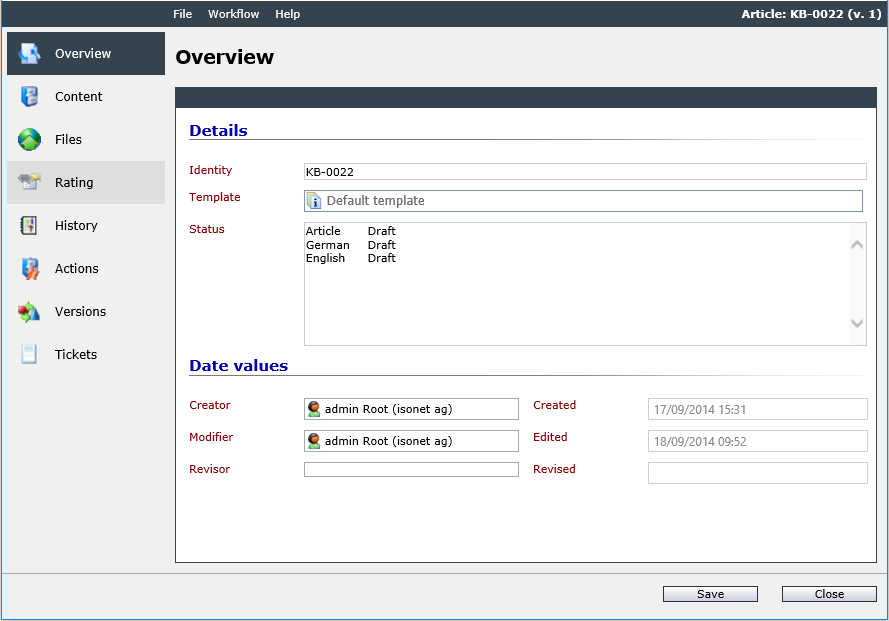
This overview displays various details, like the identity displaying the internal naming of the article (e.g. KB-0011) and the template the article has been created with, for example.
Details
The following information is displayed under Details:
Identity: Contains the article number of the KB article. It is composed similarly to a ticket number and used for a distinct identification of the article. Using this number, the KB article can be opened via the direct access on the home page as well.
Template: Displays the article template used for creating the article.
Status: Contains the status of the entire article and of the individual languages. For example, it is possible that the German article has already been published and thus can be seen and used by all users; the English part of the article, however, still has to be revised once again or has not been finished yet.
Date values
Creator: Contains the KB creator. If an article revision or version was created by another user, it is defined as the creator with the date on which the new article revision or version was created.
Modifier: Contains the date of the last modification of the article and the user.
Revisor: Contains the user who last checked the item and the date it was done.
- Content
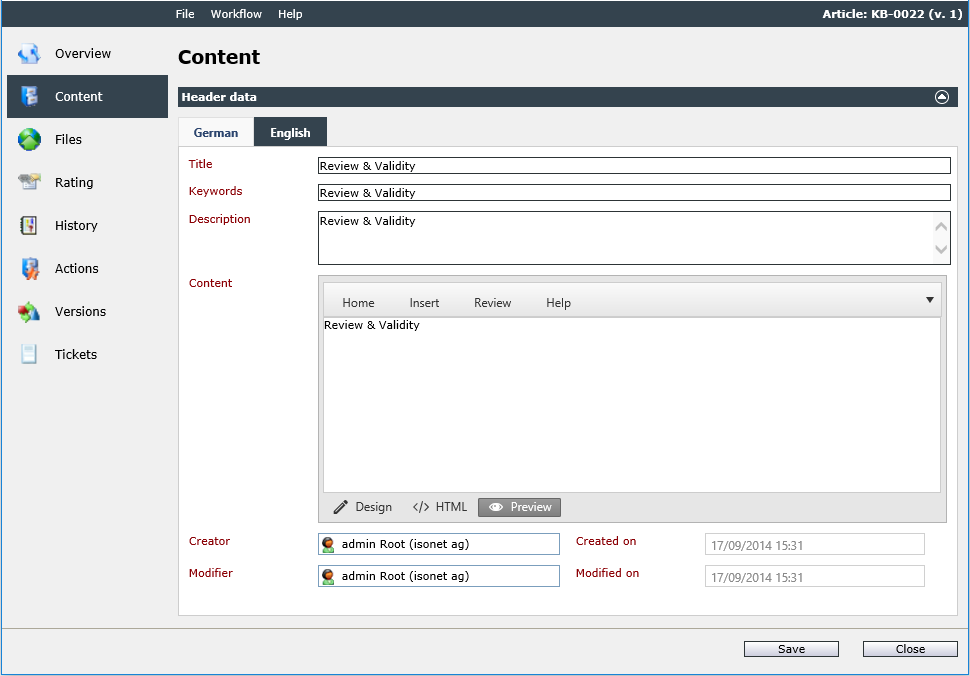
On the Content tab, the actual article is displayed. If the current user has the necessary permissions, the title, key words, and content can be edited here.
Category: Contains the categories the article can be found in, which facilitate the organization of the articles.
Internal: KB articles can be divided into internal and public articles. If this option is activated, the current article will be marked as internal and displayed in the article list only to groups and users with the permission to see internal articles.
Visible in subcategories: If this option is activated, the article will be displayed in the subcategories of the selected category/categories as well. If this option is not activated, the article will only appear in the categories it has been linked to explicitly.
Knowledge owner: The knowledge owner is the person/user managing the article/the knowledge in the article. The knowledge owner is similar to a ticket’s owner.
Knowledge owner group: Specifies the user group of the knowledge owner. Is visible only if the knowledge owner is a user.
Original KB creator: Contains the creator of the KB article.
Title: Contains the title of the KB article.
Keywords: : Key words facilitate finding the article via the full text search. The key words can be simply entered separated by commas.
Content: The content of the KB article is displayed here. It can be edited via a WYSIWYG editor that provides selection options for font, font size, and other formatting options. If a user does not have the permission to edit an article, the editor will be disabled. Further information for using the WYSIWYG editor can be found here.
Note:
If values are to be changed in an article, the user to change them has to have the necessary permissions.
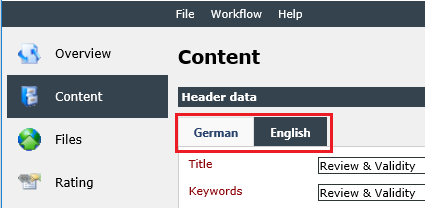
If multiple languages are available for the installation, the KB articles can be composed and displayed in multiple languages as well. In order to change the language, the language tabs above the article can be used.
- Files
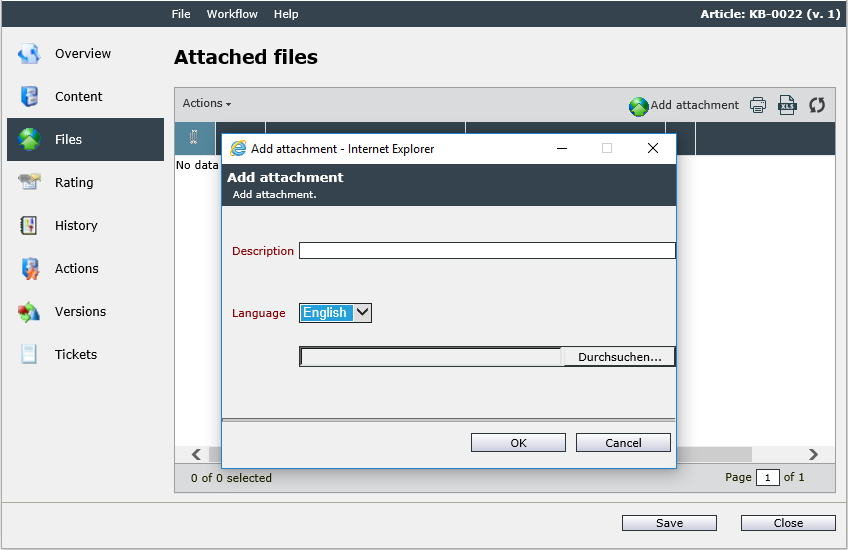
On the Files tab, files like screen shots, text files, or Excel sheets can be attached to the Knowledge Base article in order to enhance the comprehensibility of a solution visually, for example. A new file can be uploaded by using either the button Add attachment or the actions menu. Existing files can also be deleted via this menu. Select the attachment with a simple mouse click and click on Remove attachment.
- Rating
The rating provides the users with the option to rate the article (by assigning one to five points) and to enter a comment, where applicable. This allows for a better assessment of the effectiveness of the presented solution or for making suggestions for improvement, for example (see also: FUNCTIONS > Knowledge Base > Rating).
- History
The history displays all changes to the article for a better traceability.
- Actions
This tab displays the workflow actions to be performed by the currently logged in user. These actions are displayed in the user’s activity list as well. Furthermore, tabs are displayed for actions that can be edited in the Knowledge schema.
In order to configure KB article actions, the Workflow Designer is necessary.
- Revisions
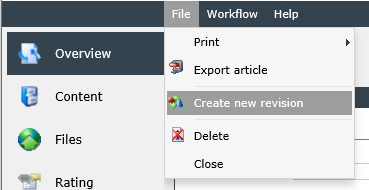
Revisions allow for managing the miscellaneous versions of an article. A revision can be created in one of the available languages. If all necessary information has been provided, the revision can be published. The old article version will be archived automatically and the new version will be published with a new article version number (the current version number can be seen top right on the article frame).
If revisions are created and a ticket is linked to a specific article version, this version is always displayed in the ticket. This is independent of the existence of recent revisions of the article.
- Tickets
The Tickets tab displays all tickets linked to this article in an overview. The tickets can be opened via a double click.
The display of tickets depends on the version of the article currently opened. If an article is opened directly in the Knowledge Base, the currently published version of the article is always displayed. The Ticket tab here displays all links to tickets - irrespective of the version a ticket has been linked to.
When an article is opened from a ticket, the article version published at the time the link has been created will be opened. Here, the Tickets tab only shows the ticket links that have been created until this point. Links of later versions will not be displayed.


 Copyright (c) 2000-2026 Isonet AG