Knowledge Base
The Knowledge Base is an important source of information for the daily work with the 446 Plattform®. It contains different articles that include solutions and information on several common topics.
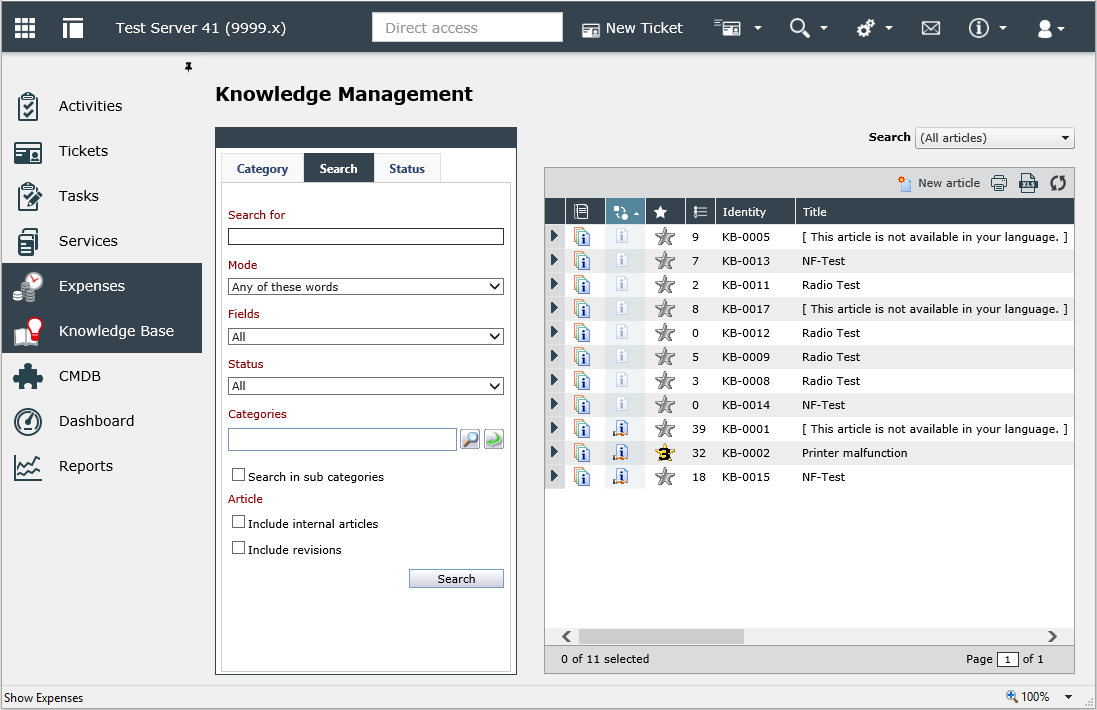
Sorting and Searching Knowledge Base Articles
In order to find articles faster, there are various categorization and search options available: Using filters, categories, or a full text search as well as the display of articles according to status.
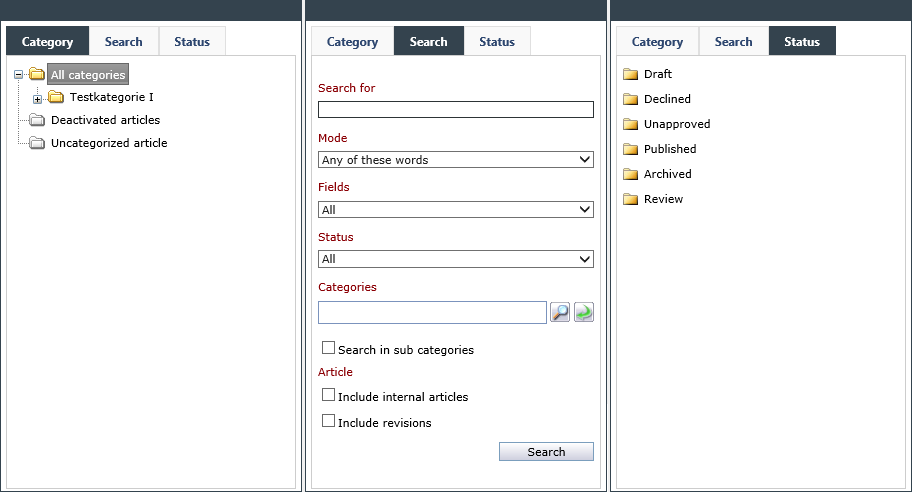
Categories
The Category tab displays folders that contain Knowledge Base articles in a tree view. If a category or a sub-category is selected, only articles of the respective category and its sub-categories will be displayed. Depending on which categories are specified in an article, it can be displayed in several categories.
Search
In the Search tab the user can specify various words or word parts to search for. The search can be extended or limited with various options (e.g. by using a Mode that the user can use to define whether all of the words or only one of the words has to be included in the article).
Using the selection box Fields the user can define the fields the key word has to be used in.
The selection box Status allows for delimiting the article status for articles to be searched for.
Under Categories the categories to be searched can be determined. Moreover, there is a checkbox for each sub-category and one for the search in articles published internally.
Status
By using the Status tab, all articles are listed according to their status (e.g. Draft, Archived, etc.) by selecting a status folder, irrespective of the category they belong to. If articles belong to a category that is not activated for the current user’s group they are not displayed.
Filter
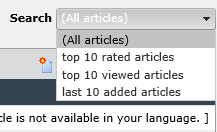
The Search option above the article list can be used for limiting the selection according to predefined filters. This filter can be combined with the categories, the search and the status simultaneously.
Menu Bar of a Knowledge Base Article
The menu bar offers functions to manage articles in the Knowledge Base.
File
Under the File menu, the options Print, Export article and Close are available.
With the Print menu item a print preview of this article can be created including an overview and details on the article in the respective selected language. It can either be printed immediately or be converted into several different formats in order to be saved as a file.
With the option Export article a ZIP file with the contents of the current article can be generated automatically. Afterwards, the file download will start automatically. The file contains information on the current article, the article’s content as an HTML file and file attachments in a separate sub-folder. Flash and WMV objects embedded in the article are exported as well.
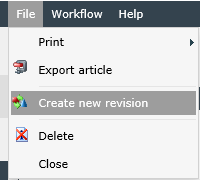
By selecting New revision a new revision can be created for the article.
Workflow
Under the menu item Workflow, actions pending for the current KB article are available, e.g. archiving an article, publishing a draft or reviewing current articles.
Help
Using the Help tab the user can access the help pages for the current page to gain information about the current software version and about the license agreement.
Tabs of a Knowledge Base Article
On the left side, there are several tabs for modifying and displaying different article features available.
Overview
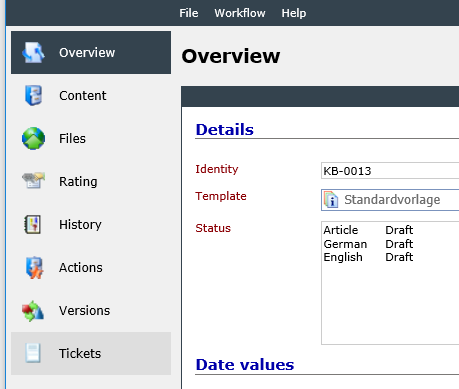
In the Overview the details of a Knowledge Base article are displayed.
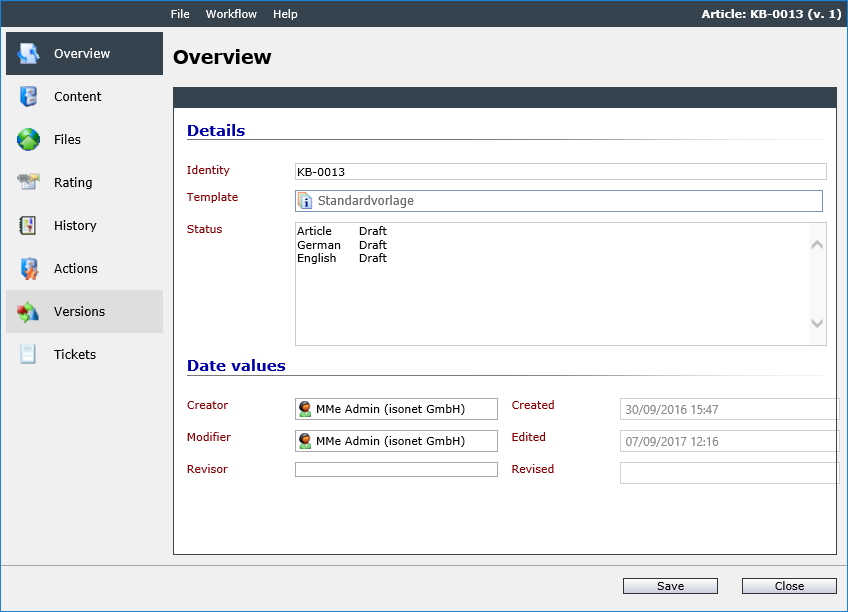
The Identity of a KB article shows its internal number.
The Template displays the KB schema the article has been created with, which processes of a KB article it needs to pass on through and which actions need to be executed in which status, similar to a ticket schema.
The Status of a KB articles displays the current processing status.
Under Date values different organizational information can be stored with the KB article. This can be the knowledge owner, the owner group, the original creator of the article and persons who have created, modified and revised the article.
Content
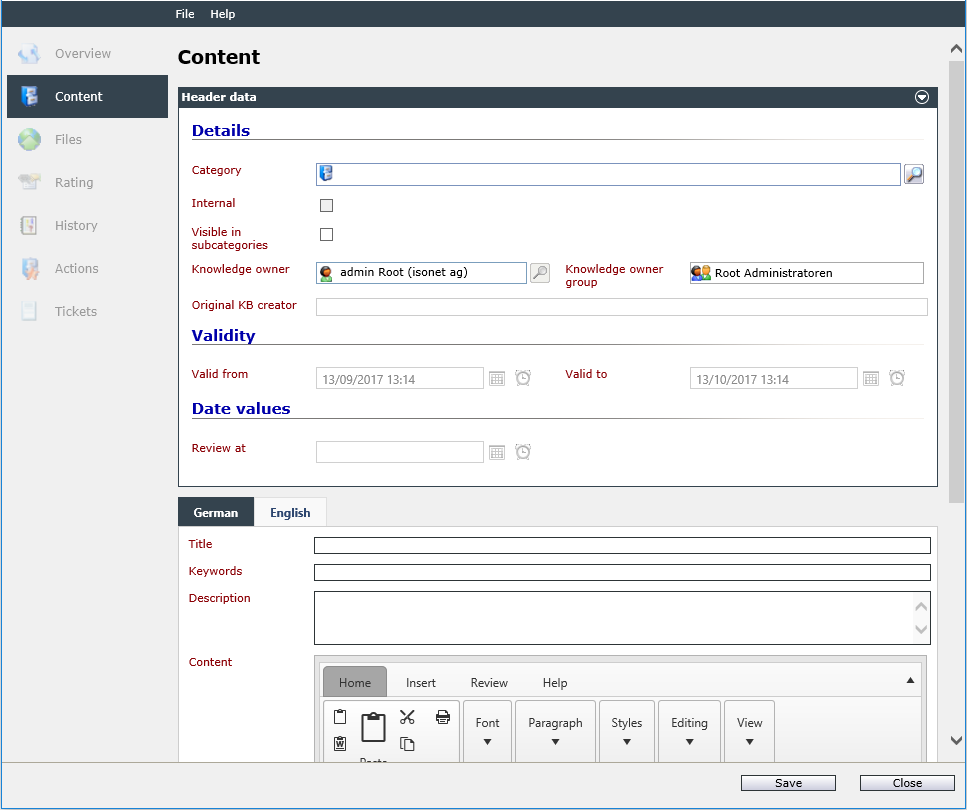
The Content tab is divided into the areas Header data and the actual article content.
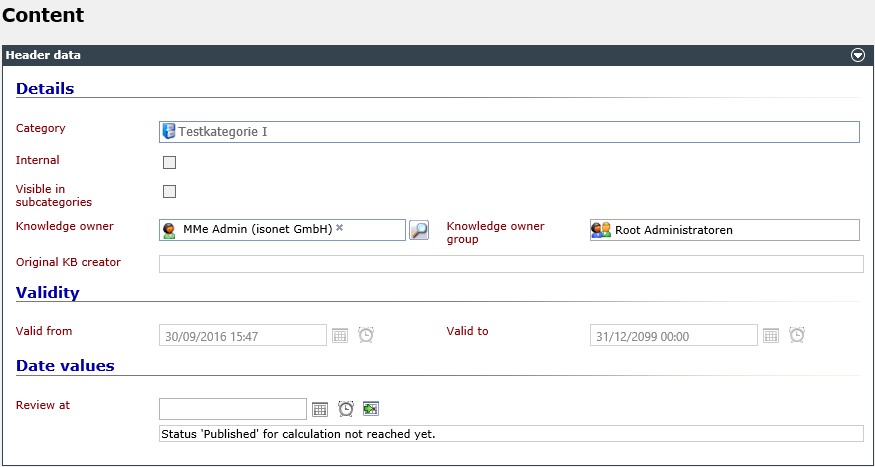
The Category field displays the category the KB article has been assigned to. In the main view the article can be found in the Category tab in the specific categories folder.
KB articles can be classified in internal and public articles. If the option Internal has been enabled, the current article is marked as internal and only displayed to groups and users processing the authorization to see internal articles in their article list.
If the option Visible in subcategories is activated, the article will be displayed in the subcategories of the selected category. If this option is not activated, the article will only be displayed in the categories the article has explicitly been linked to.
Below the header data the actual article follows.
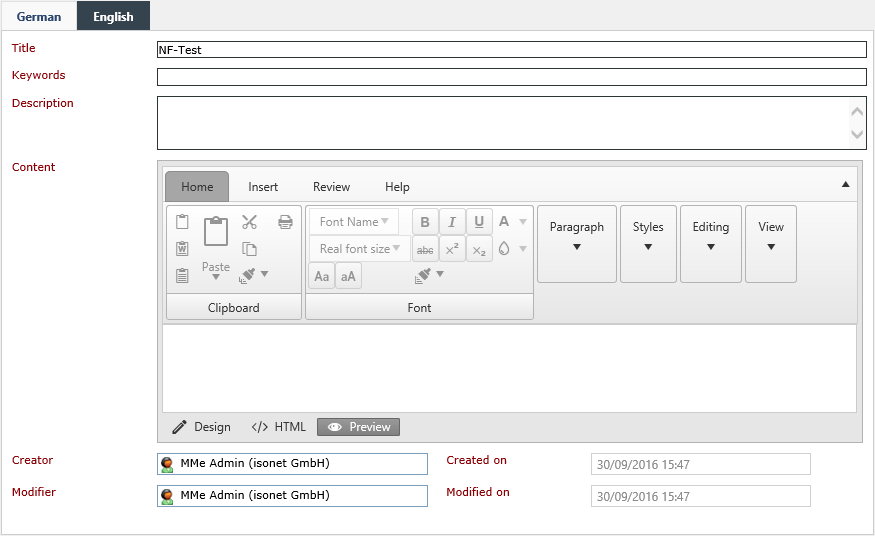
The Title shows the article’s title as it is displayed in the overview.
Keywords raise the possibility of finding the article using the full text search. They are separated by a space.
Under Description a text describing the Knowledge Base article can be found.
The Content field displays the actual content of the article.
If the current user has sufficient permissions, it is possible to modify the article details by using the editor including the selection of fonts, font size and other formatting options. If it is not allowed to modify KB articles, the article is displayed without the editor. Further information for using the WYSIWYG editor can be found here.
Below the content you will find information about the original creator and the last editor of the article.
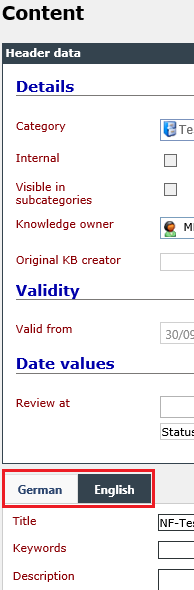
If there are multiple languages available on the system, KB articles can be composed and displayed in multiple languages as well. By selecting a language tab above the content, the user can switch to the desired language.
Files
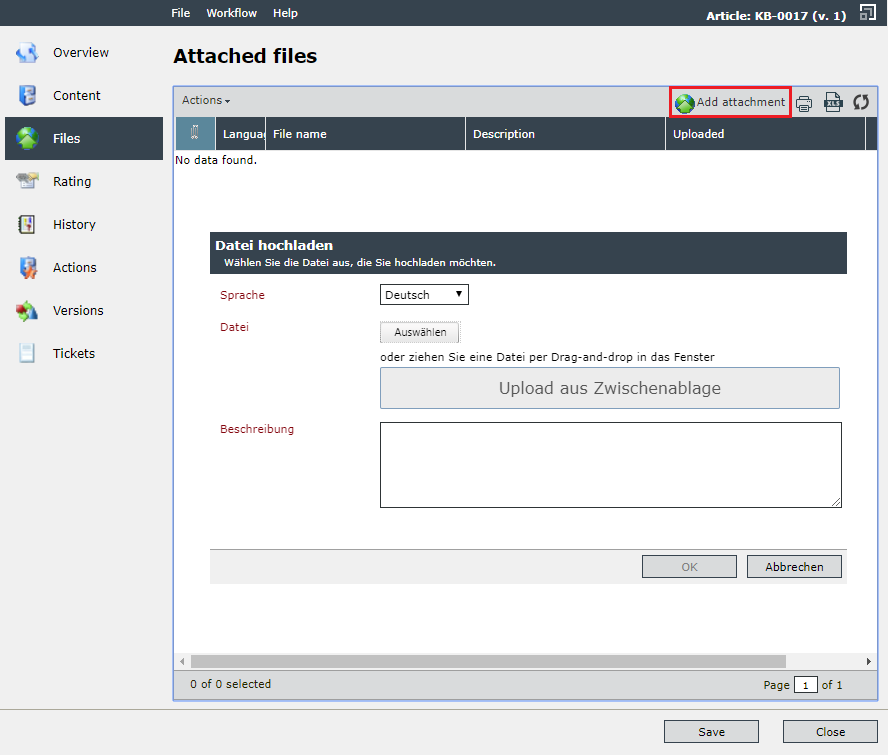
Under Files files like screen shots, text files, or an Excel table, for example, can be attached to a Knowledge Base article in order to visually describe the solution. New files are uploaded by selecting Add attachment. This can be done by selecting with the file browser, by pasting from the clipboard or by drag and drop. 
In the Actions menu, uploaded files can be removed by selecting Delete.
The Rating enables the user to rate an article and possibly leave a comment. With this option, the effectiveness of a solution, for example, can be evaluated and suggestions for improvement can be added.
Under Average Rating the user can see how the article has been rated previously and how many users have rated the article.
Each opening of the article is counted as viewed (regardless of any evaluation made).
The article rating is effected by selecting one of the five evaluation levels from Poor to Excellent and by clicking the Rate button. The average rating is also displayed in the Knowledge Base overview.

History
In the History all changes to the article are displayed in order to enhance the traceability.
Actions
In the Actions tab the article actions to be executed by the currently logged in user are displayed. This article will also be displayed subsequently in the activities list simultaneously.
Revisions
Short instruction
Revisions are used to display and manage different article versions. If a new revision is created and if it includes all necessary information, it can be published and the outdated revision is archived. The new version of the article is published with a new version number.
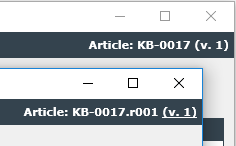
If revisions are activated and if a ticket is linked to an article revision, this revision is displayed in the ticket, irrespective whether new revisions of the article are available or not. The revision number is displayed in the upper right corner of the article.
Tickets
In the Tickets tab all tickets that are linked in a KB article, are listed.
Note:
Double-clicking a KB article allows for modifying it. If a KB article is selected and the button Delete is clicked in the Actions menu, the KB article is deleted.
Creating a KB article
The button New article allows for creating a new KB article.

By clicking this button the Content tab is opened to input the values for the KB article.


 Copyright (c) 2000-2026 Isonet AG