Filters
The Filters is accessible through Settings > Administration > Filters.
Filters allow for defining templates for configuration items, tickets, tasks and expenses via the extended search for KB articles. Every user group can receive the authorization to use the templates via the User Management and to access the respective search templates via Tools in the top menu. This makes it possible to use the advanced search to create templates without the user having to use the advanced search itself.

Short instruction
Filter groups
Filter groups can be selected via the drop-down list at the top right - View. Template groups can be used, for example, in order to manage several search templates for tickets. If no particular group has been selected, all existing templates will be displayed. New groups can be created via the button next to the drop-down, existing can be edited or deleted, as soon as selected via the drop-down menu.

As soon as a filters group has been selected, it can be adjusted via the middle button, right next to it.
If a new template group is created, its properties dialog will open:
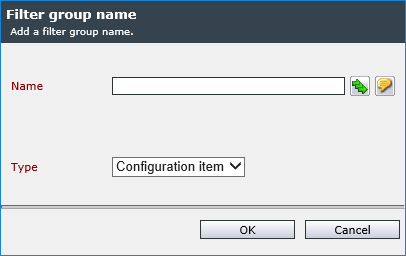
Name: The name for a template group can be entered localized for every available language or applied to all of them.
Type: The type of a template group defines which templates can be created in this group. The available types are Knowledge Base, Configuration item, Expense, Ticket and Task.
Note:
The type of a template group cannot be changed subsequently after its creation.
In order to rename a template group, it can be selected it in the drop-down menu. A click on the middle button next to it opens the configuration dialog. Similarly, a group can be deleted by clicking on the right button next to the View list after selecting the designated group. In this case, the question whether you really want to delete this group will appear. Confirm it via OK and the template group will be deleted.
Default filter: For each filter type (Configuration item, Ticket, Task, Expenses, Knowledge Base) exactly one default filter can be activated. In contrast to the other filters, this does not have to be authorized separately. For Knowledge Base, Task, Expenses the filter is only used in the advanced search, for Ticket and Configuration item also on the respective main menu page.

Creating and editing filters
If a filter group is selected, the templates contained in it will be displayed in the overview. Here, new filters can be created as well as existing ones can be deleted and printed.
New filters are created via the button New filter. In the following dialogue can now be defined the search options. A detailed description of the various search options is renounced here. They can be found in the Search and Filter documentation.

After the configuration of the search template, a name for it needs to be entered after clicking on the button next to the name field. In the now opening dialogue, it is possible to enter a name and select the designated group.
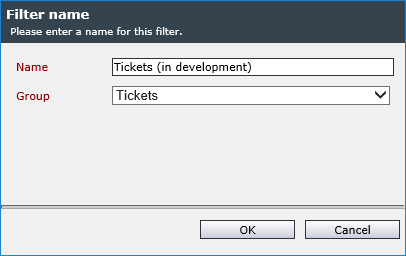
After having created all of the designated search templates, it is required to assign the rights to the search templates to individual groups in the User Management.
Tip: 
Via the action menu a copied data view (non-standard data view) can be assigned to a filter or removed again.
After removing a data view, the default data view is used (see DataViews).


 Copyright (c) 2000-2026 Isonet AG