Task List
After the configuration of the task schemas has been finished, there are various options for creating and managing tasks. Tasks can be created from
- tickets,
- automatically from a workflow (via the workflow plug-ins Create task and Create task activity),
- or as individual tasks in the Task Management.
Task List Structure
The Task Management can be accessed via the button Tasks in the side bar on the left.
This opens an overview of the tasks. There are two views available here:
- The folder view, in which tasks will be sorted into folders and can be created in their respective folder as well.
- The ticket view, in which existing tickets will be arranged according to the ticket and process schemas they have been created from.
Note:
Tickets containing tasks will only be displayed, if at least one of the contained tasks has not been closed yet. Tickets containing only closed tasks (task status type: Closed) will not be displayed here.
New tasks, however, cannot be created in the ticket view. This is only possible via tickets. On the right, next to the folder/ticket view, an overview of the existing tasks either from the folders or the ticket schemas can be found.
If there are tasks listed, they can be opened via a double click. Tasks not needed any more can be highlighted and then deleted via the Actions menu, if the current user has the permissions to do this.
Task Creation in the Folder View
In the folder view, tasks can be created independently from tickets. In order to provide more clarity, the tasks can be sorted into a hierarchical folder structure.
A right click on the existing folder structure opens the context menu. Select either New main folder or New folder in order to expand the folder structure here.
A main folder will always be created on the topmost level. Normal folders can then be nested into these main folders arbitrarily.
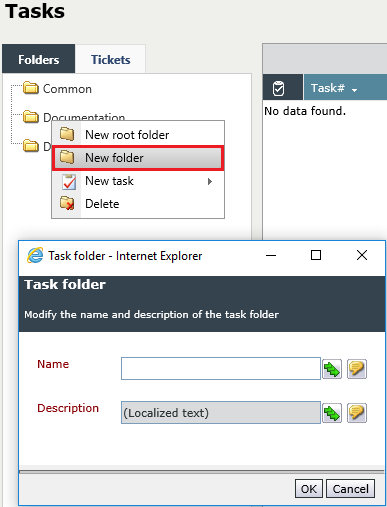
A name and a description can be specified for every folder, as a FriendlyName as well as localized for every activated language.
Note:
If there is no folder in the Task Management yet, an empty tree node will be displayed in the hierarchy. In order to create the first main folder, right click on this node.
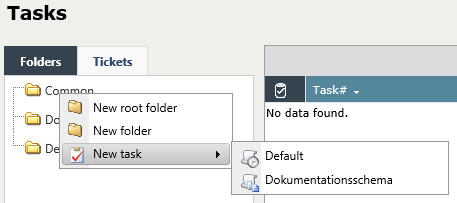
In order to create tasks in the folders, open the context menu again and select New Task. Further options will be faded in and allow for selecting a task schema for creating the new task.
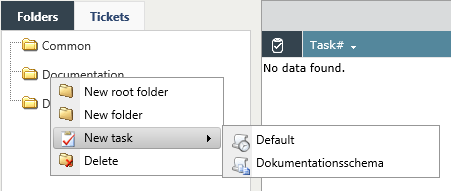
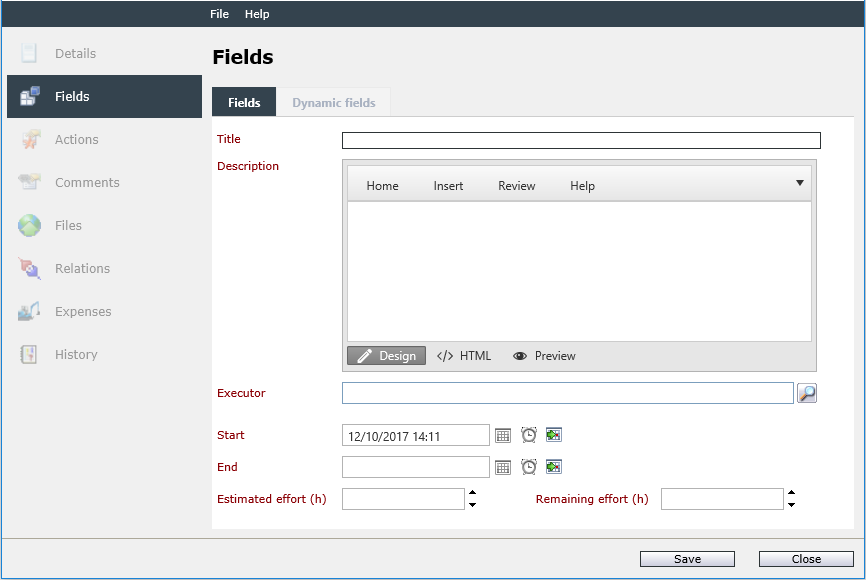
Select the desired task schema and confirm it with a click. Subsequently, a new dialog will open. As a first step, general information on the new task can be entered, irrespective of the task schema selected:
Title: A significant name for the new task can be entered here.
Description: Enter a description for the task here.
Executor: A user or user group can be selected via user browser here. The task will then be displayed in the activity list of this user or every member of this group. (A requirement for this is the start status being set to Visible and to Visible in activity list.)
Start: The start date and time of the task. On this date, the task schemas OLA will begin automatically.
Reminder: Select a time, at which the reminder workflow selected in the task schema previously is to be initiated.
End: The end date planned for the task. If an OLA has been specified for the task schema, the end date will be automatically set to the defined time after the start date. If, however, another end date is to be specified for this task, it can be entered here.
Creating Tasks from Tickets
In order to create tasks from tickets, the ticket action Create task is needed for the respective ticket schema.
Creating Tasks from Workflows
Tasks can be created automatically from workflows as well (plug-ins Create task and Create task activity).


 Copyright (c) 2000-2026 Isonet AG