Knowledge Base status transitions
The setting options for the Knowledge Base can be found under Settings > Knowledge Management.

Graphical representation
The following figure shows the knowledge base life cycle. The legend is shown in the table below.
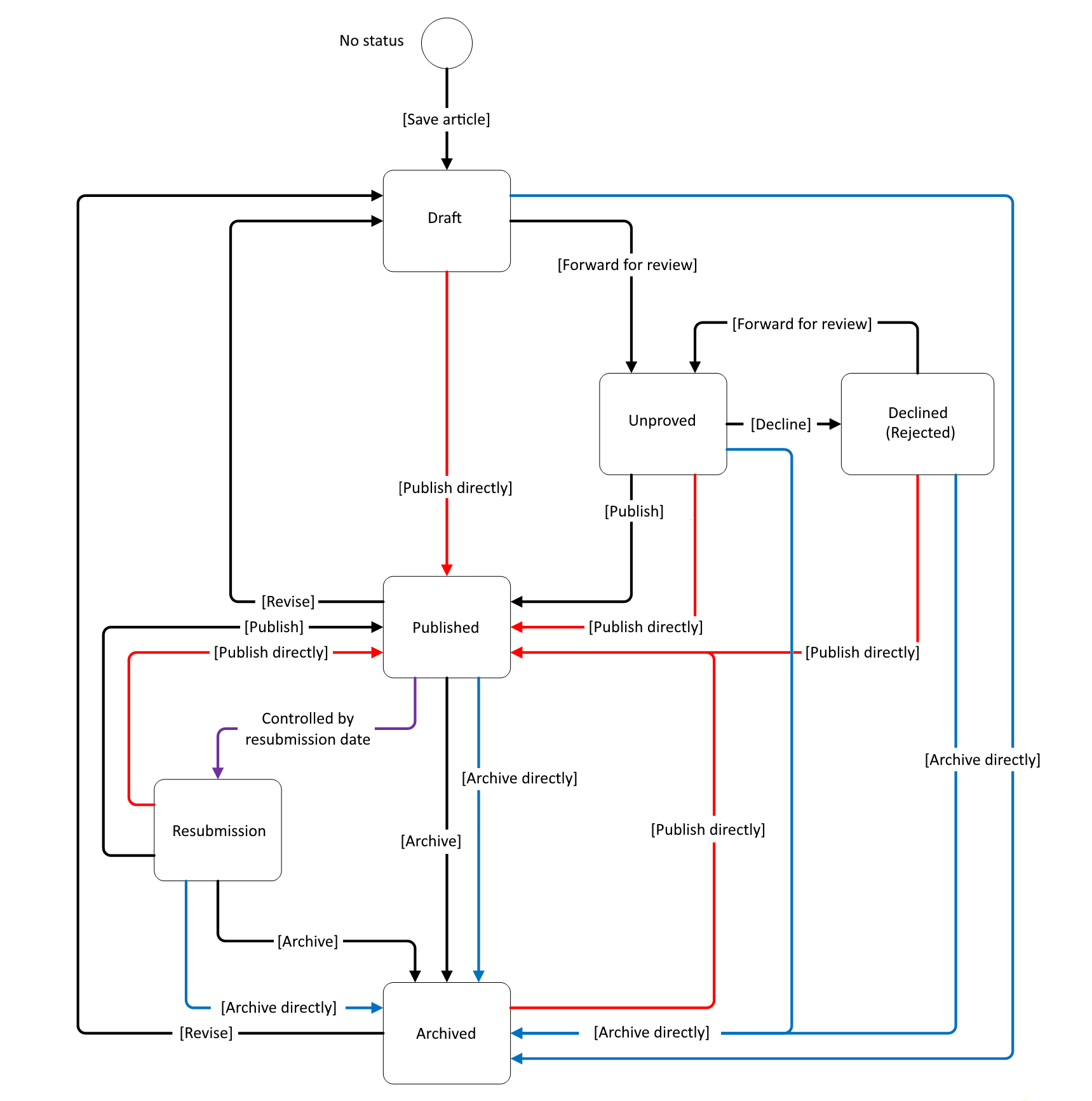
| Color | Description |
|---|---|
| Black | Standard life cycle |
| Red | Requires specific activation. See also Publish directly |
| Blue | Requires specific activation. See also Archive directly |
| Purple | The configuration is carried out in the knowledge base schema. See also Transitions according to standard life cycle |
Transitions according to standard life cycle
Note:
In multilingual systems, the “Archive” and “Publish” actions are only available if at least one language of the article has the status ‘Archived’ or “Published”.
| Status N | Status N+1 | Authorizations/conditions | Transition through... (Action) |
|---|---|---|---|
| No status | Draft |
|
Save article (create new KB article) |
| Draft | Unproved | Forward article for review | Forward for checking |
| Unproved | Declined | Publish/reject article | Reject |
| Declined | Unproved | Forward article for review | Forward for checking |
| Unproved | Published | Publish/reject article | Publish |
| Published | Draft | Revise published article | Revise |
| Published | Review | Configuration in the scheme | Automatically by the “KbReviewScheduledWorker” worker when the resubmission date is expired |
| Published | Archived | Archive article | Archive |
| Review | Archived | Archive article | Archive |
| Review | Published | Publish/reject article | Publish |
| Archived | Draft | Revise archived articles | Revise |
In order for articles to be published directly from any status, the “EnableDirectPublishing” option must be active in the configuration setting (value must be set to “True”).
The “Publish/reject article” authorization is also required.
The following status transitions can be completed with this action:
| Status N | Status N+1 |
|---|---|
| Draft | Published |
| Unproved | Published |
| Declined | Published |
| Review | Published |
| Archived | Published |
In order for articles to be published directly from any status, the “EnableDirectArchiving” option must be active in the configuration setting (value must be set to “True”).
The “Archive article” authorization is also required.
The following status transitions can be completed with this action:
| Status N | Status N+1 |
|---|---|
| Draft | Archived |
| Unproved | Archived |
| Declined | Archived |
| Published | Archived |
| Review | Archived |
Note:
The “KbValidityScheduledWorker” also archives directly to the “Archived” status without any status check.
Revisions
In general, the same status transitions apply for revisions as for a KB article. However, there are two exceptions:
-
Revisions are ignored by the review process. When a review date expires, it is neither moved to a workflow nor is the status set to “Resubmission”.
-
A published revision is automatically archived as soon as a subsequent revision is published.
Workflow plugin "Convert Ticket to KB"
With the plugin, it is possible to create a knowledge base article directly from a ticket. A status can be specified that the article should have after conversion.
Further information on configuring the plugin can be found in the chapter Convert Ticket to KB.
This means that the following status transitions are possible:
| Status N | Status N+1 |
|---|---|
| No status | Draft |
| No status | Unproved |
| No status | Declined |
| No status | Published |
| No status | Review |
| No status | Archived |
If a workflow is configured for the respective status transition, it will also be started when using the plugin (see also Status Transition).


 Copyright (c) 2000-2026 Isonet AG