Permissions - CMDB
For an explanation of the symbols, please visit Permissions. In the register Schemes / Zones, permissions will be set in general and for each schema and zone separate. To alter the permissions for a new or an existing CI import you have the same-named tab available in this selection. In order to allow members of a user group to work in the CMDB, the following permissions have to be configured on the CMDB tab in the User Management.
Chapters:
If CI import is selected in the view, then the first row is responsible for setting the default permissions for a new CI import. Already existing imports are listed below. Their permissions can be altered for users and groups in this overview. The following rights are available:
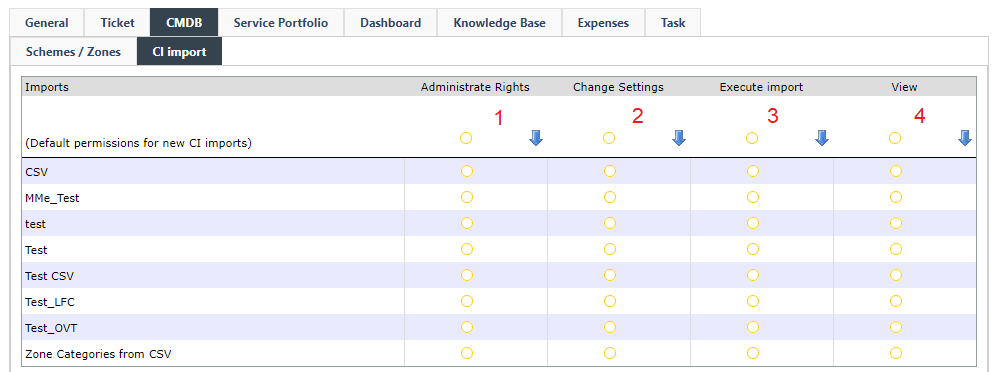
-
Administrate Rights: If activated, the group members of the current group can pass on permissions to other groups via the User Management (see also User/Group).
-
Change Settings: Defines if the user is allowed to change the settings for a CI import. Additionally, to configure the CI zones and schemas, he needs the required view permissions for those models.
-
Execute import: Decides if the user is allowed to execute the CI import. These permissions are also depending on whether the user has the appropriate zone and schema rights. The following rule set will be applied for that:
-
A CI schema is only visible to a user if the permissions for the individual schema contains at least one tab with the key Allowed for the value View and the schema itself does have the permission Allowed within View CI.
-
A CI zone scheme is only visible to a user if the permissions for the individual zone schema contains at least one tab with the key Allowed for the value View.
-
A ci zone is only visible to a user if the user has the rights to view the zone.
-
-
View: Defines if the CI import is shown to the user or the group.
Whether CI import tasks are available to the user in the settings or not, depends on the correct assignment of permissions.
The availability of individual tasks
New import: The user is in need of the right Change Settings for the permission CMDB \ Import within General (see also Description of the individual rights).
Edit import: The user is in need of the right to change the settings of the import. Additionally, he needs view permissions for the configured CI zone and the CI scheme.
Execute import: The user is in need of the right to execute the import. Additionally, he needs view permissions for the configured CI zone and the CI scheme.
Queue: No special permissions are required but only those CI imports will be displayed where the user has the permission to execute the import.
Manage conflicts: This option is only available to those users who have the permission to execute CI import.
If only Schemas is selected in the tree, the following options will be available:
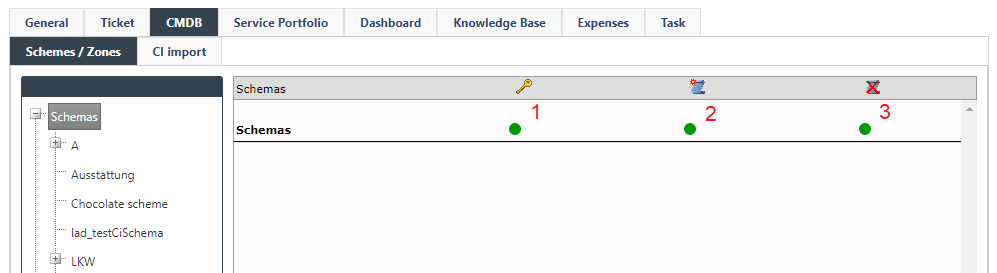
- Administrate rights: If activated, the group members of the current group can pass on permissions to other groups via the User Management (see also User/Group).
- Create schema: Group members have the option to create schemas.
- Delete schema: Group members can delete existing schemas.
If an individual schema is selected, the following configuration options will appear:
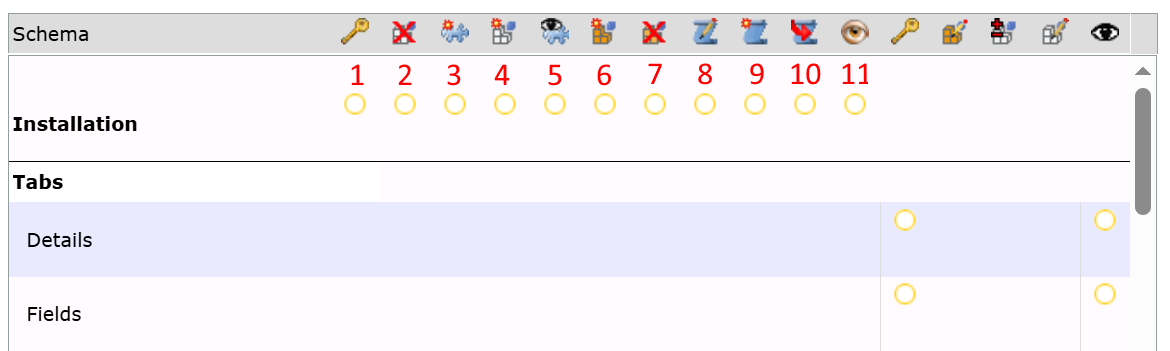
- Administrate rights: If this permission is enabled, all members of the group can pass on permissions to other groups via the User Management (see also User/Group).
- Delete dynamic fields: Dynamic fields can be deleted.
- Create configuration item: New CIs can be created within the schema.
- Create dynamic fields: Dynamic fields can be created for a schema.
- View configuration item: CIs will be displayed within the schema.
- Create master fields: Master fields can be created within a schema.
- Delete master fields: Master fields can be deleted.
- Edit schema: Schemas can be edited, and their settings can be changed.
- Add schema: Members of the current group can add their own schemas to the CMDB.
- Move schema: Schemas can be moved within the hierarchy of the CMDB.
- Follow CI: This permission determines whether a user is allowed to follow a CI.
The following permissions do not refer to the entire schema, but only to individual fields and tabs:
- Administrate rights: Users in the current group can pass on permissions to other groups via the User Management.
- Edit master field: Fields created as master fields can be edited later.
- Edit dynamic field: Members of the current group can edit dynamic fields.
- Edit dynamic field value: Members of the current group can fill in dynamic fields.
- View: The field or tab will be displayed to the user.
If Zones is selected in the tree view, the following permissions can be configured:
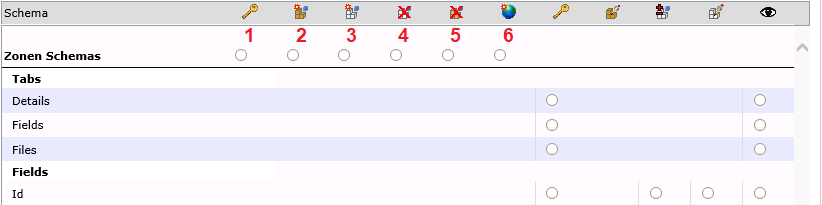
- Administrate rights: If this permission is enabled, members of the current group can pass on zone permissions to other groups via the User Management (see also User/Group).
- Create master fields: Master fields can be created within the zone schema.
- Create dynamic fields: Dynamic fields can be created for a zone schema. This can be executed for zone schemas in general as well as for every existing zone schema (e.g. campus, building, floor, etc.) individually.
- Delete dynamic fields: Dynamic fields can be deleted.
- Delete master fields: Master fields can be deleted within the zone schema.
- Create zones: Zones with this schema can be created by members of the group.
The following permissions refer to tabs and fields of individual zone schemas:
- Administrate rights: The following permissions can be passed on to other groups via the User Management.
- Edit master field: Master fields of zone schemas can be edited by group members.
- Edit dynamic field: Members of the current group can edit dynamic fields of zone schemas.
- View: Fields or tabs will be displayed to group members.
If only a single zone is selected, the following configuration options will be available:

- Administrate rights: With this permission, the group can pass on permissions to other groups via the User Management (see also User/Group).
- Delete zone: Users can delete the zone and its sub-zones.
- Add zone: Users of the group have the option to add new sub-zones.
- Edit zone: Group members can edit the existing zone as well as its sub-zones.
- Move zone: Users can move the zone and its sub-zones.
- Add configuration item: Group members gain the right to add CIs within the zone.
- Delete configuration item: Group members can delete existing CIs.
- Move CI: CIs can be moved from the zone and its sub-zones.
- View: If this option is not activated, the entire zone will not be displayed. Therefore, the options 2-9 cannot be used.
- Display Configuration Item in ticket: The configuration items can be displayed in the ticket.
Note:
If only the Zones node is selected in the tree, no options will be available. Zones can only be created, edited, and deleted by root administrators. These permissions cannot be assigned to other groups.
In creating permissions for zones, the inheritance leads to a distinct display within the permissions configuration. Zones, on which permissions have been set explicitly, will be displayed in boldface. This indicates that a so-called security tag has been created for this zone. It has been introduced in order to facilitate the determination of permissions in the CMDB. Moreover, one can see at first glance, on which zones permissions have been set explicitly (similar to the key icon in the User Management).
These permissions will be passed onto all hierarchically lower zones. This inheritance stops at a zone that has been assigned with rights explicitly. From this zone on, only its permissions will be passed on.
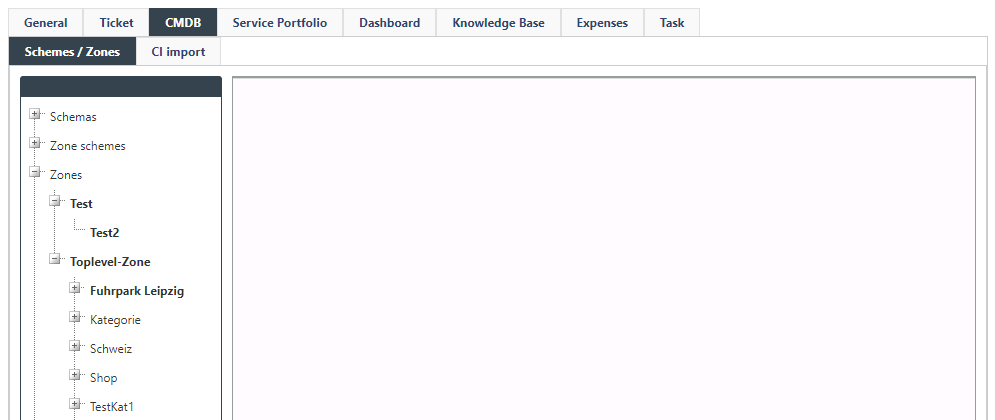
In the figure above, permissions have been explicitly assigned to the zone top. The permissions assigned to the zone top are passed on to the zone CiZone_Test. The zone Testzone has been assigned with permissions on its own (indicated by the boldface). At this point, the inheritance of permissions from the zone top stops; i.e. the zone Untertestzone 1 underneath Testzone1 inherits its permissions from Testzone1 and not from top.
Note:
If the permission Change settings or higher has not been activated under System Settings > CMDB\Schemas, the options on the CMDB tab will not have any impact.
In order to edit the status permissions of configuration items you have to choose a life cycle first.
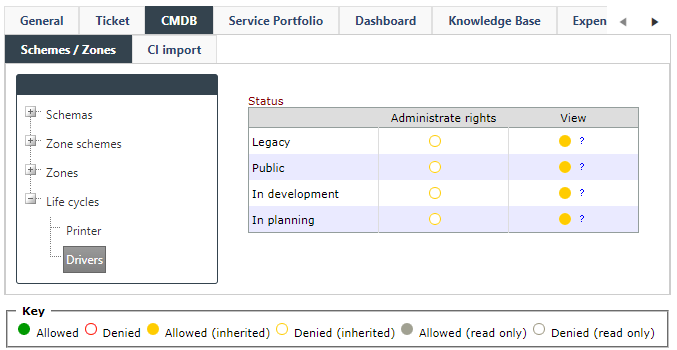
Administrative rights: If activated, the group members of the current group can pass on permissions to other groups via the User Management (see also User/Group).
View: Setting this key alters the visibility of configuration items with a specific status for members of the group.


 Copyright (c) 2000-2026 Isonet AG