Ticket Statuses
A ticket status is the status a ticket can occupy. The succession of different status (which status is followed by which status) will not be created until plug-ins are used for status changes in the workflow. Alternatively, status changes can be caused by ticket actions, like Solve ticket. Depending on the status, different ticket actions for tickets can be made available for different users and groups.
The configuration of the ticket status can be found under Settings > Ticket Management > Ticket Statuses.
General Information
Via the button New ticket status top right above the status list, new ticket statuses can be created. Existing statuses can be edited with a double click. The Actions menu top left allows for removing and copying a ticket status.

The process schema filter in the top right corner allows for filtering for ticket statuses only used in a certain process schema, provided that the Service Portfolio has been activated. Global statuses are tagged with a green checkmark icon and can be used in multiple ticket and process schema filters (see also Related Topics).
Configuring the Ticket Status
The properties dialog can be opened by double-clicking on an existing ticket status or by creating a new one.
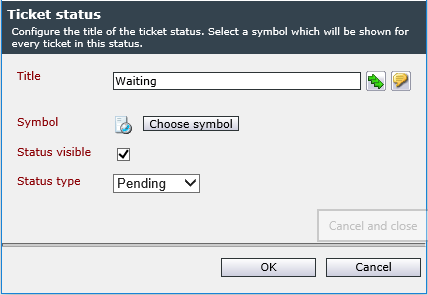
The following configuration fields are available here:
Title: Stands for the name of the ticket status as it will be displayed in the ticket and in other locations later on. If a multiple-language system is used, the localization buttons will be displayed. The respective name of a status will then be localized and stated as a FriendlyName.
The FriendlyName enables the administrators to access data in the database easily and quickly. Moreover, it is often used for the reporting.
Symbol: Defines the icon for the ticket status. The icon will be displayed at a size of 20 x 20 pixels. If the icon is bigger or smaller than that, it will be scaled to fit.
In addition to a predefined set of icons, further icons can be uploaded as well.
Status visible: When this option is checked, the respective status will be visible at various configuration locations (e.g. ticket actions, workflows).
Status type: As ticket statuses can be named freely, it is necessary to define a status type, which specifies how a ticket is to be handled. With these predefined status types, tickets can be accessed much more quickly and effectively in the reporting for evaluation, for example. Moreover, it is possible to search for these status types in the extended search.
Copying and Deleting a Status
A configured ticket status can be copied on the status list. Thus, the icon, status type and visibility can be adopted directly.
In order to copy a status, it needs to be selected from the status list. By clicking Copy in the Actions menu, the status is copied.
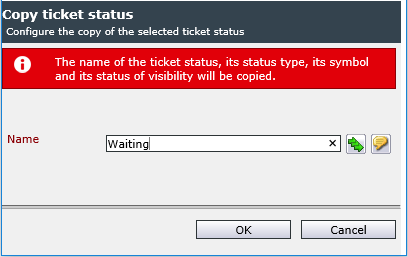
Only the name of the new status is to be specified. After a click on OK, the status will be copied and then displayed in the status list.
In order to delete a status, it has to be selected from the status list. Via the Delete button in the Actions menu, the status will be deleted.


 Copyright (c) 2000-2026 Isonet AG