Properties
The following sections list some general properties of the plug-ins. These features are valid for most of the plug-ins. For plug-ins with differing properties, they will be detailed in the respective entry.
Inputs
Plug-ins have an input by default. At the input, the workflow item arrives and "enters" the plug-in. Afterwards, the respective action is executed.
Generally, further inputs can be added. Whether this makes sense depends on the respective plug-in and the situation it is used in.
Outputs
Outputs can be found in various amounts. There is no default amount of outputs. Some plug-ins may have no outputs at all, e.g. the End of Workflow plug-in. If, for example, a ticket or task has successfully completed the plug-in (and thus the activity), it leaves the plug-in via one of the existing outputs. Which output is used, depends on the respective solution of the task.
Note:
Generally, an arbitrary amount of additional outputs can be added. This, however, often does not make any sense. For a plug-in assigning a task to a user or group, which can only be answered with Yes or No, additional outputs can be added indeed; this, however, does not make any sense, as these outputs cannot be tended to.
By default, the outputs of a plug-in are named in a way to make it clear, which option uses which output.
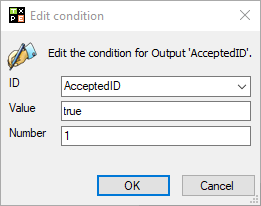
Some outputs display specific conditions. For example, in the activities plug-ins: The No output is often preset with 100% (option Number). This means that all of the users who have to perform the current activity will need to answer with No before this output can be used.
If the Number configuration is set to 1 for an output, it is sufficient for a single user to perform the activity.
These constraints can be configured via a right click on the respective output. Subsequently, the option Condition can be selected from the context menu.
Note:
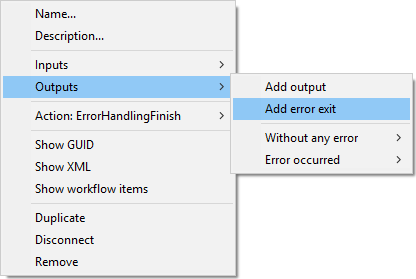
Some plug-ins have pre-configured error outputs. For other plug-ins, error outputs can be added. Depending on the plug-in, the following options can be selected:
- Without any error or Success ...
- Error occurred or Failed ...
- Error
Expressions
In most of the plug-ins, expressions can be used. The established prefixes and suffixes for expressions have to be used here.
Example:
{$ Ticket.AffectedUser.FullName $}


 Copyright (c) 2000-2026 Isonet AG