App registration
The 446 Plattform supports modern authentication using OAuth2 for mail reception and sending, as well as free/busy information and the ability to set calendar entries. To get started, the app must be registered using a provider who supports this service.
The setup is described here using Microsoft 365 (formerly Office 365) and Azure AD as an example. A list of notable oAuth providers is available at Wikipedia here.
Note:
Please visit the website of your identity provider to get more information on how to register your app there. For example, Microsoft has a Quickstart: Register an application with the Microsoft identity platform tutorial and so does Google with their Using OAuth 2.0 to Access Google APIs instructions, giving you hints for setting up your application properly there.
Steps to register your app in the Azure AD portal
Go to the Azure AD portal and hit 'App registrations'. Make sure you have administrative access. (Direct link)

1. Select «App registrations»
2. + New registration

1. You give this app a meaningful name
2. and decides (normally) that it is allowed to act in the current client. may act.
3. As redirection URI you enter the URI that is displayed in the login configuration within the 446 Plattform
Tip:
For External login accounts, the redirection URI can be changed later on!
Summary
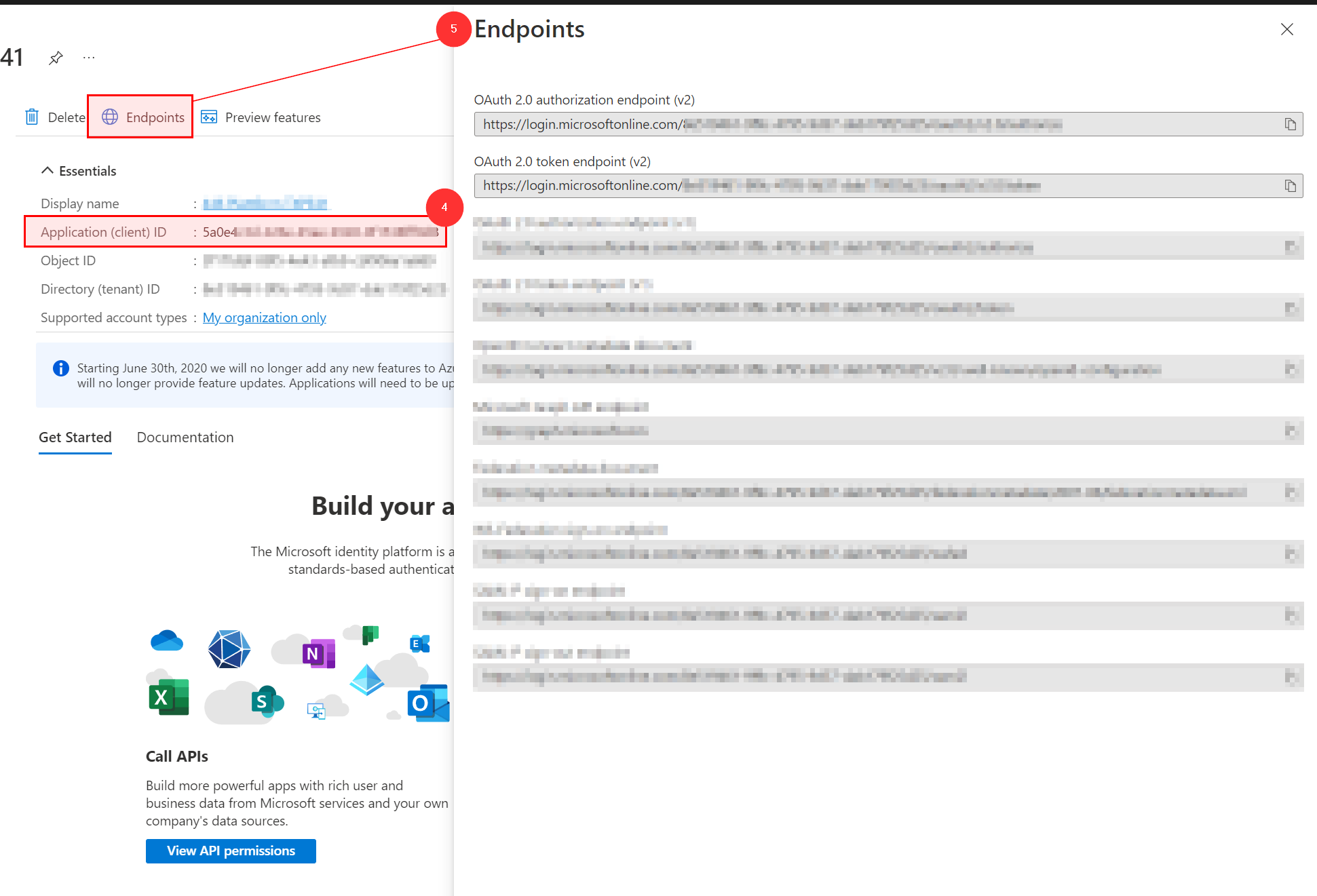
For application registration, two things are mandatory:
4. the Application (client) ID and
5. the appropriate endpoint
By the time writing this article, Microsoft provides the following endpoints:
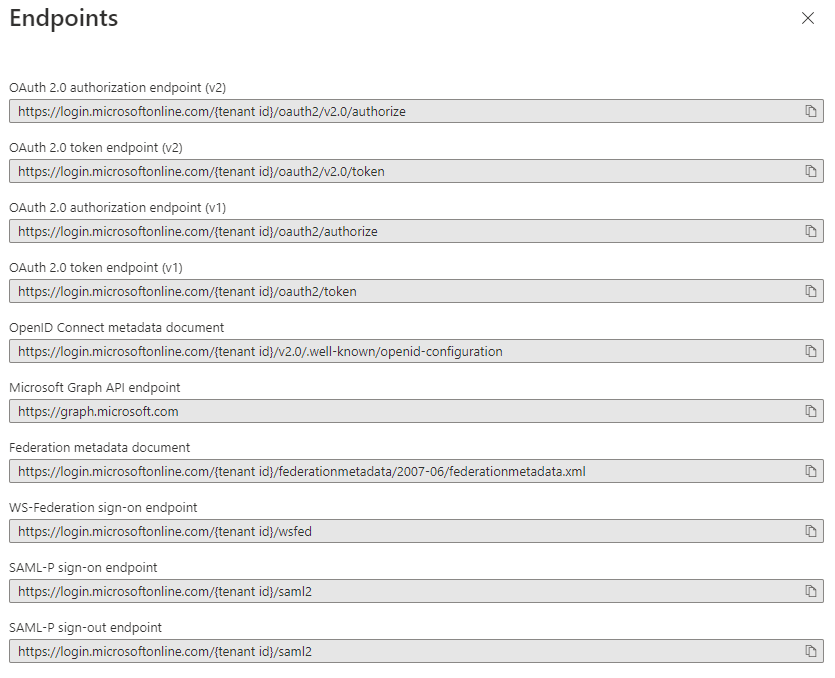
Tip:
Replace the expression '{tenant id}' with your own Tenant Id from the Azure AD portal. More information regarding this topic can be found under How to find your Azure Active Directory tenant ID.
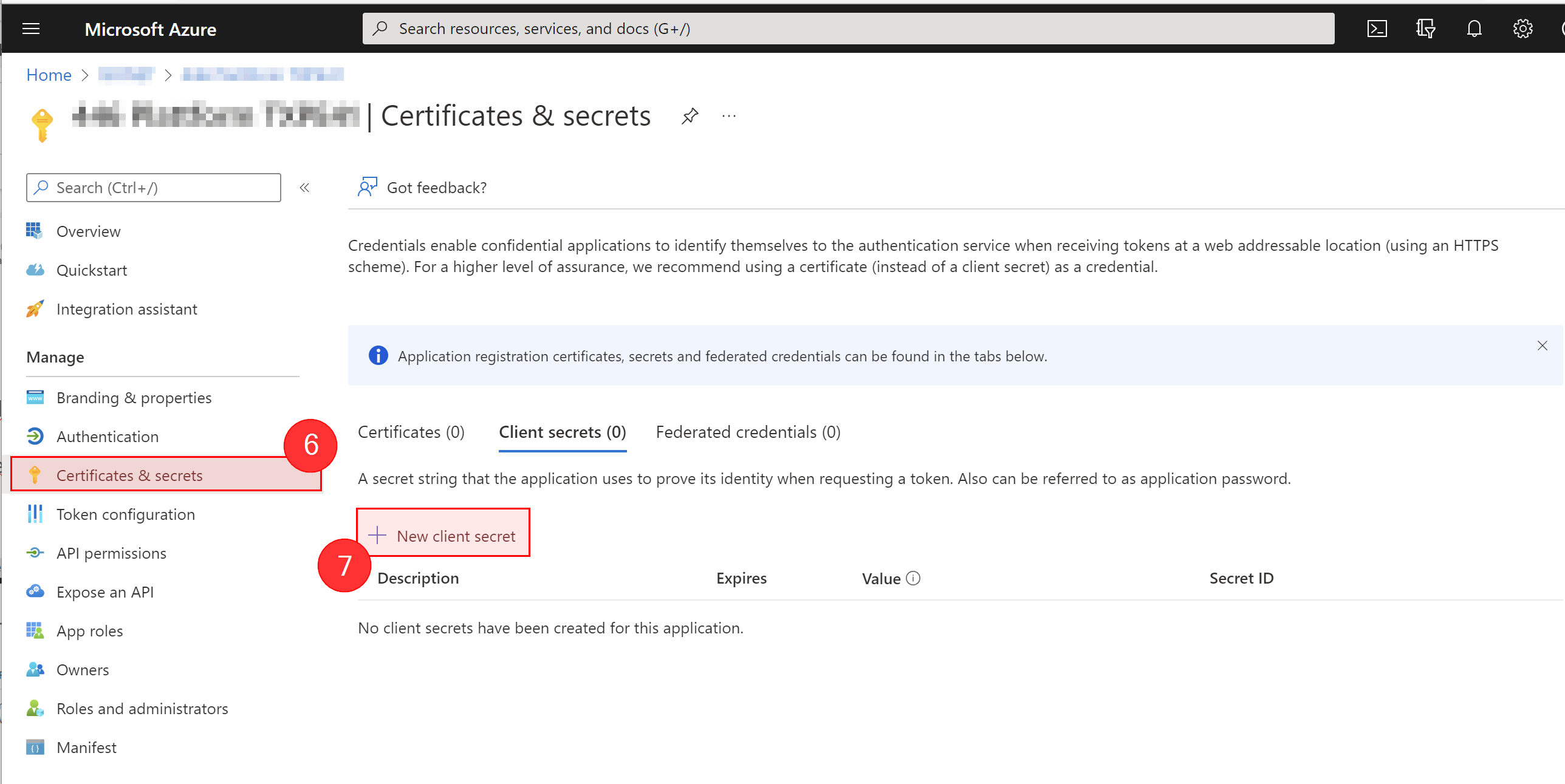
To get the authentication done, an additional client key (Client secret) is required.
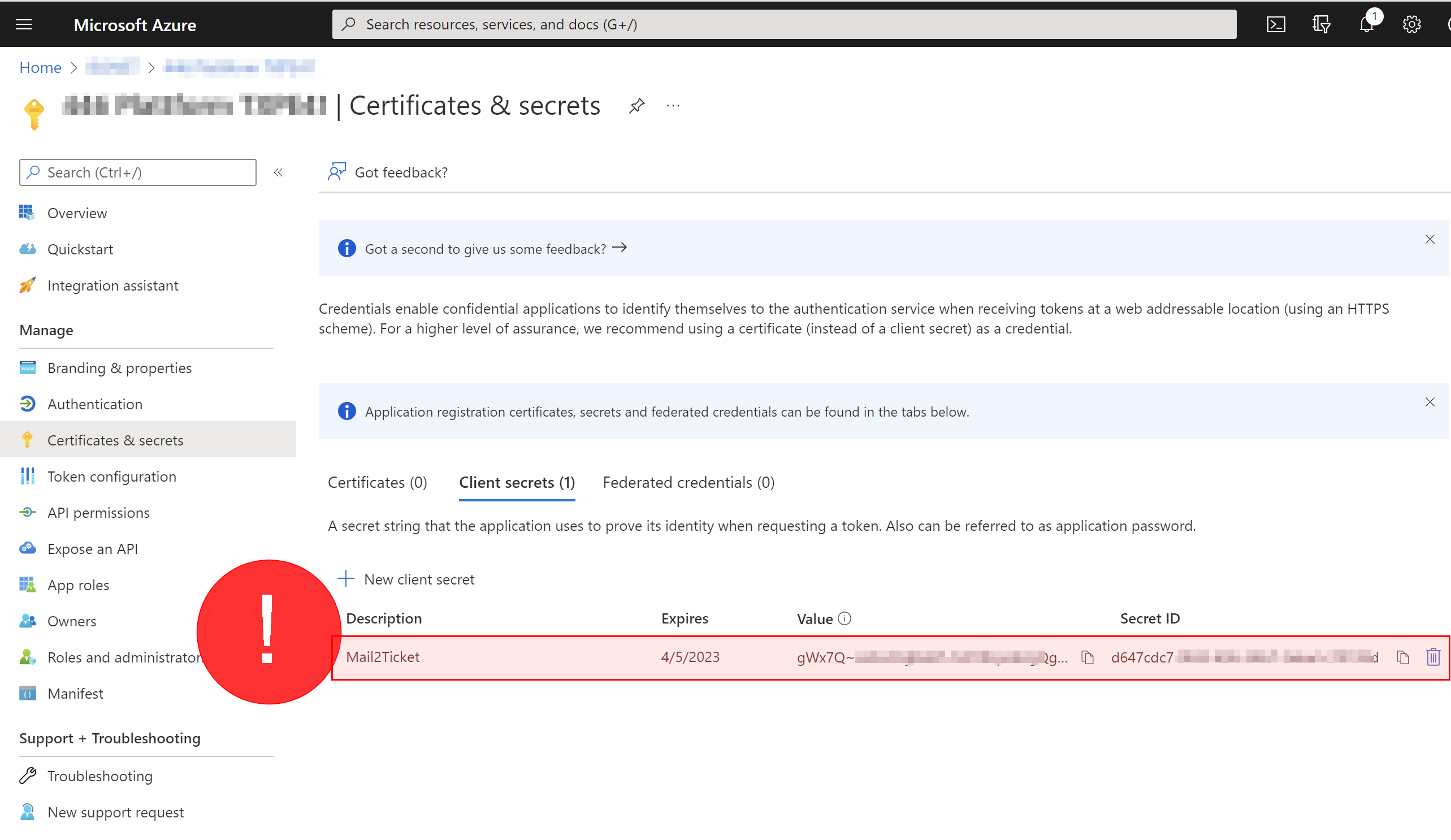
Warning:
Important! Please be aware that the client secret can only be copied directly after the creation. If you miss the key here, you must generate a new one by repeating the process. The contents of the Value column must be copied here.
Set permissions
The final configuration step is done by granting your application the necessary access rights. The permissions of the FreeBusy Exchange functionality for example extends to the following scopes:
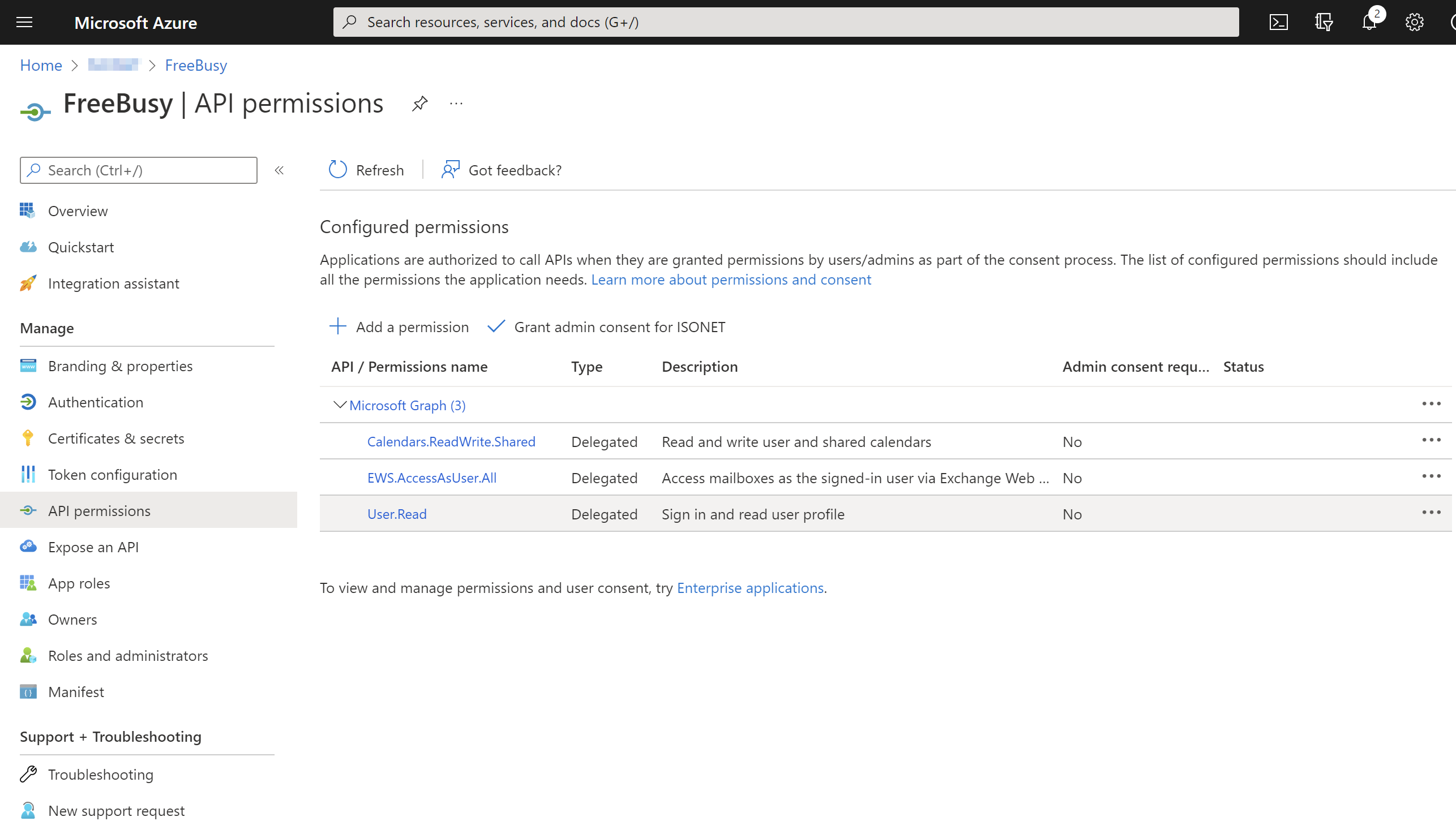
Warning:
To release the rights, click the Grant admin consent for “...” button.
Configured permissions
Note:
Difference between application context and user context:
When using an application in the user context, a specific user is required for authentication. Make sure that you create a dedicated user that is used exclusively for this task.
When using an application in the application context, an external program is allowed to authenticate itself as an application. This means that no user is required for authentication.
The following permissions are required for configuration in the user context:
| API/ Permissions name | Type | Admin consent required |
| EWS.AccessAsUser.All | Delegated | Nein |
| Calendars.ReadWrite.Shared | Delegated | Nein |
| User.Read | Delegated | Nein |
| offline_access | Delegated | Nein |
Configuration with authorization type “Application”
The following permissions are required for configuration in the application context:
| Claim value | Type |
| MailboxFolder.ReadWrite.All (Category: Microsoft Graph) | Application |
| Calendars.ReadWrite (Category: Microsoft Graph) | Application |
| full_access_as_app (Category: Office 365 Exchange Online) | Application |
The following permissions are required for configuration in the user context:
| API/ Permissions name | Type | Admin consent required |
| EWS.AccessAsUser.All | Delegated | Nein |
| SMTP.Send | Delegated | Nein |
| User.Read | Delegated | Nein |
| offline_access | Delegated | Nein |
Note:
For the Mail2Ticket service with POP3 or IMAP, the appropriate permissions must be used:
POP3: POP3.AccessAsUser.All
IMAP: IMAP.AccessAsUser.All
Configuration with authorization type “Application”
The following permissions are required for configuration in the application context:
| Claim value/Permissions name | Type |
| Calenders.ReadWrite (Category: Microsoft Graph) | Application |
| Mail.ReadWrite (Category: Microsoft Graph) | Application |
| Mail.Send (Category: Microsoft Graph) | Application |
| full_access_as_app (Category: Office 365 Exchange Online) | Application |
| SMTP.SendAsApp (Category: Office 365 Exchange Online) | Application |
Note:
External logon accounts with the "Application context" permission mode can currently only be used in Mail2Ticket accounts of type "ExchangeConnector" and for creating Exchange appointments via the MS Graph API interface or the Exchange WebService.
Retrieving emails via POP3/IMAP connectors (Mail2Ticket), retrieving availability information from other users (Free/Busy) and sending emails via SMTP (Messaging Manager) is currently not possible.
| API/ Permissions name | Type | Admin consent required |
| SMTP.Send | Delegated | Nein |
| User.Read | Delegated | Nein |
| offline_access | Delegated | Nein |
Successfully registering your app at your service provider enables you to:
-
setup External login accounts within the 446 Plattform and ...
-
setup Email accounts (mail reception) account afterwards.


 Copyright (c) 2000-2026 Isonet AG