Data import
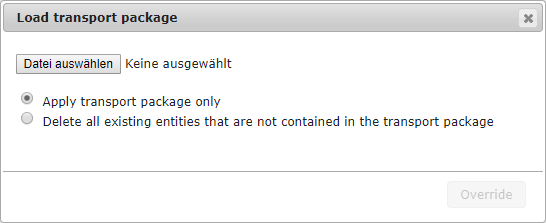
Via the menu item Import the overview of the TM import is reached. You can use the Load transport package button to import the data previously exported from the source system to target systems. This dialog selects and uploads a transport package stored on the local computer.
Note:
A warning message is displayed if a new package is copied to the cache and another package is already loaded. This message only applies to the currently displayed transport package. Any data that has already been imported is not overwritten. Only the transport package in the buffer is overwritten.
The following options are available when loading:
Apply transport package only: The transport package to be imported is uploaded to the server and applied. Data that does not exist on the target system is recreated and existing data is updated. Other data is not affected. (default selection)
Delete all existing entities that are not contained in the transport package: The transport package is uploaded to the server and applied. Data that does not exist on the target system is recreated and existing data is updated. All other data is deleted. This option is recommended if settings and entities are to be imported to a new system.
Note:
Transport packages that were created with another version of the 446 Plattform® (version of the target system) or contain syntactic errors are rejected and cannot be used.
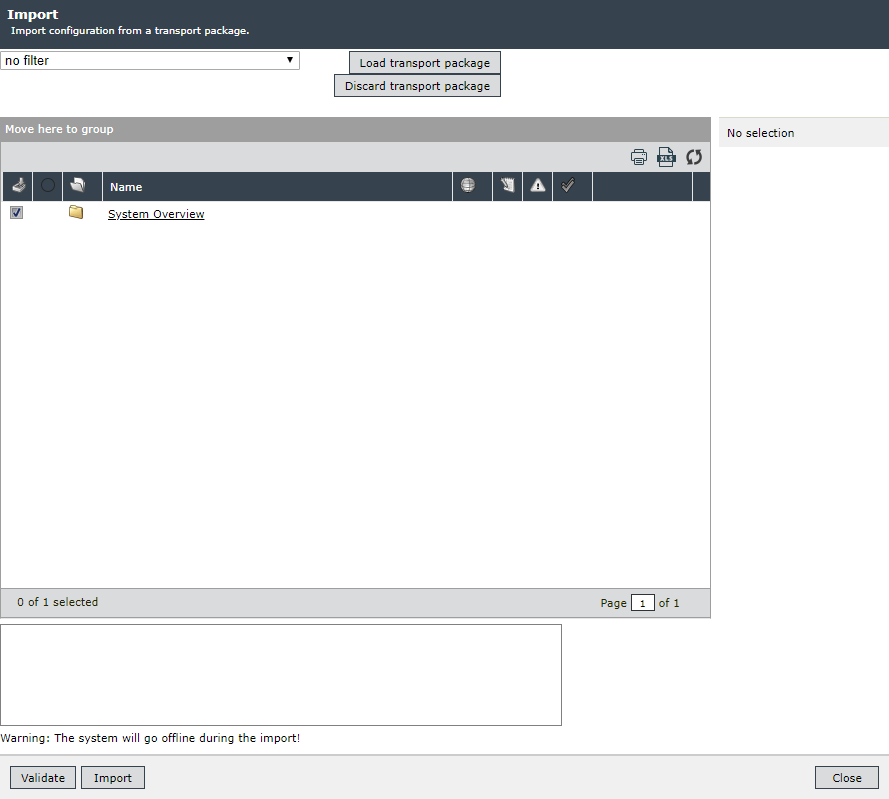
After uploading the package (Load transport package button), the content is displayed.
If a transport package has already been loaded on the target system, the Overwrite button is displayed. Only the old transport package is overwritten with the new one.
In the package view the main entities are visible on the left side. You can use the filter to display relevant content and conflicts for the environment. If no filter is set, all content to be imported is displayed.
Relevant contents of the environment are entities that access external data sources and may have to be adapted (e.g. URLs, SQL statements, database connection settings, e-mail addresses).
Warning:
In order not to endanger the consistency of data, the relevant contents of the surrounding system should be checked carefully. For example, different settings are effective on test servers than on productive systems.
As soon as the transport package has been validated, all errors that occur during import and require manual rework are displayed under Conflicts.
The view contains only those entities that are in the transport package (including all dependencies that are displayed below the respective main entities in the hierarchy). Each entry in this hierarchy has an option field that is activated by default. Here you can select the entities to be imported.
Note:
Workflow plug-ins, Ticket Wizards and Ticket Wizard controls cannot be deselected individually, they always belong to their parent entities.
If an entity is selected, those entities on which the selected entity is dependent are also selected. For example, a workflow on which a selected ticket scheme depends is automatically selected for import.
The checkbox behavior is as follows:
Checked: The entity and all its successors are imported.
Checked, gray background: The entity will be imported, but not all of its successors.
Empty: The entity is not imported so that there are no dependencies of type I and II. Possibly, however, successors of type III (see Data > Dependencies).
As soon as an object has been selected on the left side and the icon has been clicked for editing, information about the object is displayed on the right side and can also be edited.
Before the package can be imported, the Configuration Manager Validation button must be used to check each entity to be imported. This checks whether entities need to be created or existing entities need to be updated or deleted. At the same time, any conflicts that need to be resolved manually can be displayed.
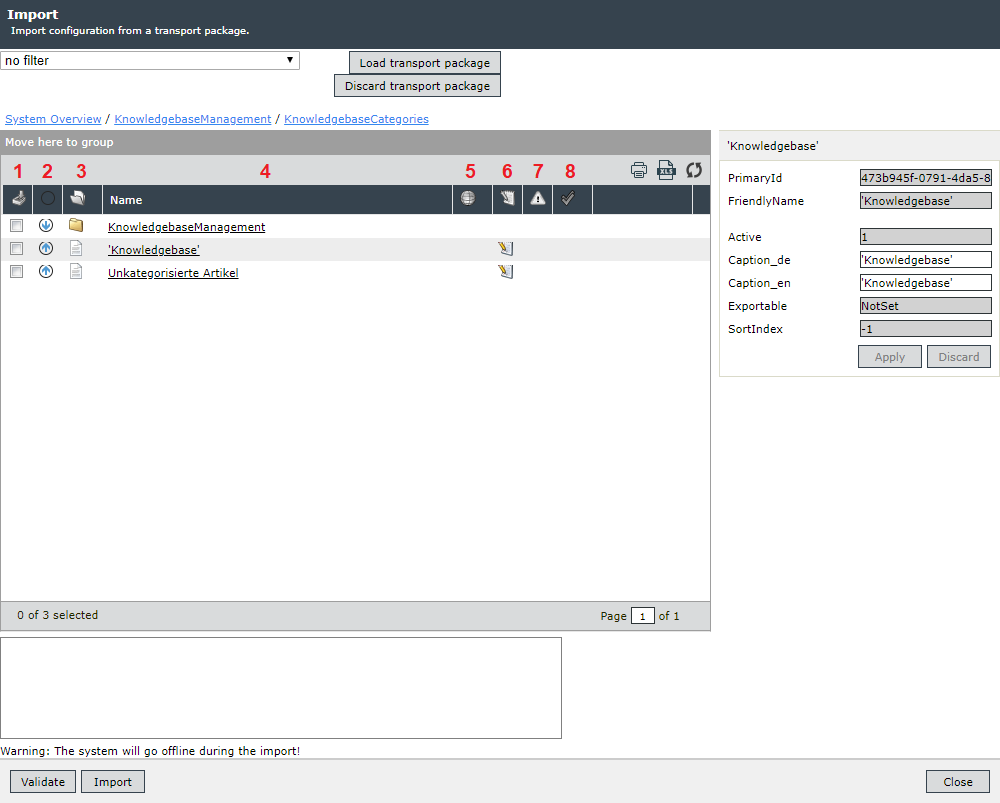
The columns in the import view have the following meanings:
- 1st column: Enable/disable import for an entity and all its dependencies. Dependency type 3 entities that are not successors as well will not be included here.
- 2nd column: Displays the dependency type for the higher-level entity (see Symbol Meaning).
- 3rd column: Displays the entity type. A distinction is made between entity groups and entities.
- 4th column: Displays the name of the respective entity. If the name is crossed out, the entity is marked as deleted.
- 5th column: Indicates whether an entity is relevant for an environment.
- 6th column: Allows you to edit an entity.
- 7th column: Shows whether and which conflict exists for an entity.
- 8th column: Returns the result of the validation.
Dependency types (2nd column):
| Icon | Description |
|---|---|

|
Existential dependency Parent |

|
Existential dependency Child |

|
Partial existential dependency Parent |

|
Partial existential dependency Child |

|
Standard Entity of a partially existential dependency Parent |

|
Standard Entity of a partially existential dependency Child |

|
Link Parent |

|
Link Child |

|
Functional dependency Parent |

|
Functional dependency Child |
Types of conflicts (7th column):
| Icon | Description |
|---|---|

|
An object with the same secondary ID (e.g. the FriendlyName) also exists on the target system. To solve this conflict, manual intervention is required. Such conflicts are also displayed for higher-level entities (e.g. in a ticket scheme for a ticket status). However, this only happens if there is no conflict with this parent entity, since conflicts of child entities are only validated after these parent conflicts have been resolved. |

|
A conflict caused by locked dependencies arises when a change to this dependency to another entity is recognized (for example, when a CI schema on the target system is linked to another CI type). This dependency must be resolved manually (conflict resolution dialog with two options: Conflict resolved and Cancel). |

|
A deletion conflict occurs as soon as an entity to be deleted is still being used on the target system. All dependencies of this entity are displayed in the conflict resolution dialog (options: Delete, Do not delete, and Cancel). |
Validation results (8th column):
| Icon | Description |
|---|---|

|
The object does not exist on the target system and must be recreated. |

|
The object already exists on the target system, but is overwritten or updated by the import. |

|
The transport package contains an entity that exists on both systems but has been marked as deleted on the target system. |

|
An error occurs when an entity cannot be validated. The validation is not interrupted. If an error occurs, detailed information can be retrieved from the log file of the Transport Manager worker. |
Entities marked as deleted
If the transport package contains an entity that exists on both systems but has been marked as deleted in the source system, this object is displayed as follows:
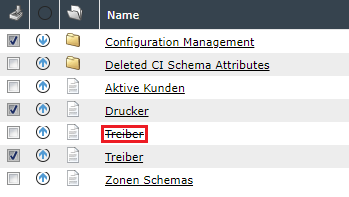
Deleted entities whose parent entity has also been deleted are displayed in a separate group. These groups can be identified by a name that always begins with Deleted:
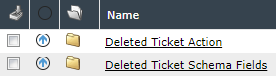
Clicking the Import button starts the import process after a confirmation dialog.
Note:
- An import is only possible if all conflicts that occur have been resolved beforehand.
- Logged in users are automatically logged out while the import is in progress.
- If an administrator logs on during the import, he is automatically redirected to the TM overview page.
Before the import, a complete backup of the configuration data contained on the system is created in the form of a transport package. If the import contains errors, the initial state can be restored.
Note:
To avoid inconsistent data on the target system, it is set offline during the import. Logged in users are automatically logged off. To display information about the offline status on the login page, a warning must be stored in the maintenance overview under System Shutdown.
Warning:
Never stop services manually while the transport package is being imported.
Once the import is complete, the system is automatically set online and normal operation can be resumed. The system cache is automatically updated so that the changed configuration settings are implemented immediately. After the import, the system checks whether there were any escalations during the offline connection. All pending actions are now executed later.
Partial import
It is possible to import individual entities to a new system. Note the following special features: Transport packages always contain all entities of the source system. If different entities are not selected during the import, you must manually check the functionality of the imported entities.
Before the import, the TM recognizes that certain objects have a dependency on others and imports these dependencies automatically.
Example
The import of a ticket schema requires a workflow and an SLM priority. Furthermore, a dispatching rule is used in the workflow. However, only one condition and parameter value is necessary here, even though multiple parameters and conditions exist.
When the Transport Manager imports the ticket schema, it recognizes that there are dependencies and that these are required for the ticket schema to function smoothly. Consequently, these entities are also imported. This means the import of the entire workflow. At the same time, the dispatching rule used is transported with all parameters and conditions used (other parameters and conditions are not imported).
The necessary priority deposited in the ticket schema will be imported along with the superordinate expense and the contract as well. However, further expenses deposited in the contract as well as their priorities will not be taken into account during the import.
This means that the imported ticket schema is fully functional. However, ticket schemas or workflows created later and possibly based on the SLA contract or the dispatching rule are not executable.
Warning:
If only a partial import is executed, you must manually check whether objects transported by dependency are to remain fully functional.
Partial import - technical background
Dependencies
There are five different dependencies between objects to be transported. (For definition, see Data > Dependencies):
-
Existential Dependency
-
Functional Dependency
- Link
-
Partially Existential Dependency
-
Default Entity of a Partially Existential Dependency
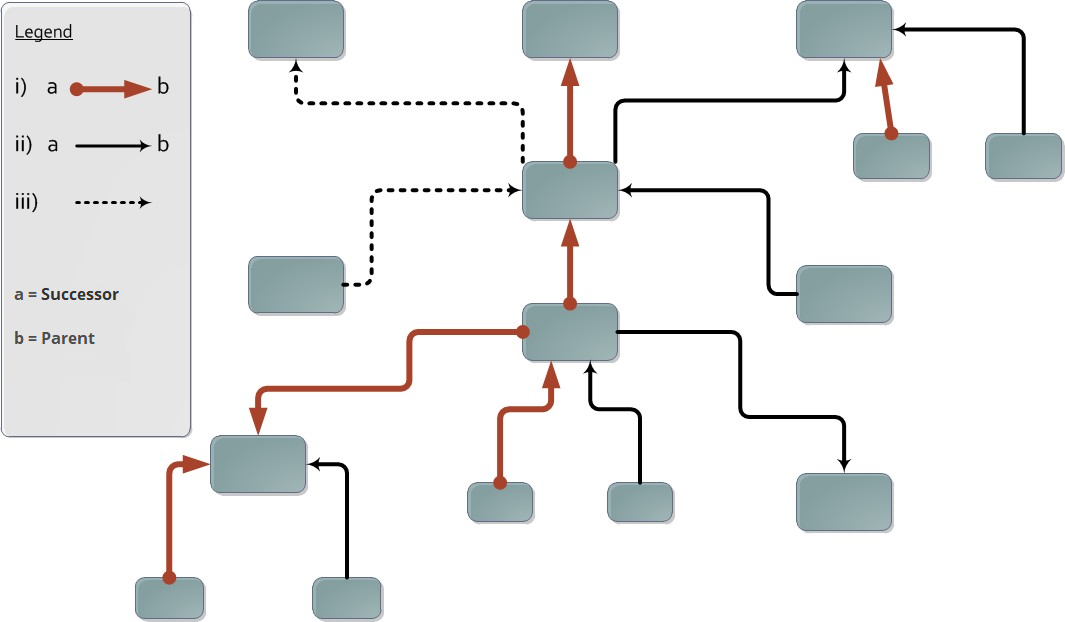
Initial situation: This overview contains all dependencies theoretically possible for an entity (parents/successors with the type I-III).
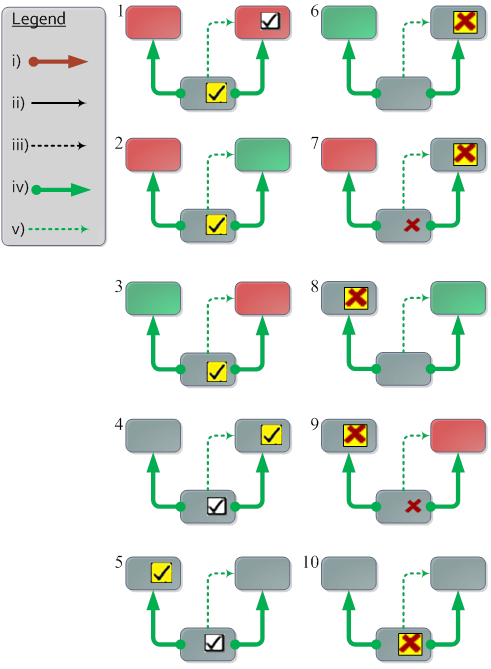
Partially existential dependency and default entity of a partially existential dependency (types IV and V).
Legend:
Red field = Entity deselected
Green field = Entity selected
Gray field = No preference
Yellow field = Is currently edited manually
Rest = Automatic
Behavior
The partial dependencies behave analogously to the type I to III dependencies.
The following behavior has been defined:
- Do not allow inconsistent imports as per type I and II. During validation, this is checked and a package that is not complete is classified as invalid and an import is denied with an error message.
- Allow optionally linked entities (link according to type III) not to be imported.
-
When selecting or not selecting entities, the user interface forces compliance with 1. by immediately updating the checkbox of dependent entities in the entire import package.
- To ensure 3. that all descendants of type I are activated when the import checkbox for an entity is activated. Similarly, all type I and II descendants are activated. Type III dependencies are not activated automatically.
Example:
A CI isosrv13 with the schema Server is activated. This CI is assigned to a user Max Schweizer (owner) and linked to another CI Windows Server.
If the CI is activated, the import for the schema will also be activated (dependency type I). Additionally, the user Max Schweizer will be activated as well (dependency type II). However, the import for the CI Windows Server will not be activated automatically (dependency type III).
- In order to ensure 3., when deactivating the import for an entity, descendants of type I and II are also deactivated. The activation of the import for type III descendants is not changed.
Example:
Analogue to point 4: The import of the schema Server is deactivated. Thus, the import will be deactivated for the CI isosrv13 as well. However, the activation of the import for the user Max Schweizer will not be changed.
- A field at the bottom of the user interface informs about automatic changes to the import status according to points 3, 4 and 5.
- The user interface displays all dependencies in both directions. Icons indicate the type and direction of the dependency to the selected parent.
- Workflow plug-ins: These cannot be deselected separately because they can only be transported as part of the workflow. Analogous behavior for the Ticket Wizard and its controls.
- The current path is always displayed in the breadcrumb navigation. By clicking on an element, you can navigate directly to the corresponding position. However, it is not possible to use this list to select an entity that is already in the current navigation path.
Example:
The user navigates to the group Support. Here, he can see all contained users, among other things. After selecting the user John Patterns, he can see all entities connected to John Patterns, including the group Support. If he wants to select this group, a respective message will point out that the group can already be found in his navigation path. He can, however, still return to the group Support via the breadcrumb.
10. Three state checkbox for the display of the import status:
- Checked: Entity and all existential or partially existential successors are selected for import.
- Checked - gray: Entity is selected for import. However, not all of its existential or partially existential successor are selected for import as well.
- Empty: Entity will is not selected for import, and thus no dependencies type I and II as well. However, successors with type III may be selected.
Definitions
- Child:
An entity A is a child of another entity B, if A is dependent on B.
Example:
A ticket field can be found in a ticket schema. Thus, the field depends on the schema and is a child of the schema.
- Successor:
An entity A is a successor of another entity B, if A is a child of B or there is a path spanning multiple entities, which are all children of each other.
Example:
A service transaction Incident can be found in the service Outlook Web Access. This service in turn can be found in the catalog IT Management. Incident is thus a successor of the service Outlook Web Access and also a successor of the catalog IT Management.
- Parent:
A parent is the reversal of a successor.
Example:
Based on the example for successors: The catalog IT Management as well as the service Outlook Web Access are both parents of the service transaction Incident.
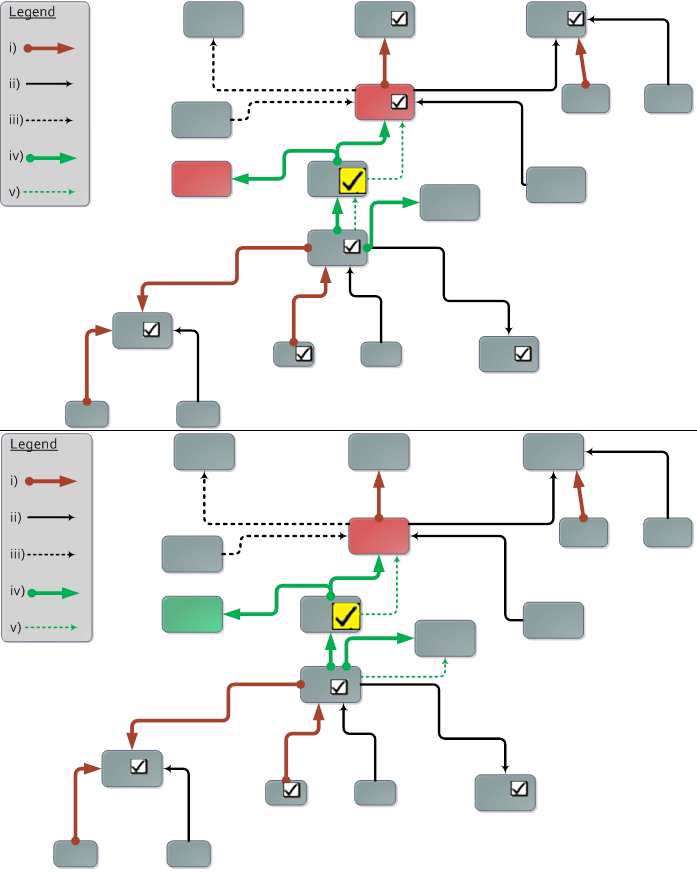
Import Activation: Whenever the import of an entity is activated (checkmark with yellow background), the import of the marked entities (checkmark with white background) will be activated as well automatically.
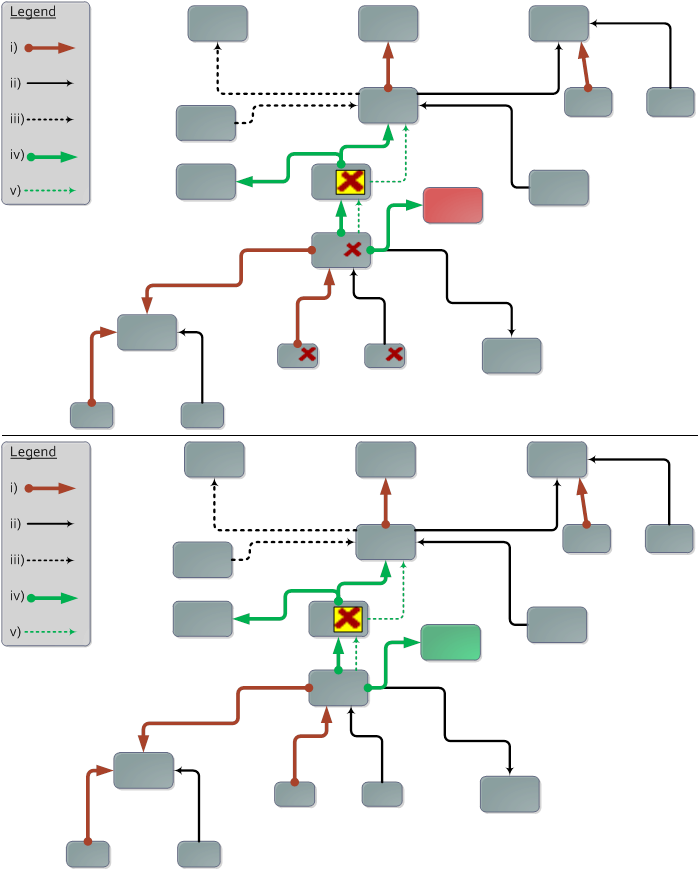
Import Deactivation: Whenever the import of an entity is deactivated (cross with yellow background), the import of the marked entities (cross with white background) will be deactivated as well automatically.
Errors during the import
Errors can occur under the following conditions, for example:
- Configuration changes are made in the background during the export (e.g. because the offline mode has not been activated).
- Important services fail or are canceled during the import.
- Database problems occur (e.g. due to insufficient hard drive space).
- Other circumstances preventing a proper operation of the 446 Plattform® occur at least temporarily (e.g. due to a power outage).
Warning:
Manual manipulations of a transport package may also cause incompatibilities or unpredictable behavior of the target system.
If an error occurred during import, the offline mode remains active. If the data of a transport package cannot be written to the databases, a dialog box appears with information about the error. At the same time, further information can be found in the log file.
If a rollback is required, the currently logged in administrator is automatically redirected to the rollback dialog. The rollback restores the data of the target system as it was configured before the import. This is done by a complete export of the system configuration before the import, which can be re-imported if an error occurs.
Warning:
The transport package created for rollback is overwritten as soon as an attempt is made to import another transport package after a failure. You must close the rollback dialog manually.
Rollback failure
If an error occurs that prevents both the correct import and the subsequent rollback (for example, a database server failure), another error dialog is displayed. Exports and imports are no longer possible from this point until the rollback has been successfully completed. The dialog is displayed each time the Transport Manager is opened and the system remains offline.
Warning:
An external database backup must be performed before the import.
Conflict resolution and mapping entities via secondary ID
When importing, all entities are first assigned by their unique ID. This is usually a GUID that is unique across all systems and clients. If several entities with the same names within their scope are created manually in the source system and in the target system, these entities must be assigned manually before the import. This mapping uses the secondary ID, usually the friendly name, not the localized name. Objects from the transport package that could not be uniquely assigned to an entity on the target system are used for assignment. During validation, all entities of the same name, of the same type, in the same scope are scanned for these entities. The scope is the superordinate entity.
If the entity is found only once by its name, it is automatically assigned. If there are several objects with the same name and range, the user must make a manual assignment.
Examples for the scope
A message template has as scope the template group in which it was created.
The expense of an SLM contract has a priority as scope. The service in turn has the SLM contract as its scope.
The scope of an entity ensures that entities cannot be incorrectly assigned to another (parent) entity (e.g. a priority in another SLM contract).
The following describes the possible cases using the Ticket Status entity. The source system represents the content of the transport package.
- Case 1
Source system: Global ticket status New with ID 1
Target system: Global ticket status New with ID 2
In this case, the entity is assigned automatically, since only one entity with the same name can be found on the target system.
- Case 2
Source system: Global ticket status New with ID 1, Global ticket status New with ID 2
Target system: Global ticket status New with ID 1
The entity with ID 1, which exists on both systems, is automatically assigned via the primary key. The entity with ID 2 is recreated on the target system because there is no other Ticket Status entity with the same name on the target system.
- Case 3
Source system: Global ticket status New with ID 1, Global ticket status New with ID 2
Target system: Global ticket status New with ID 1, Global ticket status New with ID 3
The entity with ID 1 is automatically assigned via its primary key, since it exists on both systems. The entity with ID 2 cannot be uniquely identified on the target system. On the target system, there is a single ticket status entity with the same name. Thus, this entity is automatically assigned (see also case 1).
- Case 4
Source system: Global ticket status New with ID 1, Global ticket status New with ID 2, Global ticket status New with ID 3
Target system: Global ticket status New with ID 1, Global ticket status New with ID 4
This case is a hybrid of cases 1 to 3.
The entity with the ID 1 exists on both systems and is thus assigned via its primary key. The entities with ID 2 and ID 3 cannot be uniquely identified on the target system. However, a similar entity with ID 4 is found that has the same name as the other two. This leads to a conflict that must be resolved manually. Via the conflict resolution dialog, one of the entities with ID 2 or ID 3 is assigned to the entity with ID 4 (target system). The entity that is not mapped must be recreated on the target system and is found the next time it is imported using its primary key.
- Case 5
Source system: Global ticket status New with ID 1, Global ticket status New with ID 2
Target system: Global ticket status New with ID 3, Global ticket status New with ID 4
In this case, none of the entities can be uniquely assigned. Using the conflict resolution dialog, at least one of the entities must be mapped manually from the source system to an entity on the target system. The second entity is then automatically assigned to the remaining entity of the same type.
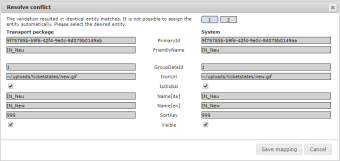
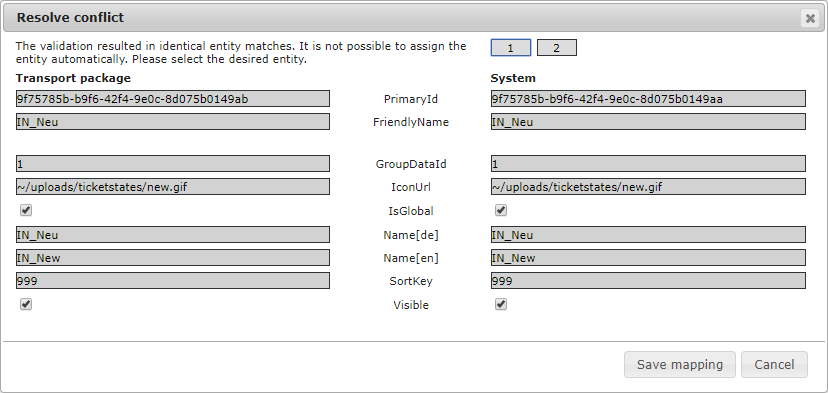
- Case 6
Source system: Global ticket status New with ID 1, Global ticket status New with ID 2, Global ticket status New with ID 3
Target system: Global ticket status New with ID 4, Global ticket status New with ID 5, Global ticket status New with ID 6
This case is an extension of case 5 and is handled in the same way. The first two entities must be assigned manually using the conflict resolution dialog. The third entity is automatically mapped to the remaining entity.
- Case 7
Source system: Global ticket status New with ID 1 soll gelöscht werden.
Target system: Global ticket status New with ID 1, still in use in Ticketschema Change and Incident and the associated workflows
In the conflict resolution dialog, the use in both ticket schemas and the associated workflows is displayed. Two approaches are possible:
- Not to delete the status in order not to endanger the consistency of the ticket schemas and workflows on the target system or to delete the status anyway, whereby manual rework is required for the ticket schemas and workflows.
- Cancel the conflict resolution to exclude the entity from the import, for example.
- Case 8
Source system: CI schema Hardware with ID 1 and linked CI type Ultrabooks with ID 2
Target system: CI schema Hardware with ID 1 and linked CI type Notebooks with ID 3
This conflict must be resolved manually (for example, delete entity on target system). The update to the CI schema Hardware is locked because the attempt is made to change the linked CI type. However, this is no longer possible once CIs have been created with this schema. The options Conflict resolved and Cancel exist in the conflict resolution dialog.
Saved conflict resolutions
Conflict solutions that have already been executed (manually and automatically) are saved by the Transport Manager so that there is less to adjust when importing again.
Warning:
Deletion conflict solutions (case 7) are only stored within the loaded package. These are not available for further imports.
The conflict solutions are saved as follows:
- Recognition of performed secondary mappings
A secondary mapping table is created with the following content:
- Entity type
- Source system primary ID
- Target system primary ID
- Source system client ID
The subsequent import procedure is as follows:
- Applying primary ID mapping
- Applying the secondary ID mapping via secondary ID mapping table (exchange of primary IDs)
- Automatic as well as manual ID mappings write the mappings into a temporary table (similar to the secondary mapping table)
- If the import is successful, the contents of the temporary table are transferred to the main table.
- Improved conflict resolution for multiple transported entities with the same secondary ID
- Before secondary ID mapping (after primary ID mapping), entities are grouped within the scope:
- First according to type
- Then by secondary ID (Deleted entities are treated in this grouping in the same way as non deleted entities.)
- If there is more than one entity within this grouping on the source system and on the target system, a conflict is displayed for all entities in this group.


 Copyright (c) 2000-2026 Isonet AG