Data export
Transport packages can be put together and exports can be started using the Export menu option. You can export only the configuration data or include configuration elements (CIs) in the relevant transport package. Transaction data such as tickets are generally not taken into account for exports.
Configuration of the export
The following dialog for configuring the export opens. If transport packages have already been created, the last one created is always available as a download.
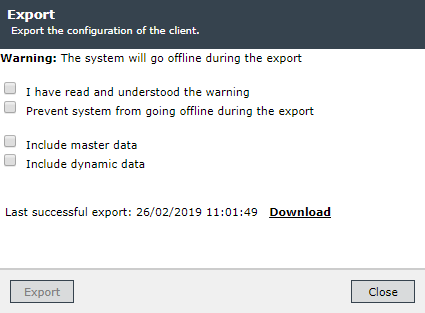
Once the export has been completed, the new transport package can be downloaded.
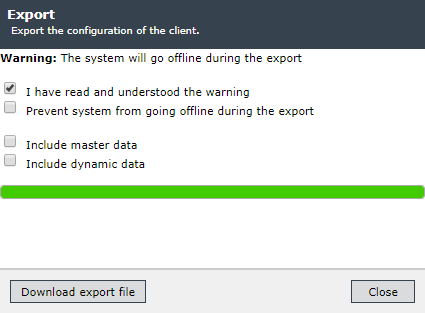
Two options are available in this dialog:
- I have read and understood the warning: With this option, the system is set to offline mode, normal users can no longer login.
-
Prevent system from going offline during the export: This option allows normal users and administrators to login to the system during the export and continue working with the 446 Plattform®.
Note:
One of the two options must be selected in order to start the export.
A warning must be stored in the maintenance overview under System Shutdown so that information is displayed in offline mode on the login page.
The offline mode should generally not be prevented during an export. Otherwise, the integrity of the transport package cannot be fully guaranteed.
In addition, master data and CMDB dynamic data (CIs) can also be selected for export.
The Include dynamic data option is useful for configuration elements in this respect, since in some configurations certain CIs must be regarded as configuration data rather than dynamic data. If CIs are intended for export, a list of CI schemas (with multiple selection) is displayed. Only the CIs whose schemas have been selected can be exported.
With a click on the button Export all required data are compiled. After some time, the export button will change to a download link, with which the transport package can be downloaded as a ZIP file.
A complete export of all data as well as the selected master data and CMDB dynamic data is always executed. Which data is to be imported later (partial or complete import) must be specified during the import.
Note:
- Make sure that all entities to be transported have a language-independent name. Otherwise, errors may occur during import (for example, if a conflict has to be resolved and missing names make conflict resolution more difficult).
- To avoid inconsistent data in the transport package, we recommend that you set the system offline for the export period. If users are still logged in to the system while the export is being executed, they are automatically logged off.
-
While the transport package is being created, never manually stop services on the server(s).
Inconsistent systems
Inconsistent systems are not exported. Inconsistent means that references to deleted objects or objects removed from the database exist. An error message appears when an incorrect system is exported. These errors must be corrected before an export can be performed.
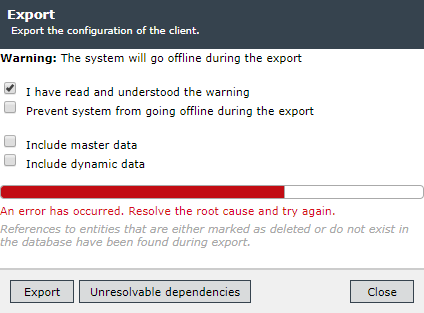
Fig.: Failed export due to invalid dependencies
To clean up inconsistent systems, the TM generates a list of these dependencies. It contains all the information required for the cleanup:
-
Type of inconsistency (dependency on deleted or non-existent entity)
-
Development-specific property of the dependency
-
Type, primary ID and Name (secondary ID) as well as dependency path of the affected entity
-
Type and primary ID of the dependent deleted or no longer existing entity
-
Only for dependencies to deleted entities: Name (secondary ID) of the dependent deleted entity
Partially configured dependent entities are no longer visible. This happens if the superordinate entities have already been deleted and have therefore been removed from the database or marked as deleted.
Warning:
Data cleaning requires precise knowledge of the system and the configured processes and should therefore be carried out with the support of the project and process managers involved.
Export failure due to an unavailable SQL service
If the SQL service is no longer available during the export, no further export can be executed. To enable the export of the data again, the Windows service isonet Agent must first be restarted on the application server. As soon as all workers have been restarted by the agent, an export can be tried again.


 Copyright (c) 2000-2026 Isonet AG