Maintenance
The Maintenance settings provide the option to manage the maintenance functions. The maintenance functions are accessible via Settings > Administration > Maintenance.
Note:
Loading this page can take some time, due to various information having to be collected and loaded first.
System Shutdown
Via this function, the system can be shut down at a preset time. During this time the system is not usable. Only administrators can login in order to perform maintenance tasks. For this purpose, the following settings and information can be entered:
Warning:
While the system is deactivated, it is not possible for normal users to login. Only administrators have access to the 446 Plattform® system.
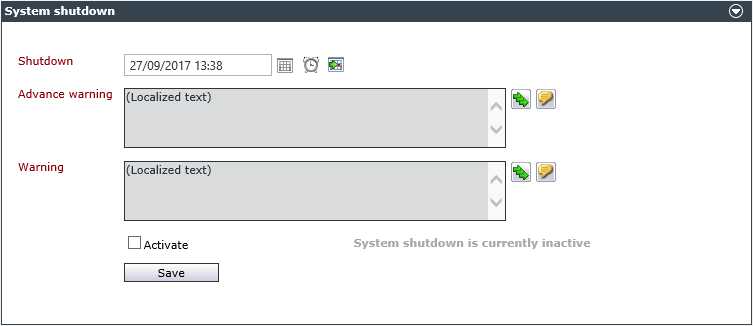
Shutdown: The date and time of the shutdown are defined here. I doing so, the date can either be entered manually or selected from a calendar via the calendar pop-up. Various predefined times are available here in a drop-down menu.
Advance warning: Here, a text informing the user about an impending shutdown of the system can be typed. This text can be entered for every of the available languages or applied to all languages as a general text.
Tip:
As soon as the system shutdown has been activated, the advance warning text will be displayed as pop-up at each login.
Warning: This text informs users that the system has been shut down. As soon as the system shutdown has become effective, this text appears on the login page. This text can be specified for every available language or applied to all of them as well.
If the Activate checkbox is enabled the shutdown will be started. Right next to it is displayed whether the shutdown has already been activated.
The settings have to be confirmed via the Save button.
Reset Cache
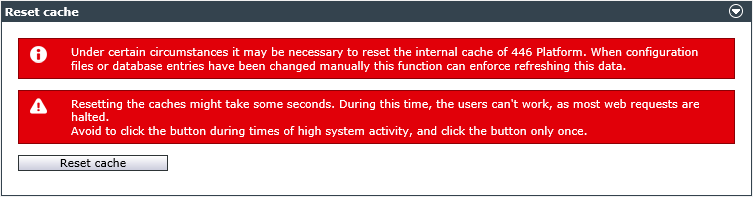
Under certain circumstances, it may be necessary to reset the internal cache. If, for example, the configuration files or the database content have been changed manually, this function can force a reload of the data. By clicking on the Reset cache button, the cache will be cleared and the configuration data will be imported again.
Note:
So that changes made by the reset function are also applied to each user, all active users should briefly log off and then log back on to the system.
Log File Settings
As event log, the log file contains information about actions and interactions. If errors or unexpected events occur, information about can usually be found in the log files which contain, depending on the respective log level, different numbers of information.
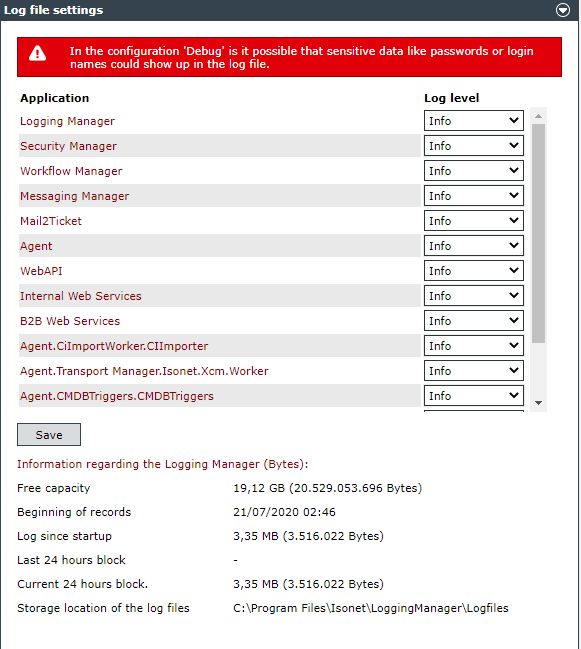
The log levels of the individual manager and web services can be modified in the log file settings. Simultaneously, some information about the data storage is displayed which the log files of the individual workers, agents and modules are saved on.
Tip:
Each service and manager has its own sub-directory for its own log files.
The following log levels are available for every application:
- Fatal: The work is severely impaired. Only information necessary for the removal of these impairments will be written onto the log file.
Further Information:Fatal is an error that cannot be caught without permanent damage. This level is used when an error occurs for which consequential errors are to be expected. So, a service crashes, a background thread is terminated unexpectedly, a worker terminates unexpectedly and so on. In other words, errors where arbitrary data loss or functional restrictions are possible or to be expected.
The situation User submits a form and an exception occurs is not FATAL because the state of the system remains constant even if the user encounters this error again and again.
- Error: Every error, which has occurred but does not impair the work too severely, will be written into the log file.
Further Information:This level is suitable for the majority of exceptions. Something fails, but the program continues running. The error has no unexpected effects on the stability of the system, on other processes or on users.
However, it may be that all users suffer from the same problem. Nevertheless no FATAL, because the program is still running. If the database server fails, for example, numerous errors are generated. But it would only be FATAL if something does not work as soon as the database is working again.
- Warning: Warnings will be written into the log file, e.g. warnings that a parameter is missing but a default value is available, which has been entered automatically. These are often incidents the user does not notice as well.
Further Information:The program is running, but not optimally. This can be caused, for example, by poor performance (duration logs), or by expected errors (error causes that have already been detected and intercepted in the program code).
- Info: With this log level, normal history information will be written into the log file. This is the default presetting.
Further Information:The log files contain the current events of the program procedure, e.g:
- Ticket IN_1293 created
- File "invoice.pdf" uploaded
- User 'abc' logged in
Important: Info is the log level, which should be mainly used in productive operation (log only sparingly and as much as necessary). So mainly when something important happens that can help with an analysis.
Examples:
User logs in
Ticket is created
Mail is sent or retrieved
Process step in workflow
Ticket escalates etc.
NOT: Page was rendered (would occur too often)
- Verbose: With this log level, more elaborate information than in the preset Info level will be written into the log file.
Further Information:This level is set in order to be able to follow the exact procedures for a short period of time. There is no need to be economical with expenditure. However, for example, if a loop is run 10,000 times, no VERBOSE outputs should be included.
On VERBOSE there should be no content with large inputs, file contents, sensitive information and passwords.
- Debug: If the application is not used productively yet, this log level is recommended for testing the configuration. This is the most detailed log level.
Further Information:This level is recommended for testing purposes (e.g. contents of large character strings, SQL statements, log output in an iteration loop). DEBUG should only be activated selectively and for a short time (the log file can become very large). It can be logged without restrictions (also file contents or sensitive data).
Warning:
If the log level is set to Debug, sensitive data (passwords or login names) may appear in the log file.
The following application can be assigned with one of those log levels independently of each other:
- Logging Manager
- Security Manager
- Workflow Manager
- Messaging Manager
- Mail2Ticket
- Agent
- WebAPI
- Internal Web Services
- B2B Web Services
- Agent.CiImportWorker.CIImporter
- Agent.Transport Manager.Isonet.Xcm.Worker
- Agent.CMDBTriggers.CMDBTriggers
- Service Level Manager
- Web Application
- Public Web Services
For each of these applications exist own sub directories in which logging information consistent with the defined log level is saved separately from other services/managers.
Once completed the log settings as required, they can be applied by clicking on the Save button. Additionally, further information on the memory on the drive the log files are saved on will be displayed.
The following values can be viewed here:
Free capacity: Displays the free memory on the drive.
Beginning of records: When has the recording of the current 24 h block been started?
Log since startup: The size of the current 24 h block of the log files.
Last 24 hours block: The size of the last 24 h block.
Current 24 hours block: The size of the current 24 h block.
Storage location of the log files: The path to the log files is displayed. 
Note:
The settings made here will not be saved permanently, but will be set back to their default values during a reboot of the respective modules. In order to make a permanent change, the respective configuration file has to be adjusted. [Until  ]
]
The changes to the protocol level in the user interface are permanent from . The data is loaded from the database. The applications displayed in the table can be set in the master database via the Configurable flag in the LoggingClientConfiguration.
At this point, a new license file (product.license) can be uploaded or the existing file can be downloaded. In addition, the license agreements are visible and system administrators are also able to receive more information about the purchased license of the 446 Plattform by clicking Open license overview.

446 Plattform® License Agreement
Important - Please study carefully: This Isonet license agreement (hereafter referred to as ILA) is a legally valid contract between a natural person or a legal person (both, male and female, hereafter referred to as a client) and the Isonet AG (here after referred to as Isonet) for the product 446 Plattform® and its modules, respectively licensed product enhancements (all together here after referred to as 446) from other manufacturers with the corresponding media, printed and electronic documents, as well as components included in delivery, like manuals, instructions, help files and other components. Furthermore the ILA incorporates all Software Updates which are in connection with 446, add-on components, web services and/or additions which Isonet may provide or makes available, after which 446 has been purchased by a client. As soon as 446 is operated, installed, copied or otherwise used, the user declares himself to be in agreement with the terms of the ILA. In case the client does not agree to these terms, he is not authorised to operate, install or otherwise use 446.
SOFTWARE PRODUCT LICENSE
446 is protected by laws and accords as intellectual property. 446 is licensed and shall not be sold.
1. TERMS OF AGREEMENT
This section of ILA describes the general rights for installation and usage of 446. The licensing laws which are described in this section are subject to all other terms of this ILA.
User license agreement for the use of the 446 Plattform®.
The client is authorised to have one single user for one license of 446. The "concurrent licensing model" will be excluded from ILA. A license for 446 must not be shared. With the registration of telephonic events through the user in the helpdesk, the caller must also acquire a license (except if something else has been agreed upon in writing with Isonet).
Server license agreement for the use of the 446 Plattform®.
Further to the granted rights in the previous section, the client is authorized to install a copy of 446 on a web based database storage device, like for example a web server with a database, in order to allow those within one or more companies to access or use 446 through the web based binding protocol TCP/IP from other machines through a browser to the intranet, extranet or the internet. This shall count for all clients who have acquired 446 through conventional licensing and not through Managed Hosting Licensing. A condition for the installation of a web based database storage device is the acquisition of a license for every user who creates a connection, respectively a session to 446. A license for 446 may not be used by various clients simultaneously.
(Subscription) License Agreement for the use of the 446 Plattform®.
General license agreement for the installation and use of the subscription product. The following license agreement applies to clients and/or other persons, in case this 446 has been acquired for a determined period (respectively test installation, trial installation) or has been made available. The client is authorised, in consideration of the client and server license agreement for use of 446, to use a copy of the subscription product during the policy period of the subscription. Moreover the client is authorized to exercise the additional license rights which are described in the sections below, however only during the duration of the subscription. The first subscription period begins on the date on which the user first activates the copy of 446. The client is not allowed to further use 446 after the expiration of the subscription, except if he renews or extends the subscription. All the terms of this ILA apply during all following extension periods for the use of the subscription product, except where something else has been decided upon. After termination of the subscription, the client no longer has claim to his 446 installation, respectively in this regard, the rendered data.
Additional License Agreement for Operating Controls
446 contains elements, like legal persons, cruft, data carriers, brands, logos, emblems, symbols, graphics, clipart, animation, sounds among other media elements. The following laws apply to the media elements. The client and or/other persons are not authorized to use, sell license or distribute copies of the media elements or as part of a collection, or of a product. The client and or/other people are bound to defend Isonet in all legal procedures and to indemnify all claims, including lawyer's fees, which have arisen from the use or the distribution of media elements which have been changed by the client and /or other persons. The client and/or other persons are not authorized to allow the distribution of the media elements by third parties. Subject to conditions. All rights not expressly warranted remain the rights of Isonet.
2. STATEMENT OF OTHER RIGHTS AND RESTRICTIONS
Software as school version. (Here after referred to as the Academic Edition.) Only explicitly agreed upon training institutions are allowed use such versions of 446. If the client and/or other persons is not an authorized user of an accredited training institution, ILA does not award any rights. In order to establish whether you are a legitimate user of an approved training institution, please contact Isonet.
Obligatory Activation. This is always necessary in view of the number of licenses to be used in respect to 446 under the terms of the Program requirements in the 446 Plattform® Configuration Manager. Otherwise its use is illegal.
Copying. The preparation of an unofficial copy of 446 or the circulation of the software or parts of it, constitutes a contravention.
Software not for resale. In case an edition of 446 is labeled "Nicht zum Weiterverkauf" or "Not for Resale" NFR, the use of 446 remains restricted for demonstration-, test- or appraisal purposes, regardless of other sections of this ILA, and no client and/or other person (especially resellers and distributors) are authorized to resell or in any other way to copy or spuriously use it.
Restrictions in terms of Reverse Engineering, decompiling and disassembling. The client and/or other persons are not entitled to redevelop, decompile or disassemble 446.
Components. 446 is licensed as an integrative product. The client and/or other persons are not entitled to separate its components (particularly the modules) for the usage on more than one machine.
Brands. This ILA does not, under any circumstances, warrant the client and/or other persons in connection with other brands or services brands of Isonet.
Renting, leasing or commercial hosting. The user and/or other persons are not entitled to rent, lease or distribute 446 or to provide a commercial hosting service for third parties where that has not been allowed explicitly and in writing.
Support services. Eventually Isonet offers the user support services in connection with 446. Every additional software code which is made available to the client and/or other persons as part of the support service, is considered a component of 446, and is according to the conditions of this ILA. The client and/or other persons acknowledge and agree that Isonet is entitled to use the technical data which the user and/or other persons make available in line with the support services, for commercial purposes, including product support and product development. Isonet commits itself to use such technical data exclusively anonymous.
Software transfer. The first license holder of 446 and its media elements is not entitled to transfer this ILA to another client and /or other persons.
Termination Irrespective of other rights, Isonet is entitled to terminate this ILA, provided that the client and/or other persons breach the conditions of this ILA.
3. UPDATES
General updates. As soon as the software is labeled as an update the client and/or other persons must have the updates of the relevant license of 446 at their disposal. A software product, which is labeled as an update, replaces or supplements (or deactivates) the output product. The clients and/or other persons are only entitled to use the updated product in agreement with the terms and conditions of this ILA.
Software product on a subscription basis. If the client and/or other persons have licensed a subscription product, the following conditions apply to the client and/or other persons with regard to updates. In case Isonet brings out an Update or a new version of the subscription software during the period of subscription, the client is entitled to receive a copy of this/these updates or of the new version(s) without additional costs, with the exception of the applicable connection costs, tax, customs duties and dispatching costs. Such updates will be regarded as part of the subscription products and thus according to all conditions of this ILA, in case that something else has not been specified in a license agreement encloses such an update or such a new version.
4. INDUSTRIAL PROPERTY RIGHTS
All property rights and industrial property rights included in 446, but not limited to the media elements as well as the printed, enclosing material and all copies of the software, belong to Isonet. All property rights and industrial property rights of contents, which are not contained in 446, which however can be accessed with the help of 446, belong to the relevant contents owners and can be protected through applicable copyright law and other laws and conventions for the intellectual property. This ILA does not grant the client any right to use such contents. The electronic documentation, help and other information may only be printed once by the client for their own personal use. The client and/or other persons are not warranted to draw up other copies of 446 or of the enclosing printed material.
5. BACKUP INDUSTRIAL PROPERTY RIGHTS
After the installation of a copy of 446, according to the terms of this ILA, the client may keep the original medium, on which 446 is made available by Isonet, only for security or archival purposes. If the original medium is required in order to use 446 on the machine, the client is warranted to make a copy of 446 only for security and archival purposes. The client and/or other persons are not entitled, to make additional copies of 446 or of the enclosed printed material.
6. EXPORT RESTRICTIONS
The client and /or other persons acknowledge that 446 originates in Switzerland. The client and/or other persons thus agree to abide by all applicable international and national laws which are applicable for 446, including and in particular the rules and laws of Switzerland as well as conditions with regard to the end-user, end use and destination which have been legislated by Switzerland as well as by the US government and other governments.
7. CAVEAT EMPTOR/EXCLUSION OF GUARANTEE
The below named limited guarantee is the single explicit guarantee which shall be given to the client. It replaces all other explicit guarantees (unless provided) which arise from the documentation or the packaging. With exception of the limited guarantee and for the large scope which is provided by Isonet, Isonet and their deliverers will make 446 and also support service available, without the guarantee of accuracy. You hereby exclude all other warranties and guarantees, they may be expressly implied or legally, including but not limited to (unless provided) every implied warranty, guarantee or commercial obligation, eligibility for a definite purpose, exactness or completeness of answers, results, expert endeavors, virus freedom and accuracy - everything concerning the software product as well as the provision of support services or the fact that no support services have been adduced. Each guarantee for property will be excluded, private use, private ownership, compliance with the description or non-breaching by legal third parties pertaining to the software product.
8. EXCLUSIONS FROM CONSEQUENT, RANDOM AND DEFINED DAMAGE
Where possible, through the applicable legally authorized scope, Isonet and their deliverers are in no case liable for special, random or indirect damage, in what nature ever (including, but not limited to damage from loss of profit, loss of confidential or other information, discontinuation of business, personal damage, loss of privacy, breach of duty (including duties according to good faith or obligated diligence), negligence as well as assets or other damage), which from the use of 446 or the fact that it cannot be used or from the provision of support services or the fact that no support services have been adduced, or which otherwise result from or in connection with an agreement of this ILA or which stand in some connection, even in the case of negligence, unlawful acts, breach of contract or in case of injury of the guarantee from Isonet or their deliverers and even if Isonet or their deliverer have been called to attention to the possibility of such damage.
9. LIMITATION OF LIABILITY AND CLAIMS
Regarding all damage which the client and/or other persons, no matter why, may suffer (including, but not limited to all mentioned damages as well as direct or general damages), the total liability of Isonet and its deliverers under all the terms of this ILA and the client and/or other persons exclusive claim for everything preceding (apart from claims for rectification of defects or additional delivery, which will be chosen by Isonet in the case of infringement of the limited guarantee) are confined to the actual paid amount by the user or 1000CHF, whichever amount is higher. The previous limitations and exclusions (including section 7 and 8 above and as stated in the limited guarantee) hold for the applicable legally authorized scope, also if a claim falls short of its aim.
10. TOTAL CONTRACT
This ILA (including all supplements and amendments to this ILA, which are contained in 446) constitute the entire contract between the user and Isonet in relation to 446 and the support services (unless provided). It has priority above all previous or simultaneous oral or written memoranda, suggestions and warranties in relation to 446 or every other condition of this ILA. As far as provisions of an Isonet term of reference or an Isonet program for support services contradict the provisions of this ILA contract, the terms of this agreement have priority.
11. LIMITED GUARANTEE FOR 446
The following limited guarantee has priority before every limited guarantee which is contained in printed material from 446, respectively in the software.
Manufacturer's guarantee. 446 is developed and offered for general purposes and not for particular purposes of a client. Isonet guaranties that 446 works in essence according to the supplied printed material for a period of 90 days from the date of receipt.
Customer claims. In case 446 does not satisfy this guarantee, Isonet will repair the software product but under no conditions will refund the cost price. This guarantee is not applicable if the 446 fault can be ascribed to an accident, misuse or faulty use. For every replacement software product, Isonet only takes on a guarantee for the rest of the original warranty period or for 30 days, whichever period is longer. Isonet is not liable for such loss or damage which the client and/or other persons could have reasonably avoided, for example through the regular creation of a security copy of the software and data. The client and/or other persons must provide proof of purchase and a copy of their dated bill, in case this is required by Isonet.
Warranty claims against the dealer are unaffected. The guarantee above will be taken over by Isonet as the manufacturer of 446. Any legal warranty or liability claims, which the client and/or other persons are entitled against the manufacturers, resellers or distributors, will neither be replaced nor limited. As far as is applicable, such legal rights apply in addition to the here contained guarantee from Isonet.
Liability limits. Isonet is liable in cases of intent, rough negligence, injury to body or life as well as claims to the product liability law according to the legal regulations. Advanced liability from Isonet does not exist. This goes for all liability corpus delicti including an illegal act.
Support services. Any support services from Isonet essentially match the applicable printed materials, which had been put at the clients disposal by Isonet, and which the Isonet service technicians shall undertake with all reasonable necessary attempts to solve problems which may occur. For such support services the legal regulations are valid. If the user however had concluded an Isonet maintenance contract, Isonet is liable for the support services in terms of the conditions of the support contract if available. Otherwise the terms of this ILA apply.
Applicable right. If the client acquired 446 in Switzerland, the Swiss law applies. If the client acquired 446 outside of Switzerland, the local law is probably applicable.
For possible questions to this ILA, contact Isonet Sale Switzerland at (sales@isonet.ch) or on the World Wide Web on www.isonet.ch
To make sure that a system is configured correctly, there is a check page. To call them up, the following URL (preferably in a new tab of the browser) is entered after the system login:
http(s)://<URL-to-446 Plattform®>/Tools/Check/Default.html
The <URL-to-446 Plattform®> is replaced here with the valid address for the system. The check is started with the button Run checks.
The progress bar should be green at the end.
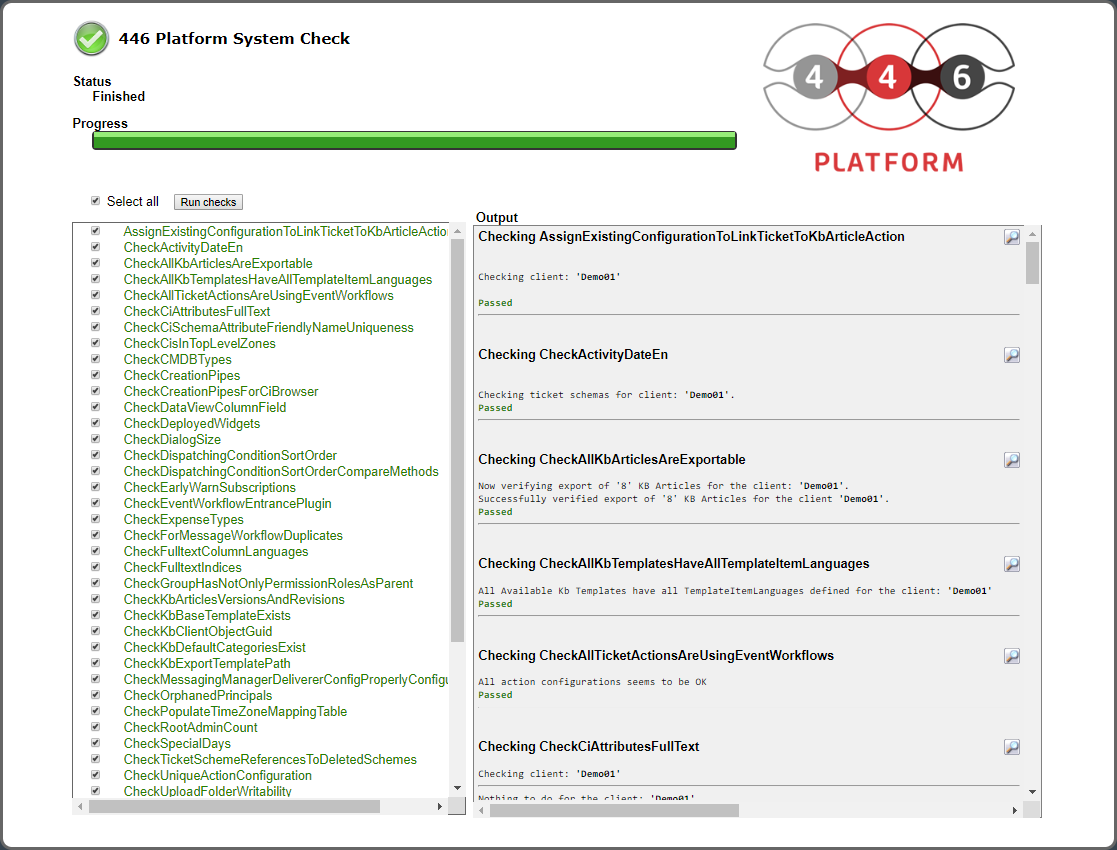
Incorrect checks are marked in red. In this case, the project manager must be informed in order to adjust the configuration.
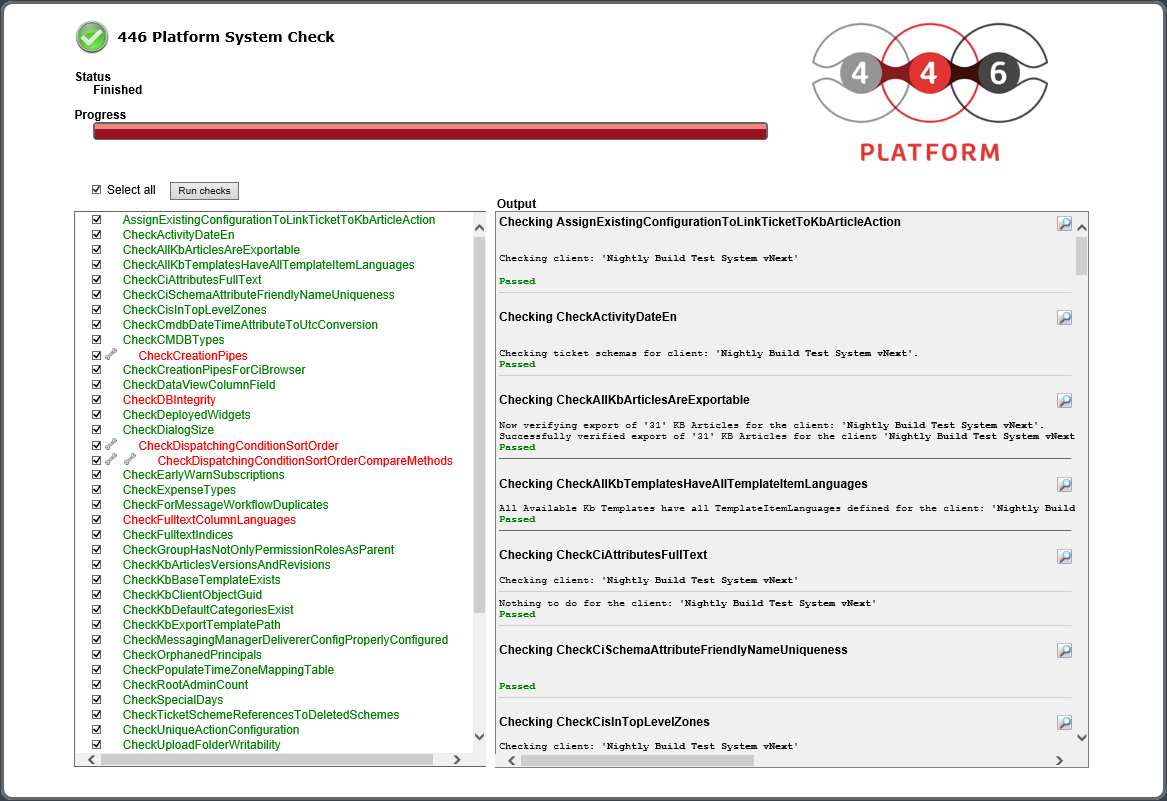
Note:

|
If errors occur, a solution to the problem can be found by clicking on the wrenches in front. |
| System check | Description |
|---|---|
| AssignExisting |
This check assigns existing configuration values of the action LinkTicketToKbArticle to the new configuration fields. |
| CheckActivityDateEn | Checks the spelling of the activity date in the DataView (English version). |
| CheckAllKbArticlesAre |
Executes the XML validation on all available KB articles. |
| CheckAllKbTemplates |
Checks whether all KB articles have the appropriate language templates. Missing languages affect the KB search. |
| CheckAllTicketActions |
The ticket action configurations are checked for the correct workflow category (Event). |
| CheckCiAttributes |
Checks whether the FullText column in the CiAttributes table (in the CMDB database) needs initializing. This is true when all values in that column are NULL. The check automatically initializes the column if needed. |
| CheckCiSchema |
The test checks whether there are multiple attributes with the same FriendlyName in the same schema. The FriendlyName must be unique. |
| CheckCisIn |
This check searches for CIs in top-level zones. |
| CheckCMDBTypes | Checks CI schemas for the appropriate type. |
| CheckCreationPipes | Validates all current creation pipes against an XML schema. |
| CheckCreationPipes |
Checks CI-Browser for ticket schemas of the client. |
| CheckDataView |
Checks and modifies all existing DataView definitions. If they contain customField attributes, the XML must be modified as followed: For each dataID in attribute customField for schema Ci and CiZone, one new XML element Field will be created in the parent element Fields. For each custom column containing an attribute customFields, but no dataIDs, one new and empty XML element Fields must be created. |
| CheckDbConnection | The database connection is checked. A CPU and bandwidth test is performed. The benchmark is returned. |
| CheckDBIntegrity | Checks the databases for inconsistent data. |
| CheckDeployedWidgets | Loads and saves all deployed widgets. |
| CheckDialogSize | The dialog parameters (Height, Width, DefaultTab and TabFromActivity) are checked. |
| CheckDispatching |
The sort sequence of dispatching conditions is checked. |
| CheckDispatching |
The methods for sorting dispatching conditions are checked. You can choose between two algorithms (ExecuteAfterConditionObjectGuid or DeprecatedSortingAlgorithm). |
| CheckEarlyWarn |
Checks early warning rule subscriptions for multiple triggering. |
| CheckExpenseTypes | The expense types (ExpenseTypeFields) are checked for numerical correctness. |
| CheckForMessage |
The check detects duplicate message workflows of a ticket schema and can remove identical duplicates. Configurations for a status with different settings cannot be resolved automatically because the check cannot decide which status to keep and which to delete. |
| CheckFulltext |
Checks all full-text indexes of the databases and throws exceptions if the language for word breakers is not set to Neutral. |
| CheckFulltextIndices | Checks whether all required database columns are full-text indexed and detects full-text indexed columns which aren't required. |
| CheckGroup |
Displays all invalid groups. A group is invalid when the path over all parent main group ends in a permission role. |
| CheckHistory |
Displays the legacy history entries. |
| CheckKbArticles |
Verifies all KB articles have either ParentItem NOT NULL or Version NOT NULL. |
| CheckKbBase |
Checks whether the base template for the Knowledge Base exists (if not, it is inserted). |
| CheckKbClient |
Verifies that all values of the ClientObjectGUID in the KB database tables are identical. |
| CheckKbDefault |
Checks whether the default categories for the Knowledge Base exist. |
| CheckKbExport |
It is tested whether the default export template of the Knowledge Base has a resource path. |
| CheckMessagingManager |
Checks if all Websites or WebServices links are properly configured. |
| CheckOrphaned |
Checks whether orphaned principals exist. |
| CheckPopulate |
The TimeZoneMapping table in the master database is checked and possibly re-filled. |
| CheckRoot |
The number of root administrator users is checked depending on the edition used. |
| CheckSecondary |
This test determines duplicate login names within the main and secondary logins of different active users. The result is a list of users with a secondary login name, user ID, surname and first name, and an indication of whether it is a duplicated main login name. |
| CheckService |
Runtime check to ensure the required workers are installed and run properly. |
| CheckSpecialDays | Checks or divides the SLA ContractTime into a unit for SpecialDays. |
| CheckTicketScheme |
The check searches for ticket schemas with a reference to a deleted schema. |
| CheckUnique |
Checks non-unique action configurations because it is not possible to predefine which configuration value to remove. |
| CheckUpload |
The system checks whether the upload folder can be written to correctly. |
| CheckWebApi |
The test checks the license and configuration settings and sends a request to the WebAPI and the authentication server to ensure that the WebAPI is running correctly. |
| CheckWebUrlsAre |
Checks if all Websites and WebServices links are properly configured. |
| CheckWorkflow |
Reads the current issues from the IConfigurationManager of the WorkflowManager and checks whether there are blocked workflow items. |
| CheckWorkflow |
Checks whether plug-ins are licensed. |
| CheckWorkflow |
Executes the validation for all available workflows. |
| CheckWorkTime |
Checks if the column "TicketsAux. |
| MigrateCiScheme |
Migrates the values saved as format in drop-down CiSchemeAttributes to the CiSchemeAttributeItems table, creating the localizations. Duplicate keys will be removed. |
| MigrateCustomizing | Checks settings during customized migration. |
| MigrateDataProvider |
Tests adding the snapshot property to the ticket and inherit to successor tickets. [This check only runs once.] |
| MigrateInvalidSearch |
Sets the flag for existing search templates. [This check only runs once.] |
| MigrateMessage |
The migration secures access to the values of a forwarded or replied message. [This check only runs once.] |
| MigrateTask |
Check used for the migration from the old Task Management to the new Task Management. [This check only runs once.] |
| MigrateViewInternal |
A test that searches for incorrectly configured ShowInternalSolution actions and converts them if necessary. |


 Copyright (c) 2000-2026 Isonet AG