Schemas for Messaging
The message schemas can be accessed via Settings > Messaging & Collaboration > Schemas for Messaging.
Which messages are to be sent via which medium can be configured here. As soon as such a schema has been configured, it can be used in workflows. Thus, the sending has not to be triggered by the various user actions in tickets.

This stage displays all available, already created schemas. Top right, the process schema and group filter can be found. Via the button New schema below, a new messaging schema can be created. The Actions menu allows for copying and deleting existing messaging schemas.
Schema Groups and Process Schema Filter
Top right, the process schema filter for creating individual schemas for every existing process schema can be found.
Below, the group filter is located. Schema groups for a better overview can be created and managed here. Additionally, the selection box offers the option (All schemas). If selected, all schemas in the list will be displayed.
The following buttons are available for the group filter:
| Icon | Description |
|---|---|

|
Via this button, new schema groups can be created. |

|
Via this button, schema groups can be deleted. |

|
Via this button, schema groups can be edited. |
New schema groups can be created via a click on New group. Subsequently, a new dialog opens, in which the name and type of the group can be specified.
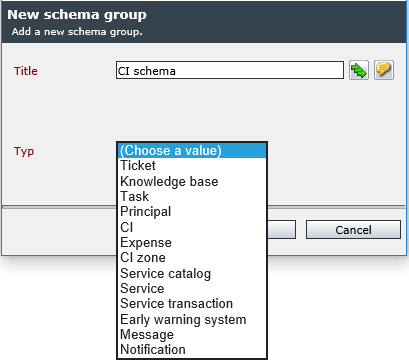
The following types are available here:
- Ticket
- Knowledge Base
- Task
- User
- CI
- Expense
- CI zone
- Service catalog
- Service
- Service transaction
-
Early warning system
These schemas are only available in the respective matching workflow types. In a ticket or process schema, the only available messaging schemas are schemas contained in a schema group with the type Ticket and available either globally or for the respective process schema.
Note:
For deleting schema groups, it is necessary to delete all schemas in the specific group first. Before that, a group cannot be deleted.
Creating and Editing Schemas
By clicking on the button New schema, new messaging schemas can be created. Double-clicking on an existing schema opens this schemas detail dialog for editing. When creating a new schema, only the tab Schema is available until saving it for the first time.
The following fields are available here:
Tab Schema
Schema
Title: The name of the messaging schema.
Schema group: Select the schema group from this drop-down list.
Sender: This field defines whether a static sender is to be used for messages (the respective user can be defined via the user browser) or whether dispatching rules should determine the sender to receive a message. (In this case, the dispatching rule and the corresponding parameter have to be defined.)
Note:
The dispatching can only be used if the schema group has the type Ticket.
Priority: This field defines the priority of messages sent with this schema.
Encrypt: This field defines that e-mails are only to be sent with encryption. For this purpose, a certificate has to be provided for the user.
Warning:
If no valid certificate can be found for the encryption, the default reaction is that no message is sent and a Bad-Message is generated instead.
Sign: Messages can be signed digitally via this option. A valid certificate has to be provided for the user here as well.
Encrypting and Signing MessagesThe encrypting and signing features require certain preconditions:
It is mandatory to deposit a certificate for the user to receive an encrypted and/or signed e-mail. This certificate is saved in a user attribute field, by default the "Custom Attribute" MailCert. The name of the user field can be customized in the database.
The following types of encryption are supported:
The encryption algorithm can be configured in the file
Isonet.MessagingManager.Service.exe.config,
in the section
MessagingManagerConfiguration,
for the two deliverers HtmlE-mailDeliverer and PlainTextEmailDeliverer via the attribute pkcs7CryptAlg. If it is not specified, RC2 will be used automatically.
Allow unsubscribing: If this option is checked for a schema, users can decide whether they want to obtain messages via this schema autonomously. For this purpose, there is the option of deactivating or activating individual schemas in the Message Center.

Template
Template group and Template: The template group and the template to be used for the schema are specified here. Please note that for a schema group of the type Ticket, only a template group of the type Ticket can be selected, for example. This applies to all other group types as well.
Note:
For a schema with a specific group type, only a template group of the same type can be set.
Multiple/Single Message
Send one message: If this checkbox is activated, only one message will be generated for all recipients – instead of an individual message for each one. During the recipient configuration, it is possible to configure whether the single recipients will be added as To-, CC- or BCC-recipients. Recipient-specific expressions will only be evaluated for To-recipients here. If no such recipient is configured, the sender will be added as To-recipient.
Send message to group mailbox
Send message to group mailbox: If this box is checked, e-mails will be sent to the e-mail address of the group and not to each group member individually.
Note:
If notifications are disabled for a group or if no e-mail address is set for the group, no e-mail is sent to the members of the recipient group.
Tab Recipient
In this dialog, the recipient(s) of messages sent via this schema can be defined.
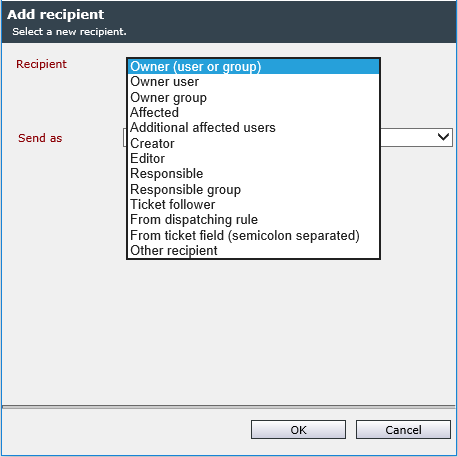
| Recipient | Description |
|---|---|
| Templates for the type Ticket | |
| Owner | The current owner of the ticket receives the message. |
| Owner group | All members of the current owner group receive the message. |
| Affected | The affected user specified in the ticket receives the message. |
| Affected group | All members of the specified affected group receive the message. |
| Additional affected user | The user specified as additional affected user in the ticket receives the message. |
| Creator | The ticket’s creator receives the message. |
| Editor | The current editor of a ticket receives the message. |
| Responsible | The user responsible for the ticket receives the message. |
| Responsible group | All members of the responsible group receive the message. |
| Follower | All users following the ticket receive a message. |
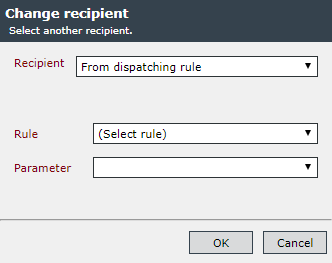
| From dispatching rule |
The message’s recipient is determined via the specified dispatching rule. Further parameters can be entered (
|
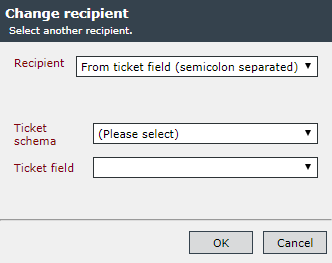
| From ticket field (semicolon separated) |
Here you can specify a ticket field, in which the recipient(s) can be entered, separated by a semicolon respectively. This can contain the contents of a user browser, a list of e-mail addresses, ObjectGUIDs or login names. Further parameters can be entered (
|
| Other recipient | Here, the user to receive the message can be selected via user browser. |
| Templates for the type Task | |
| Editor | The current editor of a task receives a message. |
| Editor group | All members of the current editor group of a task receive a message. |
| Creator | The creator of the task receives a message. |
| Other recipient | Here, the user to receive the message can be selected via user browser. |
| Templates for the type Knowledge Base | |
| Creator | The creator of an KB article receives the message. |
| Knowledge owner | The user specified as the knowledge owner receives the message. |
| Knowledge owner group | All users of a group specified as the knowledge owner group in an article receive the message. |
| Other recipient | Here, the user to receive the message can be selected via user browser. |
| Templates for the type User | |
| User | The user of the workflow item currently running through the workflow receives a message. |
| Other recipient | Here, the user to receive the message can be selected via user browser. |
| Templates for the type CI | |
| Owner | The owner of a CI receives the message. |
| Affected | The affected user of a CI receives the message. |
| Creator | The creator of the CI receives the message. |
| Supplier | The user specified as supplier receives the message. |
| From field | The message is sent to the user or the e-mail address entered into a certain CI field. |
| Other recipient | Here, the user to receive the message can be selected via user browser. |
| Templates for the type Expenses | |
| Provider | The user an expense has been assigned to receives the message. |
| Other recipient | Here, the user to receive the message can be selected via user browser. |
| Templates for the type CI Zone | |
| Affected user | The affected user of a CI zone receives the message. |
| Supplier | The user specified as supplier of the CI zone receives the message. |
| From CI zone field | The message is sent to the user or the e-mail address entered into a certain CI zone field. |
| Other recipient | Here, the user to receive the message can be selected via user browser. |
| Templates for the type Service catalog | |
| Owner | The user/group defined as the owner in the service catalog receives the message. |
| Creator | The user/group defined as the creator in the service catalog receives the message. |
| Manager | The user/group defined as the manager in the service catalog receives the message. |
| Other Prinzipal | The user to receive the message can be selected via user browser here. |
| Templates for the type Service | |
| Creator | The user as the creator in the service catalog receives the message. |
| SDU Manager | The user/group defined as the SDU Manager in the service catalog receives the message. |
| Manager | The user/group defined as the manager in the service catalog receives the message. |
| Other Prinzipal | The user to receive the message can be selected via user browser here. |
| Templates for the type Service transaction | |
| Creator | The creator of the respective service transaction receives the message. |
| SDU Manager | The SDU Manager defined in the service transaction receives the message. |
| Other Prinzipal | The user to receive the message can be selected via user browser here. |
| Templates for the type Early Warning System | |
| Subscriber | The message is sent to every user subscribing to an early warning rule. |
| From dispatching rule | The specified dispatching rule determines the recipient of the message. |
| Other recipient | The user to receive the message can be selected via user browser here. |
 ):
):
Tab Media
Here, a list of all preferred media of this schema is displayed and can be configured. Add medium opens a dialogue, in which a new medium can be added. In this dialog, all licensed and installed media plug-ins are displayed. If the desired/necessary plug-in is not listed here, please contact our support. Via the Actions menu top left, existing media can be deleted or copied.
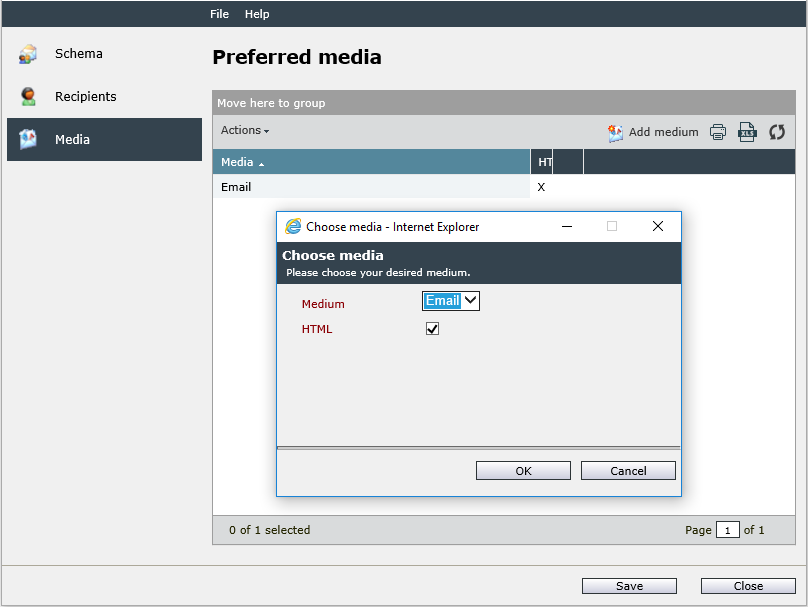
If no preferred media are defined, every recipient receives a message via all media activated in his user settings. If one or multiple preferred media are defined, every recipient receives the message via exactly those media – but only, if they have been activated in his user settings.
Example: Media - Message
Recipient has activated media X and Y; the schema does not contain preferred media.
The recipient would receive the message via the media X and Y.
Recipient has activated media X and Y; the schema does contain a preferred medium: medium X.
The recipient would receive the message via the medium X.
Recipient has activated media X and Y; the schema contains two preferred media: medium X and Y.
The recipient would receive the message via the media X and Y.
Recipient has activated media X and Y; the schema contains two preferred media: medium X and Z.
The recipient would receive the message via the medium X.
Recipient has activated media X and Y; the schema contains a preferred medium: medium Z.
The message cannot be sent according to the preferred media. The preferred media will be ignored for this recipient. The recipient would receive the message via the media X and Y (see first example).


 Copyright (c) 2000-2026 Isonet AG