Permissions - Ticket
Schemas
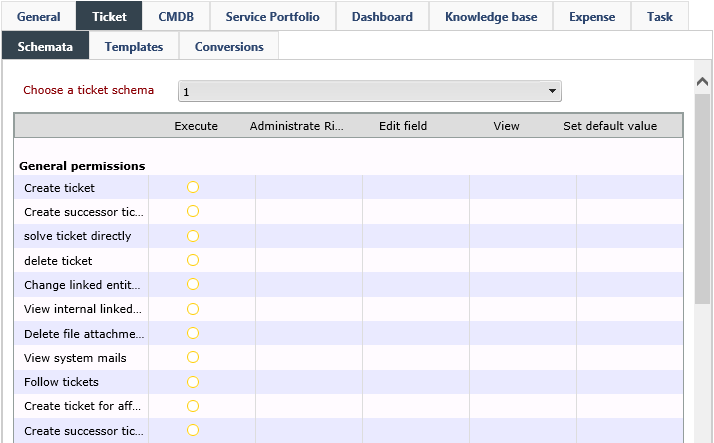
On this tab, individual rights of a group for the respective existing ticket and process schemas are displayed and can be configured. If the designated schema is selected in the drop-down list, different settings can be configured for this schema.
Process schemas are distinguished from normal ticket schemas by a blue symbol.
Note:
A schema must at least contain on field to be displayed in the list.
General rights: Allows for assigning general rights for various ticket and process schemas.
- Create ticket: This right enables members of the group to create tickets of this schema.
- Create successor ticket: If this right is enabled, every member of the group is allowed to use this ticket schema to create a successor ticket for an existing ticket.
- Solve ticket directly: Tickets can be solved immediately after creation and do not have to be edited by another user first (see also Configure conclusion).
- Delete ticket: Tickets of this schema can be deleted by users in this group.
- Open deactivated files: A warning message appears if the user tries to open a deactivated file without permission.

- Show deactivated files: Deactivated files are not displayed in the File attachments if the permission to do so is not set.
- Delete file attachments: If this option is activated for a group, its members can delete already uploaded file attachments.
- Change linked entity visibility: This option activates the right View internal linked entity as well. Via this right, it is possible to set the history entries visible in the Overview tab of a ticket to Internally visible.
- View internal linked entity: Objects marked as internal will be displayed in tickets of the respective ticket schema on the Overview tab for users of the selected group.
- View system mails: E-mails sent by the system for a ticket of this schema via the workflow are displayed in the Messages for group members tab.
- Follow tickets: Group members are allowed to assume the ticket role Follower and to follow tickets by using the follower function.
- Create ticket for affected user: With this right, it is permitted for users to create tickets for an affected user, although they themselves do not have the right to do so (only the affected user).
- Create successor ticket for affected user: With this right, it is permitted for users to create successor tickets for an affected user, although they themselves do not have the right to do so (only the affected user).
- Show Geolocation: This controls the right to show and hide the coordinate field within the ticket details.
Ticket dialog tabs: Activates the rights Administrate rights and View for the various ticket detail dialogue tabs. Via View the respective tab will be displayed to the current group later on.
Fields: The following fields allow for assigning rights to single fields of the ticket schema to groups:
- Administrate rights: Rights can be passed on to other groups. This function will be explained under User/Groups.
- Edit field: This field can be viewed and information can be entered as well. If there is no menu item for this option, View can be selected in order to activate the same function.
- Set default value: If only this right has been set, the default values specified for the fields will be set, no matter if the user can see or fill in the field.
- View: Fields can only be viewed, but not be edited by users of this group.
Templates
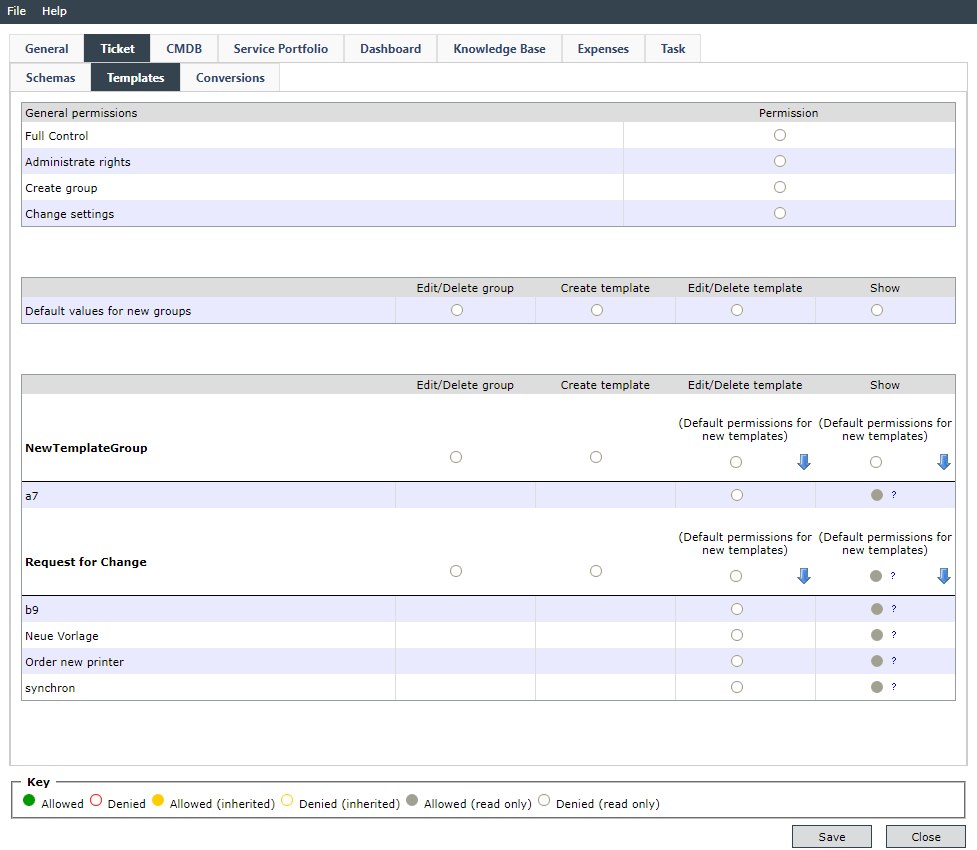
If ticket templates have been already created, they can be made available to certain user groups here. This can be specified for entire template groups or only for individual ticket templates. If there are already templates in a template group, this specification for the entire group will only affect newly created templates. The General permissions category gives you the opportunity to specify general access permissions regarding the creation of a ticket template (group).
Conversion
If ticket conversions have been created in the Ticket Management, this tab allows for defining whether a group is allowed to use this conversion.

Activate the right Convert tickets to make a ticket conversion available for a group.
Filter Favorites
Under General > Filters, it is possible to define whether groups are allowed to use existing filters under Favorites in the ticket detail dialog.
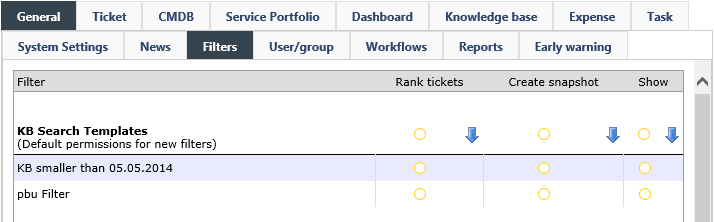
The following three rights are available for every favorite:
Rank tickets: Tickets can be marked for ranking and then ranked in the favorite view.
Create snapshot: In addition to the ticket ranking, a snapshot of the current ranking, which will be available to other users later on, can be created via this right.
Show: Fields are only displayed and can not be changed by users of the group.


 Copyright (c) 2000-2026 Isonet AG