Ticket Templates
Here, ticket templates can be created, edited, or deleted. The ticket templates are listed along with their localized name, the ticket schema used, and the current status.
The configuration page for ticket templates is accessible via Settings > Ticket Management > Ticket Templates.
The ticket templates are used for the fast entry of tickets. Via the templates, you have the option to provide prefilled fields, solutions and data attachments for a ticket to be created. During ticket creation later on, only the individual or user-dependent fields have to be filled in or edited.
General Information
New ticket templates can be generated via the button New ticket template in the top right corner. Via the Actions menu, existing templates can be copied and templates not used any more deleted. Additionally, either all ticket templates can be displayed with the entry All templates under View, or only certain template groups. New template groups can be created via the button next to the view drop-down list. If a certain template group (except for the entry All templates) has been selected, two further buttons will appear: Delete group and Edit group.
Creating Ticket Templates
After a click on New ticket template, a new dialog will open for defining the settings for the templates. Existing templates can be edited via a double click on the template.
Note:
Ticket templates can only be created if a ticket template group is available.
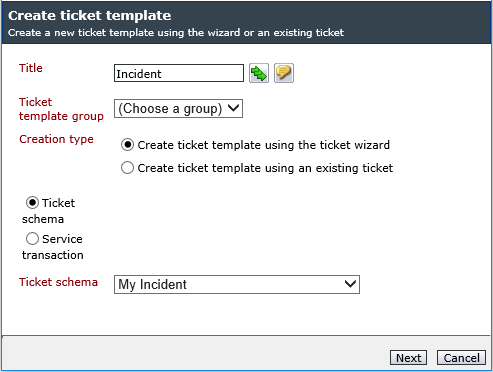
The following fields are available in the dialog for creating a new template:
Title: Defines the name of the ticket template. The localization button will only be displayed if several languages have been licensed. The name of the respective ticket template will be localized and specified as FriendlyName. The FriendlyName facilitates clarity in the reporting of the ticket templates. To apply one name for all languages, the text can be synchronized by clicking on Use text in all languages.
Ticket template group: Allows for setting the group of the ticket template.
Creation type: There are two options for creating new ticket templates:
- Create ticket template using the ticket wizard: When this option is selected, the available ticket schemas will appear in a selection box.
- Ticket schema: Allows for selecting the suitable ticket schema from all existing schemas.
- Service transaction: If the service portfolio is activated, this option allows for selecting the suitable transaction via the Service Portfolio Browser.
The respective ticket wizard will be opened via the Next button. It is now possible to fill the designated fields. Compulsory fields, however, will not be validated.
- Create ticket template using an existing ticket: When this option is selected, a text box for entering a ticket number will appear. After clicking on Preview, the most important information on the ticket will be displayed and the ticket itself can be opened. By clicking on Next, the ticket template will be saved based on the selected ticket and then displayed in the ticket view.
Tip:
The following information will be adopted from an existing ticket:
- Ticket fields
- Files
- Solution
Editing the Ticket Templates
Via a double click on a template, the properties dialog of the template will be opened. The following tabs are available here:
Template details: Title, status and template group can be edited here. Ticket schema and ticket title, however, are read-only.
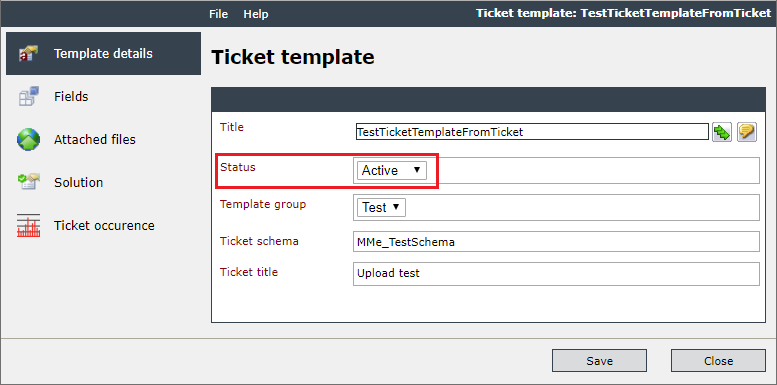
Note:
To display the Ticket Templates button on the menu bar, set the status to Active. In addition, the user must have the Ticket > Templates > Show permission.
An active status is also required for the (activated) automatic creation of tickets under Ticket occurence.
Fields: The fields of the ticket can be displayed in the overview or wizard view. In the wizard view, you have the option to edit the ticket template by clicking on Edit.
Attached files: Here, file attachments for the ticket template can be uploaded. This way, they will be attached to every ticket that is created via the fast entry.
Solutions: A proposed or default solution for tickets created via this template can be specified here.
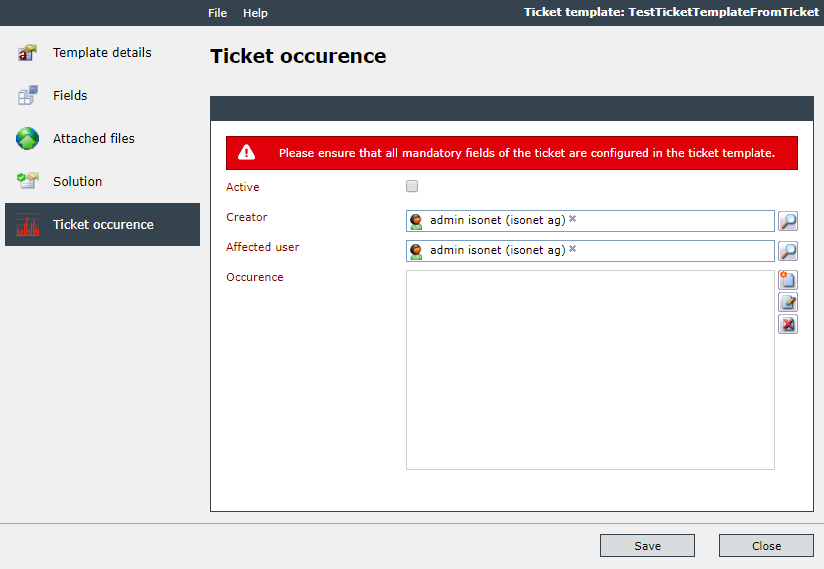
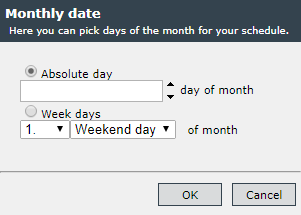
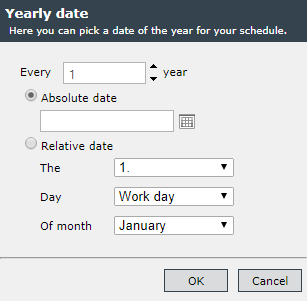
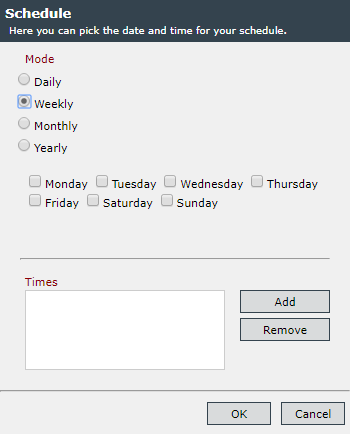
Ticket occurrence: With this function tickets can be created automatically and repeatedly from a ticket template and a defined schedule. The schedule can be repeated daily, weekly, monthly or yearly. From the activation date, a service in the background (CreationWorker) ensures that the plans are executed. If several tickets are planned for automatic generation, only the last scheduled ticket is executed.
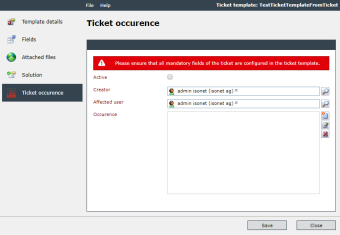
The following fields must be configured:
- Active: The activation/deactivation of the ticket series is possible via a checkbox.
- Creator: The creator of the series can be defined via a browser.
- Affected user: The affected user of the ticket series can be defined via a browser.
- Occurrence: Several schedules can be created in the list box or existing schedules can be edited or deleted.

Configuring a new schedule 
Editing an existing schedule 
Deleting a schedule
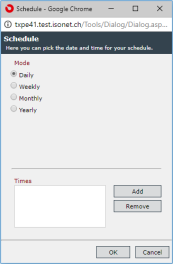

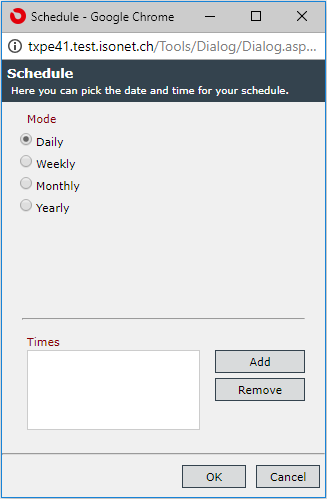
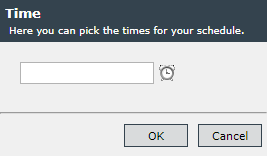
The following schedules can be configured:
- Daily
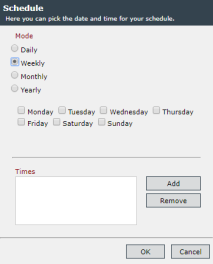
- Weekly
- Monthly
- Yearly


 Copyright (c) 2000-2026 Isonet AG