Edit View
In the view designer, the depiction of the display fields, which display the data entered into the ticket wizard, is configured for the ticket view.
Moreover, the editor allows for the creation and further arrangement of the display fields for the data fields of a ticket schema. These display fields will be displayed in the ticket preview, the ticket list, and on the Fields tab of the ticket view under Overview.
On the Fields tab of the ticket view, the field content can also be edited later on, if the action Edit ticket fields has been configured accordingly for a user or group.
Structure of the View Designer
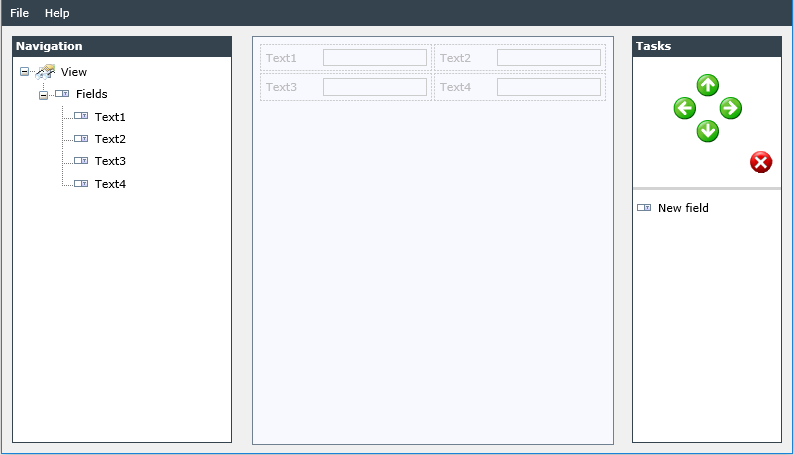
In general, the view designer is structured similarly to the wizard designer. In the Navigation section on the left of the designer, all already existing display fields will be listed in a tree structure.
The array in the middle depicts the preview of the expected view. Here, the display fields can be further configured via a double click as well.
In the Tasks section on the right, display fields can be created and moved and deleted via the icon buttons. By selecting a display field and clicking on one of the green arrows, the display field can be moved to another position.
Configuring the Display Fields
All fields that have already been configured in the wizard designer will be displayed in two columns already. In order to configure them subsequently, the configuration menu can be opened via a double click.
New display fields can be added via the New field button in the Tasks array on the right. Subsequently, the configuration menu dialog will appear, in which the data field the display field should be linked to and the display options to be used can be configured. If a display field has already been selected in the designer view on creating a field (green frame around a field), the new field will be created directly behind the selected field. If no field has been selected, the new display field will be created at the end of the list.
The following options are available for configuring the display field:
Data origin: The header data of a ticket (including owner, internal solution, rank, snapshot, status, transaction path, and the corresponding tickets and tasks) or the fields (all fields created for this ticket schema) can be selected here.
Tip:
In addition to the usual 446 Plattform® expressions, JSON expressions in the form
Ticket.Fields!<FieldName>.Json.<JsonExpression>
can be used here as well.
Fields: Here, either the header data of a ticket mentioned above or the required ticket schema fields can be selected.
Label: The text entered in this text box will be displayed left of the ticket field data in the ticket. The label does not depend on the label assigned in the ticket wizard here.
The following options are only displayed, if Fields has been selected as a data origin .
- Always visible: If this checkbox is activated, the field will always be visible even if the corresponding data field is empty.
- Convert line breaks: If this option is activated, line breaks in the field will be observed and text will be displayed in several lines. Otherwise, the data will displayed consecutively.
- Isolated HTML content: With this option, it is possible to display HTML content of a data field in a separate inline frame to avoid unwanted effects on other content. This option will also affect the preview in the ticket and activity list as well as ticket fields displayed under Actions.
- Use whole row: The ticket field will be displayed across the whole page of the ticket instead of 50 percent of the available width.
- Ticket number as link: This option activates the search for existing ticket numbers in the field’s content. If such a number is found, it will be transformed into a link automatically.
Header Data
The header data of a ticket is comparable to meta data. It contains information on certain properties of a ticket.
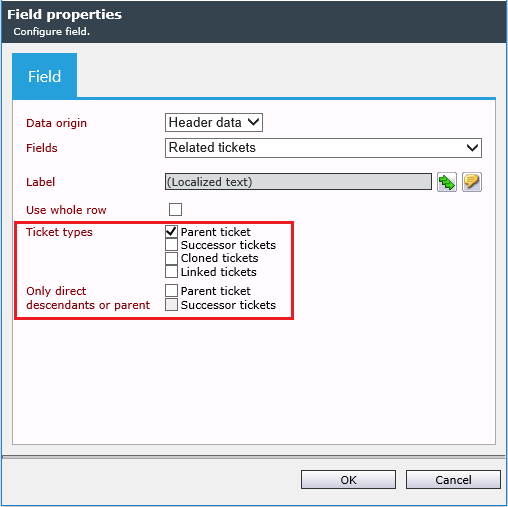
Header data includes, for example, the Internal solution, Status, Linked Tasks, and Linked Tickets. Further configuration of the header data is not necessary. It is, however, possible to configure the display of the linked tickets.
Note:
The ticket action Duplicate ticket allows access to cloned tickets.
The linked tickets as well as the tasks will be displayed as a table in the ticket view later on and can be opened directly via a mouse click.



 Copyright (c) 2000-2026 Isonet AG