Process Schemas
Generally, a process schema is structured alike a ticket schema. However, there are some specific features in the configuration. Only these differing configuration steps will be illustrated in this chapter.
Creating a Process Schema
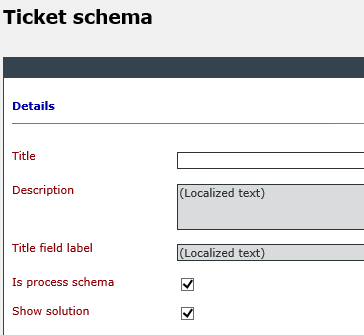
In contrast to the ticket schema configuration, where a ticket number range and a status need to be created before creating a ticket schema, the process schema needs to be created at first stage. As usual, this is effected under Settings > Ticket Management > Ticket Schemas by clicking on New ticket schema. If the Service Portfolio is activated, the option Is process schema is activated by default and the respective schema only needs to be saved after the Name, Description and Title field label have been entered.
Process schemas need a number range and status as well. However, these can only be determined after saving the process schema.
The option Allow global dependencies is also available only after saving the process schema. If this option is activated, global number ranges and statuses can be used.
Note:
The option Is process schema cannot be changed afterwards. Please keep this in mind when creating schemas.
Process Roles
Process roles are defined for process schemas. Process roles are sets of tasks, which can be assigned to various groups and users within a process schema.
In contrast to ticket schemas, no groups can be selected in process schemas during the configuration of ticket actions. Besides various users, like Creator or Owner, it is possible to make process roles perform an action in a certain status.
Process roles are created by clicking New process role in the top left corner. The following information needs to be entered:
Name: The significant name of the process role.
Description: A detailed description of the process role.
Default group: A group from the User Management whose members shall use this role.
Tip:
Every configuration for a process role in the process schema is a template. It is thus possible to overwrite the settings in the later configuration of the service transactions if necessary.
Assigning a Number Range
Next, a matching number range for tickets is needed (Settings > Ticket Management > Ticket Number Ranges). In the top right corner the process schema filter can be found. The view provides an overview over either all ticket number ranges, global ticket number ranges, or ticket number ranges already assigned to a process schema. Global ticket number ranges can be identified easily even without the filter, as they are marked with a green check mark.
In the next step the desired process schema is to be selected from the list of the process schema filter. In the new overview it is possible to either add a global ticket number range to the schema via the Actions menu, or to create a new ticket number range as usual, only for this respective schema.
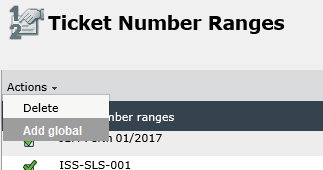
Depending on the selected process schema filter, during the creation either a global numerical range or a numerical range for tickets only available for the respective process schema will be created.
Assigning a Status
As known from a ticket schema, it is necessary to assign various ticket statuses, which will be run through by a ticket created with a certain process schema. As known from the ticket number ranges, either globally defined statuses can be used, or a proper set of ticket statuses can be created for every process schema.
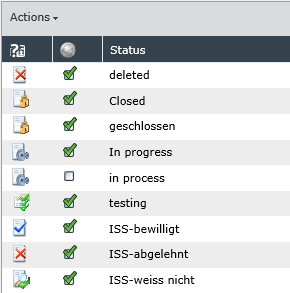
For the ticket statuses the process schema filter top right can be used to either display all statuses, global statuses, or statuses that have been assigned to the various process schemas.
Warning:
Please note that the filters for the number ranges and statuses need to be set correctly! If, for example, a status or ticket number range is created without setting the designated process schema in the filter first, it is not possible to use them in the process schema.
Workflows
In the next step the corresponding workflows for the process schema need to be created under Settings > Workflow Management > Workflow Management. The process schema filter is located top right. If the desired process schema is selected in the filter, a new workflow can be created for this purpose by clicking New workflow, whereupon the Name and Description are required before the settings can be saved by clicking OK. Configuring the new workflow is effected as known from a general ticket schema or as described in the Workflow Management chapter.
Warning:
In case of plug-ins, which change the status of a ticket, it is necessary to use only the statuses that have been created for the process schema.
Use
If the designated ticket number range, the ticket status and the workflows have been created as desired, they can be added to the process schema. Now, actions can be added to the schema as well, whereupon only statuses are available that have been added to the schema as global statuses or that have been created for the schema specifically.


 Copyright (c) 2000-2026 Isonet AG