Function
The actual Service Portfolio can be found in the side bar under Services.
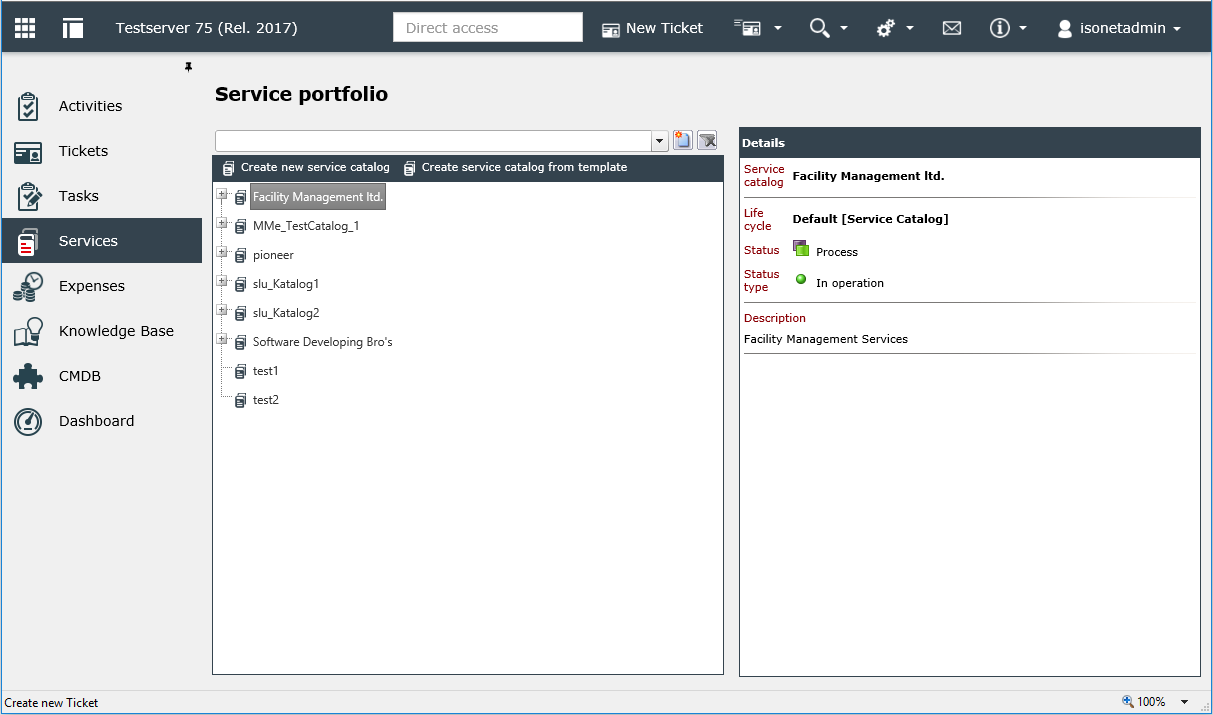
View
There are several service catalogs in the Service Portfolio stage containing the following elements: service, service category and service transaction. Furthermore, it is possible to use the filter for searching for these elements. The search options are explained in the Search and Filter chapter.
Below the filter the actual Service Portfolio can be found. In this tree view all created elements are displayed in an overview.
Configuration
For a correctly configurable Service Portfolio it is required that all necessary life cycles, service schemas and process schemas with the associated settings have been completely configured. Moreover, all necessary authorizations have to be assigned to the configuring user in the User Management.
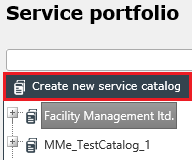
New service catalogs can only be created with the necessary authorizations.
Service catalogs
Service catalogs are created by clicking the button Create new service catalog above the services tree. Existing catalogs can be opened via the context menu or by double-clicking the catalog.
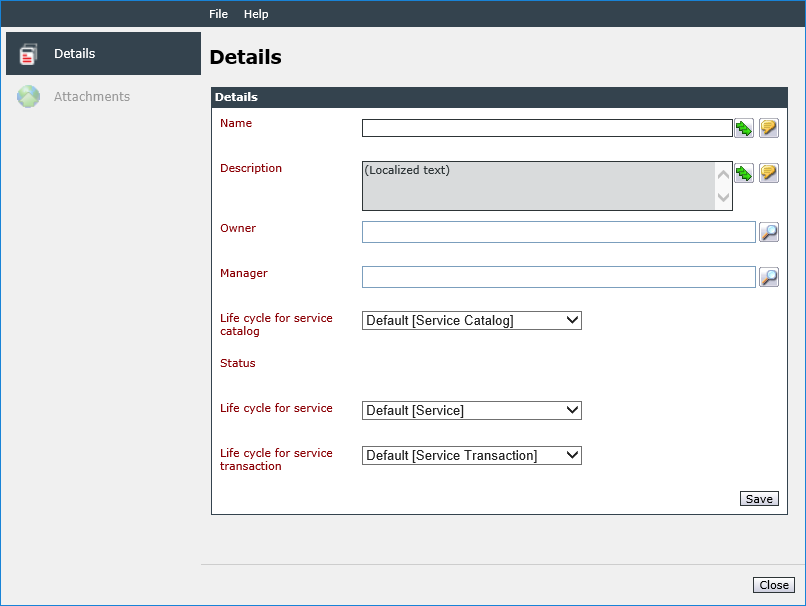
In the subsequently opening dialogue, only the tab Details will be active until the first saving.
In this dialog, several information and settings for the service catalog can be configured:
Name: Defines the name of the catalog. If multiple languages are activated on the system, an individual name can be entered for every language available via the respective buttons.
Description: Defines the description for the catalog. An individual description can be entered for every active language here as well.
Owner: The catalog owner is technically responsible for the catalog. The owner role can basically be perceived by a user or user group.
Manager: The manager of a catalog is responsible for implementation as regards content and for maintenance of the catalog. The manager role can basically be perceived by a user or user group.
Life cycle for: Defines the life cycles for all subordinate elements are configured:
- Service catalog: This is the life cycle for the current service catalog.
- Service: Defines the life cycle that is used for all subordinate services.
- Service transaction: Defines the life cycle that is used for all subordinate service transactions.
The life cycles set here will apply to all services and service transactions created below the catalog. For this reason, they cannot be changed after saving.
The tab for file attachments will be available after clicking Save to upload a specific file attachment for the catalog.
Moreover, the service catalog’s status can now be changed, if necessary.
If the catalog is entirely configured, an arbitrary amount of services or service categories can be created within the catalog. For this purpose, right-clicking on the catalog opens the context menu. Within a service catalog the entries for service categories and creating services are available.
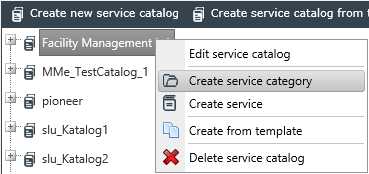
Service Categories
Service categories can be created everywhere within the hierarchy below a catalog. As they only have a folder function for a further subdivision of services and service transactions, only a Name and Description need to be entered.
Services
Services are created within service catalogs, service categories or services. Click right to open the context menu and select the option Create service or open the configuration dialog for a service by double-clicking on it. In dialog, the following information can be set for the service:
Details
The Details tab, where general information for the service can be set, will be the only one available until the first saving.
Name: Defines the name of the service. If multiple languages have been activated on the system, the localization buttons can be used to enter the name in all available languages.
Description: Defines a description for the service. The description can be entered for every activated language as well.
SDU Manager: Defines the Service Delivery Unit Manager. This group of persons manages and coordinates all phases of a service and is responsible for all the processes dealing with this service. This role can only be assigned to a group.
Manager: The service manager is responsible for implementation as regards content and maintains the service. The manager role can only be perceived by a group of users.
The owner and the manager can basically be in the same group. In a large portfolio it is advisable to assign these roles to different persons or groups.
Schema: Defines the service schema of the respective service. The dynamic fields contained are shown in the Fields tab.
Warning:
The service schema can not be modified afterwards.
Status: Defines the status the service will obtain as soon as it is created is displayed. Possible statuses and status transitions are defined via life cycles.
Inherit status changes: If this checkbox is activated, all status changes of a superordinate service or service catalog will be passed on to the service automatically.
Start date/status: Irrespective of the status inheritance, a start date with a time along with the necessary status can be entered here. When this date has been reached, the service will be set to this status automatically.
End date/status: Defines an end date and the corresponding status. When this date has been reached, the service will be set to the selected end status automatically.
After having entered all of the necessary information, clicking Save creates the service. Subsequently, the remaining tabs in the side bar on the left will be available.
Fields
All dynamic fields defined in the service schema are displayed in this tab can be edited suitable to the respective service.
CMDB
On this tab, various CIs, CI schemas or types can be linked to the service and be displayed in a table. The CI that is linked to the respective service as a service CI is additionally marked in the table.These CIs will be available later on as linkable objects during ticket creation via a transaction located below the service.
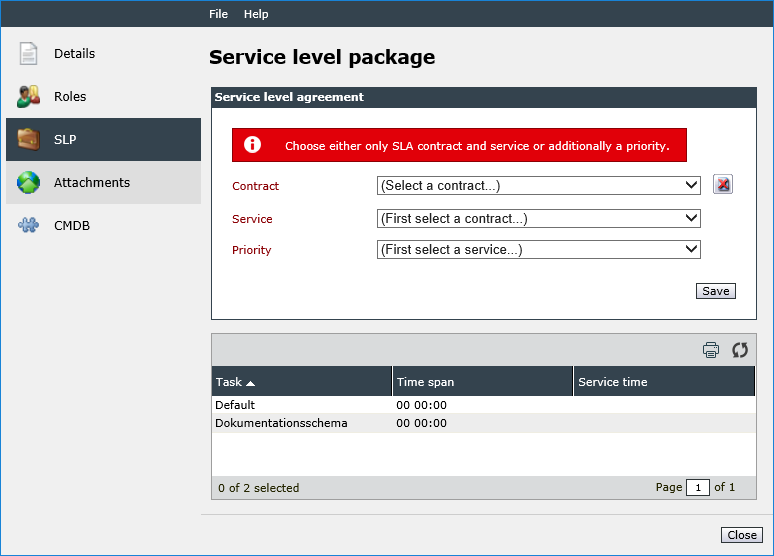
SLP
The tab for Service Level Packages (SLP) allows for defining service level agreements that applies to tickets that have been created from service transactions that have been created below these services.
Additionally, the OLA settings Time span and Service times can be overwritten for the task schema. This only applies to tasks that have been created from tickets that are based on a subordinate service transaction.
Warning:
The contracts need to be entirely configured within the Service Level Management.
Attachments
This tab allows for uploading and managing file attachments that are needed for the service, like important information or contracts.
Service transactions
Below the services, no matter if they have been subdivided by other services or service categories, service transactions can be created. If the desired object has been selected, the menu item Create service transaction can be selected in the context menu. Existing service transactions can be opened in the context menu or by double-clicking on them.
Details
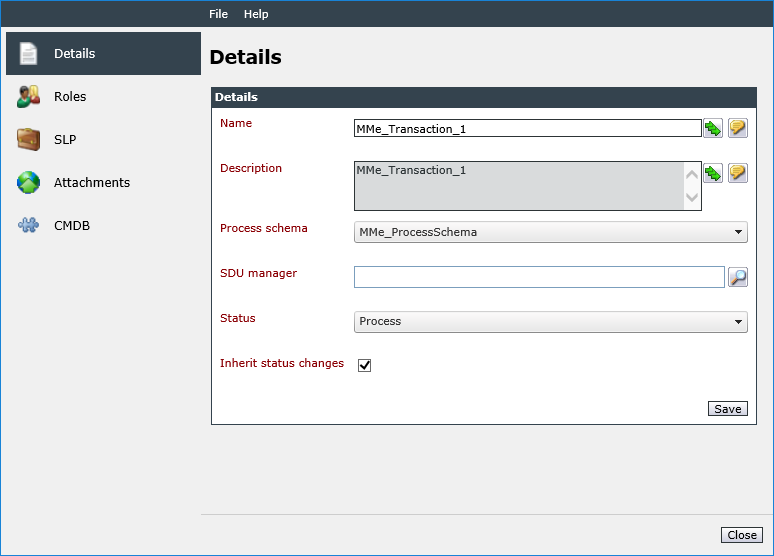
The Details tab is the only tab available until the first saving. It allows for defining general information for the service transaction.
Name: Defines the name of the service transaction. If multiple languages have been activated on your system, the name can be entered in all available languages.
Description: Defines a description for the service transaction. A customized description can be entered for every active language as well.
Process schema: Defines a process schema for the Service Portfolio that will be the basis for tickets, which are created in this transaction.
SDU Manager: This group of persons is responsible for all the processes dealing with this service transaction.
Status: The current status of the service transaction is displayed here. After saving, the status can be adjusted.
Inherit status changes: If this checkbox is activated, all status changes of a superordinate service will be passed on to the service transaction automatically.
Roles
Role assignments, as created previously as a template in the process schema, can be adjusted and overwritten in the Actions menu.
SLP
Service level agreements can also be set for service transactions. These SLAs are valid for tickets that have been created in this service transaction. By default, the settings for the superordinate services are applied.
Note:
The contracts need to be entirely configured in the Service Level Management.
Additionally, the OLA settings Time span and Service times can be overwritten for the task schema. This only applies to tasks that have been created from tickets that are based on a subordinate service transaction.
Attachments
File attachments especially required for this service transactions, like important information or transaction contracts, can be uploaded and managed in this tab.
CMDB
All CIs of the parent service are displayed and are active by default. The configuration elements, which are marked as active, can be selected as linkable objects in ticketing via this service transaction in the ticket assistant.
The CIs can be activated or deactivated via the Actions menu. If a CI is deactivated, it can not be selected during ticketing via the service transaction. In addition, a single CI can also be set as the default via the Action menu. This standard CI is displayed first at the ticking position.
If service transactions are moved, the CIs, which are marked as active/inactive, are automatically marked again active/inactive.
The settings for CIs are also accepted for copied service transactions.
Creating Tickets via the Service Portfolio
Tickets can be created via the Service Portfolio. If a service transaction is selected in the services tree, the button New ticket is displayed in the detail area.
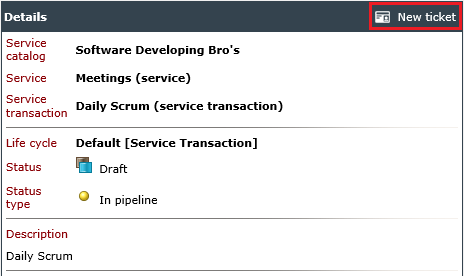
In the subsequently opening dialogue, in contrast to normal ticket creation, a CI can be selected, which will be linked to the newly created ticket automatically and will then be available in the ticket via the CMDB tab. By clicking Next, just like during normal ticket creation the ticket wizard will appear to support in the rest of the ticket creation process.


 Copyright (c) 2000-2026 Isonet AG