Services
By selecting Services the service portfolio is opened.
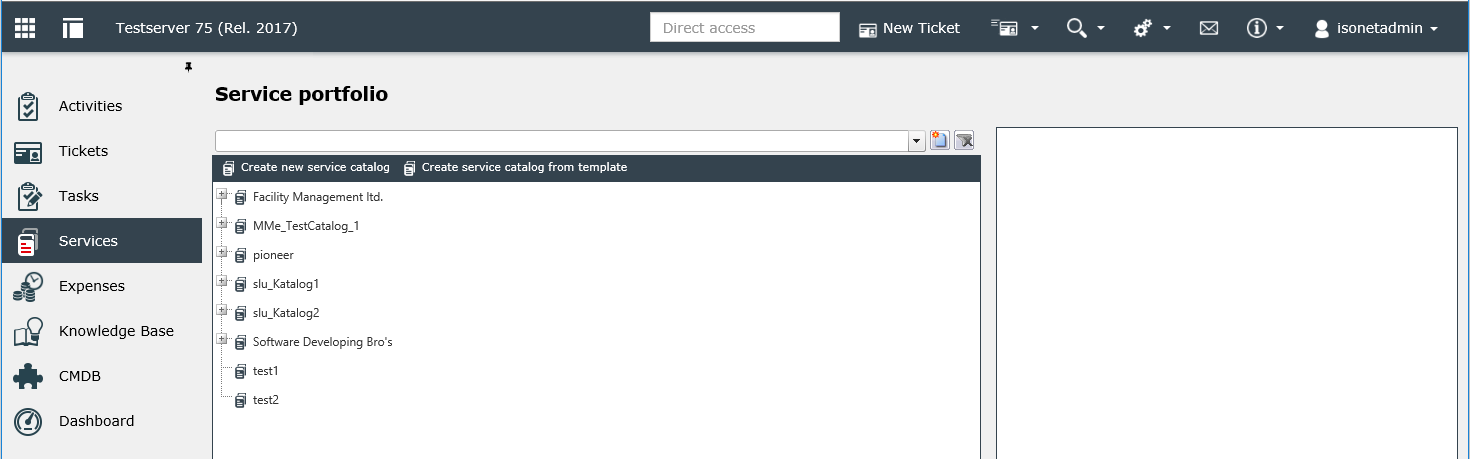
The service portfolio shows the various service catalogs and their components in a tree view.
| Icon | Description |
|---|---|
|
|
Service catalog: These catalogs can contain multiple services and service transactions as well as service categories that are pooled in a "catalog". |
|
|
Service: You can nest service transactions and service categories in Services. |
|
|
Service category: Service categories can be used for a further subdivision of service catalogs or services. They are only used as folders. Only service categories can be created arbitrarily below catalogs or services. |
|
|
Service transaction: Every service transaction is only linked to one process schema. In return, a process schema can be linked to an arbitrary number of service transactions. Process schemas can be understood similarly to ticket schemas. Thus, tickets can be created out of service transactions. |


Details
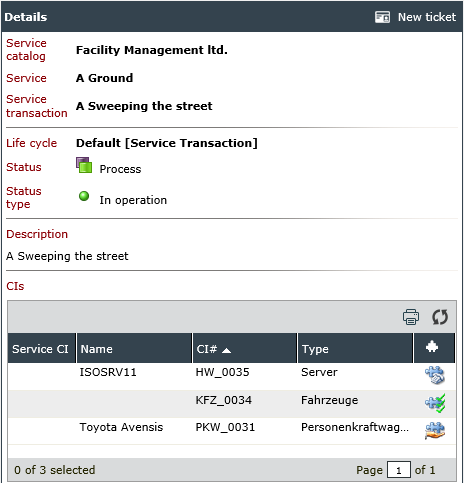
The details area is located on the right side of the service portfolio that contains information on the elements selected in the service tree.
If a service transaction is selected, information on parent elements as well as various status information and the CI elements linked to the transaction are shown. It is possible to create a ticket in the detail area of the service transaction.
Tip:
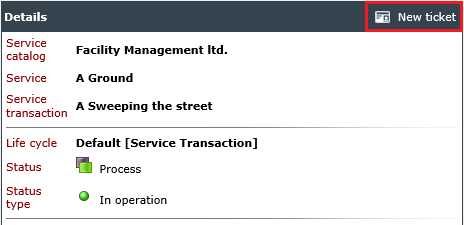
The button New Ticket is only displayed if a service transaction is selected.
Creating Tickets in the Service Portfolio
If a service transaction is selected in the service portfolio, a ticket can be created within the service transaction by selecting New Ticket.
Derogating from ticket creation outside of a service transaction a configuration item (CI) can be selected, which will be linked to the created ticket automatically. The configuration item will then be available in the ticket via the CMDB tab. After selecting the configuration item the ticket wizard will guide the user through ticket creation.
Note:
The CI selection box on the first page of the Ticket Wizard can generally be hidden if you do not want a CI to be added to the ticket automatically (see HideCiSelectionBoxForServicePortfolio).
Filter
The main view of the service portfolio offers two different possibilities of filtering data. Under Filter all service catalogs as well as their elements can be searched for parts of the name. Under Status filter all elements can be searched for the status types In preparation, In operation, Archived.


 Copyright (c) 2000-2026 Isonet AG