Executing of reports
As soon as reports have been generated, they can be accessed via the Reports button at the bottom of the screen. A requirement for the execution and display of reports is the assignment of a permission to the respective reports in the User Management (see User Management).
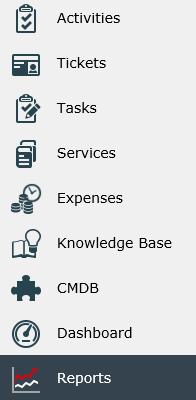
Clicking this button opens the report overview displaying all created report groups. In this structure, the subgroups and the reports can be found as well.
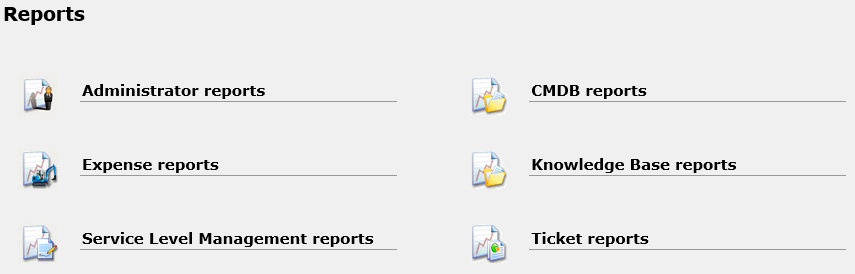
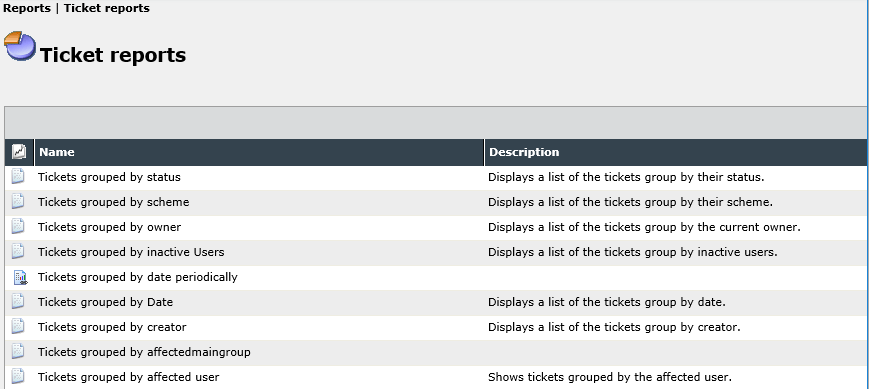
In order to open it, simply click on the desired report. Subsequently, it will be executed as well as displayed.
If the option Filter can be set has been activated in the report settings, parameter values can be configured and customized before executing the report.
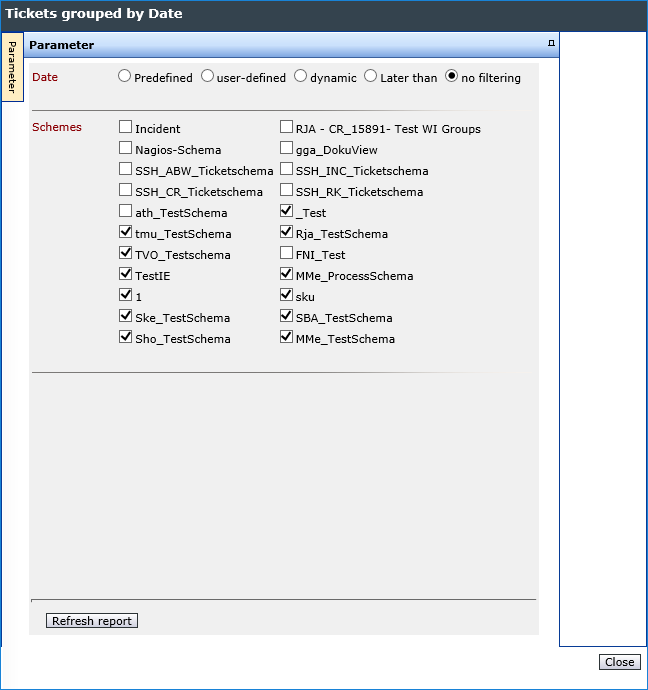
Subsequently, click on Refresh report in order to generate the report.
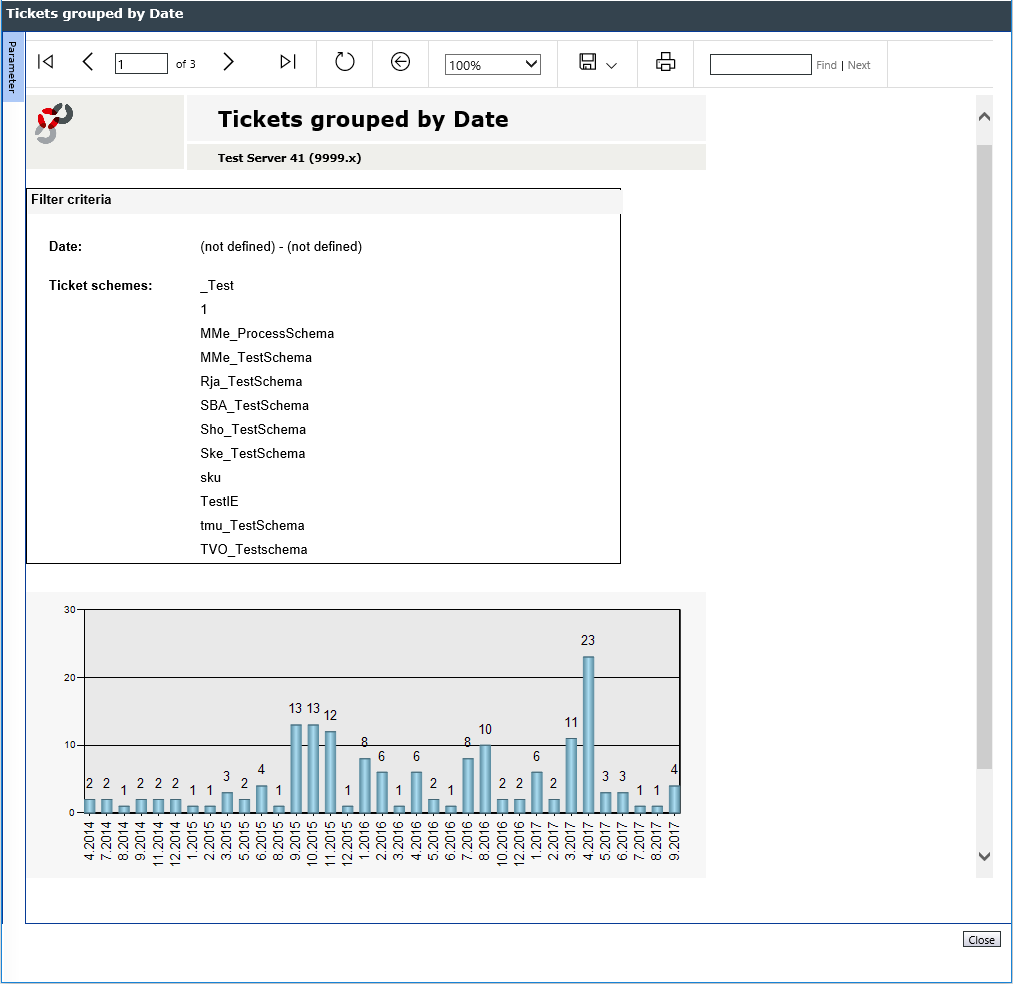
Here, you can see a report’s header with the following available controls:

| Icon | Description |
|---|---|

|
If the report has more than one page, these buttons allow for navigating through its pages. |

|
The report can be reloaded via this button. |

|
This will switch to the parent report. |
|
With this, the report can be displayed larger or smaller. |

|
For saving the report, select the desired format here. |

|
A print preview can be generated for the report here. |
|
Via this control, the report can be searched. |
In order to edit the parameters of the report, move the cursor over the button Parameter next to the document map button on the left. Subsequently, all adjustable parameters will be faded in and the report can be reloaded with these adjusted parameters.


 Copyright (c) 2000-2026 Isonet AG