Event to ticket mapping
As soon as a filtering rule triggers the creation of a ticket, the event to ticket mapping can be used in order to write data available in the event source into the ticket.
The Event to ticket mapping allow for assigning event source data to ticket fields. The configuration page for Event to ticket mapping can be accessed via Settings > Event Management > Event to ticket mapping.
Mapping Configuration
A new mapping can be created via the button New mapping. Existing mappings can be edited by double-clicking on them. A dialog window for entering the following information will open:
Details
Name: The name of the mapping.
Ticket Schema
Ticket schema: Defines the ticket schema that is used to create tickets as soon as a filtering rule is complied with.
Note:
After saving the mapping, the ticket schema cannot be changed anymore.
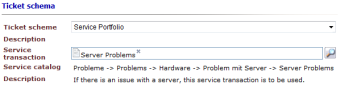
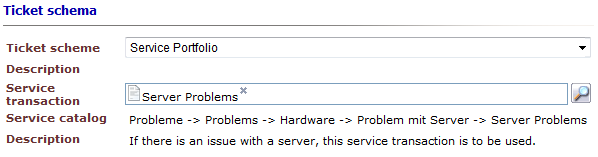
If the Service Portfolio has been activated on the system, service transactions can be used to create tickets additionally to ticket schemas. For this purpose, the entry Service Portfolio has to be selected from the ticket schema drop-down list. Below this list, a service transaction selection field will appear, in which either the name of the transaction can be entered or a service transaction can be selected via the Service Portfolio browser.
After the desired transaction has been selected, the description for this service transaction is displayed and the respective linked configuration item (CI) can be selected below.
Creator
Mapping type: The following options are available here:
- Use specific user: The user set in the user browser as default user will be the ticket creator.
- Match by object GUID: An ObjectGUID from the source will be compared to the ObjectGUIDs of the users in the system. If a matching ObjectGUID is found, the respective user will be set as the ticket creator. Otherwise the default user will be set.
- Match by user name: A value from the source will be compared to the user names in the system. If a matching name is found, the respective user will set as the ticket creator. Otherwise the default user will be set.
- Match by user field: A value from the source will be compared to the content of a user field of all users in the system. If a matching value is found, the respective user will set as the ticket creator. Otherwise the default user will be set.
For all mapping types but Use specific user, there are additional options available, as it is assumed that the event will contain an identifier of a user. The identifier will vary depending on the selected Mapping type:
Source: This allows for defining where to look for the user identifier in the event’s content. The available options are the Header field or any other standard Field of the event.
- Header field: Only available, if Header has been selected as a source. It displays a list of the predefined header fields available. Although a rare case, a header field might contain enough information to identify a user.
- Field: Only available for the source Field. This text box is used for determining the field name of the event that contains the user identifier. For example, enter "reporter" in this text box, in order to access a field with the same name in the event that will contain the name of the user to be set as ticket creator.
- Custom attribute: Only available for the mapping type Match by user field. This mapping type will try to locate the user based on a custom attribute. For example, if there are users with a secondary e-mail address, which is to be used as the identifier, the value "e-mail internal", for example, has to be entered into the text field, in order to define this field for the mapping.
Default user: The default user is set as the creator if the creator mapping does not have a result or if the mapping type is set to Specific user.
Affected user
The options for mapping affected users are identical to those of the ticket creator mapping.
After a click on Save, the mapping will be generated and the ticket field mappings can be created.
Field Mapping Configuration
The tab Field mappings allows for assigning source data fields to ticket fields.
A new mapping of event source data to ticket fields can be performed via a click on the New mapping button in the overview. If at least one mapping is already on the list, the Actions button for deleting existing mappings will be displayed.
If a new mapping is created via the New mappings button, a dialog opens and the following information has to be entered:
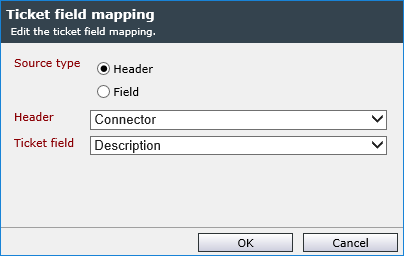
Source type: Defines whether header or field data of the source are to be used for filling in the ticket field.
Header/Field: Depending on the selection of the source type, this field allows for selecting a certain header data field or entering a name for the field.
Ticket field: Defines the ticket field of the ticket schema, into which all field or header data of the event will be written.
After the configuration has been finished, the ticket field mapping can be saved via a click on OK and further mappings can be added.
As soon as all mappings have been created, the desired mapping can be used in the respective filtering rule (see Filtering rules).


 Copyright (c) 2000-2026 Isonet AG