Filtering rules
One of the central goals of this module is to provide a way to easily define filtering criteria for incoming events. Filtering rules allow for defining exact criteria that determine whether an event is to be converted into a ticket.
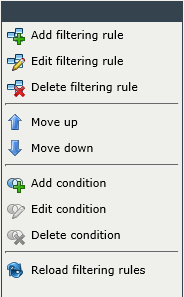
The task list for managing the filtering rules and their conditions can be found on the left.
| Icon | Description |
|---|---|
|
|
These three buttons allow for creating, editing, and deleting filtering rules. |
|
|
These buttons are used to move entire rules upwards or down- wards in the list. The rules will applied top down one after the other. |
|
|
These three buttons allow for creating, editing, and deleting conditions for the filtering rules. |
 Reload filtering rules Reload filtering rules |
After all filtering rules have been set up correctly, the list has to be reloaded via this button. Subsequently, they will be used by the system. This button allows for changes to the rules while the system is still running. These changes will only be applied after a click on this button. |
 Add filtering rule
 Edit filtering rule
 Delete filtering rule
 Move up
 Move down
 Add condition
 Edit condition
 Delete condition
Managing filtering rules
In order to create a new rule, click on the button Add filtering rule in the task menu. Existing rules can be opened via a double-click or the button Edit filtering rule.
Subsequently, a dialog opens, in which the following information has to be entered:
Name: The name of the filtering rule. If multiple languages have been activated, the name can be localized for each language.
Action type: Defines the action to be executed as soon as the rule is activated. The actions available are Create ticket and Discard event. The action Create ticket requires the selection of a ticket mapping.
Valid from/until: Via these options, the validity period of filtering rules can be set. Either Always or a specific date and time can be selected here.
Active: Whenever the filtering rule is to be deactivated temporarily, e.g. for revision, this box can be unchecked.
After all information has been entered, a click on the OK button creates the new rule or saves the changes in an existing one.
Afterwards, the conditions for the filtering rule have to be set.
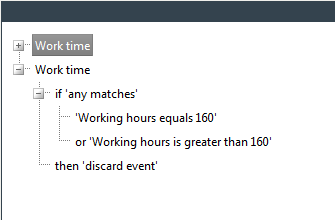
If more than one condition is created for a filtering rule, these conditions will be automatically linked to the Group condition using an "AND" operator. When other conditions are added afterwards, these conditions will be created dependent on the currently selected condition in the tree view. If a condition is to be created below the group condition, this group condition has to be selected. If a contained condition is selected, a new grouping will be created.
Note:
During creation of the conditions, please mind that grouped conditions cannot be moved.
Condition Types
- Configuration item
This conditions checks whether the field content matches the visible ID of a CI contained in the CMDB.
Visible ID field name: Name of the event field to contain the visible ID of a CI.
- Event Source Suspension Condition
This condition checks whether an event source (the system causing the event) is suspended.
Event source ID field: Defines the name of the event field. In case of an SQL Connector, this would be the name of the result column.
Is suspended?: If this option is activated, the system checks whether the event source has been suspended.
- Field Value Comparison
This condition type compares an event field to a predefined value.
Field name: The name of the event field the predefined value is to be compared to. Field names are generally assigned by the connector. If, for example, an SQL database is defined as event source, the field name equals the column name of the SELECT query result.
Comparison: Defines the comparison type between the event value and the comparative value. The available options are Is equal, Is not equal, Is less than, Is greater than, Starts with, Ends with, and Contains.
Value: This is the predefined value that is to be compared to the event field.
Note:
If an SQL database is used as the event source and the column is of type BIT, the value must be specified as True or False (not: 1 or 0).
Ignore upper/lower case: If this box is checked, case sensitivity is ignored in the comparison.
- Geographic Location
This condition checks whether a geographic location is located within a certain radius around a point of comparison.
Latitude field name: Defines the name of the event field the predefined value is to be compared to, which contains the latitude in decimal notation. (Example: eventLat)
Longitude field name: Defines the name of the event field the predefined value is to be compared to, which contains the longitude in decimal notation. (Example: eventLong)
Latitude: The latitude of a point of comparison in decimal notation. (Example: 51.338312)
Longitude: The longitude of a point of comparison in decimal notation. (Example: 12.376339)
Radius in meters: The radius the coordinates are allowed to be located in around the point of comparison, specified in meters.
Outside POI?: If this option is activated, the system checks whether the coordinates are located outside of the defined radius around the point of comparison.
- Group
Existing conditions can be grouped via the AND and OR operators.
- List
This condition allows for comparing field contents to a list of values.
Field name: The name of the field as assigned by the connector. (Example: ServerName)
Operator: Defines whether an element on the list is to be contained in the field or not.
List of values: Multiple values can be entered one after another, separated by a delimiter. (Example: isoserver01;isoserver04;isoserver82)
Delimiter: The delimiter to be used in the list of values can be specified here. (Example: ;)
- Period
This condition checks whether the field value is located within a specific time period.
Field name: The name of the field that contains the time value as assigned by the connector. (Example: eventDateTime)
Field format: The format used for parsing the value of the field into a valid date/time. (Example: yyyy-MM-ddTHH:mm:ss.fff)
From/To: Defines the date interval, specified in the 24-hour format (Example: 18:00)
Formatting locale: The locale used for parsing region-specific data, e.g. the date in the event (Example: en-US). If not specified, a generic one will be used.
- Value Rule
This condition allows for embedding an existing value rule (Settings > Event Management > Value rules) into a filtering rule. This allows the reuse of complex condition sets.
- Weekday
This condition checks whether a date is on a specific weekday.
Field name: The name of the field containing the date as assigned by the connector. (Example: eventDateTime)
Field format: The format used for parsing the value of the field into a valid date/time. (Example: yyyy-MM-ddTHH:mm:ss.fff)
Day of week: The day of the week the field is to be compared to can be specified here. Multiple days can be selected by holding the [CTRL] or [SHIFT] key and then selecting the desired values.
Formatting locale: The locale used for parsing region-specific data, e.g. the date in the event (Example: en-US). If not specified, a generic one will be used.


 Copyright (c) 2000-2026 Isonet AG