Escalation
| Icon | Description | ||||||||||||||||
|---|---|---|---|---|---|---|---|---|---|---|---|---|---|---|---|---|---|
|
Create exchange tasks for pending escalation 
Old icon: |
This plug-in creates a task in the Exchange system. This task reminds the user of pending tasks in selectable intervals. Example: It is possible to use this plug-in for an escalation. When a first escalation level (internal level or not important level) has been reached, a reminder can be generated for the supporter, so he does not forget the ticket. Configuration Configuration dialog Configuration dialog: The texts to be displayed in the ticket are configured here. Context menu Reminder offset: The offset for the reminder can be specified here, e.g. 1 day. Task recipient: Defines the user the task is to be assigned to. Edit texts: Contains the reminder texts. |
||||||||||||||||
|
Creates a new escalation time 
Old icon: |
This plug-in creates new escalation times in a workflow. Example: In some cases, it may be necessary to change escalation times dynamically, e.g. when the processing of a ticket takes too long and this process would exceed the normal SLA times. The customer can now confirm that the SLA times can be expanded by a certain time period and thus specify a new desired completion date. Configuration Status: Defines the status to be reached for a ticket not to escalate. Workflow: Defines the workflow to be switched to as soon as the ticket exceeds the specified escalation time (escalates). Time until escalation: A time period after which a ticket escalates is specified here, e.g. five days. Time until escalation out of data field X: A data field the escalation time is to be read out of can be specified here. This could be a date field, into which a new escalation time has been entered by a member of support previously. Time modifier: Contains a value which is multiplied by the value in the Time until escalation field. The default value is 1. Contract times: Here you must choose whether an existing SLA contract rule time is to be taken into account. This means that the new SLA times are, for example, only valid during the working hours (that have been defined in the selected SLA) of the SLA. If No consideration of working times is selected, the new SLA times will always be valid. FriendlyName: The FriendlyName of the escalation time used for distinct identification is specified here. |
||||||||||||||||
|
Delete dynamic create escalation times 
Old icon: |
This plug-in deletes escalation times that have been previously created dynamically within a workflow. See also the plug-in Create a New Escalation Time. It is used for deleting dynamic escalation times that have been created via the plug-in Create a New Escalation Time. Configuration Dynamic escalation names: Contains the FriendlyName of the escalation time to be deleted for a workflow item. |
||||||||||||||||
|
Deletes all escalation times 
Old icon: |
This plug-in deactivates all escalation times of a ticket or task in order to prevent the escalation from being triggered. If the ticket has escalated 100%, the escalation time will not be deleted. Example: When a ticket has been solved and the customer has already confirmed the solution, the SLA times should not continue in most cases, even if the ticket still performs further steps. There still might be internal tasks left in order to finish the ticket correctly. |
||||||||||||||||
|
Pause SLAs 
Old icon: |
This plug-in pauses the SLA times assigned to a ticket. Example: If a member of support has a callback for a customer, for example, the SLA times have to be paused until the customer has responded. Within this period, the SLA should not continue, as otherwise the customer could wait until the ticket escalates, which may result in significant consequences for the supporter. For resuming the SLA times after the customer has responded, see Restart SLAs. Configuration Dynamic escalation names (csv): The names of the dynamic escalation plug-ins for which the times are to be paused are specified here. If nothing is specified, no dynamic escalations are paused, only those stored in SLM. |
||||||||||||||||
|
Restart the SLAs 
Old icon: |
This plug-in restarts previously paused SLA times. Example: SLAs need to be paused whenever a supporter has a question for a customer. This plug-in is necessary for resuming the SLAs after the customer has responded. See also Pause SLAs. Configuration Dynamic escalation names (csv): The names of the dynamic escalation plug-ins for which the times are to be restarted are specified here. If you do not specify anything, no dynamic escalations are started, only those that are stored in SLM. |
||||||||||||||||
|
Send early warning message
Old icon: |
This plug-in sends an early warning message using the specified scheme. It can be enabled and disabled (red cross). Configuration Messaging scheme: The specific messaging schema for sending the message is to be selected here. Language: The language to be used for sending the message. |
||||||||||||||||
|
Set a new creation date for the ticket 
Old icon: |
The plug-in resets the creation date of a ticket. The current date and time will be set as the creation time of the ticket when it passes through the plug-in. Configuration UTC Date: Generally, an expression is already specified in this field. If the date is to be determined in another way, another expression can be entered here. Language for expressions: Defines the language to be used when parsing the expression. |
||||||||||||||||
|
Set effort estimation 
Old icon: |
This plug-in sets the estimated effort for a ticket. Configuration Set effort estimation: A fixed number in the format hh:mm or an expression reading out the value off a ticket field, for example, can be entered here. |
||||||||||||||||
|
Set escalation level 
|
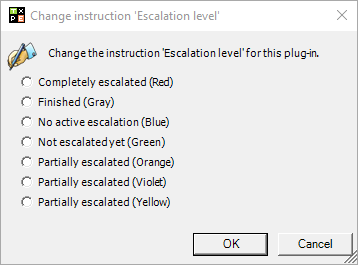
This plug-in sets the escalation level. This plug-in can be enabled and disabled (red cross). Configuration The escalation level must be set with one of the following:
The meaning of each option is being described in the following table:
Further details to the escalation levels are to be found in Escalation level.
|
||||||||||||||||
|
Set the SLA of a ticket 
Old icon: |
This plug-in assigns a (new) SLA to a ticket. Example: If a ticket has been assigned to the wrong user in the wrong group, and thus the automatically used SLA is wrong, the SLA has to be reassigned as soon as the ticket arrives in the correct group (e.g. by changing the categorization). Thus, the plug-in is mostly used in subworkflows triggered by an assignment action. After a change of the categorization of a ticket, the SLA will be reassigned in such a workflow. |
||||||||||||||||
|
Trigger early warning 
Old icon: |
This plug-in triggers the early warning system. Example: If an incident with an increased priority occurs in the course of the workflow, the early warning system can be triggered, which then will then perform certain activities. |
||||||||||||||||
|
Work time check 
Old icon: |
This plug-in checks whether a certain point in time is within the SLA times in a ticket. If the ticket has not been assigned with an SLA, it leaves the plug-in through another output. Example: If a ticket requires a certain processing time that has been estimated by the supporter, this plug-in checks whether this time is within this SLA time. This may be necessary, if the customer is then to decide whether the work is to be performed or whether he wants to change the SLA times for this ticket. Configuration Offset to the actual time: This option allows for adding a specified time span to the current time. |







 Copyright (c) 2000-2026 Isonet AG