Common
Plug-ins:
| Icon | Description |
|---|---|
|
Check data field exists 
Old icon: |
This plug-in checks whether a data field with a specific name can be found. In order to make the distinction directly in the workflow, the plug-in has two outputs - one for the case the data field cannot be found and another one for the case the data field exists. Configuration Data field name: The name of the data field the workflow item is to be checked for. Please note that the search is case sensitive. Line breaks should be avoided here, otherwise the data fields cannot be used in expressions. |
|
Clear event workflow return point
Old icon: |
Removes the keyword from a workflow item and thus resets the return point of an event workflow. This can, for example, prevent the workflow item from being moved to the wrong position by using another Event workflow return point plug-in. The plug-in is required in an event workflow with a workflow output via a bridge and must be installed as close as possible to the output. This plug-in is not required for an outbound End of workflow or Event workflow return point. It is only necessary in an event workflow without an output if the option Workflow items to collect was not set to None in the Event workflow entrance plug-in. This plug-in should then be installed before the last plug-in of the workflow. The plug-in has two outputs:
This plug-in can be enabled and disabled (red cross). Configuration Key word: It must match the keyword in the Plug-in Event workflow entrance. It is deleted from the workflow item when the plug-in is passed. |
|
Conditional Joint 
Old icon: |
This plug-in merges two workflow items when they access the plug-in from two different directions within the workflow. It is possible to duplicate (to split) a workflow item in a workflow, so that it can take two different routes simultaneously. If both routes have to be processed, the item finishing its route first has to wait for the other item. The first item waits in this plug-in until the second item arrives in it as well. Both items are then merged into one workflow item. The new merged item will subsequently resume its way through the workflow. |
|
Conditional switch
Old icon: |
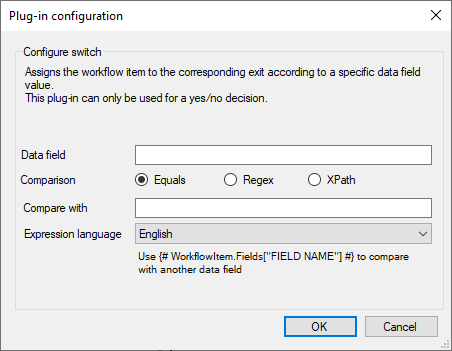
The Conditional Switch is generally configured similarly to the Conditional Switch on Expression. The difference is that the name of a data field and a comparison value must be specified here. The use of this plug-in is similar to the Conditional Switch on Expression. Configuration
Data field: The name of a virtual data field that contains the value is specified here. The name of the data field cannot contain brackets. Comparison: Defines the method to be used for the comparison. Compare with: A value or an additional data field, whose content is to be compared to the content of the first data field, can be specified here. If a data field name is used, it has to be written in double curly brackets. Expression language: A drop-down list allows the selection of the expression language. |
|
Conditional switch on expression
Old icon: |
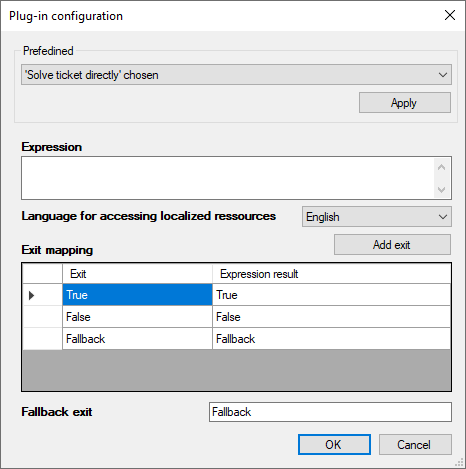
This plug-in is necessary whenever decisions are to be made. For example, an e-mail is to be sent based on the underlying ticket schema. So, if the ticket schema = infrastructure, an e-mail is sent to group X. In case of another ticket schema, it is sent to group Y. Configuration
Predefined: This option already contains some frequently used expressions. After selecting one of the available expressions and a subsequent click on Apply, additional values can be specified - depending on the expression. The completed expression will then be transferred into the Expression field. Expression: The desired expression is specified here. Example: Ticket.Schema. If a ticket has been created with the ticket schema Incident, it is forwarded to the Condition fulfilled output. In every other case, it is forwarded to the Condition not fulfilled output. Language for accessing localized resources: Defines the language to be used when parsing the expression. Exit mapping: There are three standard outputs: True, False and Fallback. Each expression can return any string. The results can be mapped to the desired number of outputs. The standard outputs are mapped with the return values True and False for compatibility reasons. In this way, Boolean expressions are still fully supported. Fallback exit: The Fallback output can be left empty. However, if it is set, any result that is not contained in the mapping table causes the workflow item to be sent to the fallback outbox. |
|
Connect to main Item
Old icon: |
Connects the workflow item to the main workflow item, that is, the affiliation chain of the main item is copied to the current item. This plug-in can be enabled and disabled (red cross). It does not need any further settings. Note: The Add to main item group plug-in will be removed. Item groups are substituted by workflow items. |
|
Data synchronization 
Old icon: |
The roles in the item are overwritten according to the roles in the ticket:
Example: ItemOwner <- TicketOwner ItemAffected <- TicketAffected ... The plug-in is required if, for example, tasks have been distributed that should not be assigned to the actual owner and this owner then has to carry out further editing. Example: The affected user of a ticket is asked a question ("The Expense is higher than x. Do you want the ticket to be solved anyway?") he has to answer. Thus, the ticket now temporarily belongs to the affected user, so he can perform the activity. Afterwards, the original user - the one who accepted the ticket - has to be set again. This plug-in can be used for such a purpose. |
|
Debug end 
Old icon: |
This plug-in ends the debug mode of an item. See also the plug-in Debug Start. Generally, this plug-in should be used after using the Debug Start plug-in. Otherwise, the workflow items will be processed with a lower speed until the end of the workflow. |
|
Debug start 
Old icon: |
Via this plug-in, individual workflow items can be run through the workflow at lower speed. This option will only apply to workflow items that have passed through this plug-in. By contrast, the option Slow down workflow engine (located in the toolbar of the Workflow Designer) affects all workflow items. For analyzing purposes it may be useful to slow down an item, in order to track it through the individual plug-ins more easily. |
|
Delete datafield 
Old icon: |
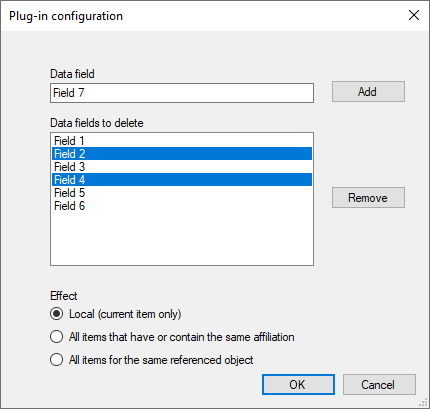
This plug-in deletes a data field. In doing so, not only the value of the data field is removed, but the entire field of the workflow item. Configuration It is possible to add data fields to a list. The system prevents the user from adding empty or duplicate data fields.
Data field: The name of the data field to be added to the list can be entered here. Line breaks should be avoided here, otherwise the data fields cannot be used in expressions. Data fields to delete: The user can select several data fields simultaneously using the Ctrl and Shift keys and remove them from the list. Effect: The effect of the changes can be selected:
|
|
Dispatching switch
Old icon: |
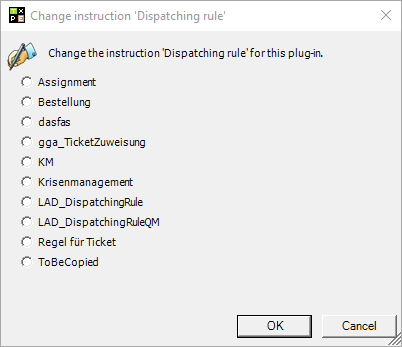
Assigns the workflow item to the corresponding exit according to a specific dispatching rule value. Configuration The dispatching rules, the dispatching parameters and the comparison value can be set.
The workflow item leaves the plug-in by the output Requirement met when the calculated value of the specified parameter matches the comparison value. |
|
Duplicate 
Old icon: |
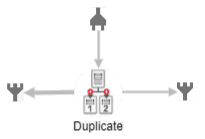
This plug-in generates a branch in a workflow, so that a workflow item can be processed via two different paths simultaneously. Example: A question in a ticket may arise, which should answered by the affected user, e.g. "Is this solution satisfactory?". Due to various reasons, the user may not be able to answer this question in the application itself, but instead call the supporter and deliver the answer by phone, for example. Normally, the supporter would not have any option to enter the answer into the application in this case and the workflow could not be resumed. Here, the Duplicate plug-in allows for forwarding this task to the affected user and to the supporter simultaneously. Thus, when contacted by phone by the affected user, the supporter can enter the response directly into the system and the workflow for this ticket is not disrupted. It is necessary to remove these duplicates after the activity has been confirmed. Otherwise, the task will remain pending for one of the users even though it has already been processed. See also plug-in Remove duplicates. Note: All plug-ins that have more than one output channel without conditions display the main output channel with a thick arrow. The item that arrives in this plug-in leaves the plug-in through this highlighted exit.
|
|
End of function 
Old icon: |
Ends a function workflow. The workflow item jumps back to the initial plug-in function call. This plug-in can be enabled and disabled (red cross). |
|
End of subworkflow
Old icon: |
This plug-in constitutes the end of a subworkflow. Whenever a subworkflow has been created in order to enhance the clarity of the workflow, this plug-in is used instead of the usual End of Workflow plug-in for ending the subworkflow. Note: By default, this plug-in is protected, i.e. items cannot be removed from this plug-in. Protected is a flag in the plug-in XML that can also be integrated into other plug-ins by copying (protected="True"). |
|
End of workflow 
Old icon: |
This plug-in constitutes the end of a workflow. A workflow needs a defined end. There are specific plug-ins for individual workflow types and their endings. This plug-in is used for a primary workflow – and thus generally whenever the workflow has been started with the Start of the workflow plug-in. |
|
Event workflow entrance 
Old icon: |
Marks a workflow that is required as an event for various actions. It is equivalent to the plug-in start of the workflow, which marks the start point of the main workflow. In this case, however, the plug-in starts a workflow of type Eventworkflow. Behavior:
Example: If a workflow is configured for a customer request, this plug-in is required. The reason for this is the functioning of the processes. The workflow item of a ticket is located in the main workflow at a certain point. Now a customer request is opened and the workflow item is redirected to another workflow (the one that contains the configuration of the customer request). When the workflow of the customer response is completed, the workflow item is to be moved to its original location in the main workflow flow. This place is the ticket itself, if it comes from an event workflow. This plug-in can be enabled and disabled (red cross). Configuration Key word: A keyword must be specified to clearly identify the start and end of the workflow. The keyword is generally freely selectable, but must match the keyword in the plug-in Event workflow return point to be achieved. Workflow items to collect: A new workflow item for the event workflow is always started. The following options for collecting existing workflow items are available:
|
|
Event workflow return point 
Old icon: |
Is always needed in an event workflow and is the counterpart to the plug-in Event workflow entrance. For an example of how to use the plug-in, see the Event workflow entrance. The plug-in terminates the workflow and restores previously collected workflow items to their original location. However, only if they were collected at the beginning of the event workflow. If this is not the case, the workflow item is deleted. If in such a case the plug-in End of workflow is used instead of the plug-in Event workflow return point, the return point information variables are not cleared. However, this has no consequences, since the workflow item is then deleted with its dependent data. This plug-in can be enabled and disabled (red cross). Configuration Key word: It must match the keyword in the Plug-in Event workflow entrance. It is necessary for the unique identification of the plug-in. Restore activities: Only relevant if the Event workflow entrance plug-in is configured for collecting workflow items. This option controls the behavior if one or more of the collected workflow items were previously in an activity plug-in. Activities can either be restored (i.e. addressed to exactly the same persons to whom they were previously assigned) or regenerated (with a new activity date):
Restore owner users and groups: Only relevant if the Event workflow entrance plug-in is configured for collecting workflow items. This option controls whether the owner of the collected workflow items is set to the original owner (user and group) (True), or whether the owner of the current event workflow item should overwrite the owner of the collected workflow items (all collected workflow items would then have this owner). Reset activity timeout value: Also only relevant if the Event workflow entrance plug-in is configured for collecting workflow items. This option controls the behavior if one or more of the collected workflow items were previously in an activity plug-in, the activities are timed out and the activities are also effectively restored (see Restore activities option). When generating activities, the timeout value is always reset to the start. True means that the activity timeout always starts from the beginning (reset). False indicates that the timeout will keep its original date. |
|
Function call 
Old icon: |
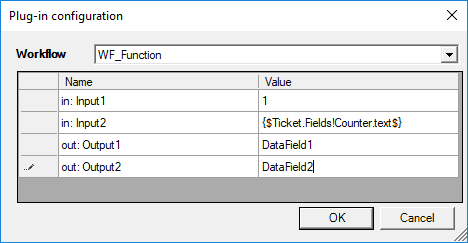
Configuration The corresponding function workflow is selected. The displayed parameters must first be defined in this workflow. To do this, right-click on the workflow workspace to call up the context menu and define the corresponding variable names using Input parameters ... or Output parameters .... The input parameters support expressions. Output fields specify names of data fields. If the data fields do not exist, they are created. Otherwise, they are overwritten.
|
|
Function start 
Old icon: |
The plug-in is at the beginning of a primary function workflow and does not require any further settings. |
|
Gate keeper
Old icon: |
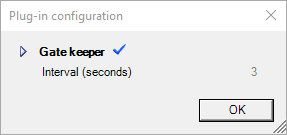
Allows only one workflow item to happen at a time within the configured interval. Further workflow items wait and are processed in the order of their arrival. This plug-in can be enabled and disabled (red cross). Configuration The interval is configurable in seconds decimal, separated by the decimal separator.
|
|
Insert comment
Old icon: |
This element is not an actual plug-in that is passed through by a workflow item in a workflow. It is used for displaying explanatory comments in the workflow. It can, for example, be used to provide more detailed information on a workflow or a certain plug-in. Thus, a certain activity of a configured plug-in can be annotated in order to facilitate reading the workflow for other administrators. Configuration Via a double-click, the dialog for entering a comment can be opened. If multiple languages are activated on your system, the comment can be entered in every language available. |
|
Isolate
Old icon: |
Deletes the affiliation chain of the item and resets it. Note: Whenever multiple workflow items are generated from one workflow item via the plug-in Duplicate and they take different routes through the workflow, these items will be treated as a group. This means that after one item has completed its way through the workflow, it will wait until the second item completes its way as well. In order to separate such an item from its group at a certain point in the workflow and then for it to continue through the workflow as an independent item, the plug-in Isolate can be used. After the item passes through this plug-in, it will be completely independent and thus has to be ended as an independent item as well. |
|
Iteration
Old icon: |
This plug-in creates a loop for a workflow item. Every time a workflow item passes through this plug-in, a counter in a data field is decremented and the item is forwarded to the Loop output. As soon as the counter reaches 0, the workflow item will leave the plug-in through the End of loop output. Additionally, the input Restart is available. Whenever a workflow item enters the plug-in through this input, the data field is reset and the item has to complete the specified number of iterations again. If this input is not needed, it can be deleted. Configuration Data field name: Contains the name of the data field the number of loop repetitions is to be saved in. Iterations: Number of repetitions the item has to complete until it can leave the plug-in at the End of loop output. |
|
Join of workflow items
Old icon: |
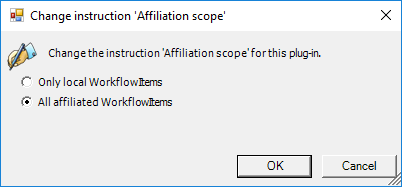
This plug-in joins split workflow items. All items that, for example, have taken different routes through the workflow simultaneously, have to pass through this plug-in and will be joined there. The incoming plug-ins will wait here until all items (100%) have reached the plug-in. Afterwards, only one item will leave the plug-in. Configuration Any number of inputs and outputs can be added to this plug-in. Two options are available for the Affiliation scope:
Only local workflow items: Only the local workflow items are merged. All affiliated workflow items: The merge is restricted to the affiliated workflow items. |





























| Icon | Description |
|---|---|
|
Leave subworkflow
Old icon: - |
This plug-in marks the end of the subworkflow, but doesn't send the workflow item back to its source. |
|
Lock
Old icon: - |
Sets a locked area in the workflow that guarantees that no other item can use the following part of the workflow. The lock is released if the workflow item passes the Unlock plug-in, if the lock period has expired, or if the item is moved manually. When a workflow entry that has the status Locked is moved manually, a confirmation field is displayed: When a workflow item that has the status Locked is moved manually, a confirmation box is displayed:
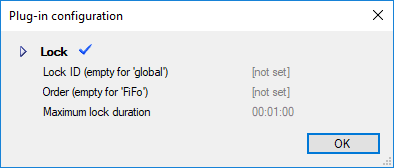
Configuration Lock ID (empty for 'global': If no lock ID is defined, the lock is global. This means that only one workflow item can access the locked area. You can use the Lock ID to define the lock more precisely. The lock that a workflow item triggers only affects workflow items that have the same Lock ID. Example: The ticket number is configured via an expression {#Ticket.FullId#}. This means that only one workflow item of the same ticket can be within the lock area. Workflow items of other tickets would not be affected by the lock. This is particularly important if several workflow items could access the locked area for the same ticket at the same time. Order (empty for 'FiFo'): If more than one workflow item is waiting for a lock, the next workflow item is determined in sequence. This standard behavior can be changed by an order identifier (expression). The next workflow item is then determined by the Workflow Manager by selecting the first workflow item, sorted by order ID (ascending alphanumerically). Maximum lock duration: The default lock duration setting is one minute (00:01:00). It must be set, so cannot be left blank. The lock duration is specified in the format dd.hh:mm:ss (maximum: approx. 24 days).
|
|
Move workflow items
Old icon: |
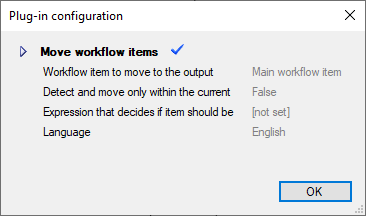
This plug-in moves all workflow items to the Move to output, except for the item that is currently running through the plug-in. All workflow items includes all items – even those currently in other workflows (Restrictions adjustable). If there are multiple workflow items of a ticket in different workflows, and if these items cease to be relevant due to an action that is executed by the system or a user, these items can be moved to other workflows or be forwarded to a workflow exit in order to be eliminated via this plug-in. If there is only one workflow item (the one currently running through this plug-in), nothing happens.
Configuration
Workflow item to move to the output channel:
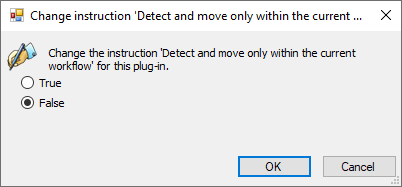
Detect and move only within the current workflow: It is possible to restrict operation to elements within the current workflow. The plug-in then ignores all elements that are located in other workflows (default value: False).
Expression that decides if item should be moved: The field should be empty or take an expression that is evaluated for each workflow item (except the item that is selected by the Workflow item to move to the output channel option. The expression should return either True or False to determine if the item should be moved to the MoveTo-output (True) or remain at it's current place (False). If the expression fails for any item, no item will be moved. The item that initially entered the plug-in remains in the plug-in with an error message in this case. Language: An installed language can be selected. |
|
No Operation
Old icon: |
This plug-in is used to graphically organize the Workflow Designer desktop. Changes or actions are not executed. |
|
Pause
Old icon: |
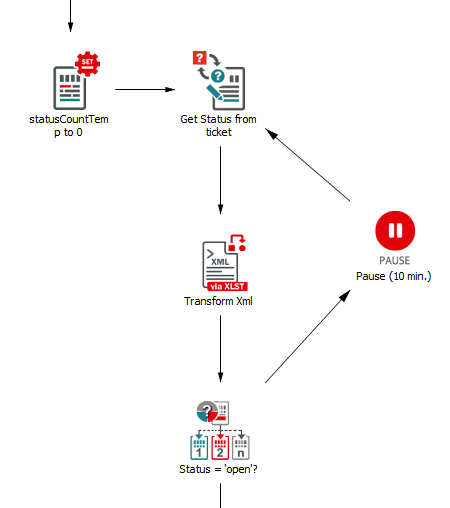
This plug-in pauses the processing of an item in the workflow. Via this plug-in, loops can be configured, which pause the item after a failed web service or database query and then retry the query after a configured amount of time has passed, for example. Example:
In this example, the ticket status is queried from an external system and then checked whether the status is Open. If not, the ticket is forwarded to the Pause plug-in and waits for 10 minutes there. Subsequently, the web service query is performed again. This plug-in can be enabled and disabled (red cross). Configuration Time span (empty for infinite): The time span the workflow item is to be paused for. It is specified in a DD.HH:MM:SS (days.hours: Expressions can also be used for the time span: Example: Static time span string, five days: 5.00:00:00 Time span defined with Expression for the number of days: {$DaysToWait$}.00:00:00 |
|
Remove Duplicates
Old icon: |
This plug-in removes copies of a workflow item that have taken different routes in a workflow. It does not wait for other items. As soon as the first item has reached this plug-in, all other affiliated items are removed. If a ticket or task is branched (see Duplicate) and takes two different routes in a workflow simultaneously, the duplicates created here have to be removed. For an example, see the plug-in Duplicate. Warning: Make sure that it is really intended to remove all duplicates. |
|
Resume
Old icon: |
This plug-in resumes all workflow items that have been suspended via the Pause plug-in. |
|
Set data field
Old icon: |
This plug-in allows for creating a data field. A value is set for this field in the process. Configuration Field name: Name of the data field to be created. Please make sure that the name of the data field is unique. Line breaks should be avoided here, otherwise the data fields cannot be used in expressions. Field value: The value to be written into the data field. Expressions cannot be used here. Effect: The effect of the changes can be selected:
|
|
Set data field on expression 
Old icon: |
This plug-in parses a specified expression (see also Expression Reference) and stores the result in a data field (attachment). Configuration
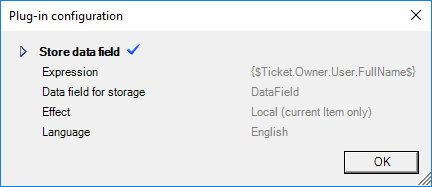
Data field for storage: The data field for storing the result with unique name. Line breaks should be avoided here, otherwise the data fields cannot be used in expressions. Expression: The expression to be executed, whose result is to be stored in the data field. Effect: The effect of the changes can be selected:
Language: The language to be used for parsing the expression. |
|
Set processing priority
Old icon: |
Workflow items with higher priority, when they are together with a lower prioritized workflow item in a plug-in at the same time, are processed as a priority. The priority to be assigned by the plug-in can be set via the configuration dialog. An item that has not been prioritized has priority 3 by default. There are four different priorities:
|
|
Simple Join
Old icon: |
This plug-in cancels branches in the workflow without affecting tickets or tasks. The plug-in can be used whenever a branch has been created within the workflow via a dispatching rule branch. This branch is now to be rejoined. The plug-in Simple Join can be used for this purpose. |
|
Stack add
Old icon: |
This plug-in works like an array, in which miscellaneous data can be filed. This array can be filled by using expressions, for example. Thus, all the data of a ticket can be placed into such a stack and then accessed again later on in the workflow. However, the stack can only be navigated in reverse order. Thus, the element added last is read out and used first (LIFO – Last In First Out). Configuration Element: The element to be added to the stack. Simple texts and expressions can be used here. Name of the stack: A unique name for the stack is to be specified here. |
|
Stack use/
Old icon: |
If a stack has been created via the plug-in Stack Add, this plug-in can be used to read out the values stored in it and use them. The value added last will be read out first and then written into a data field (LIFO – Last In First Out). Configuration Data field for stack value: The name of the data field the value from the stack is to be written into. Name of the stack: The unique name of the stack to be used is to be specified here (the name is defined in the Stack Add plug-in). |
|
Start error handling
|
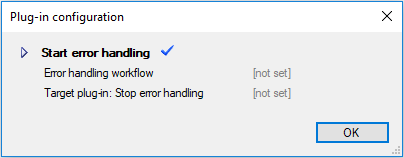
Sets an error handling workflow onto the workflow item. When any errors occur, the workflow item will be moved immediately to the error handling workflow - until the Stop error handling plug-in is passed. In a workflow, various error handlers cannot be nested within one another. This plug-in can be enabled and disabled (red cross). Configuration Error handling workflow: The error handling workflow can be selected here. To do this, a workflow of the category Error Handling is created beforehand and provided with the appropriate actions. Target plug-in: Stop error handling: The target plug-in can be specified. If only one target plug-in exists, it does not need to be listed. If there are several, the GUID of the corresponding plug-in Stop error handling must be inserted.
|
|
Start event workflow
|
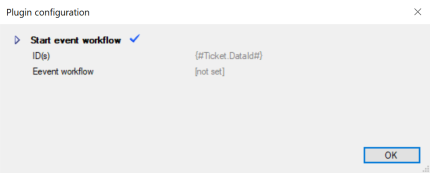
It moves the passing item to the configured event workflow, thus starting its processing. Configuration ID(s): The ID of the ticket to be started in the event workflow. Supported are: DataId, ObjectGuid, FullId and expressions. Multiple tickets can be specified, the separator is a comma (CSV). If the instruction value is empty during run time, the item will be blocked (error). If the instruction value contains one or multiple IDs, the item will pass, even if one or all of the IDs are invalid and no ticket can be found for it (the resulting errors are only logged). The event workflow is started immediately for all specified tickets, there's no 'wait time' in between the individual tickets. Event workflow: Here you can select the event workflow that you want to start. If no workflow is selected, the item will be blocked during runtime.
Warning: The configured event workflow should not be set up to collect items. This setting can cause processing problems. The Workflow items to collect option of the Event workflow entrance plugin in the selected workflow must be configured to the default value, None. |
|
Start of the subworkflow
Old icon: |
This plug-in redirects workflow items into a subordinate workflow, which has been outsourced for clarity reasons, for example. See also the plug-in End of Subworkflow. In order to maintain the clarity in complex workflows, parts of the workflow can be filed separately and a ticket, for example, can be redirected to this subworkflow via this plug-in. The use of subworkflows is of particular interest whenever there are recurring similar tasks at various points in a big workflow. A subworkflow can be created here, which will be accessed at the respective points in the main workflow. Configuration The plug-in has two outputs: Already went through subworkflow and Go to subworkflow. This makes sure that a subworkflow is only passed through once by a workflow item, if necessary. Note: By default, this plug-in is protected, i.e. items cannot be removed from this plug-in. Protected is a flag in the plug-in XML that can also be integrated into other plug-ins by copying (protected="True"). |
|
Start of the workflow
Old icon: |
A workflow always requires a start plug-in. However, they are different for the various workflow types. A primary ticket or task workflow always begins with the plug-in Start of the workflow. |
|
Start stopwatch
Old icon: |
This plug-in allows for measuring the lapsed time for the workflow item running through it. For this purpose, the workflow item receives a time stamp, which can be read out via the Stopwatch: Elapsed Time plug-in. Configuration A data field (Name of the stopwatch), in which the time stamp is to be stored, has to be specified here. |
|
Stop error handling
|
Stops to call an error handling workflow in case of an error. The plug-in has two outputs:
No further settings are required for the plug-in. See also Plug-in Start error handling. |
|
Stopwatch: elapsed time
Old icon: |
This plug-in reads out the time stamp set by the Start Stopwatch plug-in and compares it with the current time. The difference between the two values is written into a new data field. An arbitrary amount of these plug-ins can be used in a workflow one after the other. Configuration Name: Name of the data field containing the time stamp of the Start Stopwatch plug-in. Elapsed time: Name of the data field the elapsed time is to be stored in. |
|
Suspend
Old icon: |
This plug-in suspends all workflow items referencing the workflow item currently passing through it (e.g. duplicates). The current item continues through the workflow as usual. These other items will be resumed via the Resume plug-in. |
|
Suspend until
Old icon: |
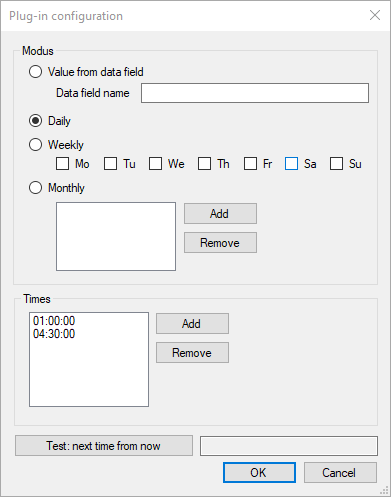
This plug-in stops the processing of a workflow item until a certain date. Either an absolute date can be specified here, or it can be read out of a data field, or be configured as a recurring time schedule. Example: If an automatic process is to forward data of the processed tickets to an external system once a day, this can be configured via this plug-in. The workflow items will be collected here until the configured date has been reached and subsequently, the processing will be resumed. Configuration
Value from data field: Data field name the date is to be read out of. Daily: Starts a daily schedule. Weekly: Starts a weekly schedule. Select the days this schedule is to be executed on. Monthly: Starts a monthly schedule. Entries for specifying the execution dates can be added to the list. Example: every first Monday of the month. Times: Contains the execution times. multiple entries are possible. The button Test: next time from now calculates the next execution date and displays it in the text box on the right. |
|
Timer
Old icon: |
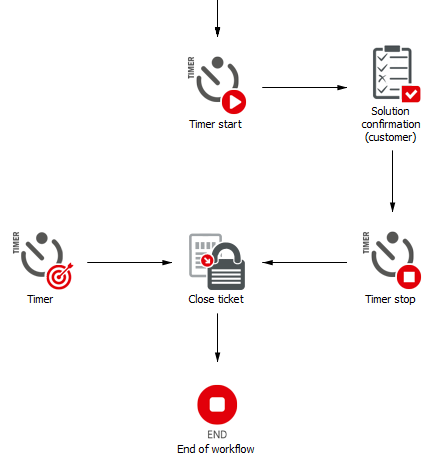
This plug-in points to another plug-in in the workflow. If a timer has been started via the Timer Start plug-in and the desired time has been reached, the ticket is directly moved into the plug-in the Timer plug-in points to. This plug-in is necessary for every use of Timer Start and Timer Stop in order to resume the ticket after the configured time has been reached. Example:
In this example, the customer has to confirm whether he agrees with the solution in general. Now, it may happen that the customer forgets this. However, the ticket still has to be closed eventually. If the customer does not respond, one can assume that he agrees with the solution. In this case, a timer configured to five days is started (Timer Start). Then the customer is asked to confirm the solution. If he does so, the timer will be stopped and the workflow can be completed as usual. If the customer does not confirm the solution, the ticket will be moved to the Close Ticket plug-in by the Timer plug-in after five days and thus the workflow will be finished. |
|
Timer start
Old icon: |
This plug-in starts a timer, in order to trigger a certain action after a certain amount of time. When a ticket is created, it may happen that none of the users accept this ticket, but also not all of the users reject it. Thus, the ticket would stay at this point in the workflow forever and the user may never receive a solution. In order to avoid situations like this, a countdown that closes the ticket automatically after a waiting period of ten days, for example, can be started. Configuration Timer: Refers to a Timer plug-in within the workflow. If there is only one Timer plug-in in this workflow,
can be entered here. Otherwise, the respective timer is identified by
Period: Contains the waiting period until a workflow item is moved into a Timer plug-in, e.g. 10d for 10 days. The following entries are possible:
Period out of data field x: You can enter the name of a data field containing the period to be used for the timer. |
|
Timer stop
Old icon: |
This plug-in stops a previously started timer. Whenever a timer is used in a workflow, the Timer Stop plug-in is necessary in order to stop the plug-in after the specified condition has been fulfilled. Configuration Timer-Plug-in: Refers to the timer to be stopped. The entries have to be similar to those in the Timer Start plug-in. |
|
Unlock
Old icon: - |
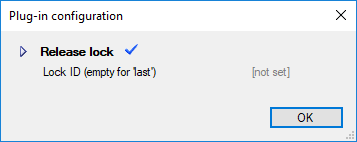
Releases locks, which had previously been set by the plug-in Lock. Configuration Lock ID (empty for 'last'): Enter the lock ID of the workflow item to be unlocked.
|
|
Volatile
Old icon: - |
If a workflow item is "volatile", its movements are not written to the database. It generates fewer entries in the log file and none in the item log. The database only contains the last location where the item was located. This means that the item will continue to run from there after restarting the workflow manager. This plug-in can be enabled and disabled (red cross). |
|
Volatile off
Old icon: - |
This plug-in can be enabled and disabled (red cross). |
|
Wait for workflow item
Old icon: |
Configuration
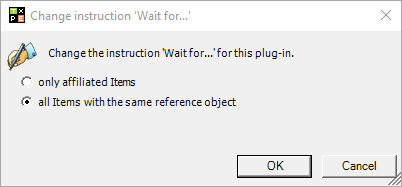
The Wait for only affiliated Items or Wait for all Items with the same reference object can be set. |















































 Copyright (c) 2000-2026 Isonet AG