Workflow Designer Webinterface
Double clicking an existing workflow entry in the grid under under Settings -> Workflows redirects to the webinterface of the Workflow Designer.
This interface is currently available only for viewing workflows and information about workflow items. To edit a workflow, open the Workflow Designer app (see Workflow Designer).

In this view the selected workflow is being displayed.
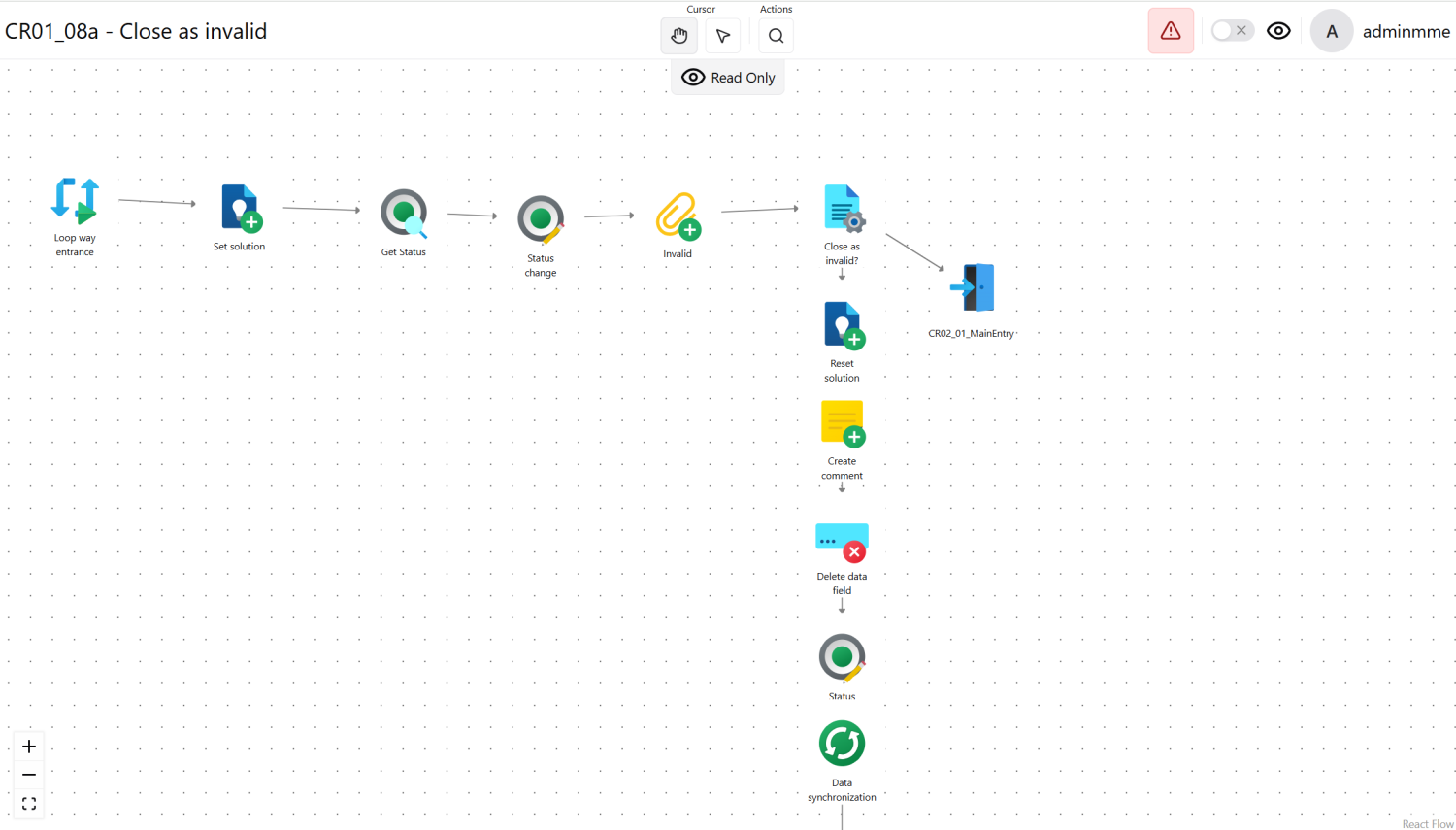
Toolbar

-
Name of the current workflow.
-
You can switch the mouse function using the two buttons below the cursor. When the hand is active, you can use the mouse to move the entire content area. When the pointer is active, you can manipulate plugins and other drawing objects.
-
Under Actions, you can click the magnifying glass icon to start a search. This allows you to search for workflow items in all workflows (the search also includes workflows that are not currently open).
-
The red warning icon indicates that there are blocked items in workflows. Clicking on it allows you to view the list of items and jump to the point where the respective item is currently located. If there are no blocked items in the workflow, the icon is gray.
-
This allows you to enable the monitoring feature.
-
The currently logged-in user is displayed here. Clicking on the username opens the settings.
To enable the surveillance of existing tickets being connected with the workflow, hit the eye symbol button (5).
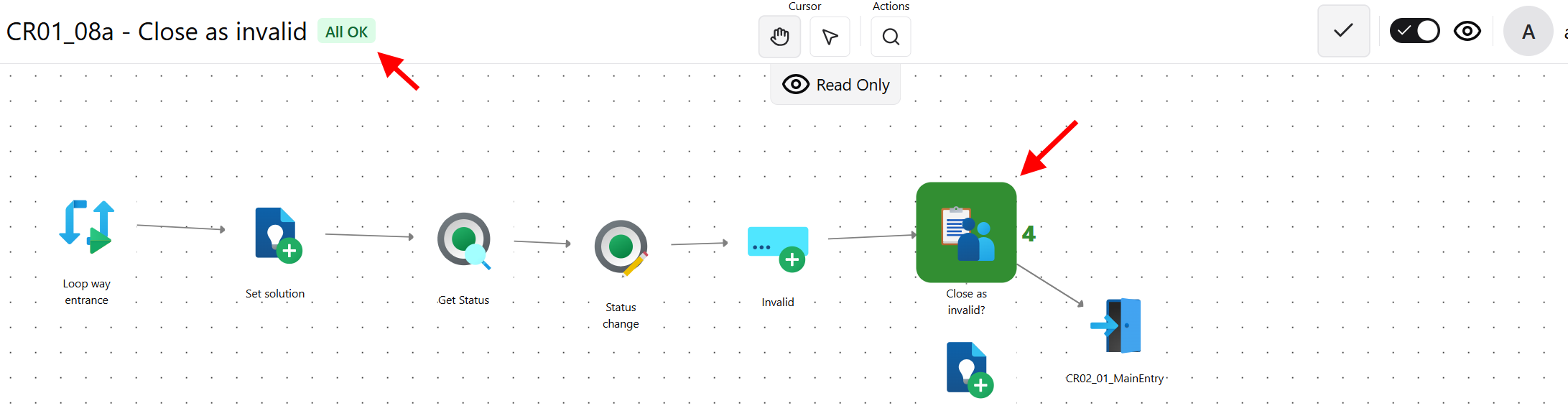
The monitoring feature displays all plug-ins in green if they contain workflow items. If the color is red, at least one workflow item is in an error state. The number of workflow items located at that point is displayed to the right of the plug-in.
To view a list of workflow items, click the highlighted plug-in.
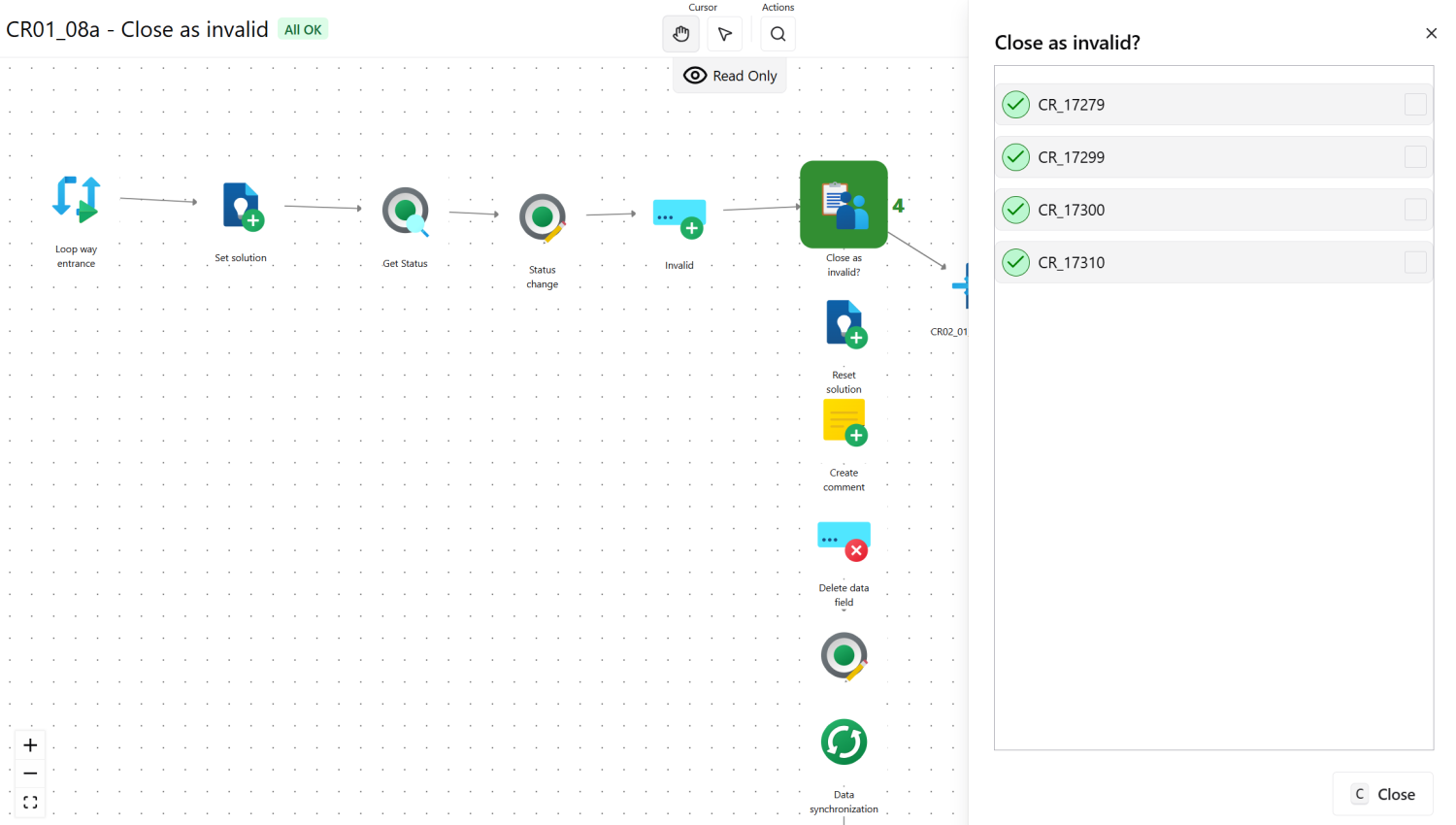
If you check the box next to an item in the list, that item is selected. The selection is then visible at the bottom of the screen.
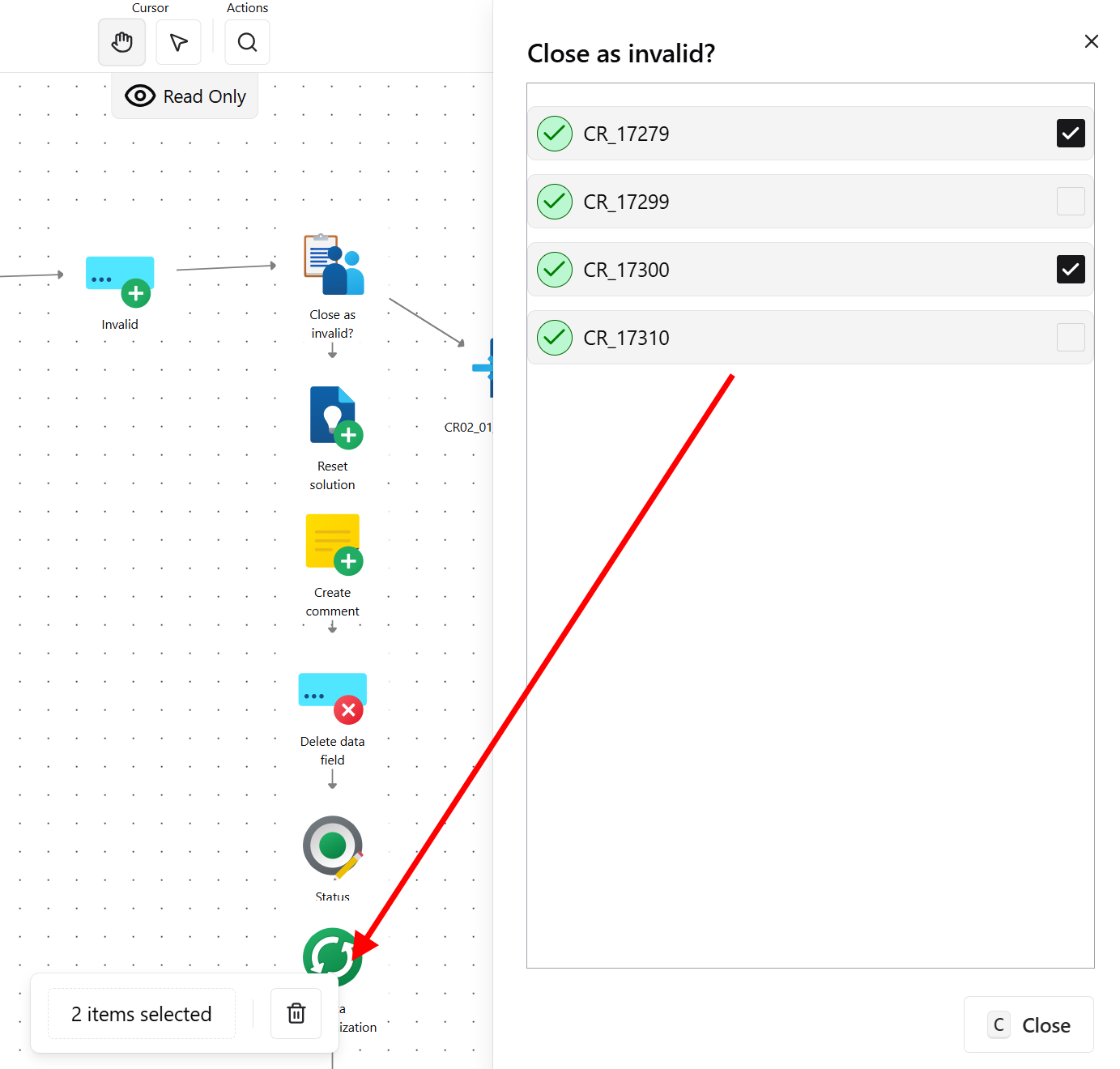
You can also deselect items there using the trash can icon.
Search for Items
Click the magnifying glass icon under Actions (3). A new dialog box will open where you can search for workflow items.
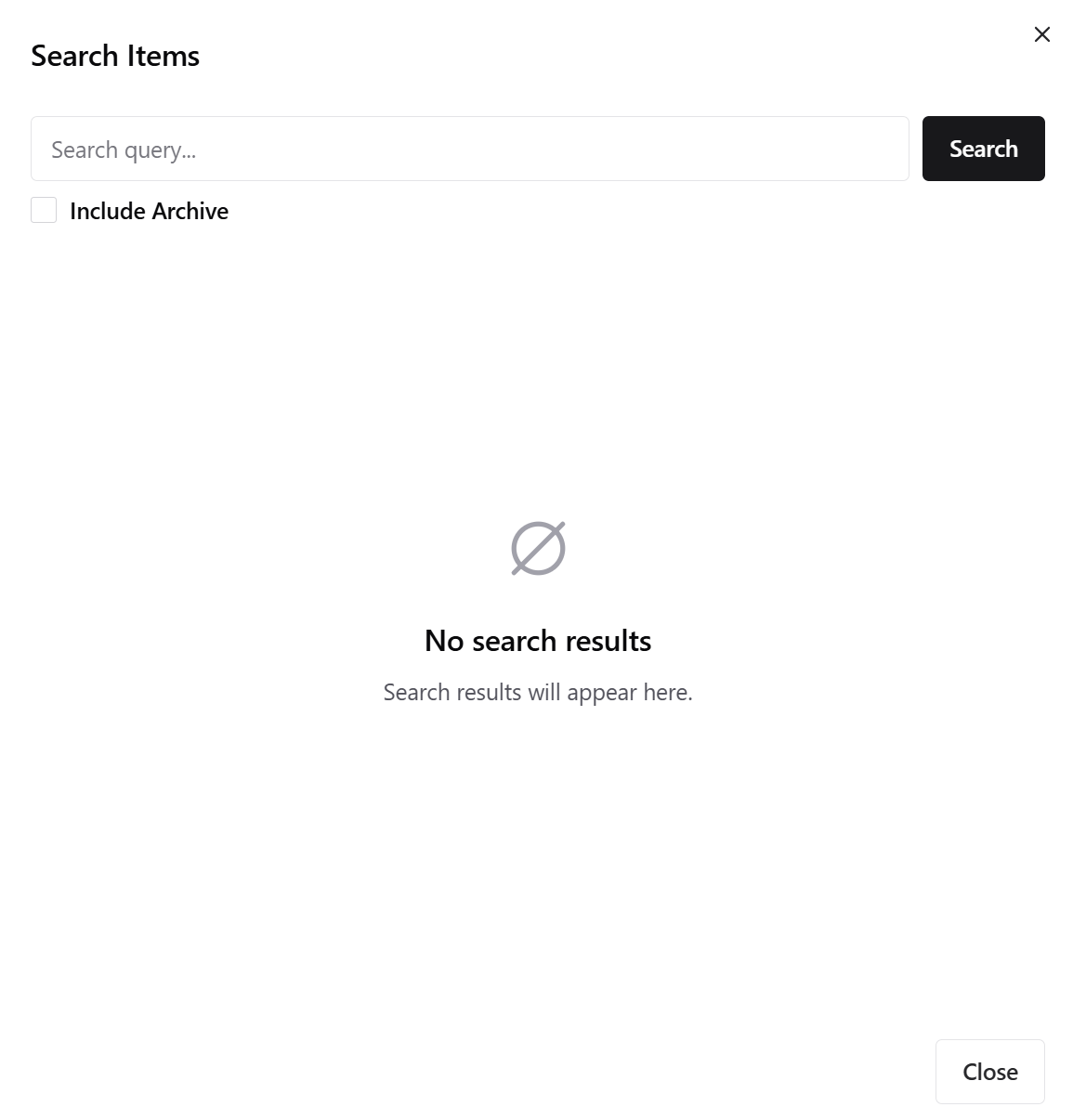
Enter a ticket number (you can also enter a KB article number, CI number, etc.) and press Enter/Return or click Search.
The Include Archive option allows you to expand the search to include items that have already been archived.
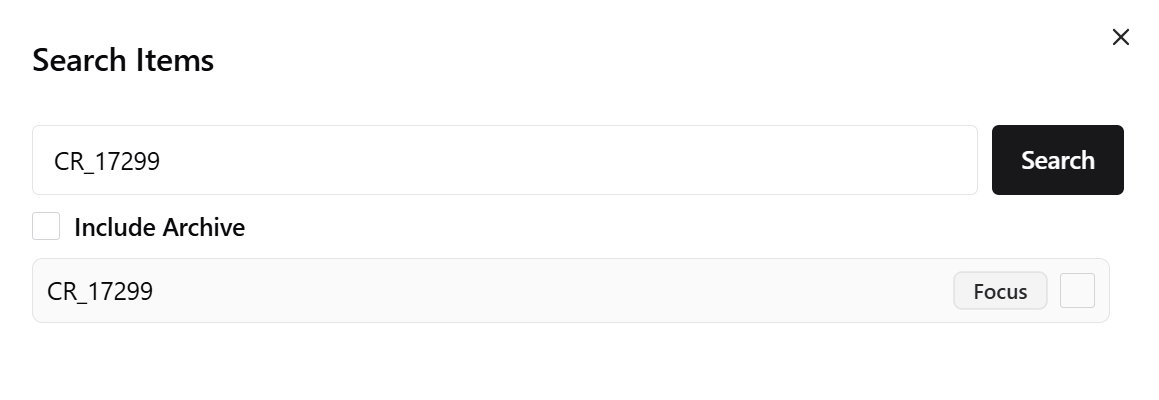
The search results are listed below the search bar. In the example above, there is one result.
Clicking on  brings the area where the found workflow item is located into focus. If it was found in a workflow that is not currently open, that workflow will open automatically.
Clicking on an entry will open the data dialog for the selected item.
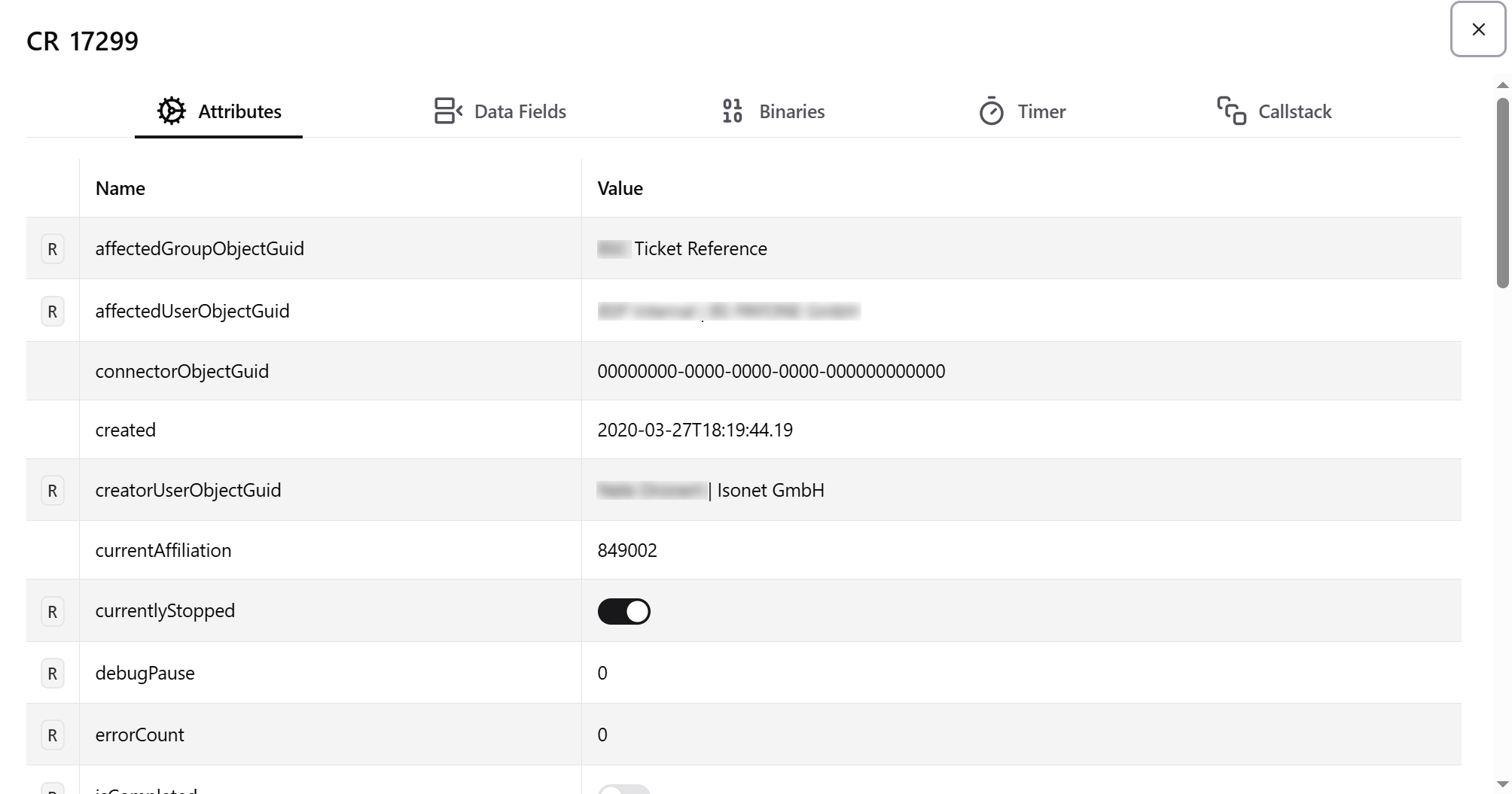
Attributes
Here you will find basic information about the workflow item. This includes, for Example:
-
the Data ID of the associated object
-
the type of the linked object
-
whether an error has been recorded for the item
-
whether it is paused and until when
and many more.
Data Fields
This tab displays all fields saved for this item during the process, along with their contents. If the tab is empty, then no fields have been saved for the selected item yet.
Binaries
This tab displays files that are linked to the workflow item.
Timer
This section displays all information about timers, provided that the process uses them and they have been triggered by the item.
Callstack
This tab displays the return points for the workflow item when it is located in subworkflows.
Actions
If there are users who are supposed to perform an action on the selected ticket, they are listed here.
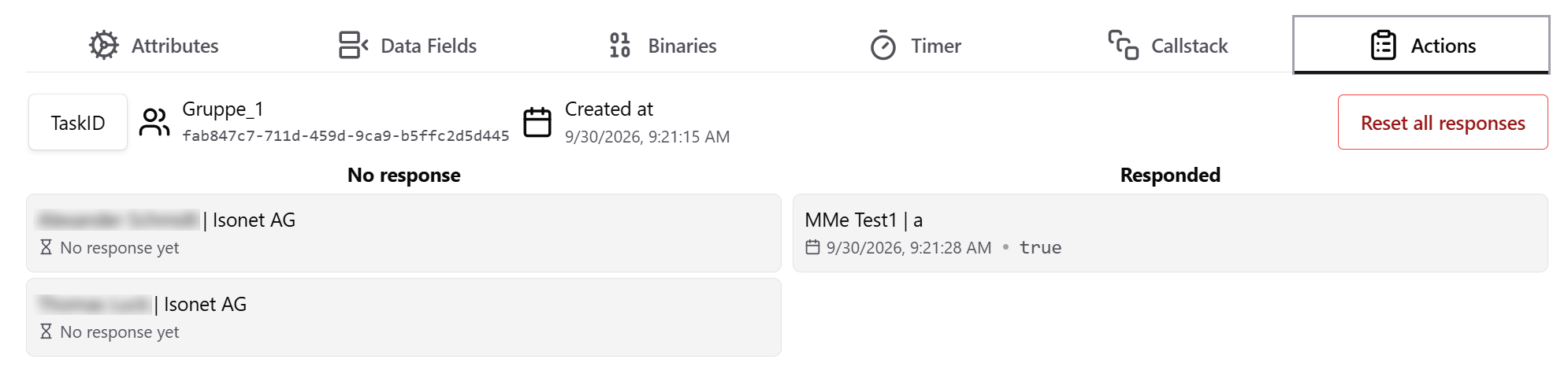
The left side shows pending actions. The right side shows completed actions.
With a right-click on a completed action it can be reset. As a result, the user must perform the action again. Clicking the “Reset all responses” button resets all actions that have already been completed.
Context Menu
Every plugin in the workflow has a context menu.
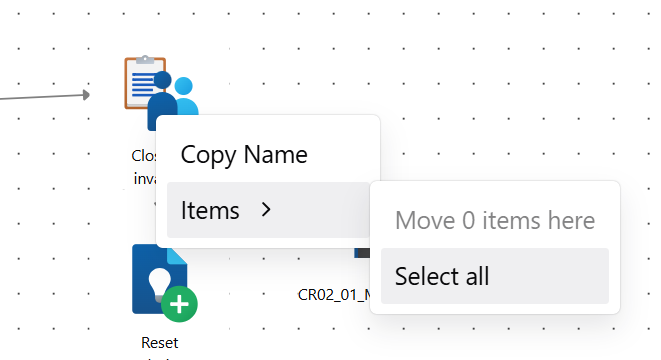
The Copy Name option copies the plugin's name to the clipboard.
Under Items, you'll find the Select All option. This selects all workflow items currently in the plugin. You can then move them to another plugin using the Move X items here option.
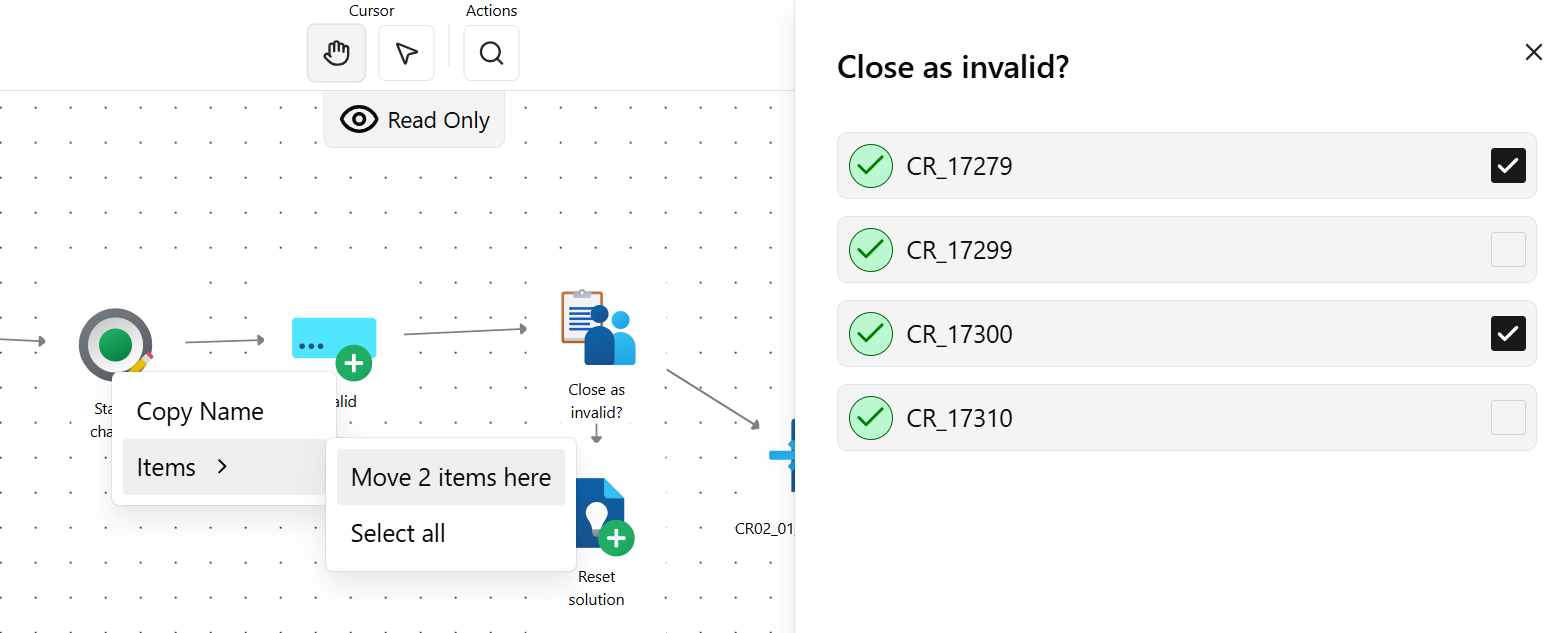
In the figure above, two items were selected. See also Monitoring/Item Tracking.
Erroneous Workflow items
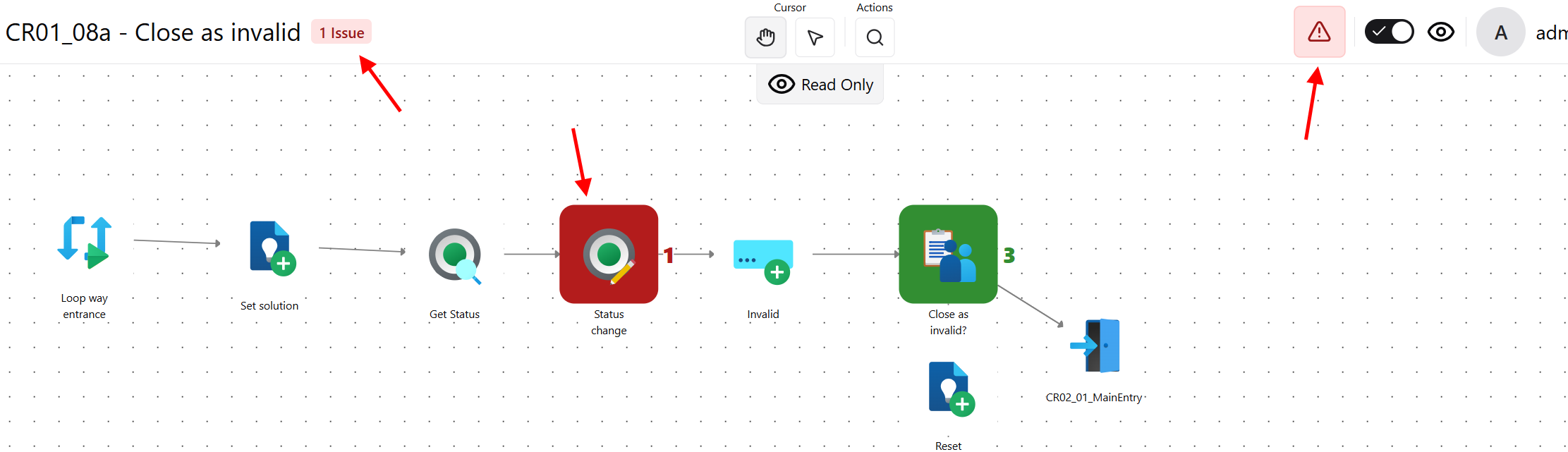
If there are one or more erroneous workflow items in the open workflow, this is displayed directly in the toolbar.
Immediately below the workflow name - this is where the items with errors in the current workflow are displayed.
The red exclamation point - which appears whenever there are items with errors in any workflow (these items do not need to be open for this to happen).
Clicking the red exclamation mark displays a list of all items with errors and the workflow in which they are located.
If item tracking is enabled, plugins that contain erroneous workflow items are highlighted in red.


 Copyright (c) 2000-2026 Isonet AG