Workflow Designer
The Workflow Designer is used for creating and configuring workflows. It combines the advantages of a graphic editor – like drag and drop – with the features of monitoring software. With its help, the progress of the various workflow items can be monitored and retraced at runtime.
Note:
Alternatively, there is a workflow viewer available. It allows you to retrieve and view workflows and information from workflow items. However, workflows cannot be created or edited in this view. See Workflow Designer Webinterface.
Managing Workflows
Workflows are managed under Settings > Workflows.
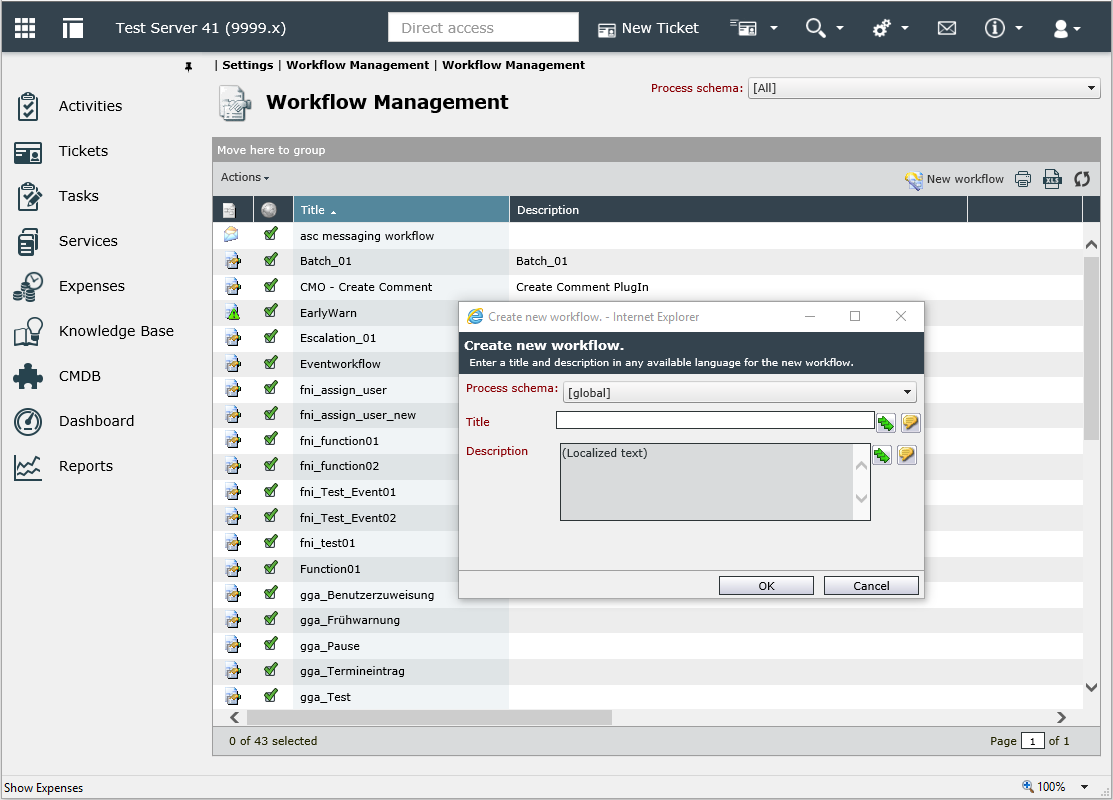
This overview displays all available workflows. If the Service Portfolio is activated on your system, the process schema filter is displayed additionally. It is used for creating specific workflows for individual process schemas. Global workflows (workflows not created for a specific process schema) are displayed with a green checkmark.
Double-clicking on a workflow in the list opens the workflow viewer and displays the workflow (see Workflow Designer Webinterface).
Existing workflows can be removed via the Actions menu.
Warning:
Do not remove workflows from the system that still contain workflow items and/or are still being used anywhere in the system. Otherwise, processing the workflow items may cause errors.
Workflow Designer App
The Workflow Designer can be downloaded under Settings -> Workflows.
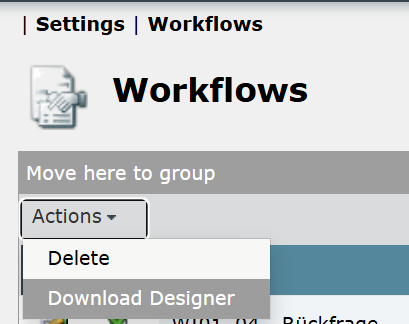
To do this, click "Download Designer" in the Actions menu. The package will be saved in ZIP file format. Extract it to any location, then run WorkflowDesigner.exe.
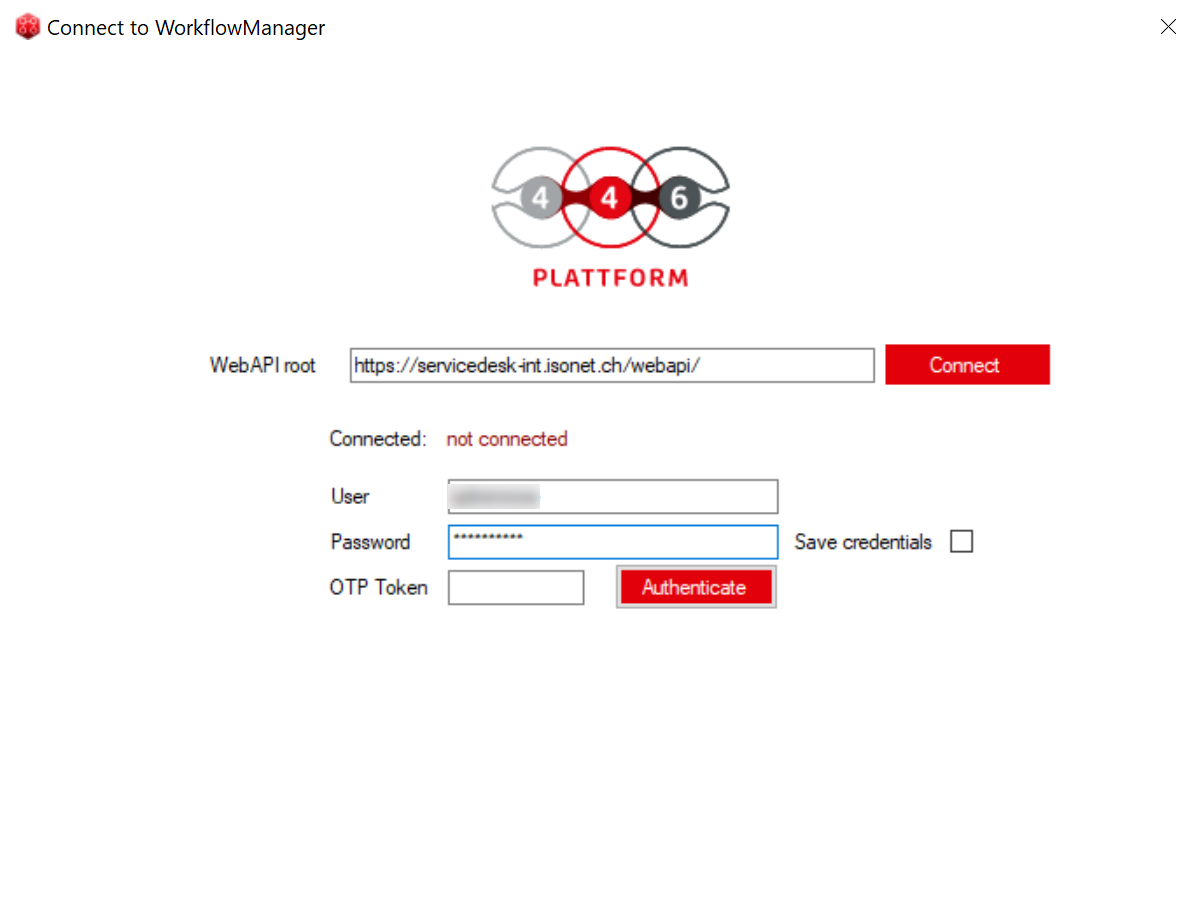
Specify the path to the WebAPI under WebAPI root. This field should be filled in automatically after the download.
Enter your username and password, and then click "Authenticate". You can then select the client and language.
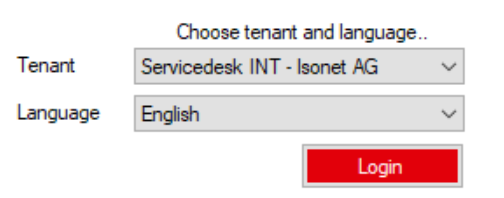
Click "Login" to access the design interface.
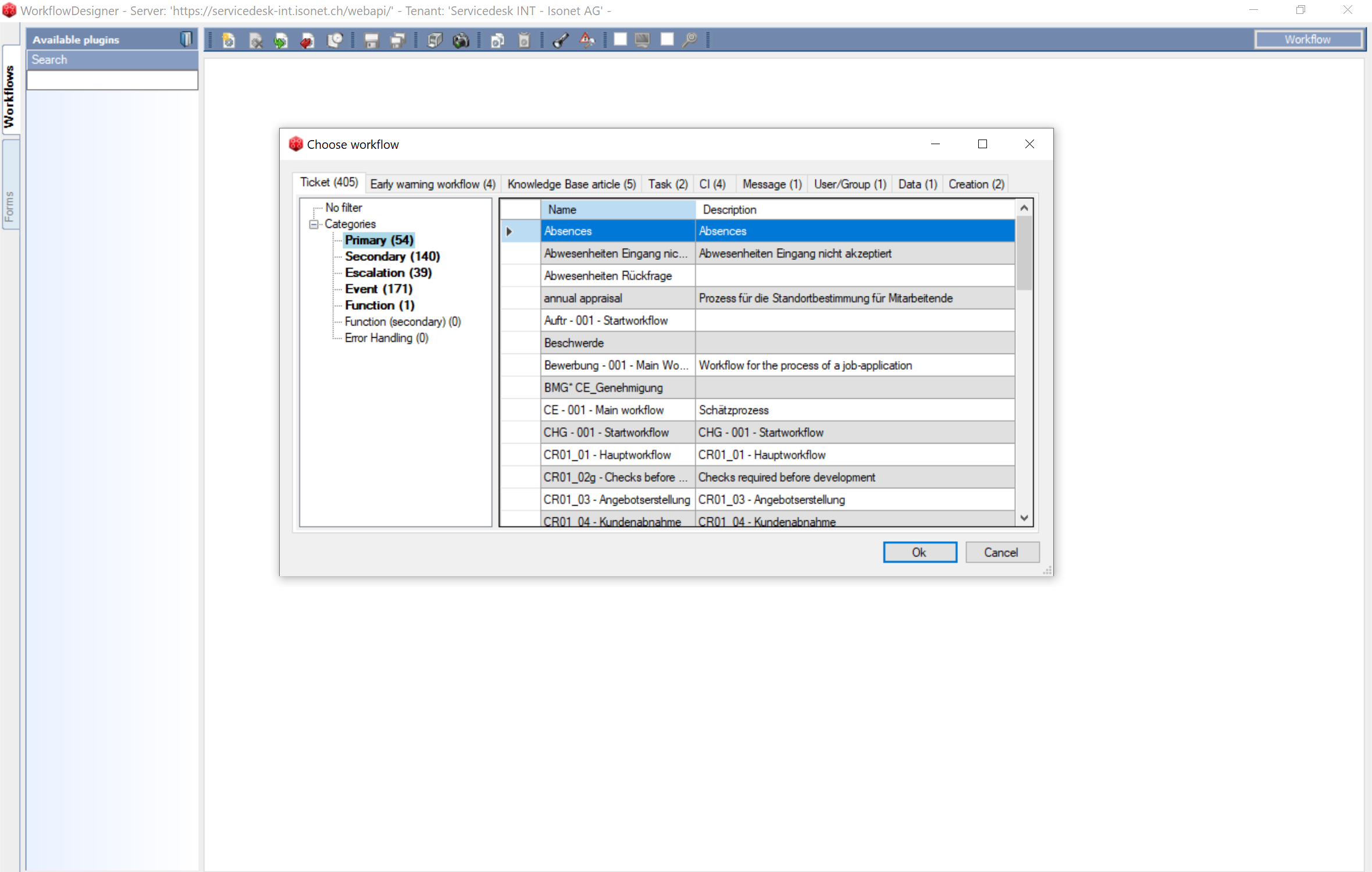
A list of available workflows is displayed automatically. You can open any of them directly by double-clicking.


 Copyright (c) 2000-2026 Isonet AG