Security Policies

The configuration of the security policies is possible under Settings > Administration > Security policies. Only users with the Administrate security policies permission (General > System Settings) are allowed to navigate to the configuration and change policies.
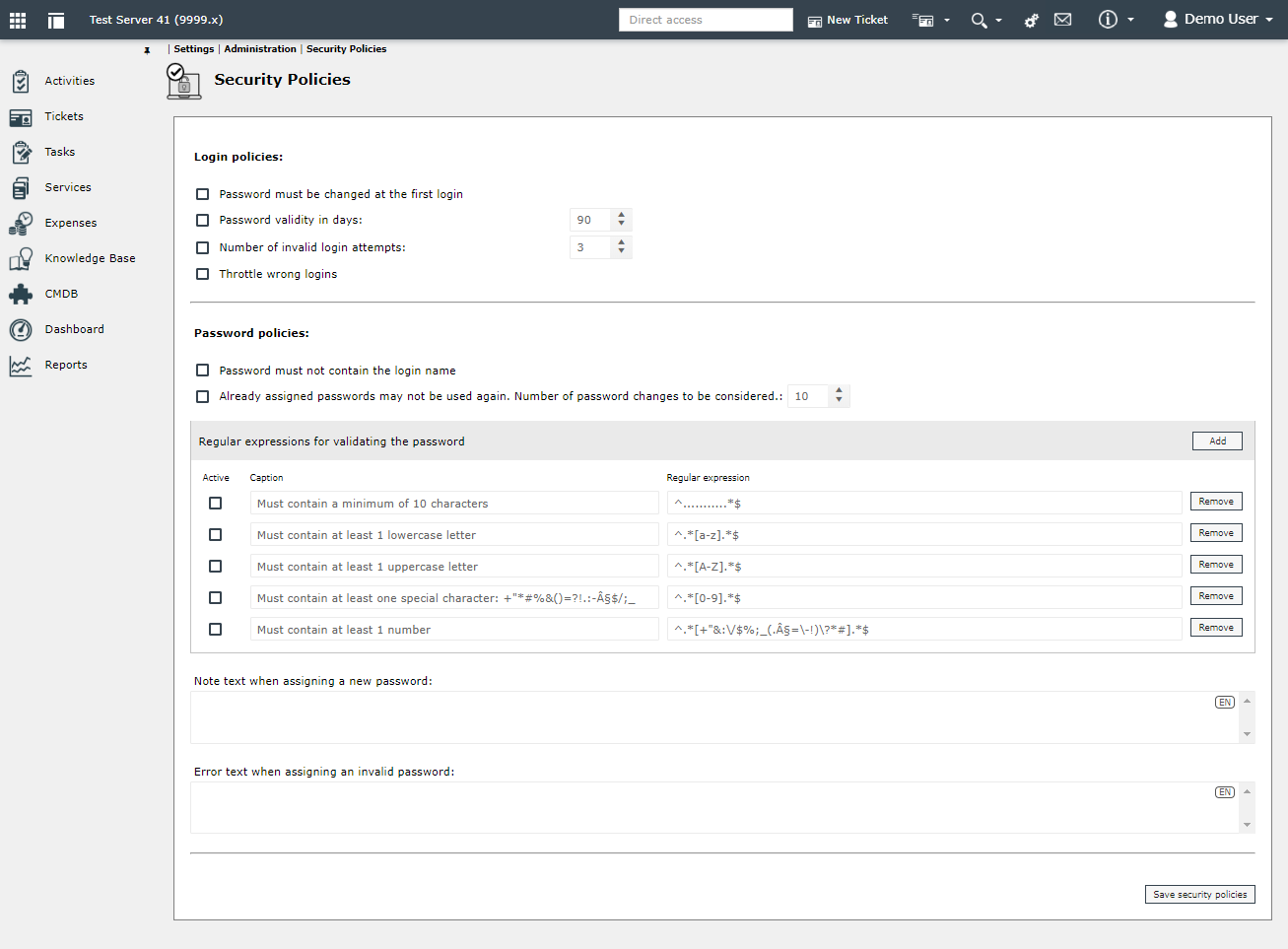
Login policies
Password must be changed at the first login: The first time you login, you will be prompted to change your password.
Password validity in days: The number of days that the password should be valid can be entered.
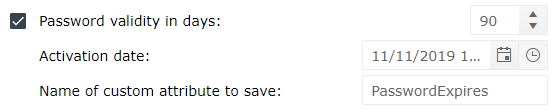
Activation date: Here you can set the activation date with the corresponding time from which the password should be valid.
Name of custom attribute to save: The name of the custom attribute with the expiration date of the password stored in the database can be entered. The attribute must be created for user in advance and can be displayed (read-only) in the user profile.
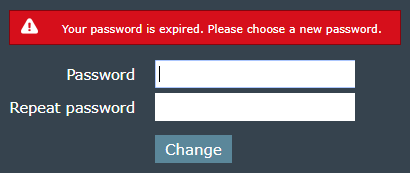
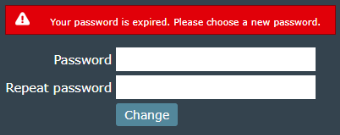
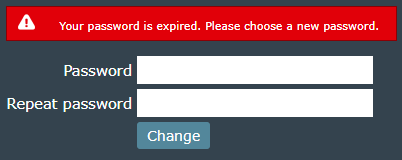
If a password is invalid, the user will receive the following message upon signing in:
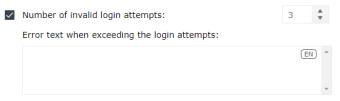
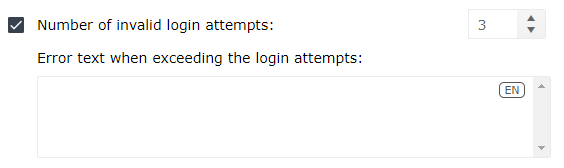
Number of invalid login attempts: The number of entries of invalid login attempts without locking must be defined here. In addition, an error text can be defined in all languages set up, which is displayed if the number of invalid attempts specified is exceeded. This message appears on every page on which a user can change his password (login page, user detail dialog, user profile dialog).
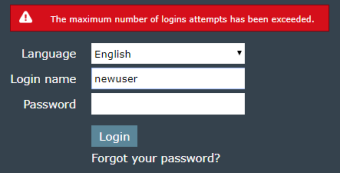
Example:
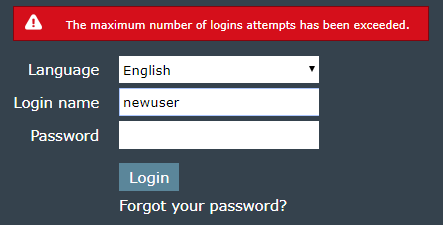
After three incorrect logins, the previously defined error text appears on the login page.
Throttle wrong logins: The throttle when entering incorrect logons can be configured at this point. The policy detects when too many logon attempts are made. If necessary, the authentication process fails and the user is blocked.
Login throttling protects the login form by blocking those users who attempt, for example with a brute force attack, to gain access to the website via the login page. This counts the number of failed login attempts. As soon as the user or attacker has reached a predefined number of failed login attempts, the user is blocked or completely blocked for a predefined time.
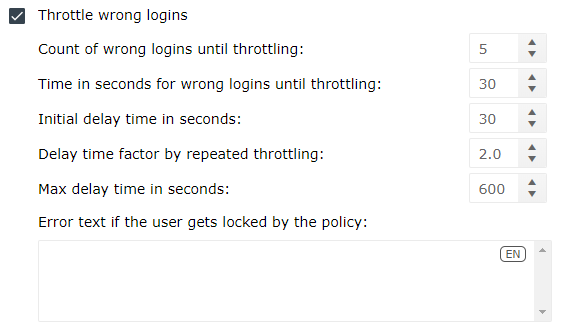
The following properties can be configured:
- Count of wrong logins until throttling
Default: 5 attempts
- Time in seconds for wrong logins until throttling
The number of failed attempts possible within the set time without throttling.
Default: 30 seconds
- Initial delay time in seconds
The initial time after throttling can be set here. Within this time, all logons are rejected (even with the correct logon name and password).
Default: 30 seconds
- Delay time factor by repeated throttling
After repeated throttling, the initial time up to the maximum delay is multiplied by this factor.
Default: 2,0
- Max delay time in seconds
Maximum value of the delay for repeated throttling.
Default: 600 seconds
- Error text if the user gets locked by the policy
An error text in all set languages can be defined, which is displayed when the user is blocked by this policy. This message appears on every page where a user can change his password (login page, user detail dialog, user profile dialog).
Password policies
Password must not contain the login name: If this option is enabled and Number of characters to be considered = 0, the user name must not be contained in the new password. Any number greater than 0 for Number of characters to be considered represents the number of characters in any substring within the user name that must not appear in the new password.
Already assigned passwords may not be used again. Number of password changes to be considered: Used passwords may not be used again. The number of changes to be considered can be set (default: 10).
Regular expressions for validating the password:
Various expressions that the password must contain can be freely added or removed.
Predefined options with expressions (recommended):
Must contain a minimum of 10 characters
(Regular expression: ^...........*$)
Must contain at least 1 lowercase letter
(Regular expression: ^.*[a-z].*$)
Must contain at least 1 uppercase letter
(Regular expression: ^.*[A-Z].*$)
Must contain at least one special character ( ) [ ] { } ? ! $ % & / = * + ~ , . ; : < > - _
(Regular expression: ^.*[+"&:\/$%;_(.§=\-!)\?*#].*$
Must contain at least 1 number
(Regular expression: ^.*[0-9].*$)
Note text when assigning a new password: A note text for the password policies can be entered. This message appears on every page where a user can change his password (login page, user detail dialog, user profile dialog).
Error text when assigning an invalid password: An error text for the password policies can be entered. This message appears on every page where a user can change his password (login page, user detail dialog, user profile dialog).
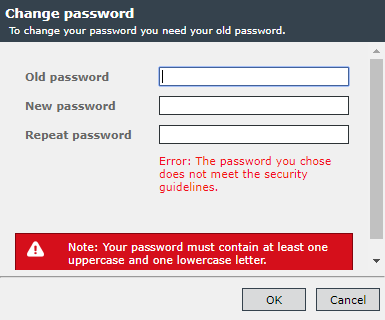
Example:
Messages when changing the password in User Management > User detail dialog:
After entering all options and values to be considered, save the configuration with the Save security policy button.


 Copyright (c) 2000-2026 Isonet AG
Security policy settings are rules that administrators configure on a computer or on multiple devices to protect resources on a device or network. Security policy settings are used as part of the overall security implementation to protect domain controllers, servers, clients, and other resources in your organization.
Security settings can control:
[Source: docs.microsoft.com]