Searching in the Expense
Above the expense overview, you will find a filter, which can be used to narrow down the expenses displayed.
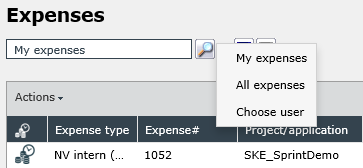
If you click directly on the text box or on the button with the magnifying glass, you have three predefined selection options:
My expenses: Displays all the expenses the logged in user has executed or, in which he has been added as a user.
All expenses: Displays all expenses of the types the logged in user has at least the right View on. This depends on the expense settings in the User Management.
Choose user: Allows for the selection of a user via a user browser in order to display expenses. The display of the expenses and expense types depends on the assigned authorizations here as well.
Next to the button with the magnifying glass, you can find two further filter buttons. The first one is used for setting a filter and the second one is used to reset an already used filter. If you click on the button with the blue funnel, the dialogue for the extended filter will open:
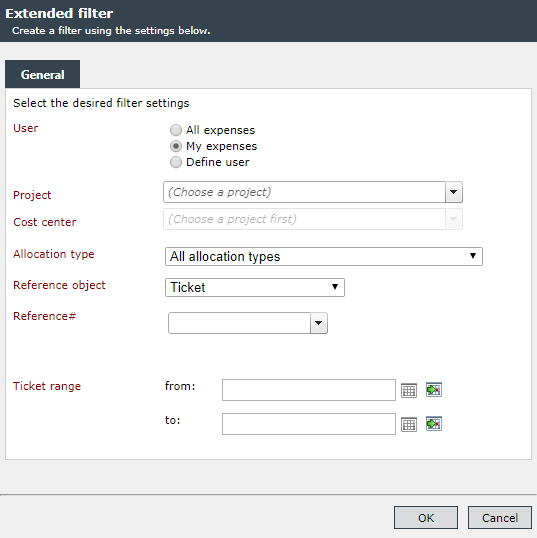
In this filter dialogue, you have the option to compile an extended filter out of various components. The available options in the dialogue are illustrated in the following table:
| Option | Description |
|---|---|
| User | Allows for the selection of one of the three standard filters |
| Project/application | Select an individual project here |
| Cost center | Select a cost center here |
| Allocation type | Select the designated allocation type |
| Reference object | Because expenses can be created from tickets and tasks, you can make a distinction between those two types of objects here |
| Reference# | Here, the number of a designated reference ticket can be specified |
| Ticket range | Allows for the filtering in a specific period |
In this dialogue, not all the fields have to be filled in with a value. Only the relevant fields for the designated filtering have to be set. Thus, you have the option to show all expenses, which have been booked on a specific project (only the option Project/Assignment has been set), or to filter the cost center additionally to the project, for example.
The Reference object filter option will only work if a reference number (e.g., a ticket number) has been specified. If the Reference# field is left blank, the filter option is ignored.


 Copyright (c) 2000-2026 Isonet AG