Test System
Warning:
The tasks described in this chapter must only be executed by an experienced database expert.
It can be helpful to keep productive data on a test system, e.g. in order to be able to test workflows effectively. Moreover, expansions of ticket schemas and other objects can be tested with productive data before the changes will be transferred onto the live system.
The following section illustrates how data can be copied from a live system onto a test system and which requirements have to be met for this.
Warning:
The master database must not be overwritten under any circumstances. It always has to remain in its original form on the respective system.
Warning:
Schedule a maintenance period for the data transfer, because the services have to be stopped on both systems.
In order to import a live database onto a test system, the following requirements have to be met.
All clients have to already exist on both systems. The ClientObjectGUIDs - i.e. the IDs of the available clients – have to be identical as well. The ClientObjectGUID(s) and the corresponding names can be read out from the master database via the following SQL statement:
SELECT ObjectGuid, FriendlyName FROM Client
Compare the results of both systems with each other. If there are any discrepancies, you should not import the databases.
The version of both 446 Plattform® instances has to be the same. In order to check this requirement, you can look up the version on the main page under the menu item Help > About.
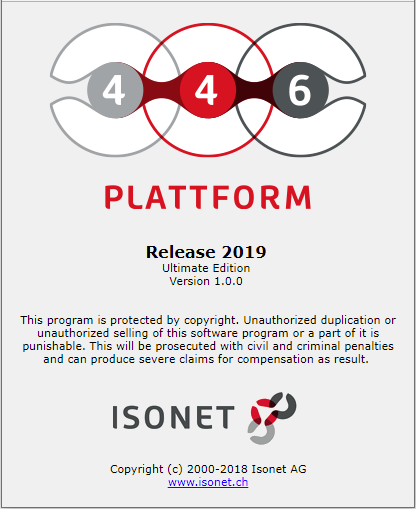
The versions of the individual databases have to be the same on both systems. This can usually be achieved by updating both systems via the same update package.
In order to compare the versions of the individual databases with each other, execute the following SQL statement on all available databases:
SELECT TOP 1 Product, [Version], Revision FROM DBVersion ORDER BY Dataid DESC
The available databases are:
- CMDB (Configuration Management)
- KB (Knowledge Management)
- LVER (Expense Management)
- SM (Security Manager)
- TM (Task Management)
- TXPE (main ticket database)
- TXP_Master (master database)
- WM (Workflow Manager)
- XpertArchive (archive database)
The names of the individual databases may differ on your system.
All Isonet services are stopped on the live system. The SQL Management Studio is then opened and a backup of all databases listed in the above list is created. After the backup of all databases has been completed, the Isonet services can be restarted on the live system and the system can be released.
Now, copy all of the backups into a local folder on the test server.
Stop all of the Isonet services on the test system as well. Open the Management Studio and import the backups into the respective databases.
If you have cloned the test system from the live system (or the other way round) during the initial installation of the system, the paths should match. If you have installed both systems independently, you have to pay attention to the paths in the backup being correct.
An important point –before you start the services – is the deactivation of the Mail2Ticket accounts. If they are not deactivated, they may access the live mailboxes when the services will be started and retrieve e-mails there and store them on the test system.
In order to deactivate the accounts, open the SQL Management Studio and navigate to the database on the test instance. Open the node Tables and subsequently navigate to the M2TAccounts table. Open the table in the Edit mode. Set the column Active to False for all lines in the table. Alternatively, you can execute the following SQL statement on the database:
UPDATE M2TAccounts SET Active = 'False'
This statement sets the field Active to False for all datasets.
The same as for workflows and ticket wizards applies here, SQL statements can be used for accessing the productive data here as well. Moreover, there are various workers working with files located on network shares. Here, it depends on the workers’ configuration, whether such files will be deleted by the agent, e.g. after an import. In this case, it is essential to deactivate the worker. (The easiest way is to remove the entire folder of the worker from the Worker directory below the agent.)
Subsequently, you can restart the Isonet services.
Warning:
Before enabling the system, it is essential to pay attention to the following sections.
In workflows, SQL statements can be used in various situations for accessing data or changing data in databases. It is not preferable to change data in live environments via a test system. Thus, you have to check in all of the workflows, whether SQL statements are used, and adjust them if necessary.
Moreover, there are plug-ins (e.g. Execute script), which can execute more than just database queries. For example, external programs can be executed here, files can be written/deleted, etc.
Among those plug-ins are the following:
-
Execute advanced we service
-
HTTP post
-
Execute script
-
Execute SQL statement (NonQuery)
-
Execute SQL statement (Select)
-
Execute web service
In the ticket wizards, SQL statements can be used as well, just like in the workflows. Usually, they are only used for accessing data and not for manipulating them in the wizard. For security reasons, however, you should check these before enabling the system as well.
Moreover, you have the option to access web services from the ticket wizard. You have to check whether these accesses have to be reconfigured for a test environment, as well.
The following controls are possible here:
-
Database query
-
Database source query
-
Multiple choice field
-
Chainable database query
-
Web service
The ticket action SQL list accesses external databases as well. Check the configuration of this ticket action for the option to manipulate data. If the options Allow inserts, Allow edit and/or Allow deleted are active, you have to deactivate the action or reconfigure it for accessing a test database.
Import configurations usually only query data from databases as well and do not manipulate it. You should, however, check them nevertheless. If these imports create a large data load on the databases, it may happen that the data cannot be imported correctly anymore, because a statement ends in a time out, when a live and a test system try to import these data simultaneously, for example.
Due to the databases now being identical with the live system, the same logos and names as in the live system appear on the login page and in the reports. In order to avoid mix-ups, you should adjust them on the test system.


 Copyright (c) 2000-2026 Isonet AG