Backup 446 Plattform®
A backup is an essential element of your data security.
The following manual thoroughly describes how to set up a backup for an 446 Plattform installation in order to be able to recover it in the worst case.
Note:
In general, it is important to ensure that there is sufficient free storage space. This applies in particular to the hard disk space for the system drives as well as for the log files and the file upload folders. If the physical SQL server maintenance is performed, there must also be sufficient free storage space available there.
A standard installation with the following parameters is assumed here:
| Folder | Physical Storage Location |
|---|---|
| Main installation folder | C:\Program Files\Isonet\ |
| Database folder | Depends on your MS SQL Server installation |
| Log folder | C:\Program Files\Isonet\Logfiles |
| Upload folder | C:\Program Files\Isonet\Uploads |
| Reporting Services database | Depends on your MS SQL Server installation |
The main installation folder contains all web pages necessary for running. Additionally, all of the Windows services are installed there.
Note on distributed environments:
In distributed environments, the web pages, web services and the Windows services can be installed on separate servers. Here, you have to execute the backup and the rollback on the respective servers.
In this document, we assume that the entire system has been installed on one server.
In the database folder, the entire application database is to be found. Thus, it contains the following databases (depending on your licensed modules):
- CMDB
- Knowledge Base
- LVER
- SecurityManager
- TM
- WorkflowManager
- XPert
- XPert_Master
- XPertArchive
In the log folder, the backup and log files created by the Isonet AG® before an update are filed.
The upload folder contains the files that have been uploaded during the use of the 446 Plattform®. These can be files, which have been previously attached to tickets, but also files that have been used to display the escalations in the ticket list, for example.
The Reporting Server database contains all reports that can be displayed with the application.
Before you can start the backup, you have to deactivate the 446 Plattform®, so that no data can be written into the database during the backup process.
Ideally, you would have an own backup plan for the SQL database and thus could be able to recover older versions as well.
.
Requirements
In order to perform a backup successfully, the following requirements have to be met.
The backup is usually stored in the sub-folder Backup (in C:\Program Files\Isonet). On principle, database backup files can only be stored locally on the database server. It is not possible to select a drive in the network for this. The same applies for the recovery.
Requirements for the Backup of Binary Files
The user logged in to the Windows system requires full access to the installation folder (default: C:\Program Files\Isonet). If another memory location is used for the backup, the full access is necessary there as well.
Requirements for the Backup/Recovery of Databases
Read and write permissions for the backup folder on the database server are necessary.
Moreover, the SQL user used requires the rights for performing backups and recovering databases.
Deactivation of 446 Plattform®
The first step in deactivating is stopping all of the services. Those are all the services beginning with Isonet.
Warning:
Please mind to stop the Logging Manager last.
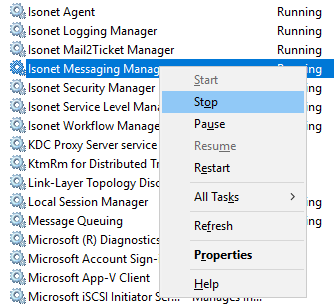
The sequence of the cancellation of the further services is not relevant.
The second step is to deactivate the respective web services in the Internet Information Manager (IIS). You can achieve this by stopping the respective application pools.
As an alternative to stopping the application pools individually, you can stop the WWW service as well, if there are no other webs installed on the server. By this, all of the web pages will be stopped.
Now, the 446 Plattform® should also be no longer accessible via the internet.
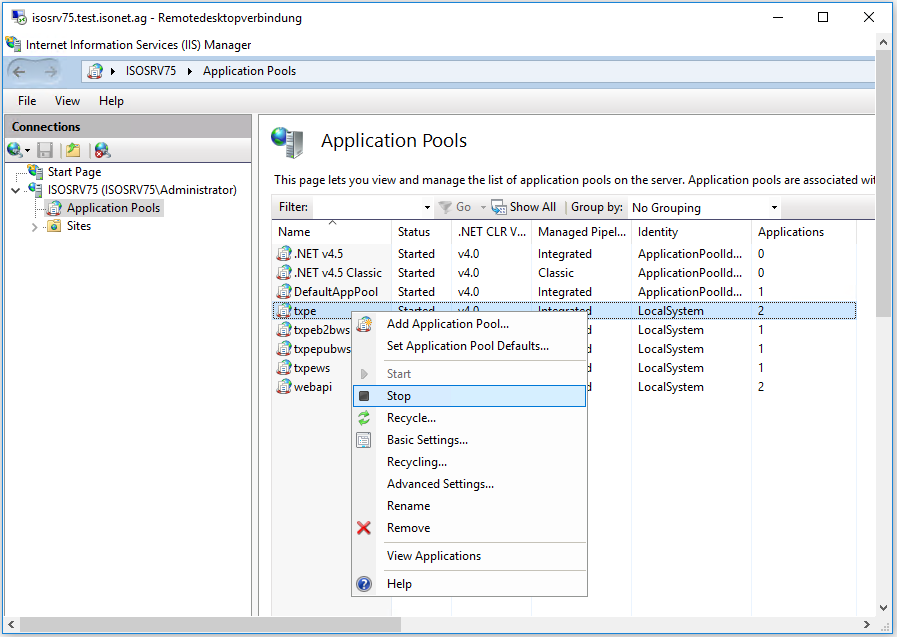
Thus, it can be ruled out that changes could be made to the existing data during the backup.
Backing up the Components of 446 Plattform®
Below, the three steps necessary for backing up are listed:
-
Back up all of the databases on principle. This prevents discrepancies during recovery that may be necessary.
-
In order to back up the folder containing the binary installation and the web pages, navigate to the path C:\Program Files\Isonet in the Windows Explorer. Select all folders except for the folders Backup and Update. Subsequently, right click on the selected objects and select Send to > Compressed (zipped) folder
Afterwards, assign a distinct name to the created ZIP file (preferably including a date) and move it to the Backup folder
The backup of the binary files is now complete.
-
Back up the file Metabase.xml from the folder C:\Windows\system32\inetsrv\. It contains all of the information on the created web pages and the application pools. Copy the file into the Backup folder, specifying the date as well.
Recovering 446 Plattform®
In order to restore, you need a completely installed Windows Server system.
The following components should be installed or accessible:
- Internet Information Service
- Message Queue Service
- MS SQL Server
- MS SQL Server Reporting Services
-
Stop all of the Isonet services, if they have been installed. Stop the Internet Information Service (WWW service) as well and copy the Metabase.xml file into the directory C:\Windows\system32\inetsrv\. Thus, you have added all of the information about the previously created web pages and application pools again. You only have to perform this step, if these settings have been lost.
- Now, recover the databases.
- Open the most current ZIP file in the Backup folder and copy its content into the installation path (default: C:\Program Files\Isonet).
-
Start the script for the installation of the services by running Installservices.bat and then ServiceDescriptions.reg. Both files are can be found in the Isonet folder. This step is only necessary, if the services are not installed correctly any more.
Now you have installed the services, restored the database and created the web pages.
Please start the application pools in the Internet Information Manager (IIS) and the services in the management console now, in this sequence:
- Isonet Logging Manager
- Isonet Security Manager
- Isonet Messaging Manger
- Isonet Workflow Manager
- Isonet Security Level Manger
- Isonet Mail2Ticket
- Isonet Agent
The 446 Plattform® has now been recovered and can be used again.
Using a Repository
In order to update installed 446 Plattform® systems, repositories can be used. There are many different repository systems available, like for example SVN, CVS, Mercurial – only to name a few. The complete installation hierarchy is initially stored in this repository and all of the file operations are performed on a separate check out point.
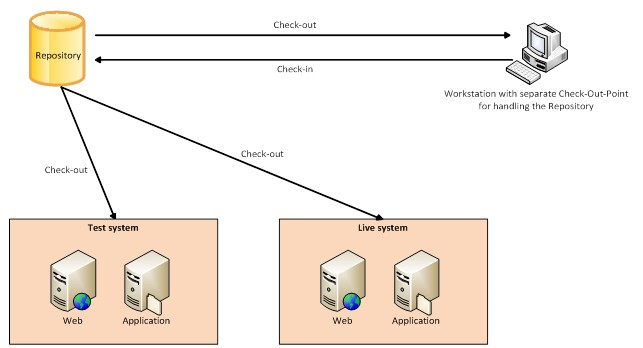
Thus, no separate backup is necessary anymore and the downtime for the actual system can be reduced to a minimum during an update, for example.
Note:
The databases will not be included when a repository is used, i.e. they have still to be backed up and recovered manually.
Recovery via a Repository
Because no backup of the binary and configuration files is necessary, the recovery via a repository is described in the following.
- Stop all of the Isonet services, if they have been installed. Stop the Internet Information Service (WWW service) as well and copy the Metabase.xml file into the directory C:\Windows\system32\inetsrv\. Thus, you have added all of the information about the previously created web pages and application pools again. You only have to perform this step, if these settings have been lost.
- Now, recover the databases.
- Update the folder C:\Program Files\Isonet\ to the last working revision from the repository. Usually, this is always the next to last one.
- Start the script for the installation of the services by running Installservices.bat and then ServiceDescriptions.reg. Both files are can be found in the Isonet folder. This step is only necessary, if the services are not installed correctly any more.
Now you have installed the services, restored the database and created the web pages.
Please start the application pools in the Internet Information Manager (IIS) and the services in the management console now, in this sequence:
- Isonet Logging Manager
- Isonet Security Manager
- Isonet Messaging Manger
- Isonet Workflow Manager
- Isonet Security Level Manger
- Isonet Mail2Ticket
- Isonet Agent
The 446 Plattform® has now been recovered and can be used again.


 Copyright (c) 2000-2026 Isonet AG